> ## Documentation Index
> Fetch the complete documentation index at: https://docs.rulebase.co/llms.txt
> Use this file to discover all available pages before exploring further.
# Create and manage roles
> Build a custom role with exactly the permissions you intend, then edit, clone, or delete it as responsibilities change.
A role is the bundle of permissions someone carries around Rulebase. The system
roles that ship with every organization cover the usual shapes (an administrator
who owns everything, an agent who only sees their own work), but real teams have
people in between: a validator who reviews manual evaluations without touching member
settings, or a knowledge owner who maintains scorecards. Build a custom role for
those.
 ## Before you start
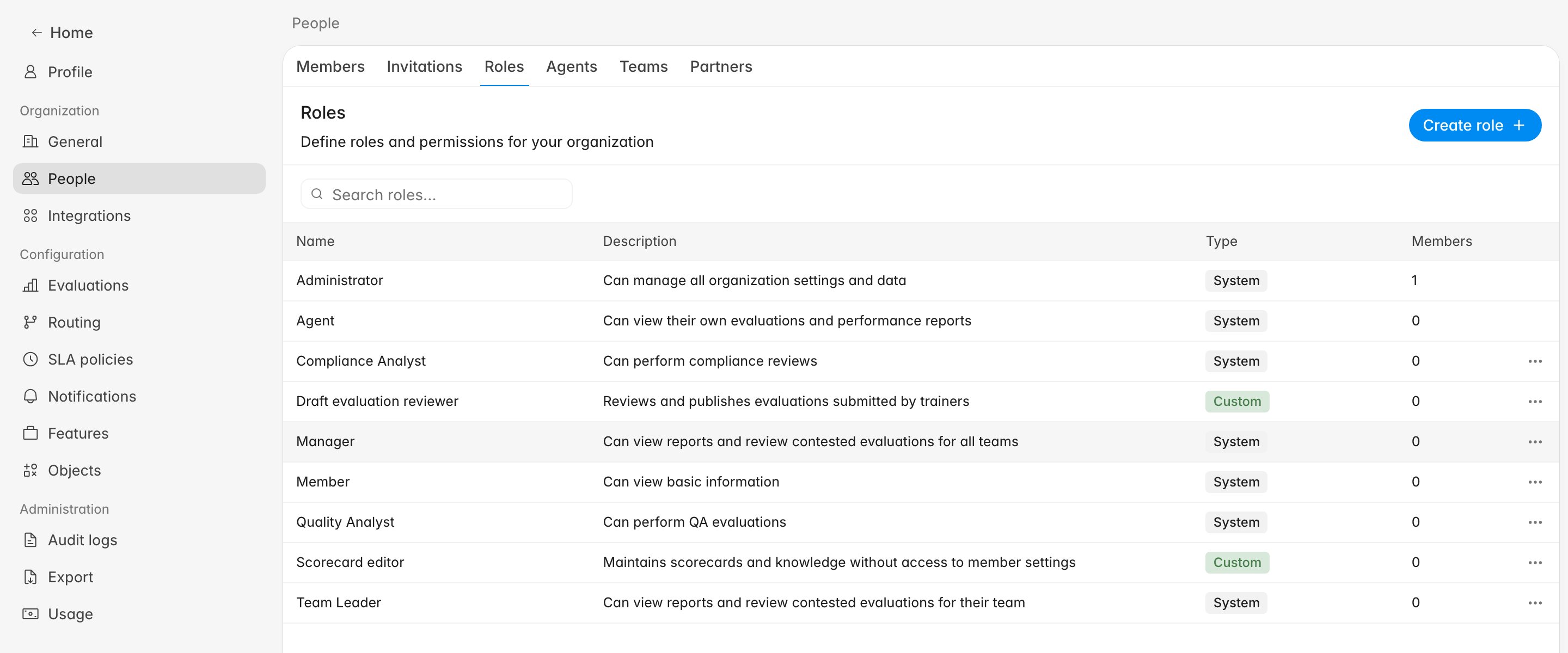
* Roles live on the **Roles** tab of
[Settings > People](https://app.rulebase.co/settings/people/roles), alongside
Members, Invitations, Agents, Teams, and Partners.
* You need the **Manage organization members and their roles** permission to
create, edit, clone, or delete roles. Without it, the management controls are
hidden.
* A custom role needs a name and at least one permission. Rulebase blocks the save
otherwise.
* For what each permission grants, keep
[Roles and permissions](/guides/roles-and-permissions) open in a second tab.
## System roles and custom roles
The **Type** column tells you which kind of role you have and what you can do to
it. System roles are Rulebase's defaults, shared by every organization and
read-only. Open one and the dialog shows `System roles cannot be modified` with
every field greyed out. Custom roles belong to your organization alone.
| | System | Custom |
| --------------------------------- | ------------------------------------------- | -------- |
| Who creates it | Ships with Rulebase | You do |
| Name, description, permissions | Read-only | Editable |
| Can be deleted | No | Yes |
| Can be cloned as a starting point | Yes, except **Administrator** and **Agent** | Yes |
Most custom roles are a system role plus or minus one thing, so cloning **Quality
Analyst** and unchecking a box beats building a permission set from scratch.
## Create a custom role
1. Go to [Settings > People > Roles](https://app.rulebase.co/settings/people/roles).
2. Click **Create role**.
3. Enter a **Name**, like `Evaluation validator` or `Scorecard editor`. This
is what people pick from when assigning roles later.
4. Add a **Description**. Optional, but it becomes the Description column and the
only hint colleagues get about why the role exists.
5. Under **Permissions**, check what the role should be able to do.
6. Click **Create role**.
## Before you start
* Roles live on the **Roles** tab of
[Settings > People](https://app.rulebase.co/settings/people/roles), alongside
Members, Invitations, Agents, Teams, and Partners.
* You need the **Manage organization members and their roles** permission to
create, edit, clone, or delete roles. Without it, the management controls are
hidden.
* A custom role needs a name and at least one permission. Rulebase blocks the save
otherwise.
* For what each permission grants, keep
[Roles and permissions](/guides/roles-and-permissions) open in a second tab.
## System roles and custom roles
The **Type** column tells you which kind of role you have and what you can do to
it. System roles are Rulebase's defaults, shared by every organization and
read-only. Open one and the dialog shows `System roles cannot be modified` with
every field greyed out. Custom roles belong to your organization alone.
| | System | Custom |
| --------------------------------- | ------------------------------------------- | -------- |
| Who creates it | Ships with Rulebase | You do |
| Name, description, permissions | Read-only | Editable |
| Can be deleted | No | Yes |
| Can be cloned as a starting point | Yes, except **Administrator** and **Agent** | Yes |
Most custom roles are a system role plus or minus one thing, so cloning **Quality
Analyst** and unchecking a box beats building a permission set from scratch.
## Create a custom role
1. Go to [Settings > People > Roles](https://app.rulebase.co/settings/people/roles).
2. Click **Create role**.
3. Enter a **Name**, like `Evaluation validator` or `Scorecard editor`. This
is what people pick from when assigning roles later.
4. Add a **Description**. Optional, but it becomes the Description column and the
only hint colleagues get about why the role exists.
5. Under **Permissions**, check what the role should be able to do.
6. Click **Create role**.
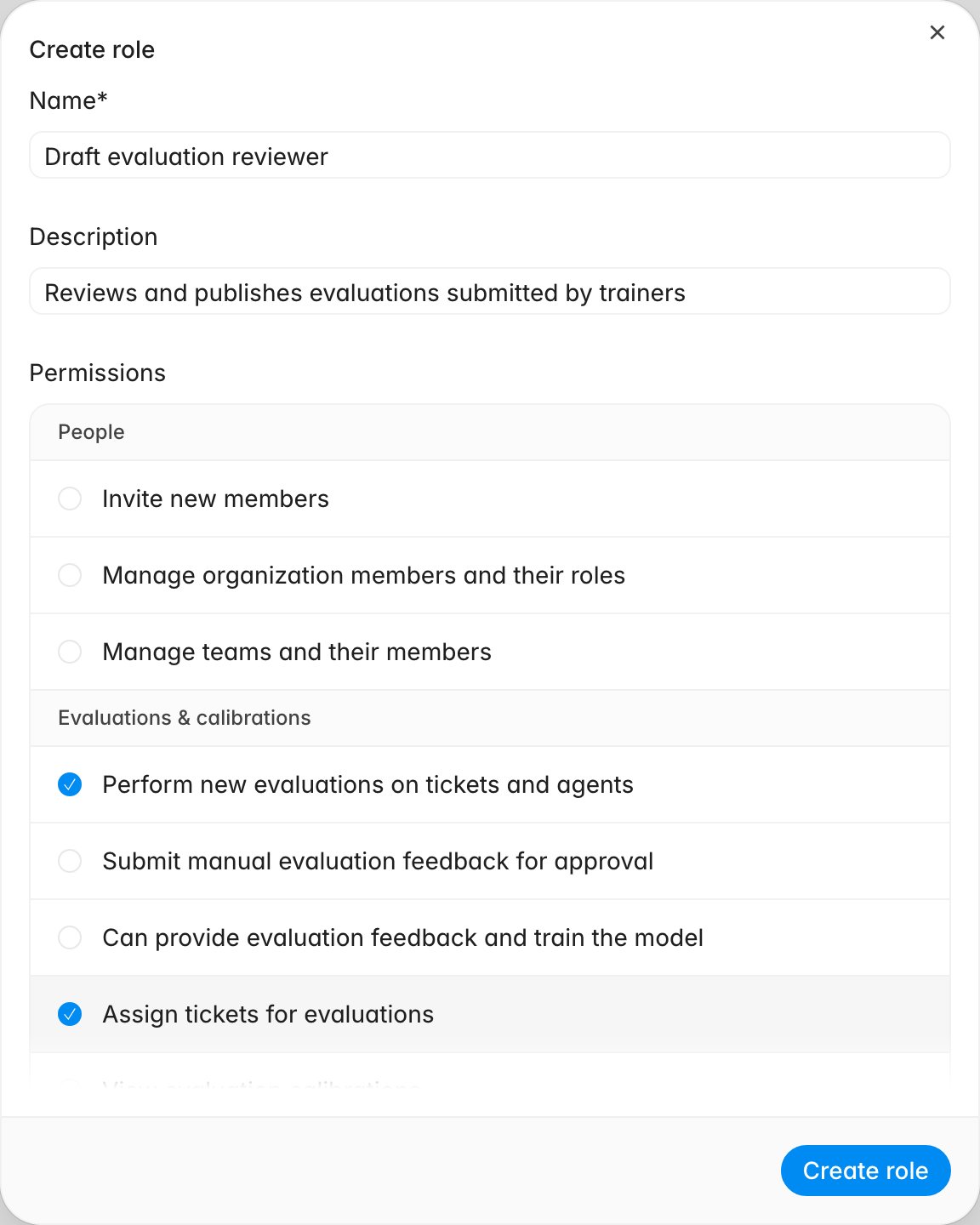 The role appears immediately with a **Custom** badge and zero members. It affects
access only once you assign it to someone.
## Choose permissions deliberately
The **Permissions** checklist is grouped by area:
* **People**: inviting members, managing members and their roles, and managing
teams. Grant only to people who should be able to change who has access.
* **Evaluations & calibrations**: performing evaluations, submitting manual
feedback for approval, training the model with feedback, assigning tickets,
viewing calibrations, and accessing all conversation risk snapshots. That last
one is the only permission separating the `Quality Analyst` and `Compliance
Analyst` system roles.
* **Knowledge & scorecards**: maintaining scorecards and knowledge base content.
* **Insights**: organization-wide reports and analytics, and viewing agents with
their performance reports.
* **Settings & integrations**: organization settings and connections to systems
like Zendesk and Intercom.
* **Agents**: viewing, running, and building AI agents.
* **Instruct**: reading and using Instruct chat.
Build the role around the narrowest job it has to do. A reviewer who approves
submitted evaluations wants **Evaluations & calibrations**, and probably
**Insights** to see trends. Do not add **People**; that group lets someone change
roles, including their own.
The **Agents** permission group refers to the AI agents you build under
[Home > Agents](https://app.rulebase.co/home/agents). For the support reps on your
QA roster, visibility comes from **View agents and performance reports** in the
**Insights** group.
## Assign the role to people
Assignment happens on a different tab,
[Settings > People > Members](https://app.rulebase.co/settings/people/members).
Two ways to apply it:
* **One person:** click their row to open **Edit membership**, choose the role
from the **Role** dropdown, and click **Save changes**.
* **A group:** select their row checkboxes, click **Update role** in the floating
action bar, then pick the role once and apply it to everyone selected.
New hires can skip this. The [invite
dialog](/guides/access-management/invite-members) assigns a role in the invitation.
The **Members** count on the roles table confirms it landed; filtering the Members
tab by **Role** shows exactly who carries a role before you change or delete it.
Every role change is recorded. To see who widened access and when,
[Settings > Audit logs](https://app.rulebase.co/settings/audit-logs) lists
**Created Role**, **Updated Role**, and **Deleted Role** events alongside member
changes.
## Edit, clone, and delete roles
Management happens from the roles table. Clicking a row opens the role for
editing; the overflow menu at the end of each row holds Clone and Delete.
The role appears immediately with a **Custom** badge and zero members. It affects
access only once you assign it to someone.
## Choose permissions deliberately
The **Permissions** checklist is grouped by area:
* **People**: inviting members, managing members and their roles, and managing
teams. Grant only to people who should be able to change who has access.
* **Evaluations & calibrations**: performing evaluations, submitting manual
feedback for approval, training the model with feedback, assigning tickets,
viewing calibrations, and accessing all conversation risk snapshots. That last
one is the only permission separating the `Quality Analyst` and `Compliance
Analyst` system roles.
* **Knowledge & scorecards**: maintaining scorecards and knowledge base content.
* **Insights**: organization-wide reports and analytics, and viewing agents with
their performance reports.
* **Settings & integrations**: organization settings and connections to systems
like Zendesk and Intercom.
* **Agents**: viewing, running, and building AI agents.
* **Instruct**: reading and using Instruct chat.
Build the role around the narrowest job it has to do. A reviewer who approves
submitted evaluations wants **Evaluations & calibrations**, and probably
**Insights** to see trends. Do not add **People**; that group lets someone change
roles, including their own.
The **Agents** permission group refers to the AI agents you build under
[Home > Agents](https://app.rulebase.co/home/agents). For the support reps on your
QA roster, visibility comes from **View agents and performance reports** in the
**Insights** group.
## Assign the role to people
Assignment happens on a different tab,
[Settings > People > Members](https://app.rulebase.co/settings/people/members).
Two ways to apply it:
* **One person:** click their row to open **Edit membership**, choose the role
from the **Role** dropdown, and click **Save changes**.
* **A group:** select their row checkboxes, click **Update role** in the floating
action bar, then pick the role once and apply it to everyone selected.
New hires can skip this. The [invite
dialog](/guides/access-management/invite-members) assigns a role in the invitation.
The **Members** count on the roles table confirms it landed; filtering the Members
tab by **Role** shows exactly who carries a role before you change or delete it.
Every role change is recorded. To see who widened access and when,
[Settings > Audit logs](https://app.rulebase.co/settings/audit-logs) lists
**Created Role**, **Updated Role**, and **Deleted Role** events alongside member
changes.
## Edit, clone, and delete roles
Management happens from the roles table. Clicking a row opens the role for
editing; the overflow menu at the end of each row holds Clone and Delete.
 ### Edit a role
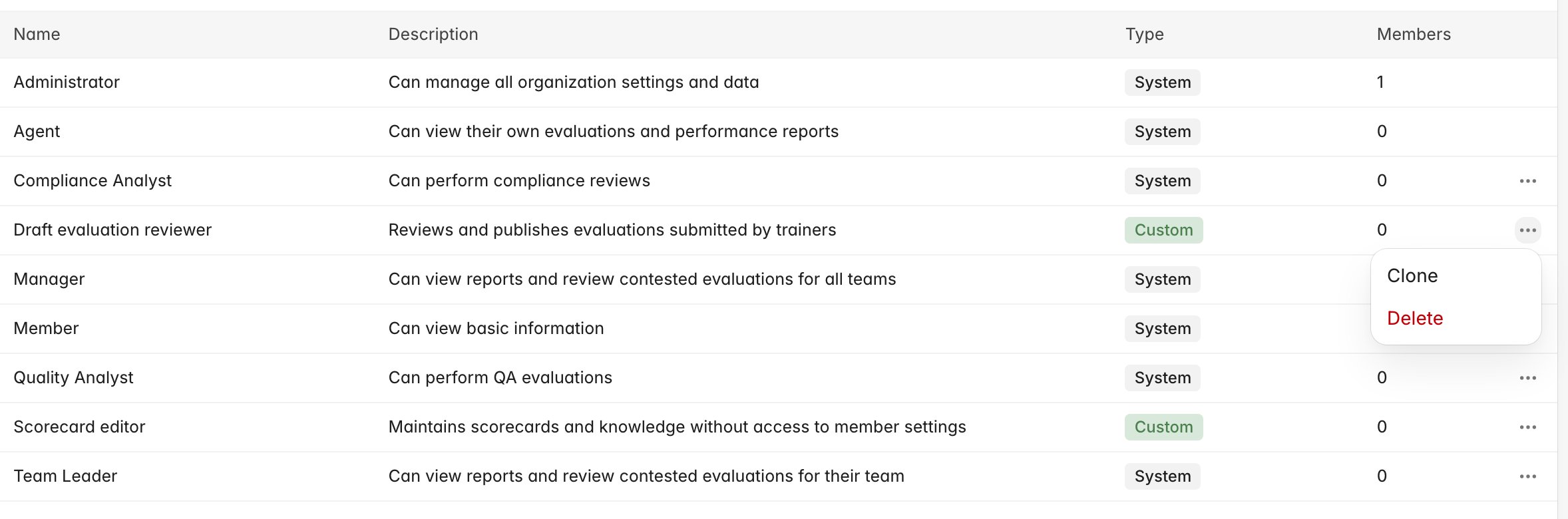
1. Click the role's row to open **Edit role**.
2. Change the **Name**, **Description**, or any permission checkbox.
3. Click **Save changes**.
**Save changes** stays disabled until you change something. Removing a permission
takes it from every member at once, so check the **Members** count first if the
role is widely used.
### Edit a role
1. Click the role's row to open **Edit role**.
2. Change the **Name**, **Description**, or any permission checkbox.
3. Click **Save changes**.
**Save changes** stays disabled until you change something. Removing a permission
takes it from every member at once, so check the **Members** count first if the
role is widely used.
 ### Clone a role
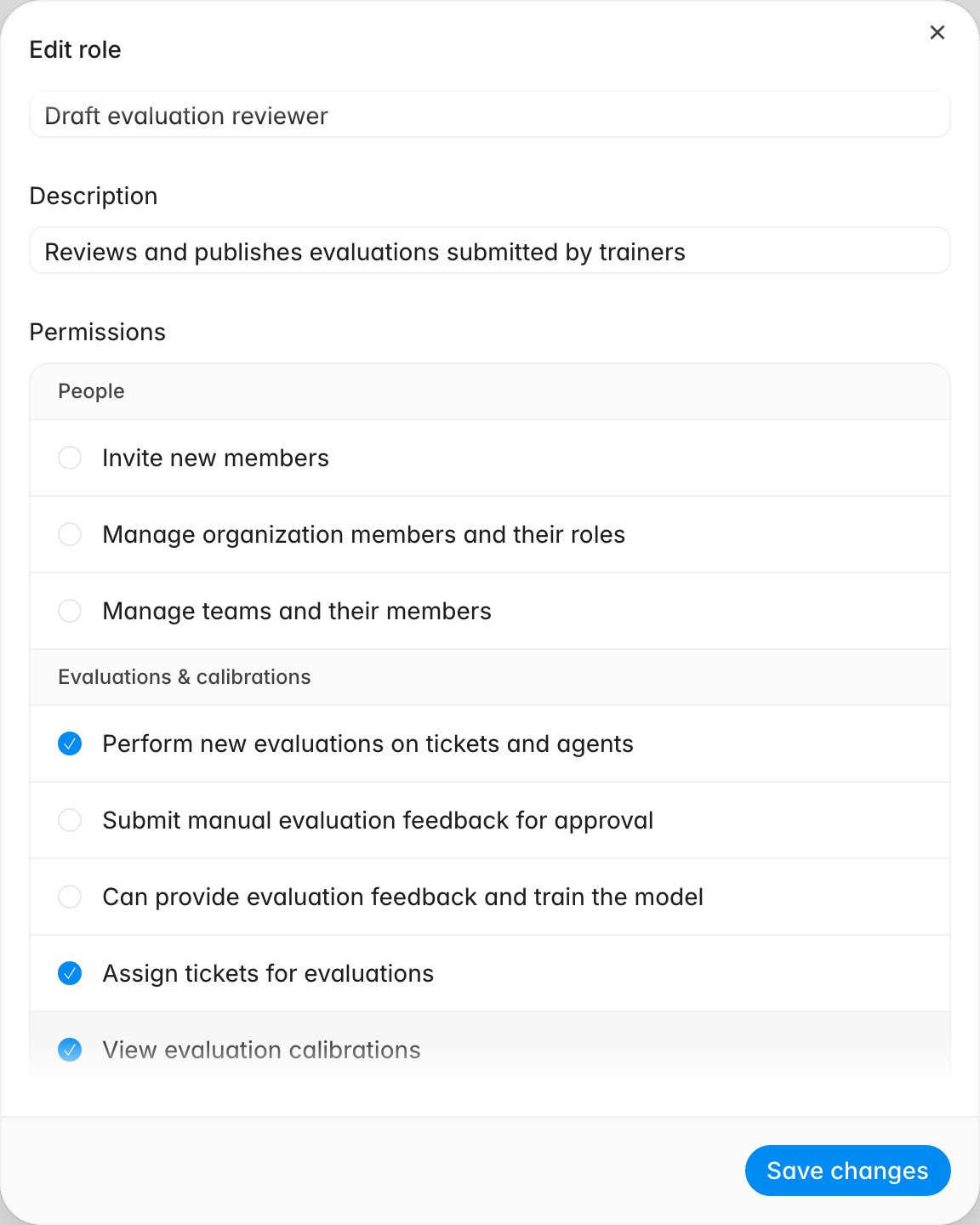
Open the overflow menu on the role to copy and choose **Clone**. The **Create
role** dialog opens prefilled with the original's permissions and a name ending in
`(Copy)`. Rename it, adjust the checkboxes, and save; the original is untouched.
This is the fastest way to build a variant of a system role, which cannot be edited
directly.
### Delete a role
1. Open the overflow menu on a custom role.
2. Click **Delete**.
3. Read the confirmation, then click **Delete**.
### Clone a role
Open the overflow menu on the role to copy and choose **Clone**. The **Create
role** dialog opens prefilled with the original's permissions and a name ending in
`(Copy)`. Rename it, adjust the checkboxes, and save; the original is untouched.
This is the fastest way to build a variant of a system role, which cannot be edited
directly.
### Delete a role
1. Open the overflow menu on a custom role.
2. Click **Delete**.
3. Read the confirmation, then click **Delete**.
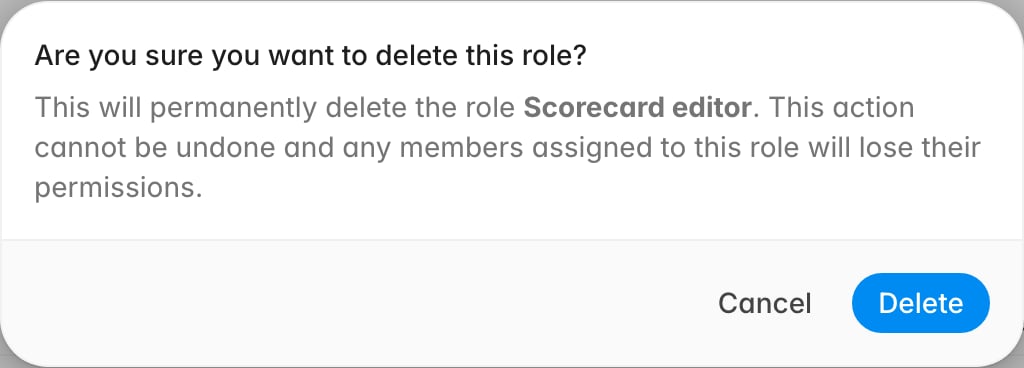 Deleting cannot be undone, and Rulebase will not stop you deleting a role that
still has members. Move those people first: check the **Members** count and
reassign anyone on the Members tab. The **Delete** option does not appear for
system roles.
## Confirm the role does what you intended
Before handing a new role to a group:
* The **Type** column shows **Custom**.
* The description reads like something someone else could act on.
* Reopening the role shows exactly the permissions you meant to grant.
* The **Members** count matches the number you assigned.
* A holder can reach the screens they need. If something is missing, the
permission that covers it is named in
[Roles and permissions](/guides/roles-and-permissions).
## Related
* [Roles and permissions](/guides/roles-and-permissions)
* [Invite members](/guides/access-management/invite-members)
* [Create and manage teams](/guides/access-management/create-and-manage-teams)
* [Manage the QA agent roster](/guides/quality-assurance/manage-agent-roster)
* [Identity provider role assignment](/guides/identity-provider-role-assignment)
* [Rulebase glossary](/guides/concepts/glossary)
Deleting cannot be undone, and Rulebase will not stop you deleting a role that
still has members. Move those people first: check the **Members** count and
reassign anyone on the Members tab. The **Delete** option does not appear for
system roles.
## Confirm the role does what you intended
Before handing a new role to a group:
* The **Type** column shows **Custom**.
* The description reads like something someone else could act on.
* Reopening the role shows exactly the permissions you meant to grant.
* The **Members** count matches the number you assigned.
* A holder can reach the screens they need. If something is missing, the
permission that covers it is named in
[Roles and permissions](/guides/roles-and-permissions).
## Related
* [Roles and permissions](/guides/roles-and-permissions)
* [Invite members](/guides/access-management/invite-members)
* [Create and manage teams](/guides/access-management/create-and-manage-teams)
* [Manage the QA agent roster](/guides/quality-assurance/manage-agent-roster)
* [Identity provider role assignment](/guides/identity-provider-role-assignment)
* [Rulebase glossary](/guides/concepts/glossary)