> ## Documentation Index
> Fetch the complete documentation index at: https://docs.rulebase.co/llms.txt
> Use this file to discover all available pages before exploring further.
# Create and manage teams
> Group agents into teams with a lead and use them for QA reporting, roster management, and coaching.
Teams are how you organize agents for QA reporting and coaching. Each team has a
name, an optional team lead, and a list of agents. When you filter Insights
dashboards or run QA reports by team, the grouping comes from here.
 ## Before you start
* You need the **Manage teams and their members** permission, which
`Administrator`, `Manager`, and `Team Leader` hold. It covers creating,
renaming, and deleting a team, assigning a lead, and importing agents from
CSV. See [Roles and permissions](/guides/roles-and-permissions).
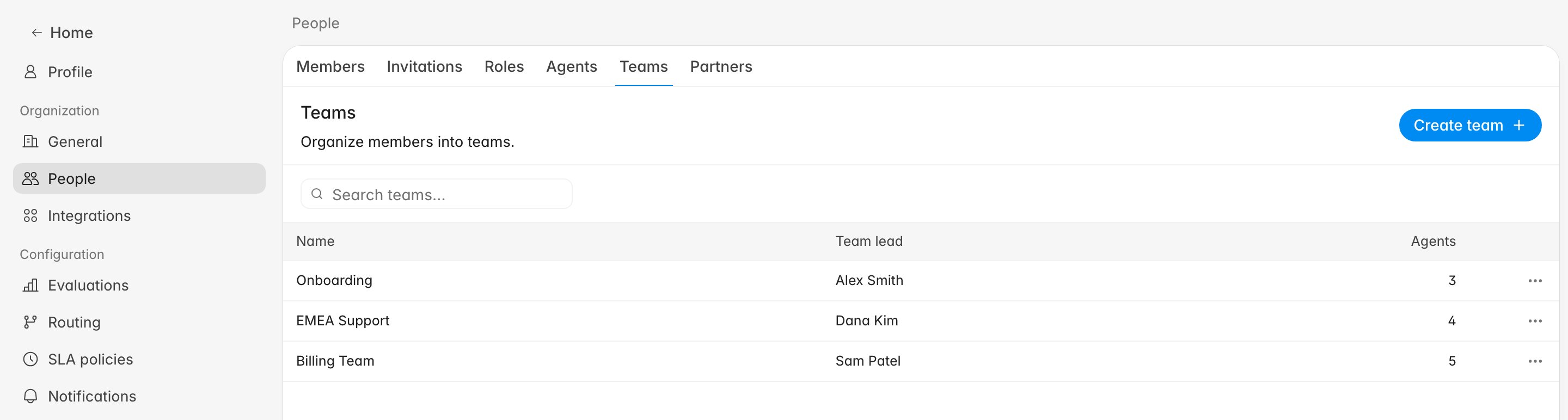
* Teams live at
[Settings > People > Teams](https://app.rulebase.co/settings/people/teams).
* Agents must already exist in Rulebase. If they haven't been added yet,
[invite them](/guides/access-management/invite-members) or import them through
the [Agents](https://app.rulebase.co/settings/people/employees) page first.
## Create a team
1. Go to [Settings > People > Teams](https://app.rulebase.co/settings/people/teams).
2. Click **Create team**.
3. Enter a **Name** your organization will recognize in reports and
filters, like `Billing Team` or `EMEA Support`.
4. Click **Create team**.
## Before you start
* You need the **Manage teams and their members** permission, which
`Administrator`, `Manager`, and `Team Leader` hold. It covers creating,
renaming, and deleting a team, assigning a lead, and importing agents from
CSV. See [Roles and permissions](/guides/roles-and-permissions).
* Teams live at
[Settings > People > Teams](https://app.rulebase.co/settings/people/teams).
* Agents must already exist in Rulebase. If they haven't been added yet,
[invite them](/guides/access-management/invite-members) or import them through
the [Agents](https://app.rulebase.co/settings/people/employees) page first.
## Create a team
1. Go to [Settings > People > Teams](https://app.rulebase.co/settings/people/teams).
2. Click **Create team**.
3. Enter a **Name** your organization will recognize in reports and
filters, like `Billing Team` or `EMEA Support`.
4. Click **Create team**.
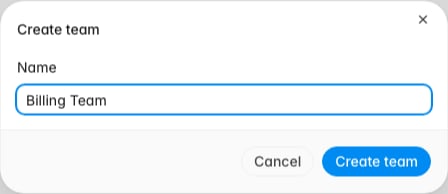 The new team appears in the teams table. It starts empty; open it to assign a
lead and add agents.
## Set up the team detail page
Click a team name to open its detail page. This is where you do the day-to-day
management: assigning a lead, adding agents, and reviewing who's on the roster.
The new team appears in the teams table. It starts empty; open it to assign a
lead and add agents.
## Set up the team detail page
Click a team name to open its detail page. This is where you do the day-to-day
management: assigning a lead, adding agents, and reviewing who's on the roster.
 ### Assign a team lead
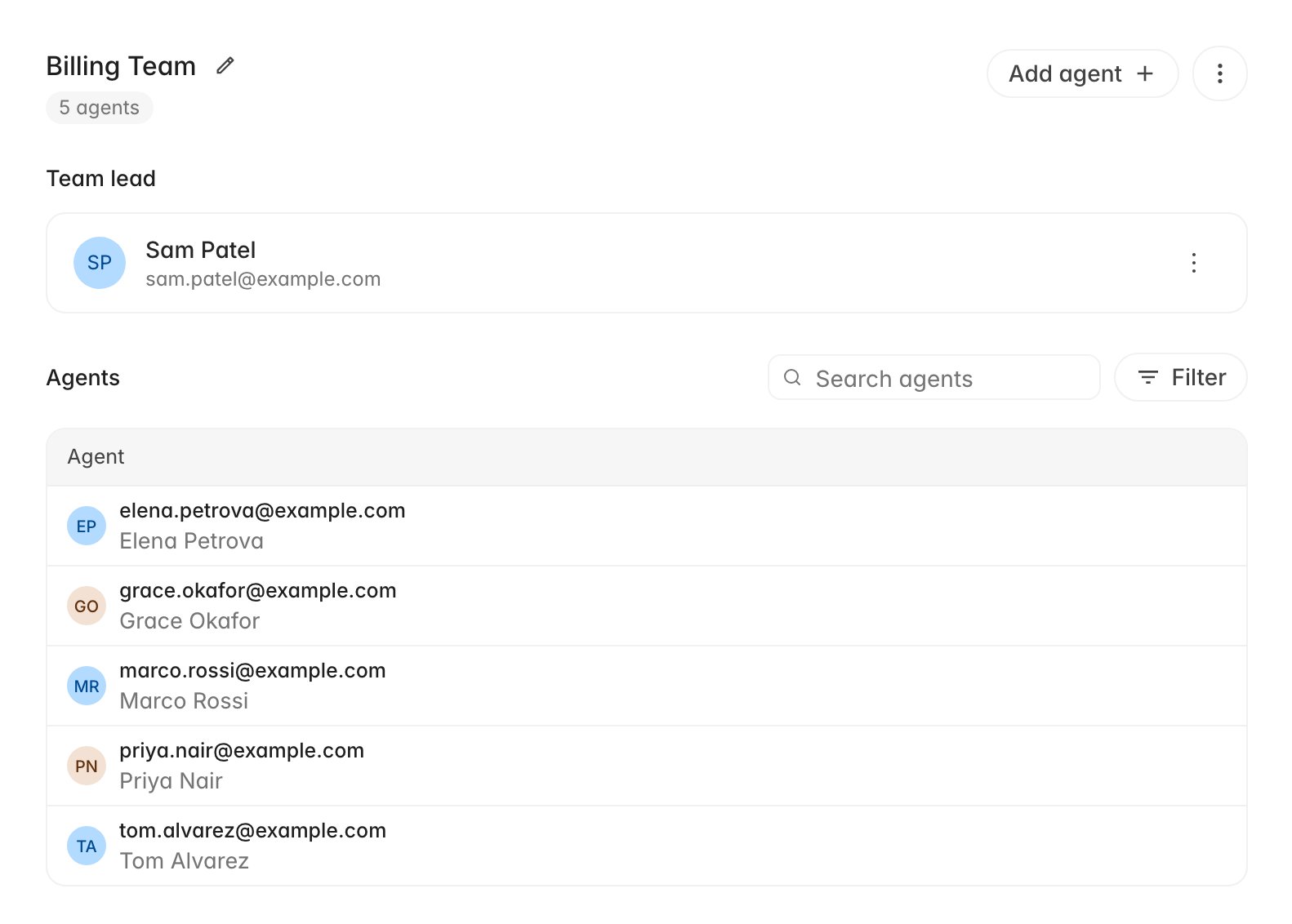
On a team with no lead yet, the **Team lead** section is an "Add team lead /
Assign a member to lead this team" prompt. Click it, search for a member by name,
and select them. The lead then shows with their name and email, as in the image
above, and the overflow menu on their row offers **Change team lead** and
**Remove team lead**.
The lead must be a member of the same organization. Once set, they travel with
the team into QA evaluation exports, so the export can show who was responsible
for each evaluated agent.
### Add agents
Click **Add agent** at the top of the detail page. A search dropdown appears
listing agents who aren't already on this team. Select one and they join
immediately.
For larger moves, use **Import from CSV** in the overflow menu (the three-dot
icon next to **Add agent**). The CSV needs a single `email` column, and
**Download template** in the dialog gives you a correctly formatted starting
file. Rulebase matches each row to an existing agent; any email it cannot match
comes back as a row-level error such as `No agent found with email …`, and the
rest of the file still imports.
Assigning an agent to a team also marks them evaluable, which puts them into
future QA evaluations and performance reports. If you are adding someone who
should not yet be scored, adjust them on the
[Agents](https://app.rulebase.co/settings/people/employees) page after the import.
An agent belongs to one team at a time, so adding them here moves them off
whichever team they were on before. To reassign many agents at once, the
[agent roster](/guides/quality-assurance/manage-agent-roster) has a **Change
team** bulk action that is faster than opening each team in turn.
### Remove agents and rename the team
Each agent row in the Agents table has an overflow menu with a **Remove** option.
Removing an agent takes them off the team but does not deactivate them; they
remain in Rulebase and can be added to another team.
To rename the team, click the pencil icon next to the team name in the header.
To delete the team entirely, open the overflow menu next to **Add agent** and
choose **Delete team**. Deleting a team does not delete its agents. They are left
without a team until you assign them to another one.
## How teams appear elsewhere
Once a team has agents, the grouping shows up across the product:
| Where | What the team does there |
| ------------------------------------------------------------------ | ------------------------------------------------------------------------- |
| [Insights > Teams](https://app.rulebase.co/insights/teams) | Browse performance by team, then drill into an individual agent |
| [Agents roster](https://app.rulebase.co/settings/people/employees) | Filter the roster by team and move agents between teams in bulk |
| Coaching simulations | Filter the agent list by team when choosing who to assign a simulation to |
| QA evaluation exports | Each evaluated agent's team and team lead are included in the export |
An agent left on the wrong team lands in the wrong export rows and the wrong
performance view, so re-check membership whenever your org structure shifts.
## Related
* [Invite members](/guides/access-management/invite-members)
* [Manage the QA agent roster](/guides/quality-assurance/manage-agent-roster)
* [Export QA evaluation data](/guides/quality-assurance/export-qa-evaluations)
* [Roles and permissions](/guides/roles-and-permissions)
* [Rulebase glossary](/guides/concepts/glossary)
### Assign a team lead
On a team with no lead yet, the **Team lead** section is an "Add team lead /
Assign a member to lead this team" prompt. Click it, search for a member by name,
and select them. The lead then shows with their name and email, as in the image
above, and the overflow menu on their row offers **Change team lead** and
**Remove team lead**.
The lead must be a member of the same organization. Once set, they travel with
the team into QA evaluation exports, so the export can show who was responsible
for each evaluated agent.
### Add agents
Click **Add agent** at the top of the detail page. A search dropdown appears
listing agents who aren't already on this team. Select one and they join
immediately.
For larger moves, use **Import from CSV** in the overflow menu (the three-dot
icon next to **Add agent**). The CSV needs a single `email` column, and
**Download template** in the dialog gives you a correctly formatted starting
file. Rulebase matches each row to an existing agent; any email it cannot match
comes back as a row-level error such as `No agent found with email …`, and the
rest of the file still imports.
Assigning an agent to a team also marks them evaluable, which puts them into
future QA evaluations and performance reports. If you are adding someone who
should not yet be scored, adjust them on the
[Agents](https://app.rulebase.co/settings/people/employees) page after the import.
An agent belongs to one team at a time, so adding them here moves them off
whichever team they were on before. To reassign many agents at once, the
[agent roster](/guides/quality-assurance/manage-agent-roster) has a **Change
team** bulk action that is faster than opening each team in turn.
### Remove agents and rename the team
Each agent row in the Agents table has an overflow menu with a **Remove** option.
Removing an agent takes them off the team but does not deactivate them; they
remain in Rulebase and can be added to another team.
To rename the team, click the pencil icon next to the team name in the header.
To delete the team entirely, open the overflow menu next to **Add agent** and
choose **Delete team**. Deleting a team does not delete its agents. They are left
without a team until you assign them to another one.
## How teams appear elsewhere
Once a team has agents, the grouping shows up across the product:
| Where | What the team does there |
| ------------------------------------------------------------------ | ------------------------------------------------------------------------- |
| [Insights > Teams](https://app.rulebase.co/insights/teams) | Browse performance by team, then drill into an individual agent |
| [Agents roster](https://app.rulebase.co/settings/people/employees) | Filter the roster by team and move agents between teams in bulk |
| Coaching simulations | Filter the agent list by team when choosing who to assign a simulation to |
| QA evaluation exports | Each evaluated agent's team and team lead are included in the export |
An agent left on the wrong team lands in the wrong export rows and the wrong
performance view, so re-check membership whenever your org structure shifts.
## Related
* [Invite members](/guides/access-management/invite-members)
* [Manage the QA agent roster](/guides/quality-assurance/manage-agent-roster)
* [Export QA evaluation data](/guides/quality-assurance/export-qa-evaluations)
* [Roles and permissions](/guides/roles-and-permissions)
* [Rulebase glossary](/guides/concepts/glossary)