> ## Documentation Index
> Fetch the complete documentation index at: https://docs.rulebase.co/llms.txt
> Use this file to discover all available pages before exploring further.
# Complete learning assignments
> Find the practice conversations assigned to you, work through one, and understand how scoring and retries work.
A learning assignment is a practice conversation. Rulebase plays a customer working
through a scenario your team wants you to rehearse (a refund that is not
straightforward, a verification someone is pushing back on) and you handle it the
way you would handle a real ticket. When it ends, you get a report on how it went.
Nothing here touches a real customer, and the score does not go into your QA
average. It is practice for the awkward version of the conversation before you meet it
live.
**Learning** only appears when you have at least one assignment. If you cannot see
the tab, nothing has been assigned to you yet, or your organization does not use
coaching simulations.
## Find your assignments
Open your [performance overview](https://app.rulebase.co/agent/summary) and look at
the card on the left, below your name. Switch from **Coaching** to **Learning**.
Each assignment is a card with a status, the scenario title, and how long the
practice is expected to take.
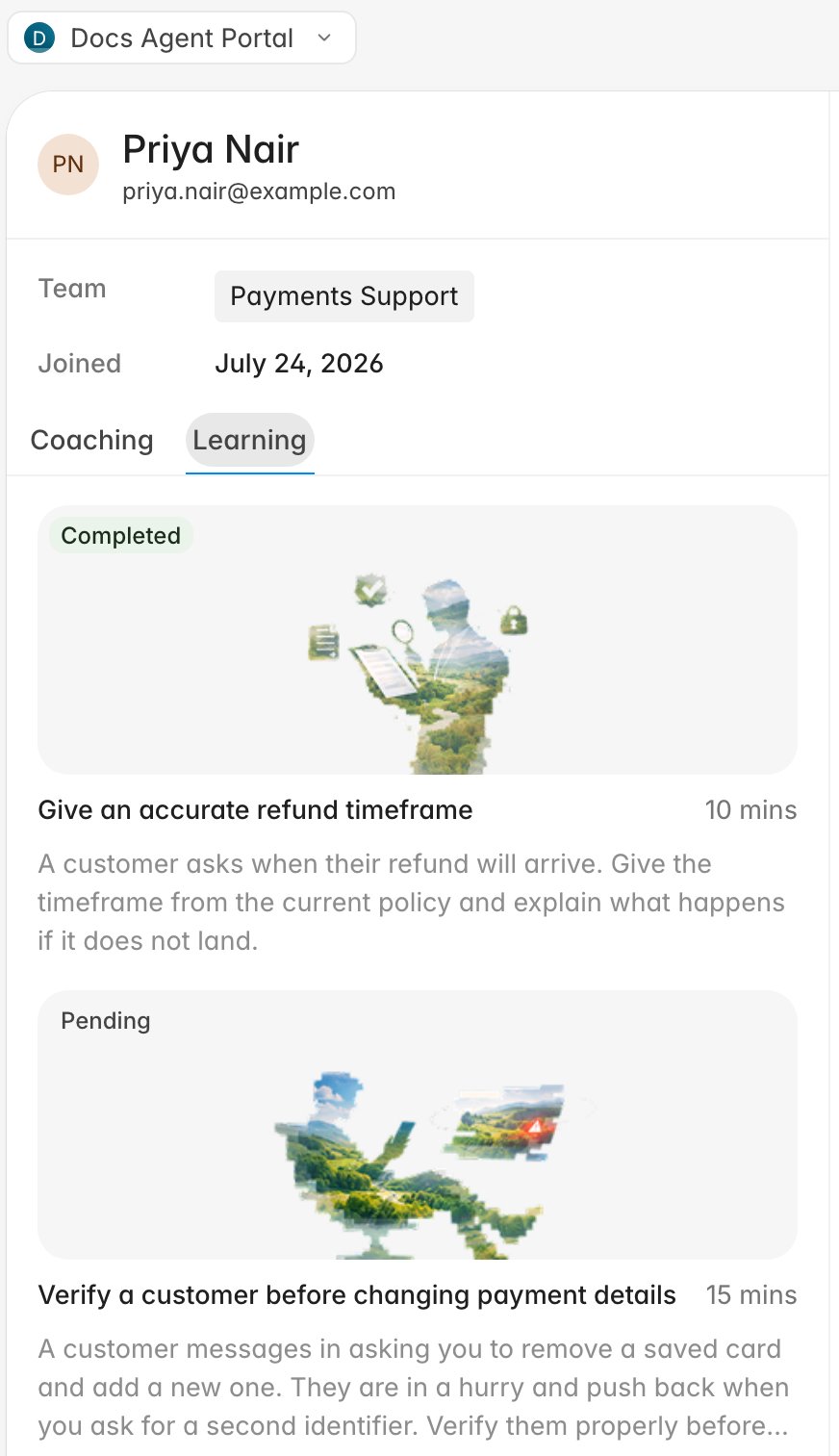 The status on each card tells you where it stands:
* **Pending**: not started, or started and not yet passed. Clicking it begins an
attempt.
* **In progress**: you have an attempt open. Clicking it picks up where you left
off.
* **Completed**: finished. Clicking it opens the report from your last attempt.
## Work through a simulation
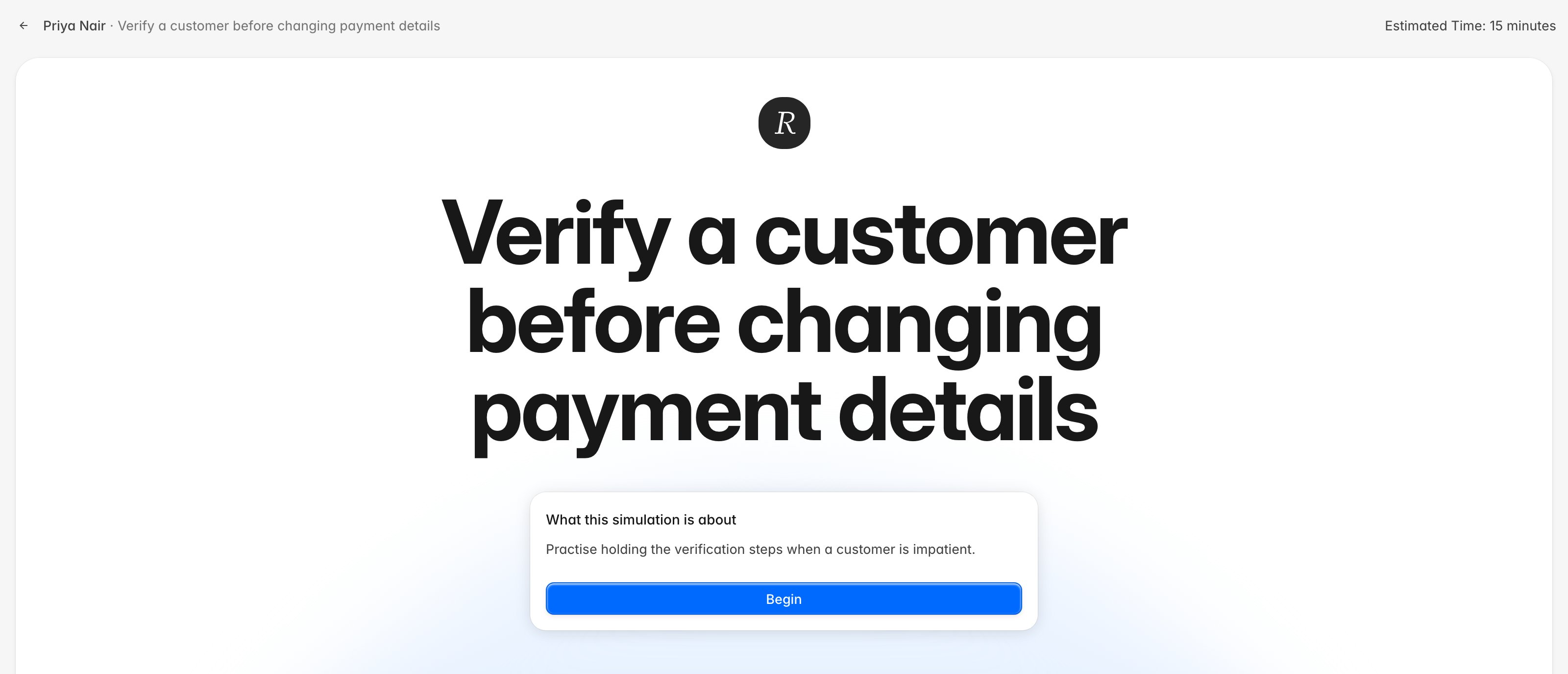
1. Click a **Pending** assignment. Rulebase opens the intro screen with the scenario
title, what the practice is about, any reading your coach attached, and the
estimated time in the top right.
2. Read the setup, then click **Begin**.
3. First time through, a short tour explains the screen. Skip it or click through
it; the conversation starts once it closes.
4. Handle the conversation. The customer opens, you reply in the message box, and
the customer answers in character. A timer runs in the header, and an indicator
shows when the customer has been waiting on you.
5. Keep going until the scenario reaches its end. A **Simulation complete** marker
appears, Rulebase scores the attempt, and your report opens.
The status on each card tells you where it stands:
* **Pending**: not started, or started and not yet passed. Clicking it begins an
attempt.
* **In progress**: you have an attempt open. Clicking it picks up where you left
off.
* **Completed**: finished. Clicking it opens the report from your last attempt.
## Work through a simulation
1. Click a **Pending** assignment. Rulebase opens the intro screen with the scenario
title, what the practice is about, any reading your coach attached, and the
estimated time in the top right.
2. Read the setup, then click **Begin**.
3. First time through, a short tour explains the screen. Skip it or click through
it; the conversation starts once it closes.
4. Handle the conversation. The customer opens, you reply in the message box, and
the customer answers in character. A timer runs in the header, and an indicator
shows when the customer has been waiting on you.
5. Keep going until the scenario reaches its end. A **Simulation complete** marker
appears, Rulebase scores the attempt, and your report opens.
 Depending on how your team set the simulation up, you may get help while you work:
suggested next actions, a hint if you stall, saved macros to apply, or a short quiz
on material you were asked to read. Use them.
## If you have to stop partway
Leaving mid-conversation asks you to confirm with **Pause this simulation?** Choose
**Pause and leave** and the assignment stays where it was; when you come back, the
button on the intro screen reads **Resume simulation** and you continue the same
conversation.
## Your report
Once the conversation ends, Rulebase evaluates it and opens a report with your
total score, a summary of how you handled the scenario, the knowledge gaps and key
issues it noticed, and a criterion-by-criterion breakdown when your team attached a
scorecard. The conversation is available next to the report, so you can reread what
you actually wrote against what the report says about it. Reopening a completed
assignment later brings back the same report with the transcript beside it.
Depending on how your team set the simulation up, you may get help while you work:
suggested next actions, a hint if you stall, saved macros to apply, or a short quiz
on material you were asked to read. Use them.
## If you have to stop partway
Leaving mid-conversation asks you to confirm with **Pause this simulation?** Choose
**Pause and leave** and the assignment stays where it was; when you come back, the
button on the intro screen reads **Resume simulation** and you continue the same
conversation.
## Your report
Once the conversation ends, Rulebase evaluates it and opens a report with your
total score, a summary of how you handled the scenario, the knowledge gaps and key
issues it noticed, and a criterion-by-criterion breakdown when your team attached a
scorecard. The conversation is available next to the report, so you can reread what
you actually wrote against what the report says about it. Reopening a completed
assignment later brings back the same report with the transcript beside it.
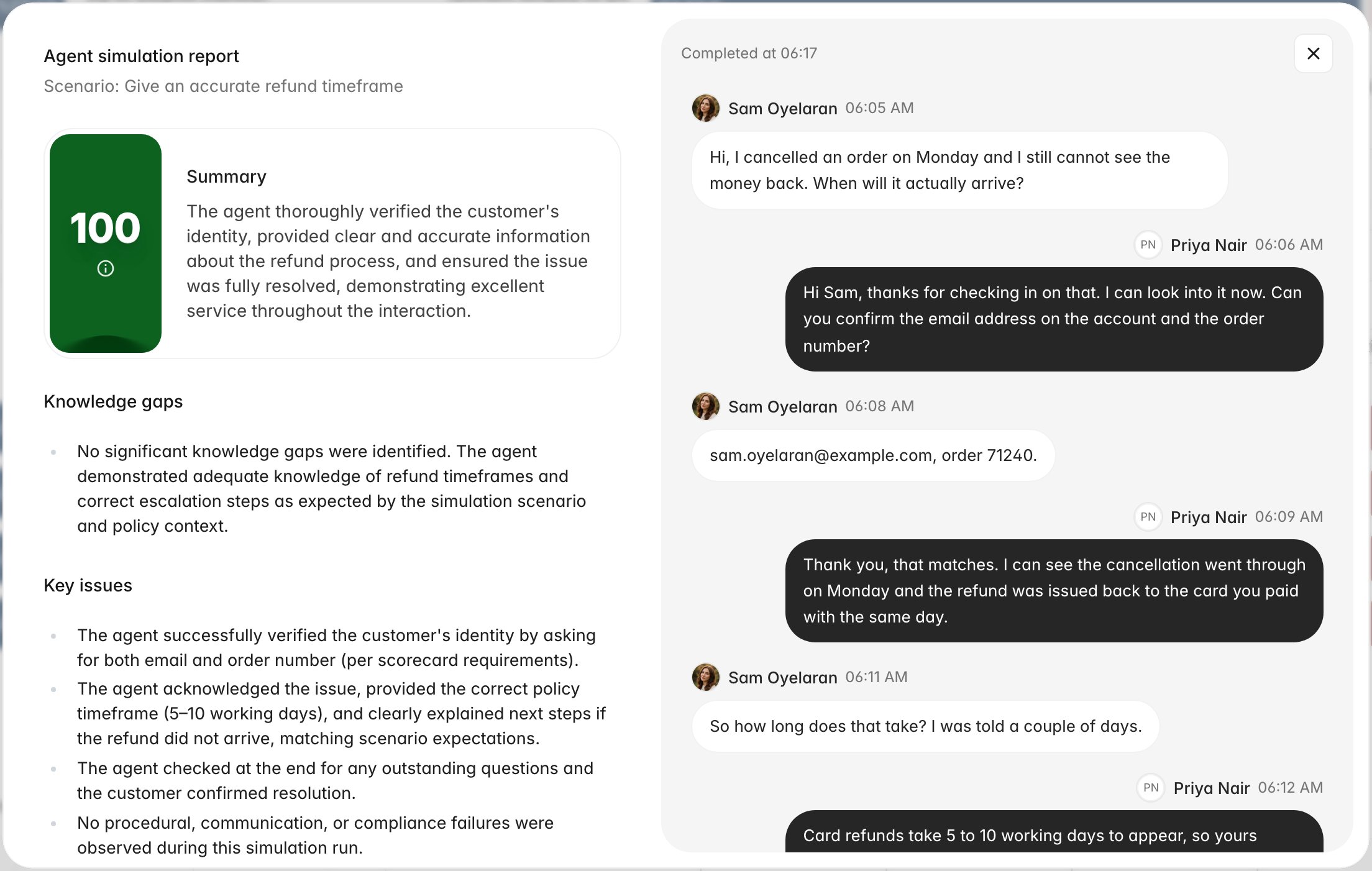 The criteria are usually the same ones your live tickets are scored against, so the
breakdown previews how the same handling would be judged on a real ticket.
## Retries
Your team decides whether an assignment can be reattempted and how many attempts you
get. What happens after an attempt depends on the passing score:
* **You reached it.** The assignment closes as **Completed** and clicking it shows
your report.
* **You did not reach it, and attempts remain.** The assignment returns to
**Pending**. Open it again and you get a fresh conversation with the same
scenario.
* **You did not reach it, and no attempts remain.** The assignment closes as
**Completed** without a pass. Talk to your coach about what to do next; the report
from your last attempt stays available.
When an attempt falls short, read the key issues in your report before starting the
next one. Retrying immediately tends to reproduce the same conversation, because the
customer reacts to the same choices in the same way.
## Related
* [Use the agent portal](/guides/agent-portal/overview)
* [Read your evaluations and feedback](/guides/agent-portal/read-your-evaluations)
* [Coaching simulations](/guides/coaching/simulations)
The criteria are usually the same ones your live tickets are scored against, so the
breakdown previews how the same handling would be judged on a real ticket.
## Retries
Your team decides whether an assignment can be reattempted and how many attempts you
get. What happens after an attempt depends on the passing score:
* **You reached it.** The assignment closes as **Completed** and clicking it shows
your report.
* **You did not reach it, and attempts remain.** The assignment returns to
**Pending**. Open it again and you get a fresh conversation with the same
scenario.
* **You did not reach it, and no attempts remain.** The assignment closes as
**Completed** without a pass. Talk to your coach about what to do next; the report
from your last attempt stays available.
When an attempt falls short, read the key issues in your report before starting the
next one. Retrying immediately tends to reproduce the same conversation, because the
customer reacts to the same choices in the same way.
## Related
* [Use the agent portal](/guides/agent-portal/overview)
* [Read your evaluations and feedback](/guides/agent-portal/read-your-evaluations)
* [Coaching simulations](/guides/coaching/simulations)