> ## Documentation Index
> Fetch the complete documentation index at: https://docs.rulebase.co/llms.txt
> Use this file to discover all available pages before exploring further.
# Use the agent portal
> What you can see and do in Rulebase as an agent: your scores, your weekly reports, your evaluations, and anything assigned to you.
Your company uses Rulebase to review support tickets against a scorecard. The
agent portal is your view of that: the scores on your own tickets, the reasoning
behind each one, and any coaching or practice assigned to you.
When you sign in with an agent account, Rulebase takes you straight to your
performance view, and the pages you can open are the ones about you.
 ## Where you land
Signing in opens [your performance overview](https://app.rulebase.co/agent/summary).
Four tabs sit across the top:
* **Overview**: your scores and trends for a date range.
* **Reports**: written weekly summaries of how your tickets went.
* **Evaluations**: every scored ticket of yours, newest first.
* **Contested Evaluations**: only appears once you have disputed at least one
evaluation. This is where you follow what happened to it.
The card on the left is your profile: your name, your team, and the date you
joined. Below it are **Coaching** and **Learning**, covered further down.
## What the overview shows
The overview covers whatever date range is selected in the top right. It opens
on the last 30 days, and **Download PDF** saves the whole page if you want a copy
before a one-to-one.
* **Average QA score**: the average across your evaluations in the range, with
the change against the previous period of the same length.
* **QA score trend**: the same score plotted over time, so a bad week reads as a
dip and not your whole record.
* **Tickets resolved** and **average handling time**: volume and speed for the
range. Both are clickable; pick a point and Rulebase lists the tickets behind
the number.
* **SLA**: how your first responses and resolutions compared with the targets
your organization set.
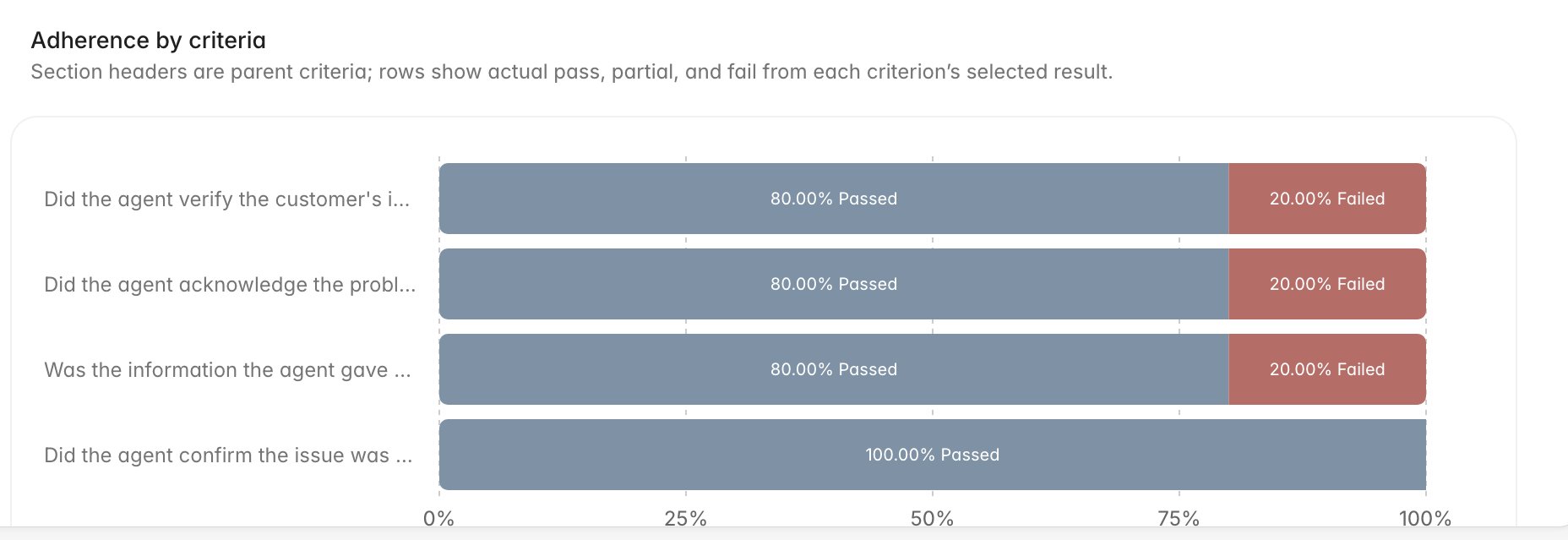
* **Adherence by criteria**: each scorecard criterion with the share of your
evaluations that passed, partially passed, or failed it.
Adherence is usually the most useful section. It shows the pattern across
tickets, and a criterion sitting at 80% pass tells you which habit to change
first.
## Where you land
Signing in opens [your performance overview](https://app.rulebase.co/agent/summary).
Four tabs sit across the top:
* **Overview**: your scores and trends for a date range.
* **Reports**: written weekly summaries of how your tickets went.
* **Evaluations**: every scored ticket of yours, newest first.
* **Contested Evaluations**: only appears once you have disputed at least one
evaluation. This is where you follow what happened to it.
The card on the left is your profile: your name, your team, and the date you
joined. Below it are **Coaching** and **Learning**, covered further down.
## What the overview shows
The overview covers whatever date range is selected in the top right. It opens
on the last 30 days, and **Download PDF** saves the whole page if you want a copy
before a one-to-one.
* **Average QA score**: the average across your evaluations in the range, with
the change against the previous period of the same length.
* **QA score trend**: the same score plotted over time, so a bad week reads as a
dip and not your whole record.
* **Tickets resolved** and **average handling time**: volume and speed for the
range. Both are clickable; pick a point and Rulebase lists the tickets behind
the number.
* **SLA**: how your first responses and resolutions compared with the targets
your organization set.
* **Adherence by criteria**: each scorecard criterion with the share of your
evaluations that passed, partially passed, or failed it.
Adherence is usually the most useful section. It shows the pattern across
tickets, and a criterion sitting at 80% pass tells you which habit to change
first.
 ## Your weekly report
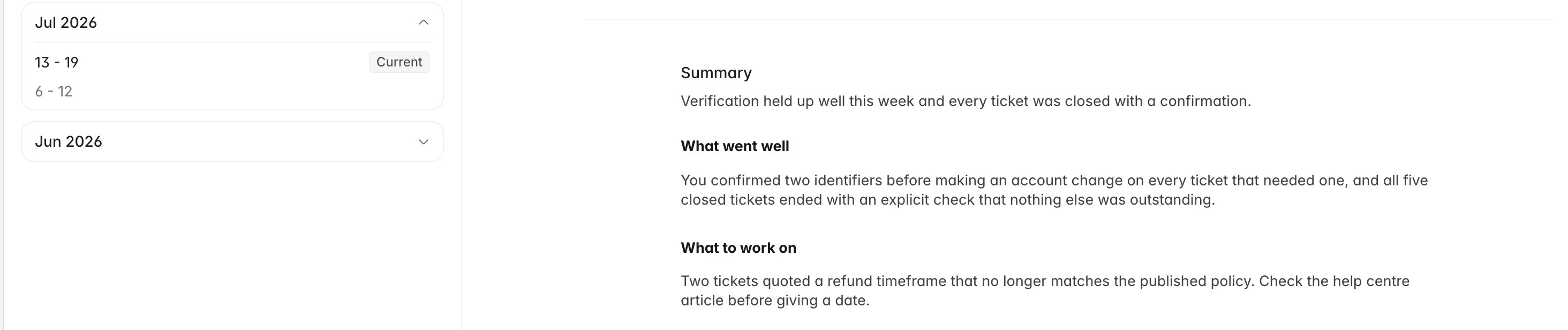
**Reports** holds a short written summary for each week: how the week went, what
held up well, and what needs attention. Pick a week from the list on the left. The
current week is labelled, and earlier months stay collapsed until you open them.
## Your weekly report
**Reports** holds a short written summary for each week: how the week went, what
held up well, and what needs attention. Pick a week from the list on the left. The
current week is labelled, and earlier months stay collapsed until you open them.
 The report draws from that week's evaluations, so the findings are the same ones
you can open ticket by ticket under **Evaluations**, pulled into one place. Read
the report first, then go to individual tickets when you want the full detail.
## Your evaluations and anything assigned to you
**Evaluations** lists your scored tickets grouped by score, and opening one shows
the criterion-by-criterion breakdown with the reasoning attached. That is the
part most people come here for, and it has its own guide: [Read your evaluations
and feedback](/guides/agent-portal/read-your-evaluations). If you disagree with a
result, [Contest an evaluation](/guides/agent-portal/contest-an-evaluation)
covers how to say so and what happens next.
Two more tabs live on the profile card:
* **Coaching**: the one-to-one sessions your coach has logged for you, with the
tickets they attached as examples. These are read-only; the coach writes them.
* **Learning**: practice conversations assigned to you. The tab only appears
when you have at least one assignment. See [Complete learning
assignments](/guides/agent-portal/learning-assignments).
## What you will not find here
Your portal is scoped to you. There is no team or agent filter, and no view of
anyone else's scores or reports.
Reviewers can mark an AI evaluation as right or wrong on a single criterion,
which corrects the model over time. Those controls are not shown in
the agent portal, so a criterion may have been discussed internally without
anything visibly changing on your copy. If a result looks wrong to you,
contesting it is the route that gets a person to look.
## Related
* [Read your evaluations and feedback](/guides/agent-portal/read-your-evaluations)
* [Contest an evaluation](/guides/agent-portal/contest-an-evaluation)
* [Complete learning assignments](/guides/agent-portal/learning-assignments)
* [Rulebase glossary](/guides/concepts/glossary)
The report draws from that week's evaluations, so the findings are the same ones
you can open ticket by ticket under **Evaluations**, pulled into one place. Read
the report first, then go to individual tickets when you want the full detail.
## Your evaluations and anything assigned to you
**Evaluations** lists your scored tickets grouped by score, and opening one shows
the criterion-by-criterion breakdown with the reasoning attached. That is the
part most people come here for, and it has its own guide: [Read your evaluations
and feedback](/guides/agent-portal/read-your-evaluations). If you disagree with a
result, [Contest an evaluation](/guides/agent-portal/contest-an-evaluation)
covers how to say so and what happens next.
Two more tabs live on the profile card:
* **Coaching**: the one-to-one sessions your coach has logged for you, with the
tickets they attached as examples. These are read-only; the coach writes them.
* **Learning**: practice conversations assigned to you. The tab only appears
when you have at least one assignment. See [Complete learning
assignments](/guides/agent-portal/learning-assignments).
## What you will not find here
Your portal is scoped to you. There is no team or agent filter, and no view of
anyone else's scores or reports.
Reviewers can mark an AI evaluation as right or wrong on a single criterion,
which corrects the model over time. Those controls are not shown in
the agent portal, so a criterion may have been discussed internally without
anything visibly changing on your copy. If a result looks wrong to you,
contesting it is the route that gets a person to look.
## Related
* [Read your evaluations and feedback](/guides/agent-portal/read-your-evaluations)
* [Contest an evaluation](/guides/agent-portal/contest-an-evaluation)
* [Complete learning assignments](/guides/agent-portal/learning-assignments)
* [Rulebase glossary](/guides/concepts/glossary)