> ## Documentation Index
> Fetch the complete documentation index at: https://docs.rulebase.co/llms.txt
> Use this file to discover all available pages before exploring further.
# Create a managed agent
> Describe a job in plain language, let the builder turn it into an agent with triggers and tools, run it once, then publish it so it runs on its own.
A managed agent is a piece of work you describe once and stop doing yourself:
summarize yesterday's billing disputes, open a Jira issue for tickets that
mention a chargeback, email a Monday digest to the leads. Write what you want in
a sentence or two; Rulebase builds the steps.
Rulebase uses the word "agent" for two unrelated things. This guide is about the
**AI agents you build**, which live under **Home > Agents**. The people on your
QA roster are also called agents and live under **Settings > People > Agents**.
See [Manage the agent roster](/guides/quality-assurance/manage-agent-roster) for
those, and the [glossary](/guides/concepts/glossary) for the distinction.
## What you need
Access comes in three levels:
| Permission | What it allows |
| ---------- | ------------------------------------------------------------------- |
| View | Open the agent list, read an agent's setup, see its run history |
| Run | The above, plus run an agent now and use the builder chat |
| Manage | The above, plus create, edit, publish, duplicate, and delete agents |
Administrators have all three; no other role has any until granted in the
**Agents** permission group under
[Settings > People > Roles](https://app.rulebase.co/settings/people/roles). If
there is no **New** button on **Home > Agents**, you do not have Manage: you can
read agents and their runs but not build one.
## Describe the job
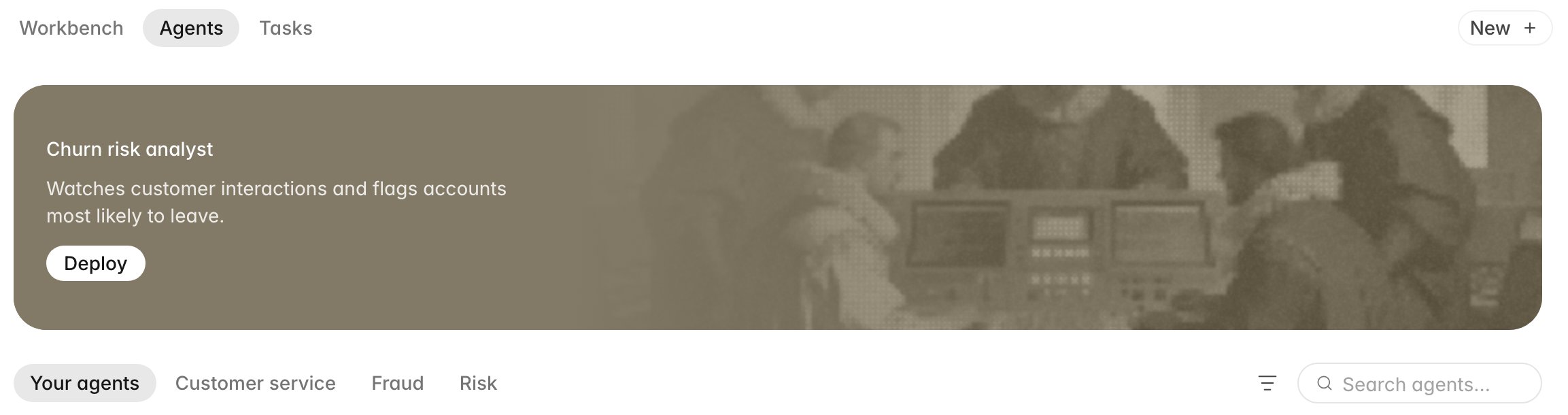
Open **Home > Agents** and click **New**.
 The dialog asks what you want the agent to do, and your answer decides most of
what follows.
The dialog asks what you want the agent to do, and your answer decides most of
what follows.
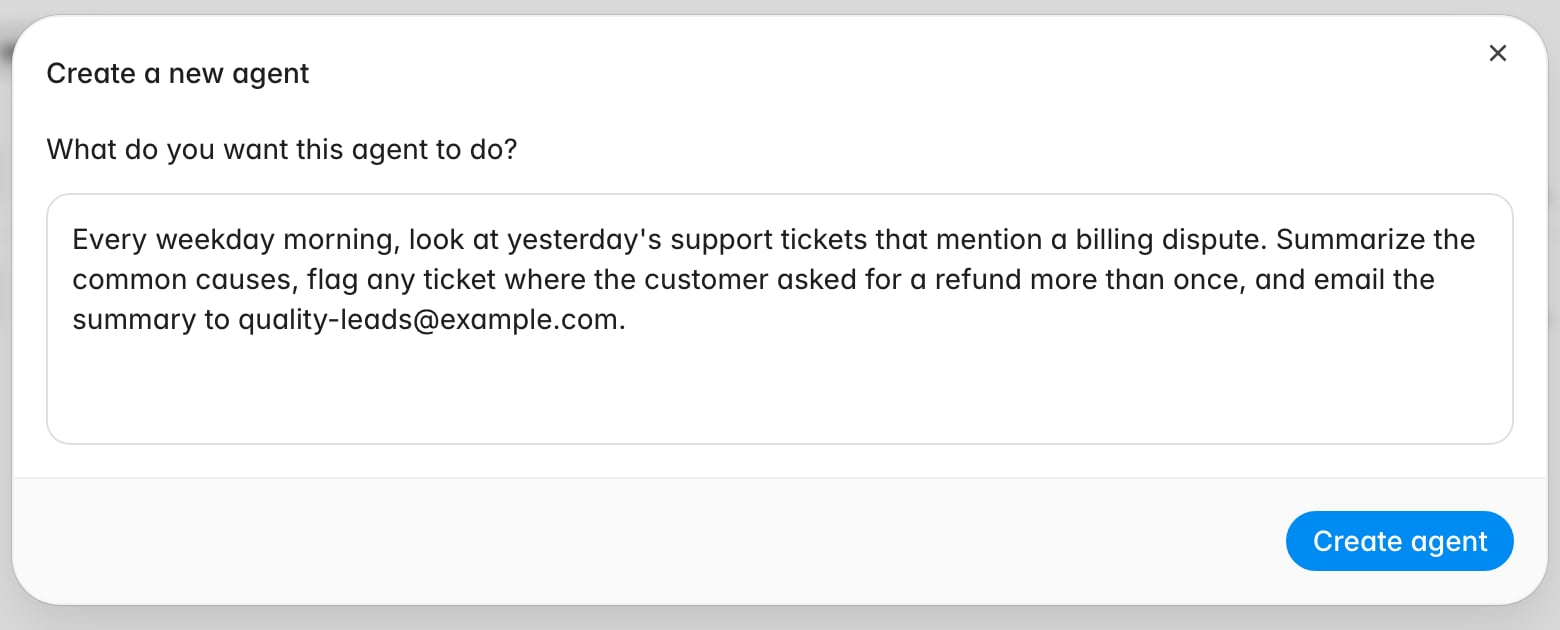 Brief it like a new colleague: what to look at, when, what to do with what it
finds, and where the output should go. A vague brief like "check disputes" gives
the builder nothing to work with.
Then click **Create agent**.
For a common job, check the category tabs (**Customer service**, **Fraud**,
**Risk**) first. Templates and Rulebase-suggested agents there come pre-briefed;
**Deploy** creates one you can then adjust, usually faster than starting from a
blank box.
## Let the builder do the first draft
Creating an agent drops you on its **Instructions** view with your description
already sent to the builder chat. The builder is an agent itself: it writes the
instructions, then lays out the steps the agent will take: what triggers it,
which tools it calls, and where a human needs to approve something.
Correct it as it works, through the chat box at the bottom (*Ask or edit this
agent...*). "Only weekdays," "use the support queue, not sales," "email finance
too": each message revises the agent in place. Instructions save themselves;
there is no save button.
Two tabs sit at the top of an agent:
* **Instructions** is the build view: the name, the description, what the agent
is told to do, its triggers and tools, and the steps it will run.
* **Workbench** is where you talk to the agent and see what it has been doing.
Name the agent while you are here. Every new agent is called **New agent**. Click
the title to rename it, and add a description underneath so the next person knows
what it is for.
## Check the triggers
**Triggers** decide when the agent wakes up. Most agents want one of two:
**On a schedule**: hourly, daily, weekly, or monthly, with a time and a timezone,
plus specific weekdays for a weekly schedule or a date for a monthly one. The
timezone matters: a "9am" digest built in one timezone lands mid-afternoon for a
team in another.
**On something happening**: a ticket created, updated, closed, or solved; a sales
call ending; a Jira issue created or its status changing; a Slack message
arriving; an email arriving; or a webhook from a system of your own.
An agent can hold more than one trigger: "every weekday morning, and also
whenever a high-priority dispute lands."
How you change a trigger depends on the agent. When the builder has laid out
steps (as with a new agent), triggers come from those steps; change them in the
chat ("make it Tuesdays," "also run when a ticket is reopened"). Agents that run
from instructions alone show a `+` next to **Triggers** for adding one by hand.
## Check the tools
**Tools** are what the agent is allowed to touch; nothing outside the list is
available to it. They are grouped by what they do:
* **Rulebase**: **Web search**, and **Workspace data**, where you choose whether
the agent may only read your Rulebase data or also write to it.
* **Communication**: **Slack**, **Microsoft Teams**, and **Email**. Email sends
only to recipients you approve.
* **Data**: **Snowflake**, for querying your warehouse.
* **Developer tools**: **Open API**, for an API of your own with an OpenAPI
schema and key, and **MCP Server**.
* **Integrations**: the help desks and platforms already connected to Rulebase.
Review the list: an agent that can write to your data and email anyone should
have that access on purpose.
As with triggers, a step-based agent's tools follow from its steps, so "stop
emailing finance, post it in `#billing` instead" is a chat message with no
checkbox to toggle. Where a `+` is available, the tool panel can also connect a
missing source on the spot instead of sending you to
[Settings > Connections](https://app.rulebase.co/settings/connections). This creates a real, organization-wide connection that other agents and
people can use too.
For anything that reaches a customer, ask the builder for an approval step before
that action: the agent pauses, the people you name get an email with a link, and
the run continues only when someone approves. Ask for it by name. The builder
will not always add one.
## Run it once before you trust it
Click **Run**. If the agent needs input to start, a **Run agent** dialog asks for
it; otherwise it starts immediately.
Then read what it did in the activity panel below the instructions. It lists
recent runs; expanding one shows each step in order, which tools it called, what
came back, and where it stopped. Hand anything unclear to the chat with **Ask
about this run**.
A first run that is nearly right is normal. Tell the builder what was off and
run it again.
## Publish it
Until you publish, the agent is a draft: it runs when you click **Run** and at no
other time. **Publish** turns it on, and the button afterwards shows its state:
| Button | Meaning |
| ------------------- | ---------------------------------------------------------------------------------- |
| **Publish** | Never published. Triggers are not firing. |
| **Live** (green) | Published, and what you see is what is running. |
| **Update** (orange) | Published, but you have edited it since. The old version is still the one running. |
Editing a live agent does not change its behaviour until you publish again, so a
running agent keeps working while you rework it.
Clicking **Live** or **Update** opens **Publish version**, which lists every
version with who published it and when. From a version's `...` menu, **Restore**
brings that version's setup back, undoing a change that made things worse.
**Unpublish** stops the agent from running without deleting anything.
Back on **Home > Agents**, the filter next to the search box splits the list into
**Published** and **Draft**.
Before a risky change to an agent people rely on, **Duplicate** it from the
agent's `...` menu and experiment on the copy. Deleting an agent is permanent and
takes its run history with it.
## Related
* [Glossary](/guides/concepts/glossary)
* [Manage the agent roster](/guides/quality-assurance/manage-agent-roster)
* [Use Instruct](/guides/instruct/use-instruct)
* [Manage integrations](/guides/integrations/manage-integrations)
Brief it like a new colleague: what to look at, when, what to do with what it
finds, and where the output should go. A vague brief like "check disputes" gives
the builder nothing to work with.
Then click **Create agent**.
For a common job, check the category tabs (**Customer service**, **Fraud**,
**Risk**) first. Templates and Rulebase-suggested agents there come pre-briefed;
**Deploy** creates one you can then adjust, usually faster than starting from a
blank box.
## Let the builder do the first draft
Creating an agent drops you on its **Instructions** view with your description
already sent to the builder chat. The builder is an agent itself: it writes the
instructions, then lays out the steps the agent will take: what triggers it,
which tools it calls, and where a human needs to approve something.
Correct it as it works, through the chat box at the bottom (*Ask or edit this
agent...*). "Only weekdays," "use the support queue, not sales," "email finance
too": each message revises the agent in place. Instructions save themselves;
there is no save button.
Two tabs sit at the top of an agent:
* **Instructions** is the build view: the name, the description, what the agent
is told to do, its triggers and tools, and the steps it will run.
* **Workbench** is where you talk to the agent and see what it has been doing.
Name the agent while you are here. Every new agent is called **New agent**. Click
the title to rename it, and add a description underneath so the next person knows
what it is for.
## Check the triggers
**Triggers** decide when the agent wakes up. Most agents want one of two:
**On a schedule**: hourly, daily, weekly, or monthly, with a time and a timezone,
plus specific weekdays for a weekly schedule or a date for a monthly one. The
timezone matters: a "9am" digest built in one timezone lands mid-afternoon for a
team in another.
**On something happening**: a ticket created, updated, closed, or solved; a sales
call ending; a Jira issue created or its status changing; a Slack message
arriving; an email arriving; or a webhook from a system of your own.
An agent can hold more than one trigger: "every weekday morning, and also
whenever a high-priority dispute lands."
How you change a trigger depends on the agent. When the builder has laid out
steps (as with a new agent), triggers come from those steps; change them in the
chat ("make it Tuesdays," "also run when a ticket is reopened"). Agents that run
from instructions alone show a `+` next to **Triggers** for adding one by hand.
## Check the tools
**Tools** are what the agent is allowed to touch; nothing outside the list is
available to it. They are grouped by what they do:
* **Rulebase**: **Web search**, and **Workspace data**, where you choose whether
the agent may only read your Rulebase data or also write to it.
* **Communication**: **Slack**, **Microsoft Teams**, and **Email**. Email sends
only to recipients you approve.
* **Data**: **Snowflake**, for querying your warehouse.
* **Developer tools**: **Open API**, for an API of your own with an OpenAPI
schema and key, and **MCP Server**.
* **Integrations**: the help desks and platforms already connected to Rulebase.
Review the list: an agent that can write to your data and email anyone should
have that access on purpose.
As with triggers, a step-based agent's tools follow from its steps, so "stop
emailing finance, post it in `#billing` instead" is a chat message with no
checkbox to toggle. Where a `+` is available, the tool panel can also connect a
missing source on the spot instead of sending you to
[Settings > Connections](https://app.rulebase.co/settings/connections). This creates a real, organization-wide connection that other agents and
people can use too.
For anything that reaches a customer, ask the builder for an approval step before
that action: the agent pauses, the people you name get an email with a link, and
the run continues only when someone approves. Ask for it by name. The builder
will not always add one.
## Run it once before you trust it
Click **Run**. If the agent needs input to start, a **Run agent** dialog asks for
it; otherwise it starts immediately.
Then read what it did in the activity panel below the instructions. It lists
recent runs; expanding one shows each step in order, which tools it called, what
came back, and where it stopped. Hand anything unclear to the chat with **Ask
about this run**.
A first run that is nearly right is normal. Tell the builder what was off and
run it again.
## Publish it
Until you publish, the agent is a draft: it runs when you click **Run** and at no
other time. **Publish** turns it on, and the button afterwards shows its state:
| Button | Meaning |
| ------------------- | ---------------------------------------------------------------------------------- |
| **Publish** | Never published. Triggers are not firing. |
| **Live** (green) | Published, and what you see is what is running. |
| **Update** (orange) | Published, but you have edited it since. The old version is still the one running. |
Editing a live agent does not change its behaviour until you publish again, so a
running agent keeps working while you rework it.
Clicking **Live** or **Update** opens **Publish version**, which lists every
version with who published it and when. From a version's `...` menu, **Restore**
brings that version's setup back, undoing a change that made things worse.
**Unpublish** stops the agent from running without deleting anything.
Back on **Home > Agents**, the filter next to the search box splits the list into
**Published** and **Draft**.
Before a risky change to an agent people rely on, **Duplicate** it from the
agent's `...` menu and experiment on the copy. Deleting an agent is permanent and
takes its run history with it.
## Related
* [Glossary](/guides/concepts/glossary)
* [Manage the agent roster](/guides/quality-assurance/manage-agent-roster)
* [Use Instruct](/guides/instruct/use-instruct)
* [Manage integrations](/guides/integrations/manage-integrations)