> ## Documentation Index
> Fetch the complete documentation index at: https://docs.rulebase.co/llms.txt
> Use this file to discover all available pages before exploring further.
# Run and analyze a compliance test
> Fill a populated test sheet, generate the analysis report for the cycle, read the per-question breakdown, and work the exceptions before you sign the result off.
A populated test is a sheet of sampled records with an empty column for each question in the
program's test scripts. What remains is to fill those columns and turn the answers into a result you
can hand to a second line reviewer or an examiner. Both happen on the test itself: the
**Testing** tab holds the working paper, and the **Analysis** tab holds the report generated from it.
## Before you start
* The test needs a sample in its sheet. Drawing one is
[Populate a compliance test](/guides/compliance/populate-tests).
* **Compliance** must be enabled for your organization
([Settings > Features](https://app.rulebase.co/settings/features)). Without it the **Compliance**
section, and the test, are not reachable.
* Know the population figure you intend to stand behind for the period. Rulebase records it, but it
does not work it out for you.
## Fill the sheet
**Run test** sits at the top right of the **Testing** tab and fills the empty generated cells for
the rows in the sheet. It appears once the sheet has rows, and it is disabled when there is nothing
left to fill: either because every generated cell has an answer, or because the range you have
selected is already complete. Select a range first when you want to re-run part of the sheet rather
than all of it.
 The cell states, the reasoning behind each answer, and what to do about a **Failed** cell are covered
in [Populate a compliance test](/guides/compliance/populate-tests). Work through those before
generating a report: the analysis reads whatever is in the sheet at the moment you generate it, and a
gap in the sheet becomes an unexplained gap in the report.
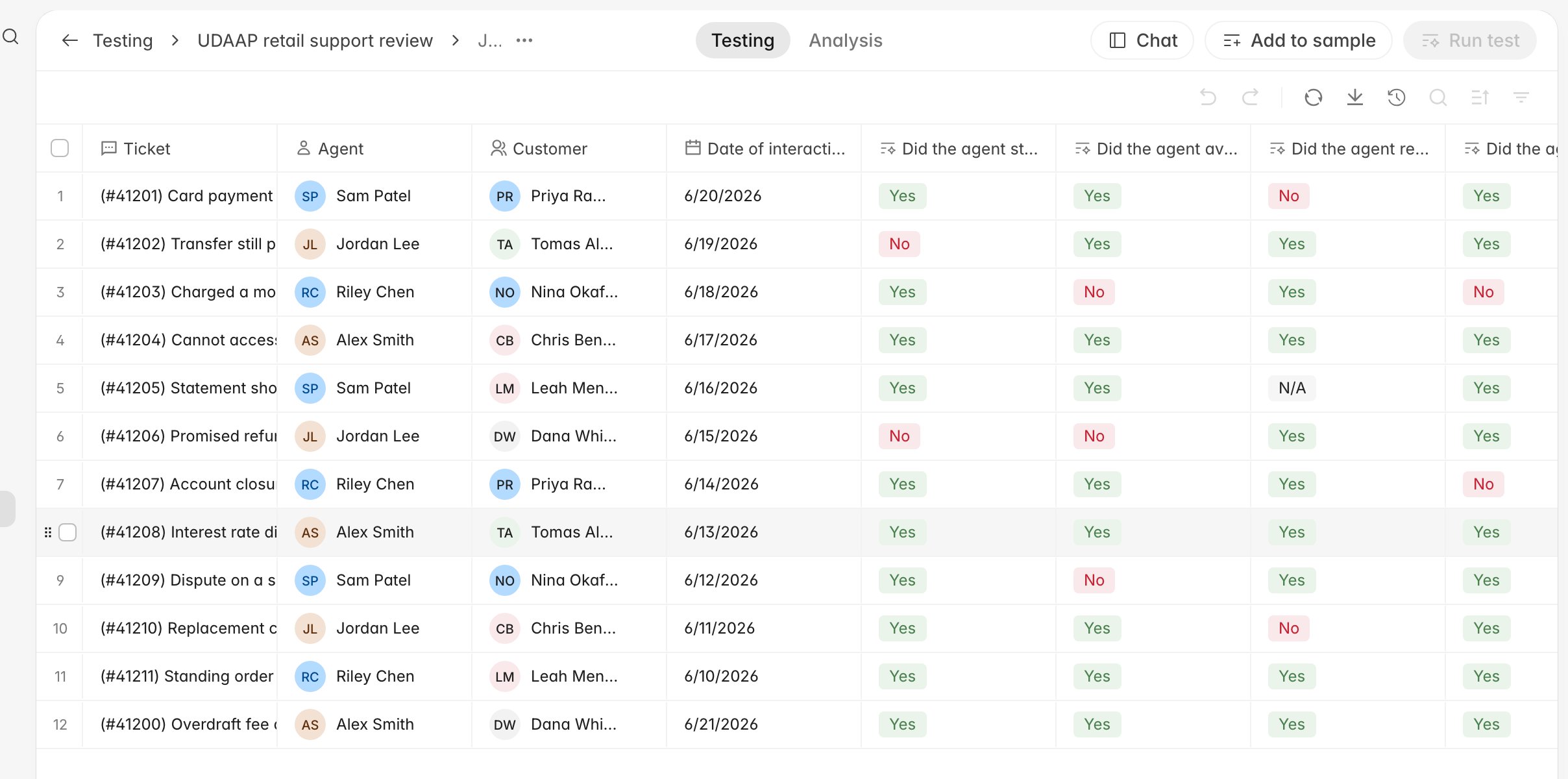
A finished sheet carries one row per sampled record and an answer in every question column, and
**Run test** greys out because there is nothing left to fill.
The cell states, the reasoning behind each answer, and what to do about a **Failed** cell are covered
in [Populate a compliance test](/guides/compliance/populate-tests). Work through those before
generating a report: the analysis reads whatever is in the sheet at the moment you generate it, and a
gap in the sheet becomes an unexplained gap in the report.
A finished sheet carries one row per sampled record and an answer in every question column, and
**Run test** greys out because there is nothing left to fill.
 ## Record the counts that describe your coverage
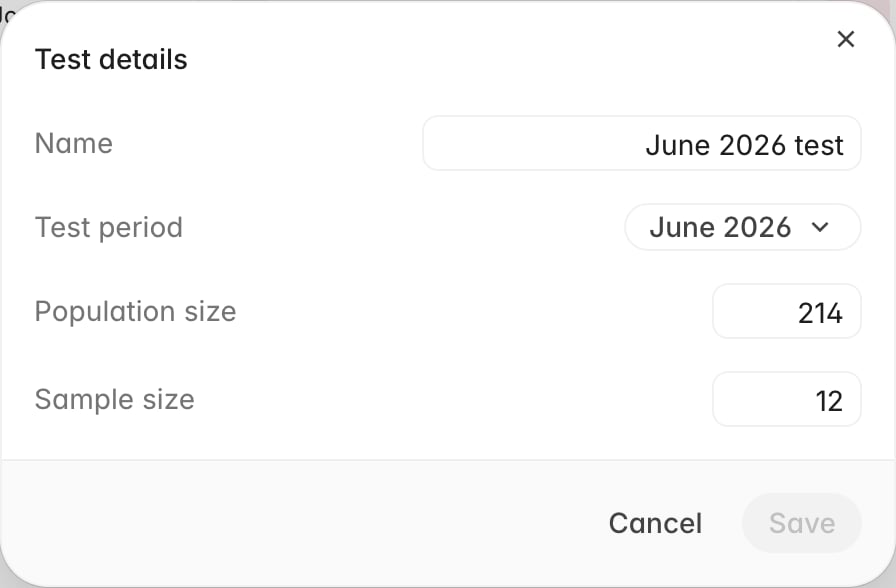
Open the **...** menu beside the test name, then **View details** to see the
**Name**, **Test period**, **Population size**, and **Sample size**.
## Record the counts that describe your coverage
Open the **...** menu beside the test name, then **View details** to see the
**Name**, **Test period**, **Population size**, and **Sample size**.
 **Population size** and **Sample size** are yours to maintain. Rulebase does not derive them from the
sheet, and it will not let the sample exceed the population. They are passed to the AI as context
while cells are filled, and they are the numbers a reviewer will read as your coverage claim for the
period, so fill them in from your own population query rather than leaving them at whatever the last
cycle held.
**Sample size** has one practical side effect: it becomes the default sample size in the **Populate
test** dialog, which defaults to 20 when the field is empty. Setting it before you draw the sample is
the tidier order.
## Generate the analysis
1. Open the **Analysis** tab. On a test with no report yet, it reads **No analysis generated**.
2. Click **Generate analysis**.
3. Leave the tab open. Rulebase shows the steps it is taking while it reads the sheet, and the report
appears in place when it finishes.
Generation reads the sheet's rows and the distribution of answers in each column, the program's
controls and test scripts, the frameworks attached to the program, and the test period. It does not
re-examine the underlying tickets, cases, or alerts; the answers in the sheet are its evidence,
so the sheet has to be finished first.
## What the report contains
**Population size** and **Sample size** are yours to maintain. Rulebase does not derive them from the
sheet, and it will not let the sample exceed the population. They are passed to the AI as context
while cells are filled, and they are the numbers a reviewer will read as your coverage claim for the
period, so fill them in from your own population query rather than leaving them at whatever the last
cycle held.
**Sample size** has one practical side effect: it becomes the default sample size in the **Populate
test** dialog, which defaults to 20 when the field is empty. Setting it before you draw the sample is
the tidier order.
## Generate the analysis
1. Open the **Analysis** tab. On a test with no report yet, it reads **No analysis generated**.
2. Click **Generate analysis**.
3. Leave the tab open. Rulebase shows the steps it is taking while it reads the sheet, and the report
appears in place when it finishes.
Generation reads the sheet's rows and the distribution of answers in each column, the program's
controls and test scripts, the frameworks attached to the program, and the test period. It does not
re-examine the underlying tickets, cases, or alerts; the answers in the sheet are its evidence,
so the sheet has to be finished first.
## What the report contains
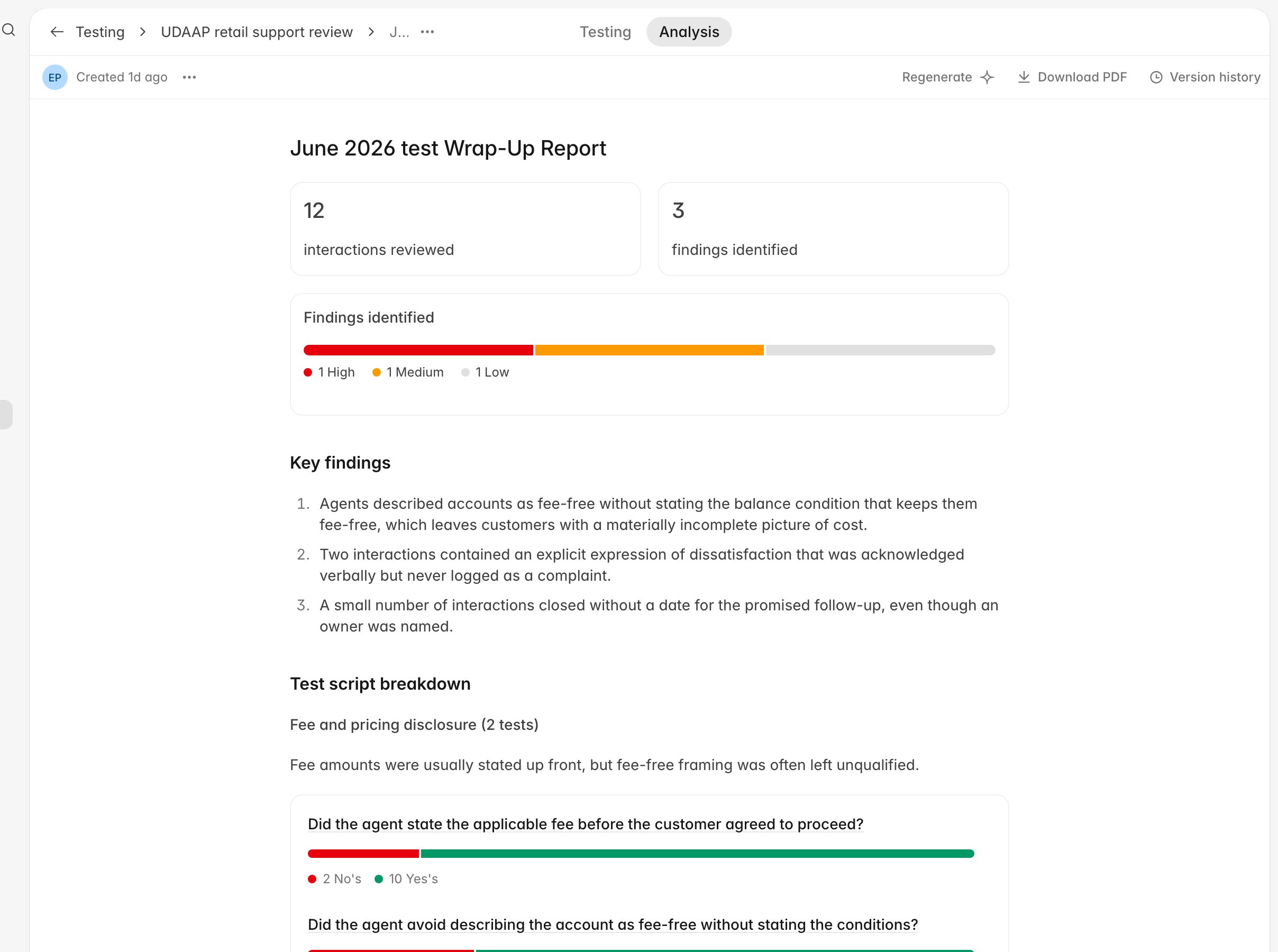 * **The counters** — how many records were reviewed, labelled for the program's record type, and how
many findings the report raised.
* **Findings identified** — the severity split across **High**, **Medium**, and **Low**.
* **Key findings** — the findings in severity order, written as statements about what was observed.
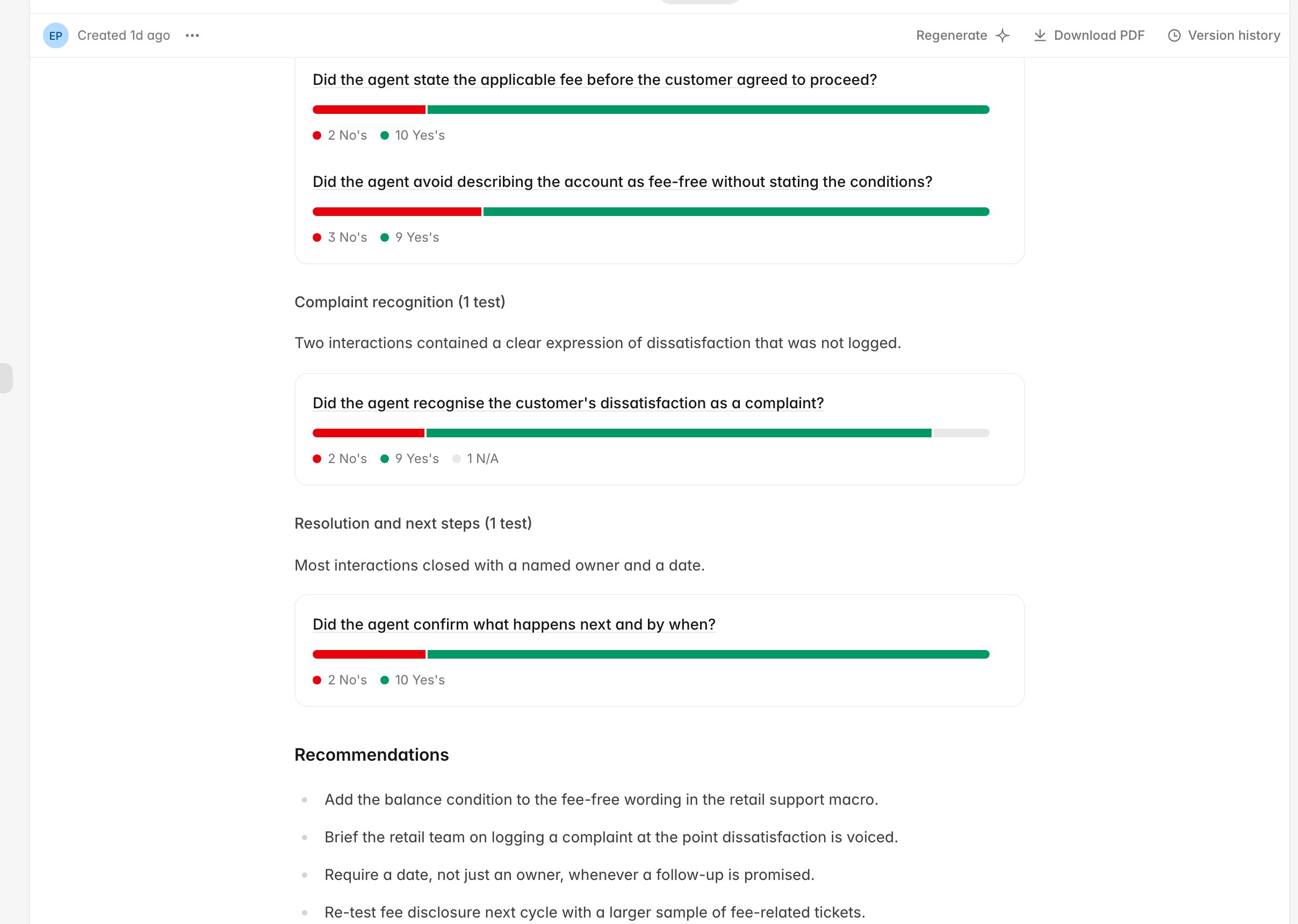
* **Test script breakdown** — one block per control, with a one-line summary and, for each question,
the split of **Yes's**, **No's**, and **N/A**.
* **Recommendations** — a short list of remedial actions tied to the findings.
* **The counters** — how many records were reviewed, labelled for the program's record type, and how
many findings the report raised.
* **Findings identified** — the severity split across **High**, **Medium**, and **Low**.
* **Key findings** — the findings in severity order, written as statements about what was observed.
* **Test script breakdown** — one block per control, with a one-line summary and, for each question,
the split of **Yes's**, **No's**, and **N/A**.
* **Recommendations** — a short list of remedial actions tied to the findings.
 The counts come from the cells; the prose is model-written. Read the findings and recommendations as
a well-informed draft of your write-up rather than as the write-up itself, and edit your own summary
from them.
A report covers one test period. Rulebase does not compare periods for you, so quarter-on-quarter
trending is something you assemble from the reports or from the sheet exports.
## Work the exceptions
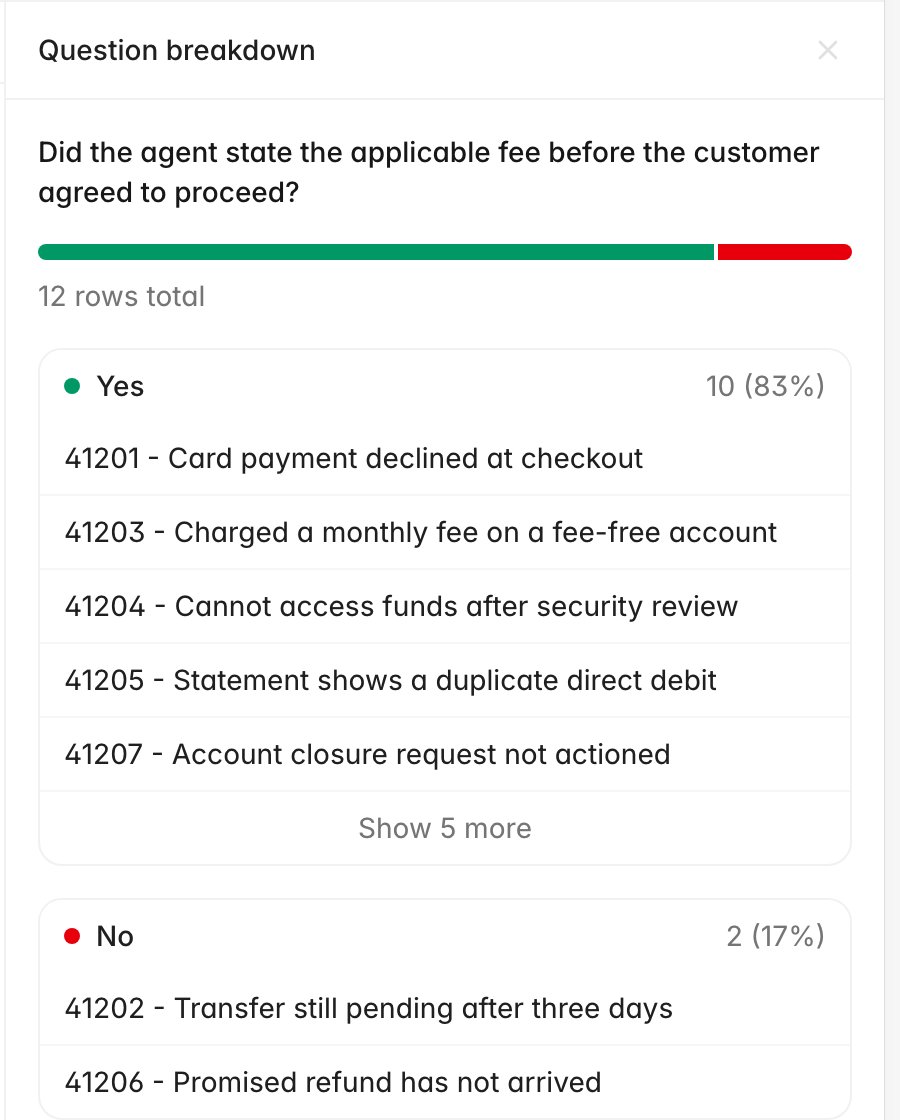
Every **No** and every **N/A** in the breakdown is a question to answer, not yet a finding.
1. In **Test script breakdown**, click the question you want to examine.
2. The **Question breakdown** panel opens with the answer split, the total row count, and the rows
grouped by answer. **Show 5 more** expands a group beyond its first five rows.
3. Note the records in the **No** and **N/A** groups, then open those rows back in the sheet to read
the cell's reasoning and follow its citations to the source record.
The counts come from the cells; the prose is model-written. Read the findings and recommendations as
a well-informed draft of your write-up rather than as the write-up itself, and edit your own summary
from them.
A report covers one test period. Rulebase does not compare periods for you, so quarter-on-quarter
trending is something you assemble from the reports or from the sheet exports.
## Work the exceptions
Every **No** and every **N/A** in the breakdown is a question to answer, not yet a finding.
1. In **Test script breakdown**, click the question you want to examine.
2. The **Question breakdown** panel opens with the answer split, the total row count, and the rows
grouped by answer. **Show 5 more** expands a group beyond its first five rows.
3. Note the records in the **No** and **N/A** groups, then open those rows back in the sheet to read
the cell's reasoning and follow its citations to the source record.
 An **N/A** usually means the control could not apply to that record: no fee was discussed, so
nothing could be disclosed. That is a legitimate answer, but it also reduces your tested count for
that question, so record it as such rather than folding it into the passes.
## Before you sign the cycle off
* Every generated cell has an answer. Nothing is still **Failed**.
* Each **No** and **N/A** has been checked against the source record, not just the cell.
* **Population size** and **Sample size** match the methodology you documented on the program.
* The report was generated after the last change to the sheet. If you corrected a cell afterwards,
regenerate.
* The findings you are reporting are ones you can evidence from specific records.
## Keep the working papers
**Download PDF** exports the report as it appears. **Regenerate** produces a new version (useful
after you have fixed cells), and earlier completed reports stay available under **Version history**,
so a superseded conclusion is still retrievable. **Delete report** in the **...** menu next to the
report's author removes a version outright.
For the sheet itself, use the download icon in the toolbar above the grid, **Export sheet (CSV)**.
That file is the row-level record behind the report's counts.
## Related
* [Set up a compliance testing program](/guides/compliance/set-up-a-testing-program)
* [Populate a compliance test](/guides/compliance/populate-tests)
* [Unit21](/guides/integrations/unit21)
* [Rulebase glossary](/guides/concepts/glossary)
An **N/A** usually means the control could not apply to that record: no fee was discussed, so
nothing could be disclosed. That is a legitimate answer, but it also reduces your tested count for
that question, so record it as such rather than folding it into the passes.
## Before you sign the cycle off
* Every generated cell has an answer. Nothing is still **Failed**.
* Each **No** and **N/A** has been checked against the source record, not just the cell.
* **Population size** and **Sample size** match the methodology you documented on the program.
* The report was generated after the last change to the sheet. If you corrected a cell afterwards,
regenerate.
* The findings you are reporting are ones you can evidence from specific records.
## Keep the working papers
**Download PDF** exports the report as it appears. **Regenerate** produces a new version (useful
after you have fixed cells), and earlier completed reports stay available under **Version history**,
so a superseded conclusion is still retrievable. **Delete report** in the **...** menu next to the
report's author removes a version outright.
For the sheet itself, use the download icon in the toolbar above the grid, **Export sheet (CSV)**.
That file is the row-level record behind the report's counts.
## Related
* [Set up a compliance testing program](/guides/compliance/set-up-a-testing-program)
* [Populate a compliance test](/guides/compliance/populate-tests)
* [Unit21](/guides/integrations/unit21)
* [Rulebase glossary](/guides/concepts/glossary)