> ## Documentation Index
> Fetch the complete documentation index at: https://docs.rulebase.co/llms.txt
> Use this file to discover all available pages before exploring further.
# Schedule recurring exports
> Send QA spreadsheets to an inbox on a schedule, or write QA evaluation analytics to your own Amazon S3 bucket every week.
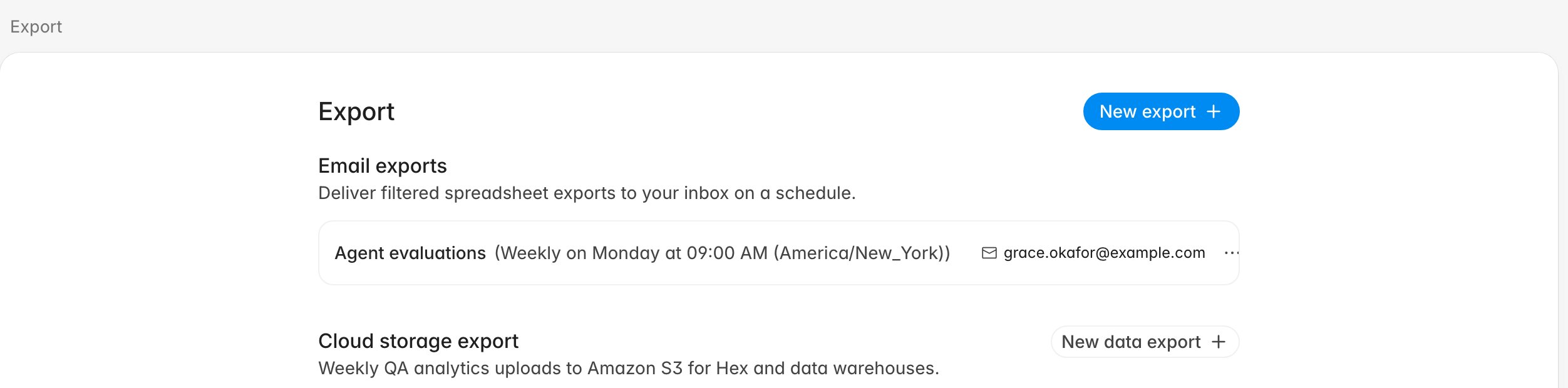
Two recurring exports are configured on the same page: an email export that
mails a filtered workbook on a schedule, and a cloud storage export that writes
a CSV to a bucket you own. Use them when somebody needs the same spreadsheet
every Monday, or when your analysts want QA results in the warehouse next to
everything else.
Both live under [Settings > Export](https://app.rulebase.co/settings/exports),
at the bottom of the settings sidebar under **Administration**.
 ## Which one you want
| | Email exports | Cloud storage export |
| --------------------- | ------------------------------------------------ | ------------------------------------------ |
| **What arrives** | An Excel workbook attached to an email | A CSV plus a manifest in your S3 bucket |
| **When** | Daily, or weekly on a day and time you choose | Weekly, plus **Run now** whenever you like |
| **What it covers** | Any of the three datasets, filtered how you like | QA evaluation analytics, whole workspace |
| **Who can set it up** | Anyone except agents | Admins only |
| **Best for** | A recurring report for people | Feeding a warehouse or BI tool |
## Before you start
* Nothing here is behind a feature flag. Email exports are open to everyone
except agents; the cloud storage export needs the **Manage organization
settings** permission, and without it the section still appears but stays empty
and refuses to save.
* Decide the filters before you create a schedule. A recurring export repeats the
filters it was created with, so "resolved tickets, last week, one team" is a
choice you make once.
* For the S3 route, have a bucket and a dedicated IAM user's keys ready. Rulebase
validates them before saving.
## Create a recurring email export
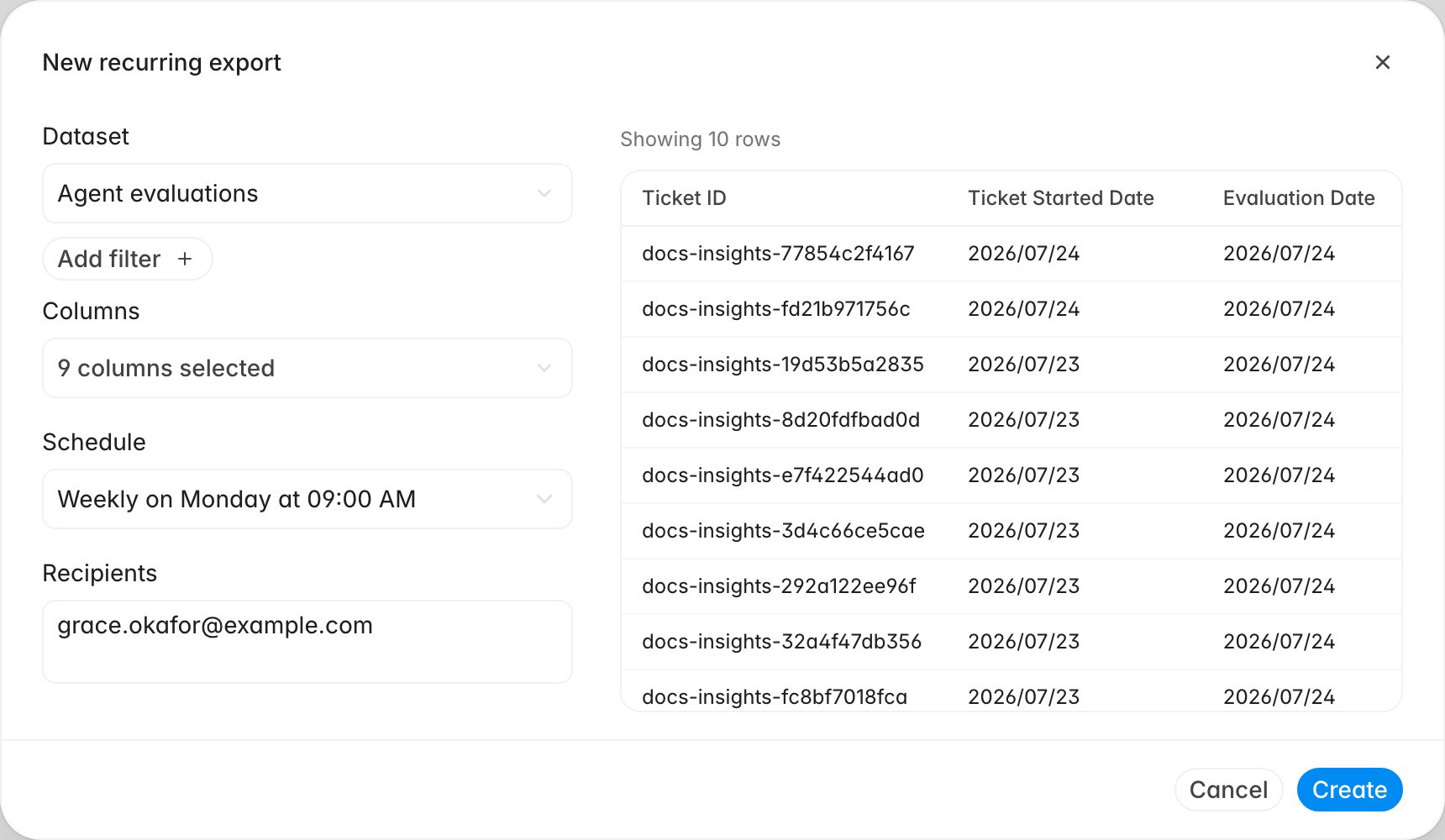
The dialog builds the export and previews it at the same time. The rows you are
about to schedule appear beside the fields as you change them.
1. Click **New export**.
2. Pick the **Dataset**.
3. Add filters with **Add filter** until the preview on the right shows the rows
you want.
4. Open **Columns** and choose the fields to include. Skip this step if you
picked **Quality assurance**, which exports a fixed set of columns.
5. Set the **Schedule**: daily, or weekly on a chosen day, at a time in your
workspace timezone.
6. Enter one or more **Recipients**.
7. Click **Create**.
## Which one you want
| | Email exports | Cloud storage export |
| --------------------- | ------------------------------------------------ | ------------------------------------------ |
| **What arrives** | An Excel workbook attached to an email | A CSV plus a manifest in your S3 bucket |
| **When** | Daily, or weekly on a day and time you choose | Weekly, plus **Run now** whenever you like |
| **What it covers** | Any of the three datasets, filtered how you like | QA evaluation analytics, whole workspace |
| **Who can set it up** | Anyone except agents | Admins only |
| **Best for** | A recurring report for people | Feeding a warehouse or BI tool |
## Before you start
* Nothing here is behind a feature flag. Email exports are open to everyone
except agents; the cloud storage export needs the **Manage organization
settings** permission, and without it the section still appears but stays empty
and refuses to save.
* Decide the filters before you create a schedule. A recurring export repeats the
filters it was created with, so "resolved tickets, last week, one team" is a
choice you make once.
* For the S3 route, have a bucket and a dedicated IAM user's keys ready. Rulebase
validates them before saving.
## Create a recurring email export
The dialog builds the export and previews it at the same time. The rows you are
about to schedule appear beside the fields as you change them.
1. Click **New export**.
2. Pick the **Dataset**.
3. Add filters with **Add filter** until the preview on the right shows the rows
you want.
4. Open **Columns** and choose the fields to include. Skip this step if you
picked **Quality assurance**, which exports a fixed set of columns.
5. Set the **Schedule**: daily, or weekly on a chosen day, at a time in your
workspace timezone.
6. Enter one or more **Recipients**.
7. Click **Create**.
 The new schedule appears under **Email exports** with its cadence and recipients,
and the first delivery lands at the next occurrence rather than immediately.
The datasets differ in the shape of a row:
* **Quality assurance** — one row per ticket, with its AI and human evaluation
results. This is the only dataset without a **Columns** control; it ships a
fixed set of ticket-level fields.
* **Agent evaluations** — one row per agent per evaluation, with scorecard scores
and review details. Pick this when you are analysing people rather than tickets.
* **All interactions** — every customer interaction across channels, including
the ones QA never scored.
Filters come from the same menus as the Evaluations and Tickets lists, so the
fastest way to design an export is to get the list showing exactly what you want
first, then rebuild those filters here.
## What recipients receive
Each run generates a fresh workbook and attaches it to an email titled
`[RULEBASE] export for `. Nobody has to sign in to
open it, and recipients do not need to be Rulebase members; any valid address
works. Rulebase membership and data scopes do not restrict who can read a
delivered workbook, so verify every recipient before saving the schedule.
Rulebase builds the file using the permissions and data scope of whoever created
the schedule. A schedule created by someone scoped to one team keeps producing a
one-team file even after it is handed over, so recreate it under the right
account rather than editing the recipients when scope is the problem.
## Manage or stop a schedule
Everyone in the workspace sees the schedules that exist, but the row menu only
opens for the person who created a schedule and for admins:
* **Send now** — runs it immediately, without touching the schedule. Useful for
confirming the filters produce what you expected.
* **Edit** — reopens the dialog, preview included.
* **Delete** — removes the schedule. Files already delivered stay in people's
inboxes.
## Send QA analytics to your own S3 bucket
The cloud storage export writes machine-readable QA evaluation data into a
bucket you control,
every week. Rulebase only ever writes, so the IAM user you create needs a single
permission:
```json theme={null}
{
"Version": "2012-10-17",
"Statement": [
{
"Sid": "RulebaseExportWrite",
"Effect": "Allow",
"Action": ["s3:PutObject"],
"Resource": "arn:aws:s3:::YOUR_BUCKET/YOUR_PREFIX/*"
}
]
}
```
With the bucket and keys ready:
1. Under **Cloud storage export**, click **New data export**.
2. Leave **Provider** as Amazon S3 (it is the only destination today).
3. Enter the **Bucket name** and choose its **Region**.
4. Optionally set a **Folder prefix**, such as `rulebase/qa-analytics`.
5. Enter the **Access key ID** and **Secret access key**.
6. Click **Test**. Rulebase writes a test object and reports the key it wrote.
7. Click **Start data export**.
The save button stays disabled until a test passes, so a typo in a key fails
here rather than three days later. The secret is encrypted and never shown again, so editing an export means
re-entering it.
## What lands in the bucket
Each run writes three objects under your prefix, partitioned by date:
```text theme={null}
evaluations/dt=YYYY-MM-DD/evaluations__to__.csv
evaluations/dt=YYYY-MM-DD/evaluations__to__.manifest.json
evaluations/dt=YYYY-MM-DD/_SUCCESS
```
The CSV carries one row per evaluation: `evaluation_id`, `conversation_id`,
`ticket_id`, `evaluated_at`, `source` (whether AI or a person produced it),
`agent_employee_id`, `agent_name`, `agent_email`, `team_lead_name`,
`evaluator_email`, `conversation_started_at`, and
`conversation_external_created_at`. A team can have several leads, so
`team_lead_name` holds every lead of the agent's team, comma-separated. The
manifest repeats the column list with a
row count and the exported window, so a downstream job can check completeness
without parsing the CSV, and `_SUCCESS` marks the partition as finished, the
convention most warehouse loaders look for.
Run keys include the run id, so a re-run never overwrites a good upload. That
also means deleting the export in Rulebase leaves everything already written in
place; clean the bucket yourself if you need the data gone.
## Keep an eye on it
The row for each cloud storage export shows its status, and its menu carries
**Run now**, **Edit**, **Pause**, and **Delete**. A failed run keeps its weekly
slot and retries on the next one, with the error recorded against the export, so a
transient S3 problem does not need a manual restart. **Pause** is the control to
use when the destination is being rebuilt: it stops the schedule without
discarding the configuration.
## Related
* [Export QA evaluation data](/guides/quality-assurance/export-qa-evaluations)
* [Insights overview](/guides/insights/overview)
* [Manage charts on a custom dashboard](/guides/insights/manage-dashboard-charts)
* [Roles and permissions](/guides/roles-and-permissions)
The new schedule appears under **Email exports** with its cadence and recipients,
and the first delivery lands at the next occurrence rather than immediately.
The datasets differ in the shape of a row:
* **Quality assurance** — one row per ticket, with its AI and human evaluation
results. This is the only dataset without a **Columns** control; it ships a
fixed set of ticket-level fields.
* **Agent evaluations** — one row per agent per evaluation, with scorecard scores
and review details. Pick this when you are analysing people rather than tickets.
* **All interactions** — every customer interaction across channels, including
the ones QA never scored.
Filters come from the same menus as the Evaluations and Tickets lists, so the
fastest way to design an export is to get the list showing exactly what you want
first, then rebuild those filters here.
## What recipients receive
Each run generates a fresh workbook and attaches it to an email titled
`[RULEBASE] export for `. Nobody has to sign in to
open it, and recipients do not need to be Rulebase members; any valid address
works. Rulebase membership and data scopes do not restrict who can read a
delivered workbook, so verify every recipient before saving the schedule.
Rulebase builds the file using the permissions and data scope of whoever created
the schedule. A schedule created by someone scoped to one team keeps producing a
one-team file even after it is handed over, so recreate it under the right
account rather than editing the recipients when scope is the problem.
## Manage or stop a schedule
Everyone in the workspace sees the schedules that exist, but the row menu only
opens for the person who created a schedule and for admins:
* **Send now** — runs it immediately, without touching the schedule. Useful for
confirming the filters produce what you expected.
* **Edit** — reopens the dialog, preview included.
* **Delete** — removes the schedule. Files already delivered stay in people's
inboxes.
## Send QA analytics to your own S3 bucket
The cloud storage export writes machine-readable QA evaluation data into a
bucket you control,
every week. Rulebase only ever writes, so the IAM user you create needs a single
permission:
```json theme={null}
{
"Version": "2012-10-17",
"Statement": [
{
"Sid": "RulebaseExportWrite",
"Effect": "Allow",
"Action": ["s3:PutObject"],
"Resource": "arn:aws:s3:::YOUR_BUCKET/YOUR_PREFIX/*"
}
]
}
```
With the bucket and keys ready:
1. Under **Cloud storage export**, click **New data export**.
2. Leave **Provider** as Amazon S3 (it is the only destination today).
3. Enter the **Bucket name** and choose its **Region**.
4. Optionally set a **Folder prefix**, such as `rulebase/qa-analytics`.
5. Enter the **Access key ID** and **Secret access key**.
6. Click **Test**. Rulebase writes a test object and reports the key it wrote.
7. Click **Start data export**.
The save button stays disabled until a test passes, so a typo in a key fails
here rather than three days later. The secret is encrypted and never shown again, so editing an export means
re-entering it.
## What lands in the bucket
Each run writes three objects under your prefix, partitioned by date:
```text theme={null}
evaluations/dt=YYYY-MM-DD/evaluations__to__.csv
evaluations/dt=YYYY-MM-DD/evaluations__to__.manifest.json
evaluations/dt=YYYY-MM-DD/_SUCCESS
```
The CSV carries one row per evaluation: `evaluation_id`, `conversation_id`,
`ticket_id`, `evaluated_at`, `source` (whether AI or a person produced it),
`agent_employee_id`, `agent_name`, `agent_email`, `team_lead_name`,
`evaluator_email`, `conversation_started_at`, and
`conversation_external_created_at`. A team can have several leads, so
`team_lead_name` holds every lead of the agent's team, comma-separated. The
manifest repeats the column list with a
row count and the exported window, so a downstream job can check completeness
without parsing the CSV, and `_SUCCESS` marks the partition as finished, the
convention most warehouse loaders look for.
Run keys include the run id, so a re-run never overwrites a good upload. That
also means deleting the export in Rulebase leaves everything already written in
place; clean the bucket yourself if you need the data gone.
## Keep an eye on it
The row for each cloud storage export shows its status, and its menu carries
**Run now**, **Edit**, **Pause**, and **Delete**. A failed run keeps its weekly
slot and retries on the next one, with the error recorded against the export, so a
transient S3 problem does not need a manual restart. **Pause** is the control to
use when the destination is being rebuilt: it stops the schedule without
discarding the configuration.
## Related
* [Export QA evaluation data](/guides/quality-assurance/export-qa-evaluations)
* [Insights overview](/guides/insights/overview)
* [Manage charts on a custom dashboard](/guides/insights/manage-dashboard-charts)
* [Roles and permissions](/guides/roles-and-permissions)