> ## Documentation Index
> Fetch the complete documentation index at: https://docs.rulebase.co/llms.txt
> Use this file to discover all available pages before exploring further.
# Use team and agent performance
> Move from the team list to a team page to one agent's tickets, evaluations, and coaching history.
The performance views are the part of Insights that answers "who". They start
with every team side by side, narrow to one team and its agents, and end on a
single agent's page where their tickets, evaluations, and coaching history sit
together.
Open **Insights** and click the **Performance** card to get started.
Team performance is gated. If **Performance** opens a flat list of agents with no
teams above them, the team views are not enabled for your workspace; ask your
Rulebase contact to turn them on.
 ## Before you start
* Who appears here comes from the agent roster, not from who has a login. An
agent missing from a team is usually missing from the roster or unassigned:
[Manage the QA agent
roster](/guides/quality-assurance/manage-agent-roster) is the fix.
* Manager, team lead, quality analyst, compliance analyst, member, and admin
roles all carry **View agents and performance reports**, which is what these
pages need. Agents are the exception: they see their own evaluations and
performance rather than the team list.
* A membership scoped to one team sees only that team here.
* Scores only appear for periods that were actually evaluated. A week with no
evaluations reads as **No QA evaluations in this period** rather than zero.
## Start with the team list
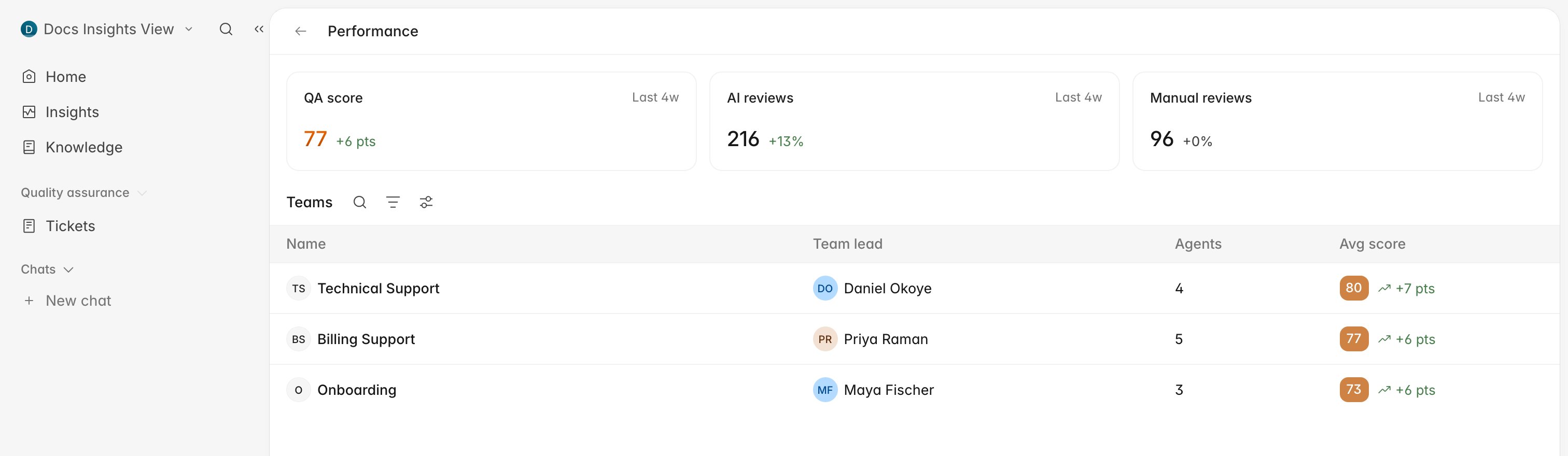
The list is a fixed four-week view. The cards along the top summarize
the whole workspace over that window rather than any one team:
* **QA score** — the average across every evaluation in the last four weeks.
* **AI evaluations** — how many evaluations AI QA produced.
* **Manual evaluations** — how many a person entered by hand.
Underneath, each team gets a row with its **Team lead**, how many **Agents** it
holds, and its **Avg score** with the change against the previous four weeks.
## Open a team to see its agents
1. Click the team's row.
2. Read the **Summary** at the top before the numbers. Rulebase writes it from
that period's results, naming what improved, what slipped, and which agent sits
lowest.
3. Use the date control in the header to move to another week.
## Before you start
* Who appears here comes from the agent roster, not from who has a login. An
agent missing from a team is usually missing from the roster or unassigned:
[Manage the QA agent
roster](/guides/quality-assurance/manage-agent-roster) is the fix.
* Manager, team lead, quality analyst, compliance analyst, member, and admin
roles all carry **View agents and performance reports**, which is what these
pages need. Agents are the exception: they see their own evaluations and
performance rather than the team list.
* A membership scoped to one team sees only that team here.
* Scores only appear for periods that were actually evaluated. A week with no
evaluations reads as **No QA evaluations in this period** rather than zero.
## Start with the team list
The list is a fixed four-week view. The cards along the top summarize
the whole workspace over that window rather than any one team:
* **QA score** — the average across every evaluation in the last four weeks.
* **AI evaluations** — how many evaluations AI QA produced.
* **Manual evaluations** — how many a person entered by hand.
Underneath, each team gets a row with its **Team lead**, how many **Agents** it
holds, and its **Avg score** with the change against the previous four weeks.
## Open a team to see its agents
1. Click the team's row.
2. Read the **Summary** at the top before the numbers. Rulebase writes it from
that period's results, naming what improved, what slipped, and which agent sits
lowest.
3. Use the date control in the header to move to another week.
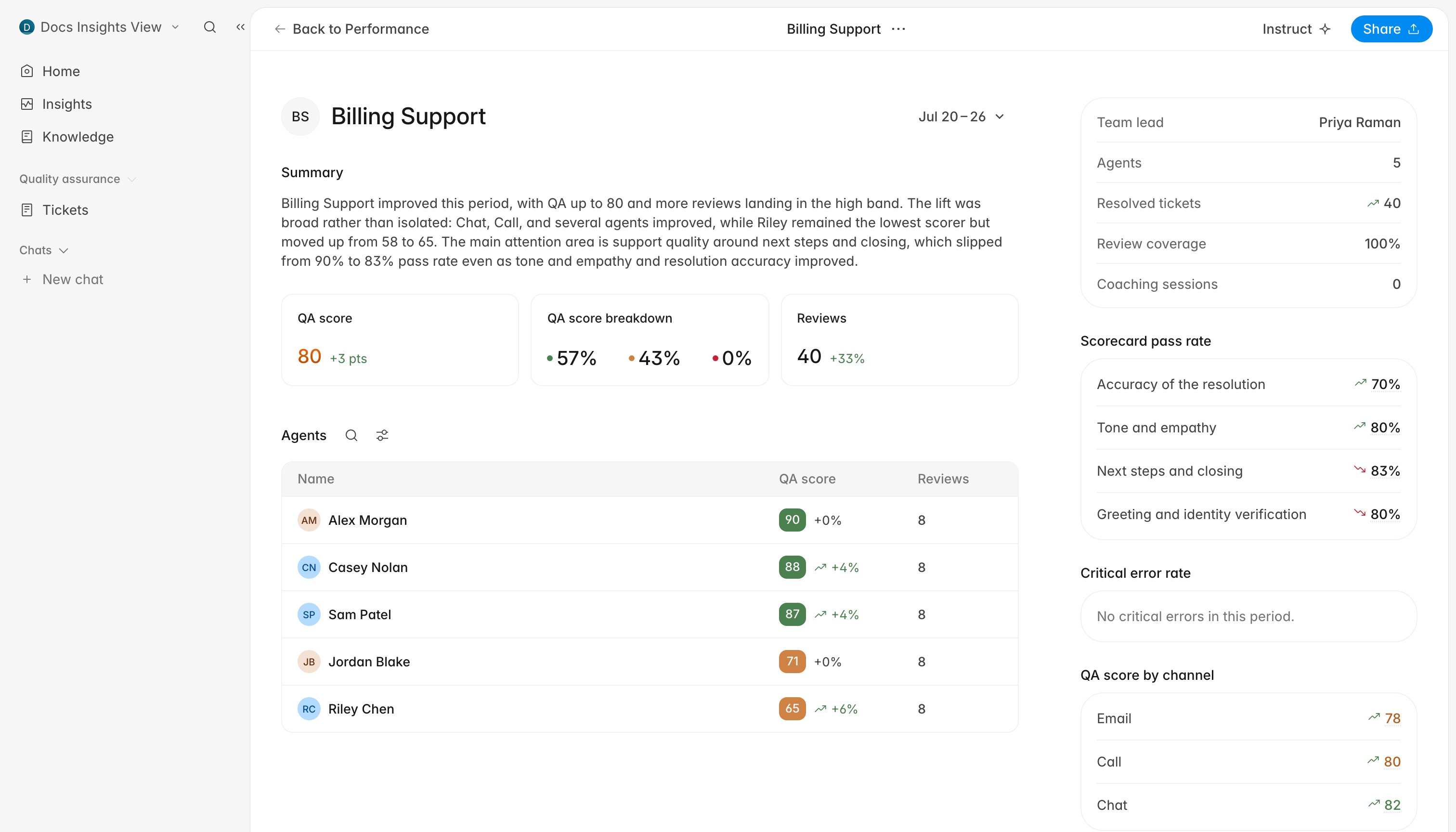 The three cards under the summary are the team's headline: **QA score** with its
change in points, **QA score breakdown** as the share of evaluations landing in
the high, medium, and low bands, and **Evaluations** as the number of evaluations
behind all of it. Hover a number to see the counts it was calculated from.
The right-hand rail splits the score by cause rather than by person: **Scorecard pass rate** per criterion,
**Critical error rate**, **QA score by channel**, and **Lowest-scoring contact
reasons**.
The date control moves in whole weeks. Clicking any day in the calendar selects
that Monday-to-Sunday week, and every comparison on the page is against the week
before it. The four-week window on the team list is separate and cannot be
changed.
## Follow one agent into their tickets and evaluations
The **Agents** table on a team page is sorted by QA score, so the people who need
attention are at the bottom of it.
1. Click an agent's name.
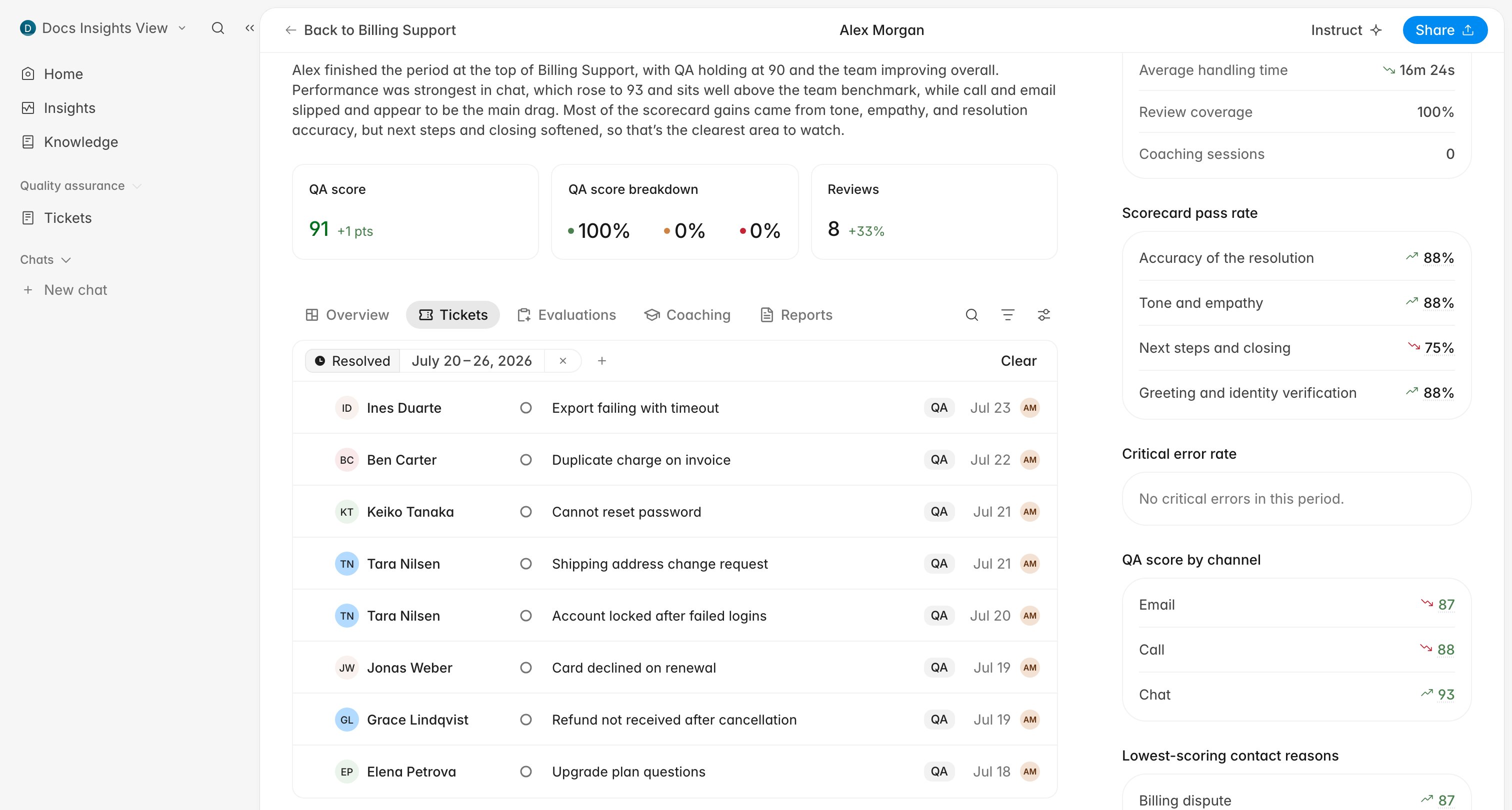
2. Stay on **Overview** to read their summary and the same headline cards, now
scoped to them.
3. Switch tabs to get from the summary to the underlying work.
The three cards under the summary are the team's headline: **QA score** with its
change in points, **QA score breakdown** as the share of evaluations landing in
the high, medium, and low bands, and **Evaluations** as the number of evaluations
behind all of it. Hover a number to see the counts it was calculated from.
The right-hand rail splits the score by cause rather than by person: **Scorecard pass rate** per criterion,
**Critical error rate**, **QA score by channel**, and **Lowest-scoring contact
reasons**.
The date control moves in whole weeks. Clicking any day in the calendar selects
that Monday-to-Sunday week, and every comparison on the page is against the week
before it. The four-week window on the team list is separate and cannot be
changed.
## Follow one agent into their tickets and evaluations
The **Agents** table on a team page is sorted by QA score, so the people who need
attention are at the bottom of it.
1. Click an agent's name.
2. Stay on **Overview** to read their summary and the same headline cards, now
scoped to them.
3. Switch tabs to get from the summary to the underlying work.
 | Tab | What it holds |
| --------------- | ----------------------------------------------------------------------------------- |
| **Overview** | The written summary, headline cards, and the metrics rail |
| **Tickets** | Every ticket they handled in the period, with search, filters, and display controls |
| **Evaluations** | Their evaluations, openable one by one to see criterion scores and feedback |
| **Coaching** | Their coaching sessions, plus **New session** to log another |
| **Reports** | Their weekly performance reports, chosen from the selector in the header |
The date control lives on **Overview**, and moving to **Tickets** or
**Evaluations** swaps it for that list's own search, filter, and display
controls. The period you picked still applies; it just stops being adjustable
from there. Both lists open the ticket or evaluation in place.
The rail on an agent's page carries a few numbers the team page does not:
**Resolved tickets**, **Average handling time**, **Evaluation coverage**, and
**Coaching sessions**. Read the score together with **Evaluation coverage**: 90 across eight
evaluations means less than 90 across eighty.
## Turn what you found into coaching
Coaching sessions are created from this page rather than from the Coaching
page; the evidence you want to attach is already in front of you.
Open **Coaching**, click **New session**, and pull in the tickets and evaluations
you just read. [Run a coaching
session](/guides/coaching/run-a-session) covers writing one that the agent can
act on, and the sessions you log show up in the **Coaching sessions** count on
this same page.
## When the numbers look wrong
Before escalating a surprising score, confirm the boring explanations:
* The period is a week, not the last seven days. A Monday morning reading is one
day of data.
* The agent is on the roster and on the team you expect. Evaluations stay with
the team the agent belonged to when they were scored, so somebody who changed
team mid-period shows up under both.
* Evaluations exist for the period. **Evaluation coverage** near zero means the score is
built on a handful of tickets.
* Your own membership is not scoped more narrowly than you assumed.
If a specific agent is absent rather than wrong, [An agent is missing from
reports](/guides/troubleshooting/agent-missing-from-reports) walks the causes in
order. When a score itself is the surprise, [Why is this score different from
what I expected?](/guides/troubleshooting/why-is-my-score-different) covers how
the same tickets can produce different averages.
## Related
* [Insights overview](/guides/insights/overview)
* [Run a coaching session](/guides/coaching/run-a-session)
* [Manage the QA agent roster](/guides/quality-assurance/manage-agent-roster)
* [Set score bands and the contest
window](/guides/settings/set-score-bands-and-contest-window)
* [An agent is missing from
reports](/guides/troubleshooting/agent-missing-from-reports)
* [Rulebase glossary](/guides/concepts/glossary)
| Tab | What it holds |
| --------------- | ----------------------------------------------------------------------------------- |
| **Overview** | The written summary, headline cards, and the metrics rail |
| **Tickets** | Every ticket they handled in the period, with search, filters, and display controls |
| **Evaluations** | Their evaluations, openable one by one to see criterion scores and feedback |
| **Coaching** | Their coaching sessions, plus **New session** to log another |
| **Reports** | Their weekly performance reports, chosen from the selector in the header |
The date control lives on **Overview**, and moving to **Tickets** or
**Evaluations** swaps it for that list's own search, filter, and display
controls. The period you picked still applies; it just stops being adjustable
from there. Both lists open the ticket or evaluation in place.
The rail on an agent's page carries a few numbers the team page does not:
**Resolved tickets**, **Average handling time**, **Evaluation coverage**, and
**Coaching sessions**. Read the score together with **Evaluation coverage**: 90 across eight
evaluations means less than 90 across eighty.
## Turn what you found into coaching
Coaching sessions are created from this page rather than from the Coaching
page; the evidence you want to attach is already in front of you.
Open **Coaching**, click **New session**, and pull in the tickets and evaluations
you just read. [Run a coaching
session](/guides/coaching/run-a-session) covers writing one that the agent can
act on, and the sessions you log show up in the **Coaching sessions** count on
this same page.
## When the numbers look wrong
Before escalating a surprising score, confirm the boring explanations:
* The period is a week, not the last seven days. A Monday morning reading is one
day of data.
* The agent is on the roster and on the team you expect. Evaluations stay with
the team the agent belonged to when they were scored, so somebody who changed
team mid-period shows up under both.
* Evaluations exist for the period. **Evaluation coverage** near zero means the score is
built on a handful of tickets.
* Your own membership is not scoped more narrowly than you assumed.
If a specific agent is absent rather than wrong, [An agent is missing from
reports](/guides/troubleshooting/agent-missing-from-reports) walks the causes in
order. When a score itself is the surprise, [Why is this score different from
what I expected?](/guides/troubleshooting/why-is-my-score-different) covers how
the same tickets can produce different averages.
## Related
* [Insights overview](/guides/insights/overview)
* [Run a coaching session](/guides/coaching/run-a-session)
* [Manage the QA agent roster](/guides/quality-assurance/manage-agent-roster)
* [Set score bands and the contest
window](/guides/settings/set-score-bands-and-contest-window)
* [An agent is missing from
reports](/guides/troubleshooting/agent-missing-from-reports)
* [Rulebase glossary](/guides/concepts/glossary)