> ## Documentation Index
> Fetch the complete documentation index at: https://docs.rulebase.co/llms.txt
> Use this file to discover all available pages before exploring further.
# Manage the knowledge library
> Write, import, organize, and refresh the knowledge base documents Rulebase searches when it evaluates a ticket against your policy.
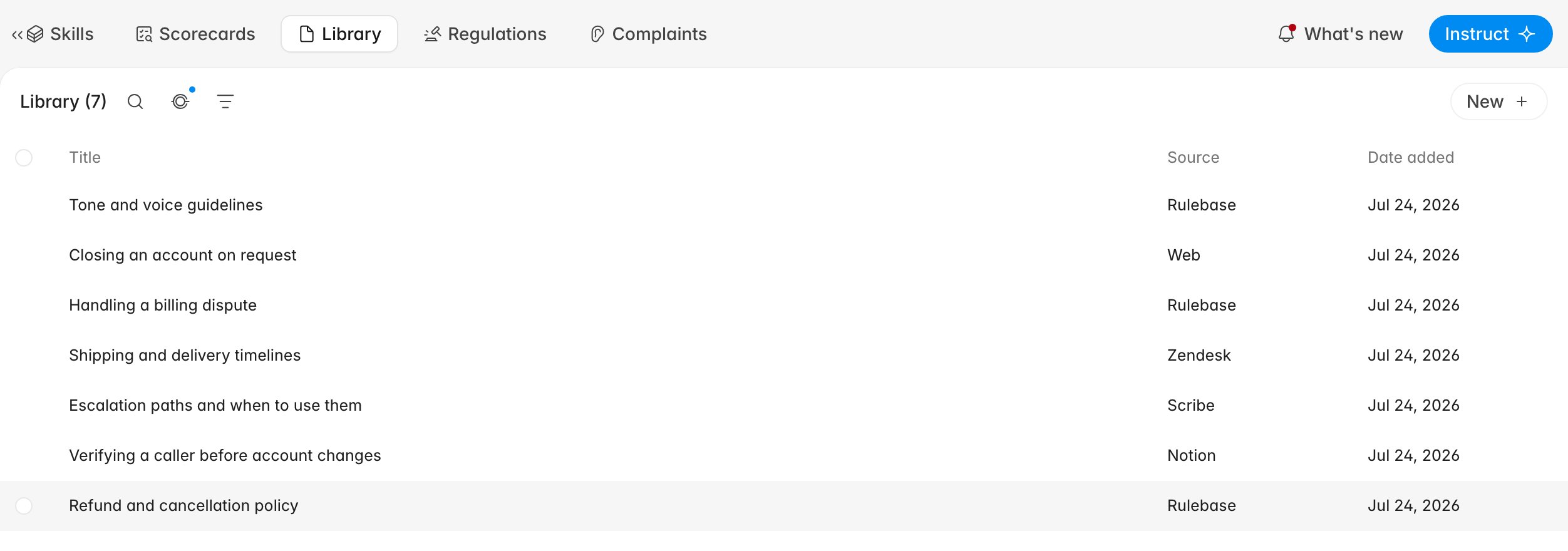
The knowledge library is where your written policy lives inside Rulebase: refund
windows, verification steps, escalation paths, the tone guide nobody can ever
find in Notion. Scorecard checks point at these documents, and when AI QA judges
whether an agent gave the right answer, this is what it reads.
 ## Before you start
* The library lives at
[Knowledge > Library](https://app.rulebase.co/knowledge/library).
* You need a role that can manage the knowledge base: `Administrator`,
`Manager`, or `Team Leader` all include it.
* Importing from a tool needs that tool connected first, under
[Settings > Connections](https://app.rulebase.co/settings/connections).
Connecting alone does not move any content.
## Where documents come from
Every row carries a **Source**, and it tells you who owns the content and
whether Rulebase will overwrite it later:
* **Rulebase** — written here, by you. Nothing else touches it.
* **Web** — scraped from a link you supplied, such as a public help centre.
* **Zendesk** — help centre articles, carrying their section, brand, and locale.
* **Notion** — one document per shared page. See [Notion](/guides/integrations/notion).
* **Scribe** — guides and knowledge pages, including step screenshots. See
[Scribe](/guides/integrations/scribe).
* **Confluence** and **Intercom** — pages and help centre articles from those
tools. Confluence rides on the [Jira](/guides/integrations/jira) connection
rather than having one of its own, so if the Confluence option is missing it is
Jira you need to connect.
[Drive content](/guides/integrations/google-drive) is read by workflows at the
moment they run, so it never becomes a library document and is not searchable
during evaluation.
## Write a document in Rulebase
1. Click **New** and choose **Start from scratch**. Rulebase creates the
document and opens the editor.
2. Give it a title that matches how someone would search for it:
`Refund and cancellation policy`, not `Policy v3 final`.
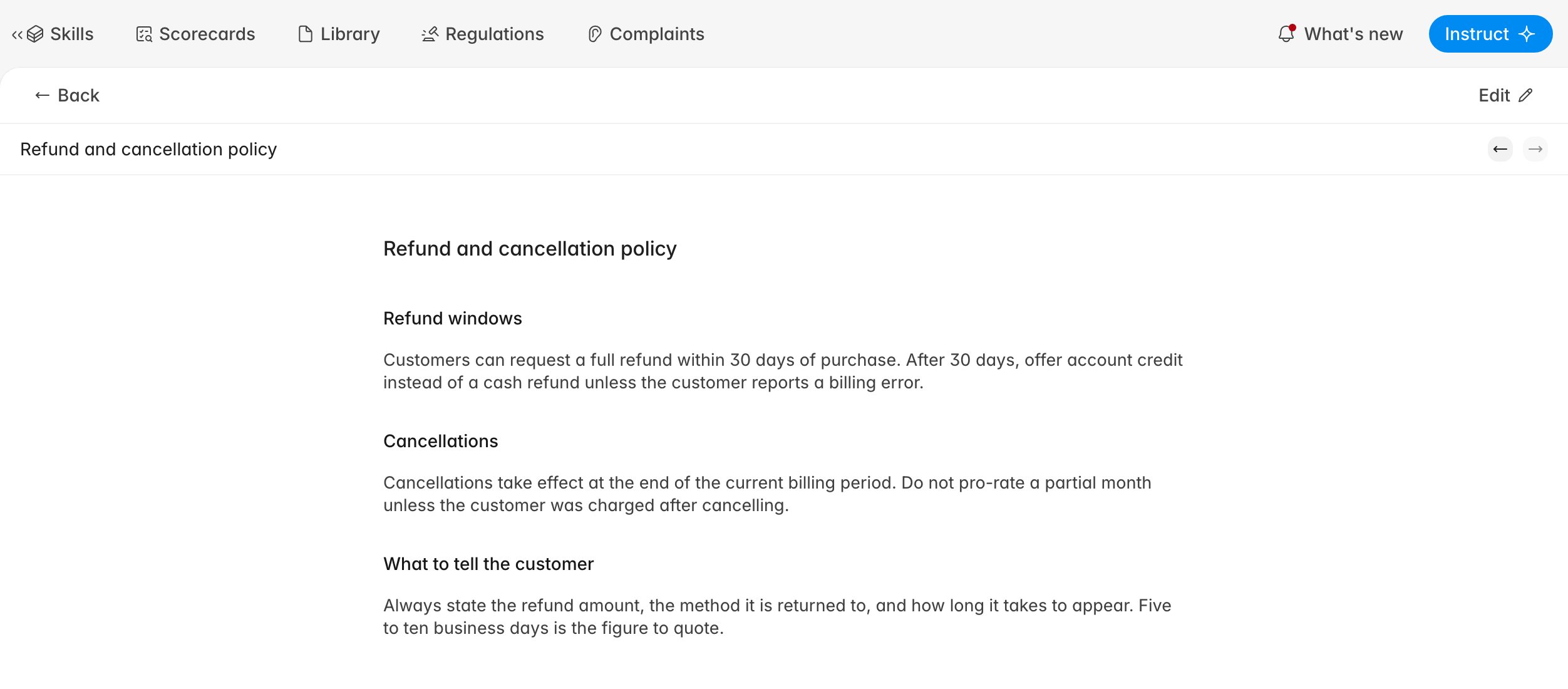
3. Write the body. Headings matter more than they look: the evaluator retrieves
passages, not whole files, so a document broken into `Refund windows`,
`Cancellations`, and `What to tell the customer` returns better answers than
one long block.
4. Click **Save**.
Rulebase indexes the document for search shortly after you save. A document with
a title and an empty body is never retrieved, so a stub you meant to fill in
later is invisible to every check that points at it.
## Edit or replace what a document says
Open a document from the list, click **Edit**, change the title or the body, and
**Save**. **Cancel** discards.
## Before you start
* The library lives at
[Knowledge > Library](https://app.rulebase.co/knowledge/library).
* You need a role that can manage the knowledge base: `Administrator`,
`Manager`, or `Team Leader` all include it.
* Importing from a tool needs that tool connected first, under
[Settings > Connections](https://app.rulebase.co/settings/connections).
Connecting alone does not move any content.
## Where documents come from
Every row carries a **Source**, and it tells you who owns the content and
whether Rulebase will overwrite it later:
* **Rulebase** — written here, by you. Nothing else touches it.
* **Web** — scraped from a link you supplied, such as a public help centre.
* **Zendesk** — help centre articles, carrying their section, brand, and locale.
* **Notion** — one document per shared page. See [Notion](/guides/integrations/notion).
* **Scribe** — guides and knowledge pages, including step screenshots. See
[Scribe](/guides/integrations/scribe).
* **Confluence** and **Intercom** — pages and help centre articles from those
tools. Confluence rides on the [Jira](/guides/integrations/jira) connection
rather than having one of its own, so if the Confluence option is missing it is
Jira you need to connect.
[Drive content](/guides/integrations/google-drive) is read by workflows at the
moment they run, so it never becomes a library document and is not searchable
during evaluation.
## Write a document in Rulebase
1. Click **New** and choose **Start from scratch**. Rulebase creates the
document and opens the editor.
2. Give it a title that matches how someone would search for it:
`Refund and cancellation policy`, not `Policy v3 final`.
3. Write the body. Headings matter more than they look: the evaluator retrieves
passages, not whole files, so a document broken into `Refund windows`,
`Cancellations`, and `What to tell the customer` returns better answers than
one long block.
4. Click **Save**.
Rulebase indexes the document for search shortly after you save. A document with
a title and an empty body is never retrieved, so a stub you meant to fill in
later is invisible to every check that points at it.
## Edit or replace what a document says
Open a document from the list, click **Edit**, change the title or the body, and
**Save**. **Cancel** discards.
 Editing an imported document is temporary. The next sync from Notion, Zendesk,
Scribe, Confluence, or Intercom overwrites the title and body with whatever the
source tool says. Fix imported content in the tool it came from; use Rulebase
documents for policy Rulebase owns.
## Import from a connected tool
Imports run from the **Manage knowledge base** dialog, which is also where you
see everything currently feeding the library.
1. Click **New** > **Connect to a source**, or the connections icon next to the
library search.
2. Open **Import** and choose the tool. Only tools you have connected appear, so
a missing option means the integration, not the import.
3. Follow the tool's dialog: usually selecting the connected account and
clicking **Import**.
Editing an imported document is temporary. The next sync from Notion, Zendesk,
Scribe, Confluence, or Intercom overwrites the title and body with whatever the
source tool says. Fix imported content in the tool it came from; use Rulebase
documents for policy Rulebase owns.
## Import from a connected tool
Imports run from the **Manage knowledge base** dialog, which is also where you
see everything currently feeding the library.
1. Click **New** > **Connect to a source**, or the connections icon next to the
library search.
2. Open **Import** and choose the tool. Only tools you have connected appear, so
a missing option means the integration, not the import.
3. Follow the tool's dialog: usually selecting the connected account and
clicking **Import**.
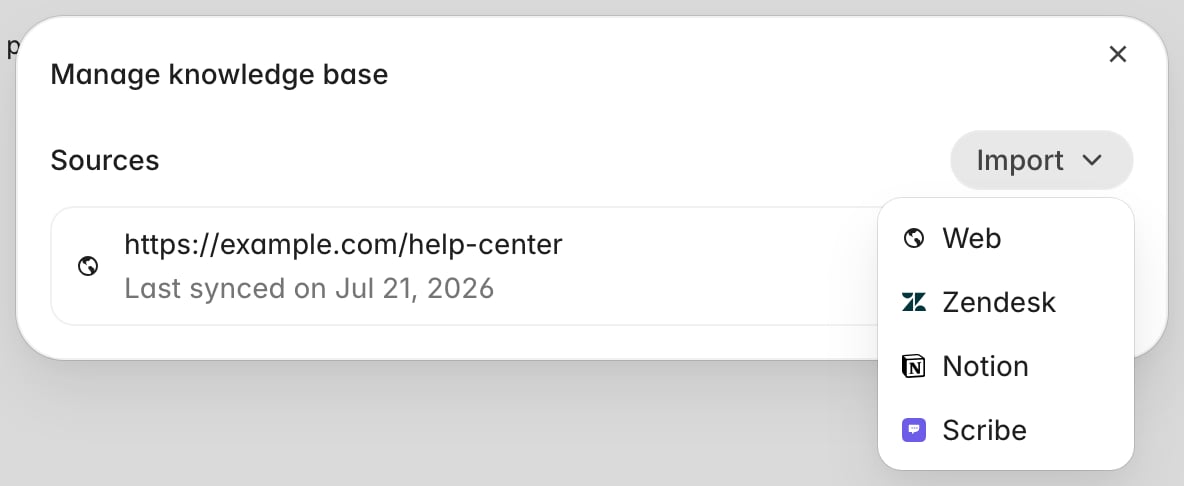 Importing creates a source, starts a first sync, and drops the documents into
the library as they arrive. **Web** is the odd one out: it asks for a link
rather than an account, and Rulebase crawls from there.
Importing creates a source, starts a first sync, and drops the documents into
the library as they arrive. **Web** is the odd one out: it asks for a link
rather than an account, and Rulebase crawls from there.
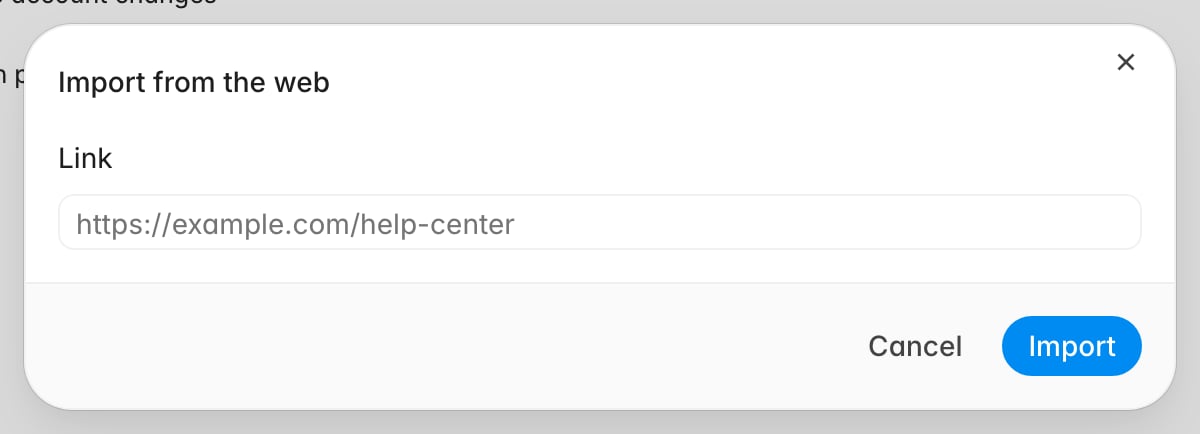 To import a website directly, choose **New** > **Import from web**, paste its
link, and click **Import**.
## Find things in a large library
Search sits behind the magnifying glass next to the document count and matches
on title. The filter icon beside it narrows the list four ways:
| Filter | What it narrows by |
| ------------ | ------------------------------------------------------------------------ |
| **Source** | Where the document came from — Rulebase, Web, Zendesk, Notion, and so on |
| **Section** | The help centre section an imported Zendesk article belongs to |
| **Language** | The locale of a Zendesk article, for multilingual help centres |
| **Brand** | The Zendesk brand the article belongs to |
To import a website directly, choose **New** > **Import from web**, paste its
link, and click **Import**.
## Find things in a large library
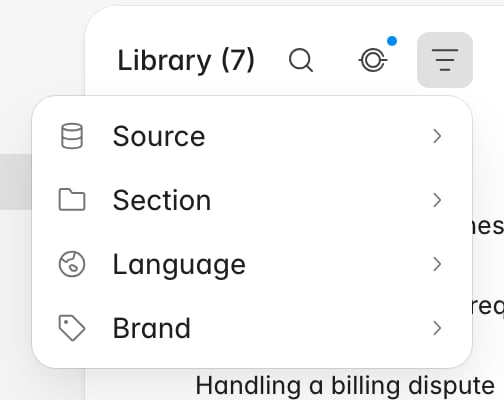
Search sits behind the magnifying glass next to the document count and matches
on title. The filter icon beside it narrows the list four ways:
| Filter | What it narrows by |
| ------------ | ------------------------------------------------------------------------ |
| **Source** | Where the document came from — Rulebase, Web, Zendesk, Notion, and so on |
| **Section** | The help centre section an imported Zendesk article belongs to |
| **Language** | The locale of a Zendesk article, for multilingual help centres |
| **Brand** | The Zendesk brand the article belongs to |
 Sections, languages, and brands come from Zendesk rather than being set in
Rulebase, so those three filters are empty until a Zendesk help centre has been
imported.
## Tidy up in bulk
Select documents with the checkbox on the left of each row and a small action
bar appears at the bottom of the list:
* **Add tag** applies one tag to everything selected. Tags become part of the text Rulebase searches, so a tag like
`refunds` on three scattered documents makes all three easier for the
evaluator to find. They are not a column or a filter.
* **Duplicate** copies a document, for when a new policy starts life as a
variant of an old one. It is only available with a single document selected.
* **Delete file** asks for confirmation, then permanently removes what you have
selected and clears those document references from scorecard checks.
## Keep imported content fresh
Sources refresh on their own once a day. Open **Manage knowledge base** to see
the state of each one: the row shows `Last synced on` with a date, or
`Syncing documents...` while a sync is running.
The overflow menu on a source row gives you the two manual controls. **Sync**
runs a refresh immediately, which is what you want after a batch of edits in
Notion that should not wait for tomorrow. **Delete source** stops the refreshes;
the documents it already brought in stay in the library, frozen at their last
synced version.
Refreshes update documents in place rather than duplicating them, skip anything
the source tool says has not changed, and remove content that has disappeared
from the source (an unshared Notion page, an archived Zendesk article) from
the library.
## Related
* [Link knowledge to scorecard checks](/guides/quality-assurance/link-knowledge-to-checks)
* [Notion](/guides/integrations/notion)
* [Scribe](/guides/integrations/scribe)
* [Zendesk](/guides/integrations/zendesk)
* [Google Drive](/guides/integrations/google-drive)
* [Roles and permissions](/guides/roles-and-permissions)
Sections, languages, and brands come from Zendesk rather than being set in
Rulebase, so those three filters are empty until a Zendesk help centre has been
imported.
## Tidy up in bulk
Select documents with the checkbox on the left of each row and a small action
bar appears at the bottom of the list:
* **Add tag** applies one tag to everything selected. Tags become part of the text Rulebase searches, so a tag like
`refunds` on three scattered documents makes all three easier for the
evaluator to find. They are not a column or a filter.
* **Duplicate** copies a document, for when a new policy starts life as a
variant of an old one. It is only available with a single document selected.
* **Delete file** asks for confirmation, then permanently removes what you have
selected and clears those document references from scorecard checks.
## Keep imported content fresh
Sources refresh on their own once a day. Open **Manage knowledge base** to see
the state of each one: the row shows `Last synced on` with a date, or
`Syncing documents...` while a sync is running.
The overflow menu on a source row gives you the two manual controls. **Sync**
runs a refresh immediately, which is what you want after a batch of edits in
Notion that should not wait for tomorrow. **Delete source** stops the refreshes;
the documents it already brought in stay in the library, frozen at their last
synced version.
Refreshes update documents in place rather than duplicating them, skip anything
the source tool says has not changed, and remove content that has disappeared
from the source (an unshared Notion page, an archived Zendesk article) from
the library.
## Related
* [Link knowledge to scorecard checks](/guides/quality-assurance/link-knowledge-to-checks)
* [Notion](/guides/integrations/notion)
* [Scribe](/guides/integrations/scribe)
* [Zendesk](/guides/integrations/zendesk)
* [Google Drive](/guides/integrations/google-drive)
* [Roles and permissions](/guides/roles-and-permissions)