> ## Documentation Index
> Fetch the complete documentation index at: https://docs.rulebase.co/llms.txt
> Use this file to discover all available pages before exploring further.
# Create a scorecard
> Build a scorecard from sections, criteria, and checks, balance it to 100 points, scope it to the right tickets, and publish it so AI QA starts scoring.
A scorecard is the rubric Rulebase scores tickets against: sections (resolution,
accuracy, tone), the criteria under each, and the checks an evaluator makes before
awarding points. Once published, AI QA scores every matching ticket against it,
and human reviewers use the same structure.
 ## Before you start
* Scorecards live under
[Knowledge > Scorecards](https://app.rulebase.co/knowledge/scorecards).
* You need a role that can manage scorecards, such as `Administrator` or
`Manager`. If **New** is greyed out, your role does not include it.
* Decide your point weighting first. Top-level totals must add up to exactly 100.
* Nothing is evaluated until you publish. A draft is invisible to AI QA and to
reviewers.
## How a scorecard is put together
A scorecard contains sections, sections contain criteria, and criteria
contain checks:
* **Scorecard**: the whole rubric, with a name, a description, and an optional
scope.
* **Section**: a themed group such as `Resolution`. Its points are the sum of
its criteria; you never type a section score directly.
* **Criteria**: the thing being judged, and the level that carries points. Each
has score options: **Pass**, **Fail**, and optionally **Partial** or
**Auto-fail**.
* **Check**: the instruction an evaluator follows inside a criterion, plus the
conditions that map an outcome onto a score. A criterion can hold several checks.
Rulebase sums the top-level scores and refuses to publish anything other than
100\. Think of it as a budget you split between sections.
## Create the scorecard
1. Go to [Knowledge > Scorecards](https://app.rulebase.co/knowledge/scorecards).
2. Click **New**.
3. Give it a **Scorecard name** a reviewer would recognize, and use
**Description** to record what it covers.
4. Click **Create**.
## Before you start
* Scorecards live under
[Knowledge > Scorecards](https://app.rulebase.co/knowledge/scorecards).
* You need a role that can manage scorecards, such as `Administrator` or
`Manager`. If **New** is greyed out, your role does not include it.
* Decide your point weighting first. Top-level totals must add up to exactly 100.
* Nothing is evaluated until you publish. A draft is invisible to AI QA and to
reviewers.
## How a scorecard is put together
A scorecard contains sections, sections contain criteria, and criteria
contain checks:
* **Scorecard**: the whole rubric, with a name, a description, and an optional
scope.
* **Section**: a themed group such as `Resolution`. Its points are the sum of
its criteria; you never type a section score directly.
* **Criteria**: the thing being judged, and the level that carries points. Each
has score options: **Pass**, **Fail**, and optionally **Partial** or
**Auto-fail**.
* **Check**: the instruction an evaluator follows inside a criterion, plus the
conditions that map an outcome onto a score. A criterion can hold several checks.
Rulebase sums the top-level scores and refuses to publish anything other than
100\. Think of it as a budget you split between sections.
## Create the scorecard
1. Go to [Knowledge > Scorecards](https://app.rulebase.co/knowledge/scorecards).
2. Click **New**.
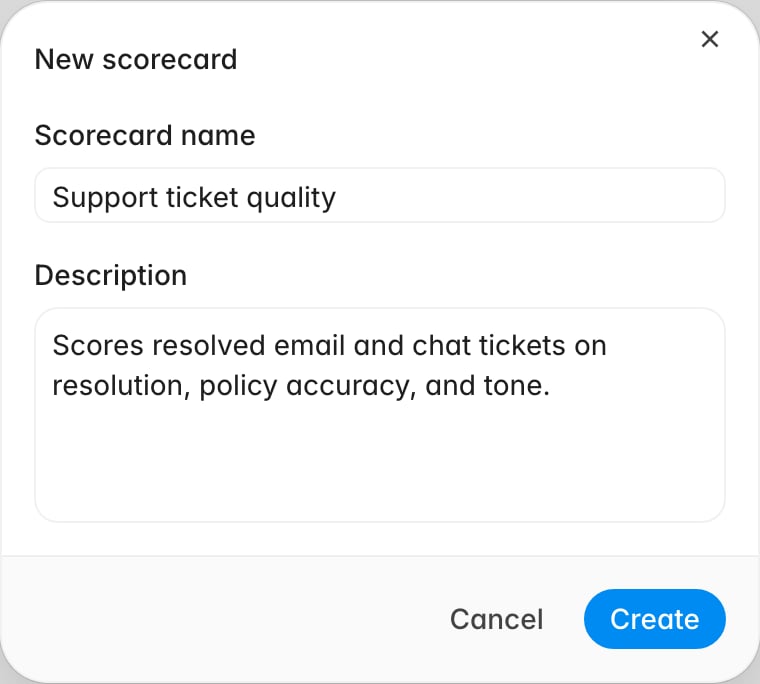
3. Give it a **Scorecard name** a reviewer would recognize, and use
**Description** to record what it covers.
4. Click **Create**.
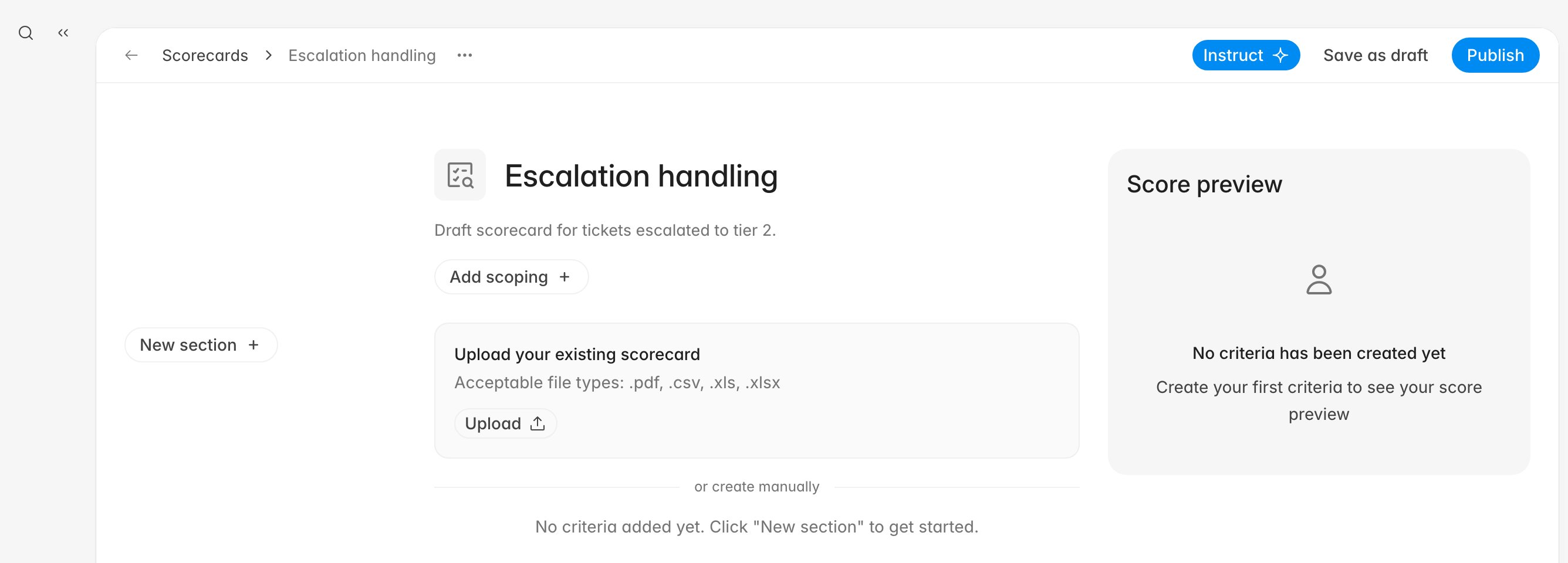
 Rulebase creates the scorecard as a draft and opens the editor. From the empty
editor you can **Upload** an existing scorecard document (`.pdf`, `.csv`, `.xls`,
or `.xlsx`) and let Rulebase draft the structure from it, or build it yourself
with **New section**.
Rulebase creates the scorecard as a draft and opens the editor. From the empty
editor you can **Upload** an existing scorecard document (`.pdf`, `.csv`, `.xls`,
or `.xlsx`) and let Rulebase draft the structure from it, or build it yourself
with **New section**.
 ## Add your sections
Add all your sections before writing any criteria, so the point budget is visible
from the start.
1. Click **New section**. Rulebase adds it to the left-hand list with a
placeholder name like `Section 1`.
2. Hover the new section, open its **...** menu, and choose **Edit**.
3. Set the **Name**, and use **Instructions** to tell the evaluator how to think
about this theme.
4. Click **Save**.
## Add your sections
Add all your sections before writing any criteria, so the point budget is visible
from the start.
1. Click **New section**. Rulebase adds it to the left-hand list with a
placeholder name like `Section 1`.
2. Hover the new section, open its **...** menu, and choose **Edit**.
3. Set the **Name**, and use **Instructions** to tell the evaluator how to think
about this theme.
4. Click **Save**.
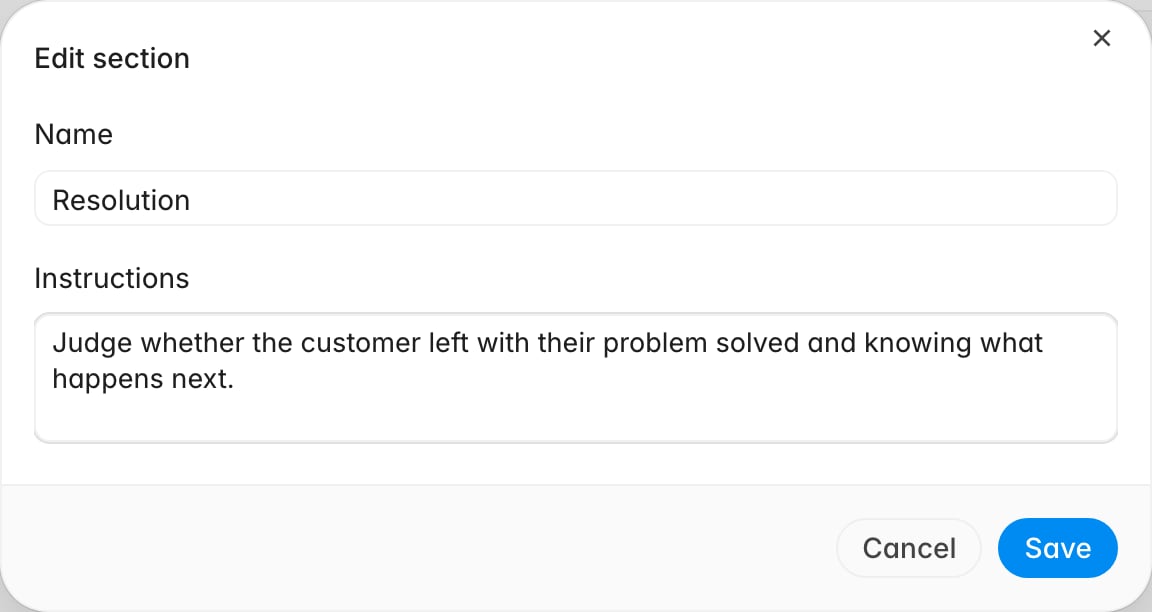 Section instructions are guidance for the whole section. They carry no points and
apply to every criterion, so put a judgement call you would otherwise repeat in
each check here.
## Write criteria and checks
Open a section, then click **Create first criteria** (or **Add criteria** once the
section has one) and fill in the card.
1. Type the **Criteria name** as the thing being judged, phrased so passing is
good: `Resolved the customer's issue`.
2. Set the points. New criteria start at 10, so click the value next to **Pass**,
set the **Score**, and press **Enter**. **Fail** stays at 0.
3. Add score options if pass/fail is too blunt. The **+** next to the scores
offers **Partial score** for partial credit and **Auto-fail score**, which
fails the whole evaluation when selected.
4. In **1st check**, describe what the evaluator has to look for.
5. Give the check its conditions. **Generate conditions** drafts them from the
criterion and check text; **Add condition manually** lets you write your own. A
condition pairs an observation with an outcome, reading `If ` …
`mark as fail`, choosing from the criterion's non-passing scores.
6. Use **Add new check** when the criterion needs a second judgement, and
**Add additional instructions** for guidance that belongs to this check alone.
Section instructions are guidance for the whole section. They carry no points and
apply to every criterion, so put a judgement call you would otherwise repeat in
each check here.
## Write criteria and checks
Open a section, then click **Create first criteria** (or **Add criteria** once the
section has one) and fill in the card.
1. Type the **Criteria name** as the thing being judged, phrased so passing is
good: `Resolved the customer's issue`.
2. Set the points. New criteria start at 10, so click the value next to **Pass**,
set the **Score**, and press **Enter**. **Fail** stays at 0.
3. Add score options if pass/fail is too blunt. The **+** next to the scores
offers **Partial score** for partial credit and **Auto-fail score**, which
fails the whole evaluation when selected.
4. In **1st check**, describe what the evaluator has to look for.
5. Give the check its conditions. **Generate conditions** drafts them from the
criterion and check text; **Add condition manually** lets you write your own. A
condition pairs an observation with an outcome, reading `If ` …
`mark as fail`, choosing from the criterion's non-passing scores.
6. Use **Add new check** when the criterion needs a second judgement, and
**Add additional instructions** for guidance that belongs to this check alone.
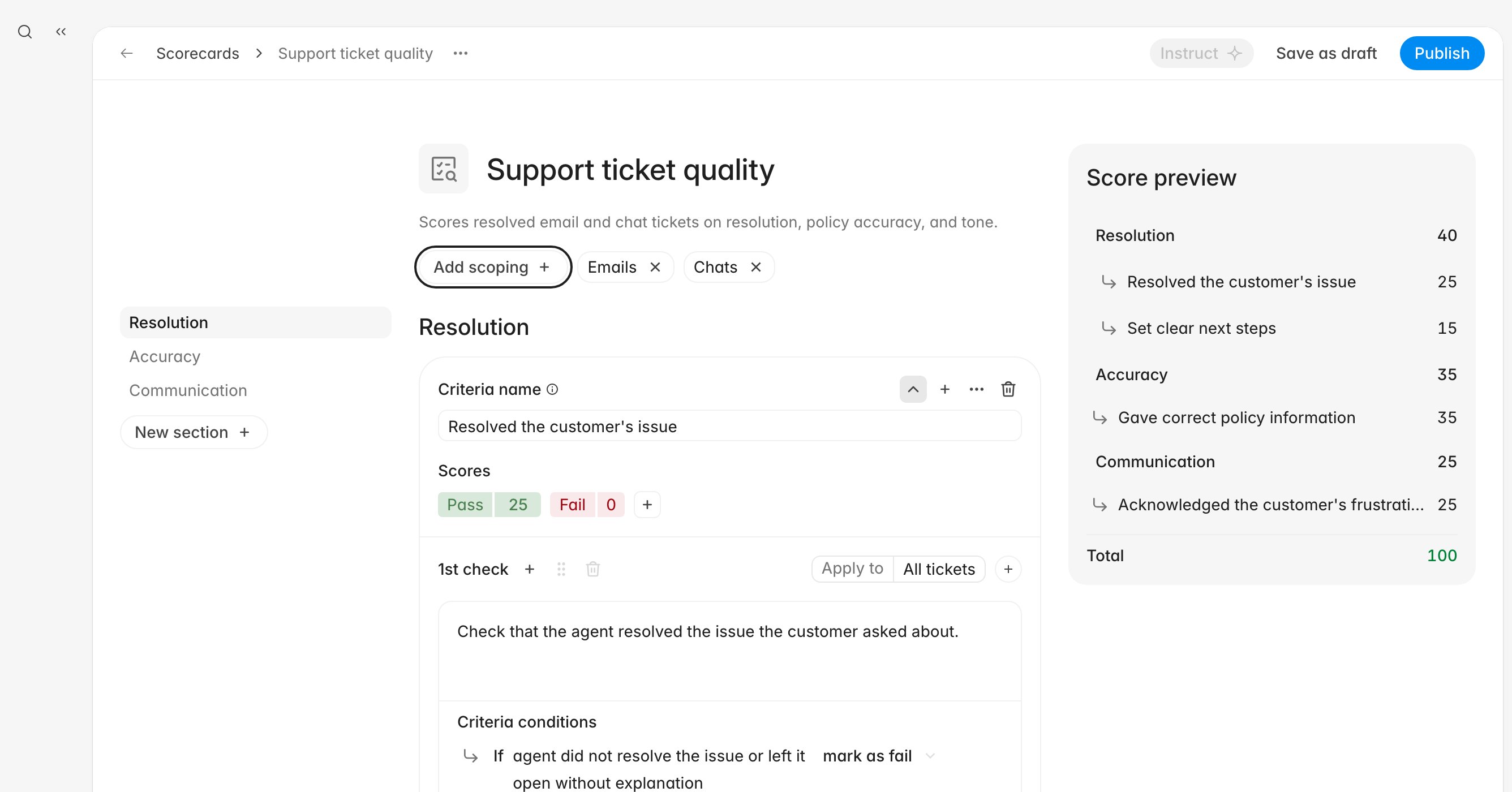
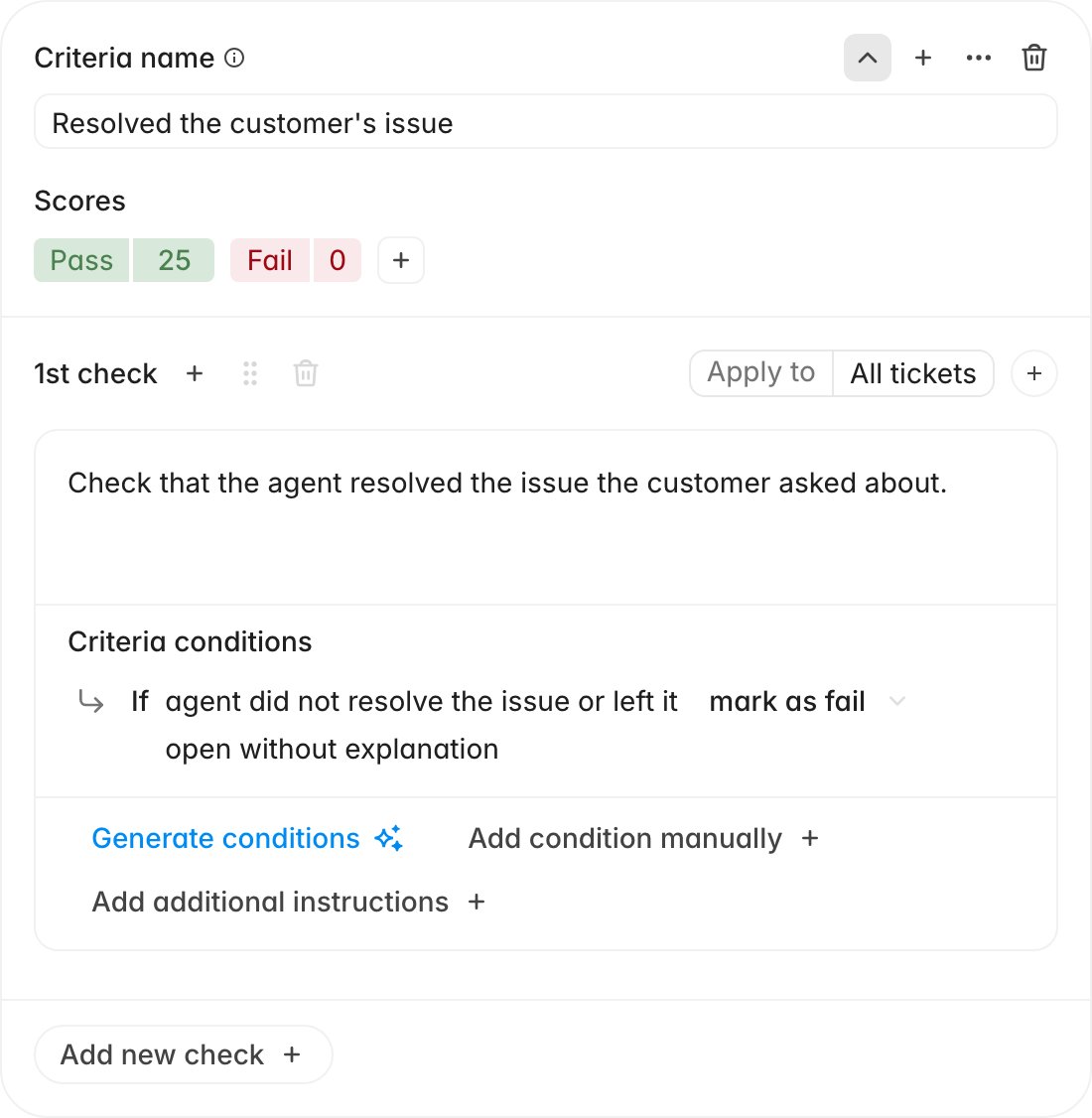 The **Apply to** pill on a check reads **All tickets** until you narrow it. A
check can be restricted to specific channels, to new or re-assigned tickets, to
primary or duplicate tickets, to SLA breaches, or to inbound or outbound calls.
Every check needs at least one condition before the scorecard can publish. If a
check has none, publishing stops with a message naming the criterion and the
check number.
## Balance the scores to 100
**Score preview** on the right keeps a running total. Section totals roll up from
their criteria, and the **Total** at the bottom must read 100.
The **Apply to** pill on a check reads **All tickets** until you narrow it. A
check can be restricted to specific channels, to new or re-assigned tickets, to
primary or duplicate tickets, to SLA breaches, or to inbound or outbound calls.
Every check needs at least one condition before the scorecard can publish. If a
check has none, publishing stops with a message naming the criterion and the
check number.
## Balance the scores to 100
**Score preview** on the right keeps a running total. Section totals roll up from
their criteria, and the **Total** at the bottom must read 100.
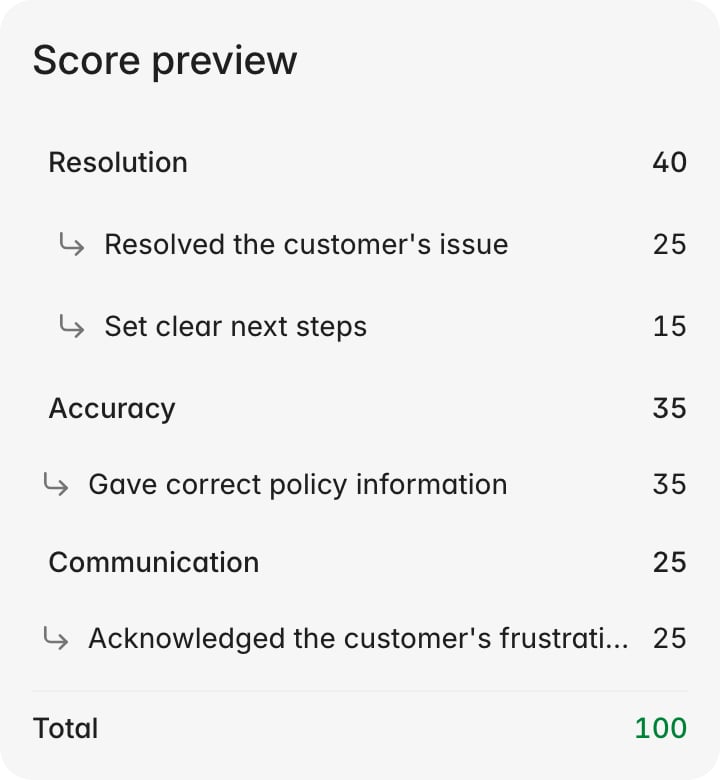 If the total is off, publishing fails with `Total score of all top-level criteria
must equal 100` and the current number. Weight sections by what you want agents
to optimize for.
## Scope it to the right tickets
A scorecard with no scope applies to every ticket Rulebase evaluates. That is
fine for one company-wide rubric and wrong the moment you have two, so narrow at
least one dimension.
Click **Add scoping** in the header and pick from four groups:
* **Applies to**: **Tickets**, **Work items**, or both. Both by default.
* **People**: **Groups**, **Teams**, or **Agents**, for rubrics that only apply
to part of the org.
* **Ticket details**: **Channels** for email, chat, or calls, and
**Ticket scope** for **External tickets** or **Internal tickets**.
* **Calls**: **Call direction**, for inbound versus outbound.
If the total is off, publishing fails with `Total score of all top-level criteria
must equal 100` and the current number. Weight sections by what you want agents
to optimize for.
## Scope it to the right tickets
A scorecard with no scope applies to every ticket Rulebase evaluates. That is
fine for one company-wide rubric and wrong the moment you have two, so narrow at
least one dimension.
Click **Add scoping** in the header and pick from four groups:
* **Applies to**: **Tickets**, **Work items**, or both. Both by default.
* **People**: **Groups**, **Teams**, or **Agents**, for rubrics that only apply
to part of the org.
* **Ticket details**: **Channels** for email, chat, or calls, and
**Ticket scope** for **External tickets** or **Internal tickets**.
* **Calls**: **Call direction**, for inbound versus outbound.
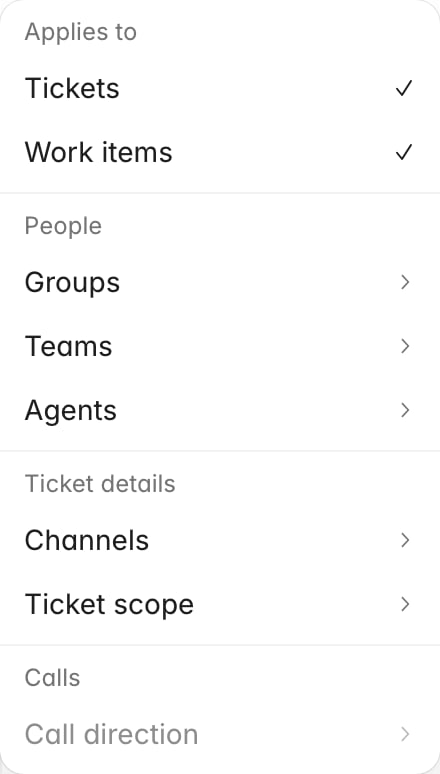 Each choice becomes a pill next to the button; the **x** on a pill removes that
part of the scope.
Each choice becomes a pill next to the button; the **x** on a pill removes that
part of the scope.
 Adding **Internal tickets** to a scorecard's ticket scope lets Rulebase evaluate
tickets where the customer never replied. Without a scorecard opted in to
internal tickets, those tickets are skipped, because there is no customer side to
judge.
## Publish it, or keep it as a draft
**Publish** validates first: a missing condition or off-balance total surfaces as
a message. Otherwise it makes the scorecard live and confirms with `Scorecard
published successfully`, and from then on matching tickets are scored against it.
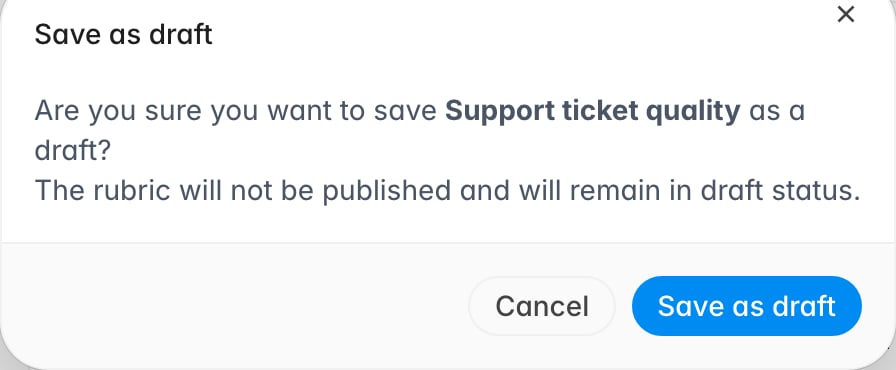
**Save as draft** keeps everything you have written but leaves the scorecard out
of evaluation. It works on a published scorecard too, to pull one out of
circulation while you rework it.
Adding **Internal tickets** to a scorecard's ticket scope lets Rulebase evaluate
tickets where the customer never replied. Without a scorecard opted in to
internal tickets, those tickets are skipped, because there is no customer side to
judge.
## Publish it, or keep it as a draft
**Publish** validates first: a missing condition or off-balance total surfaces as
a message. Otherwise it makes the scorecard live and confirms with `Scorecard
published successfully`, and from then on matching tickets are scored against it.
**Save as draft** keeps everything you have written but leaves the scorecard out
of evaluation. It works on a published scorecard too, to pull one out of
circulation while you rework it.
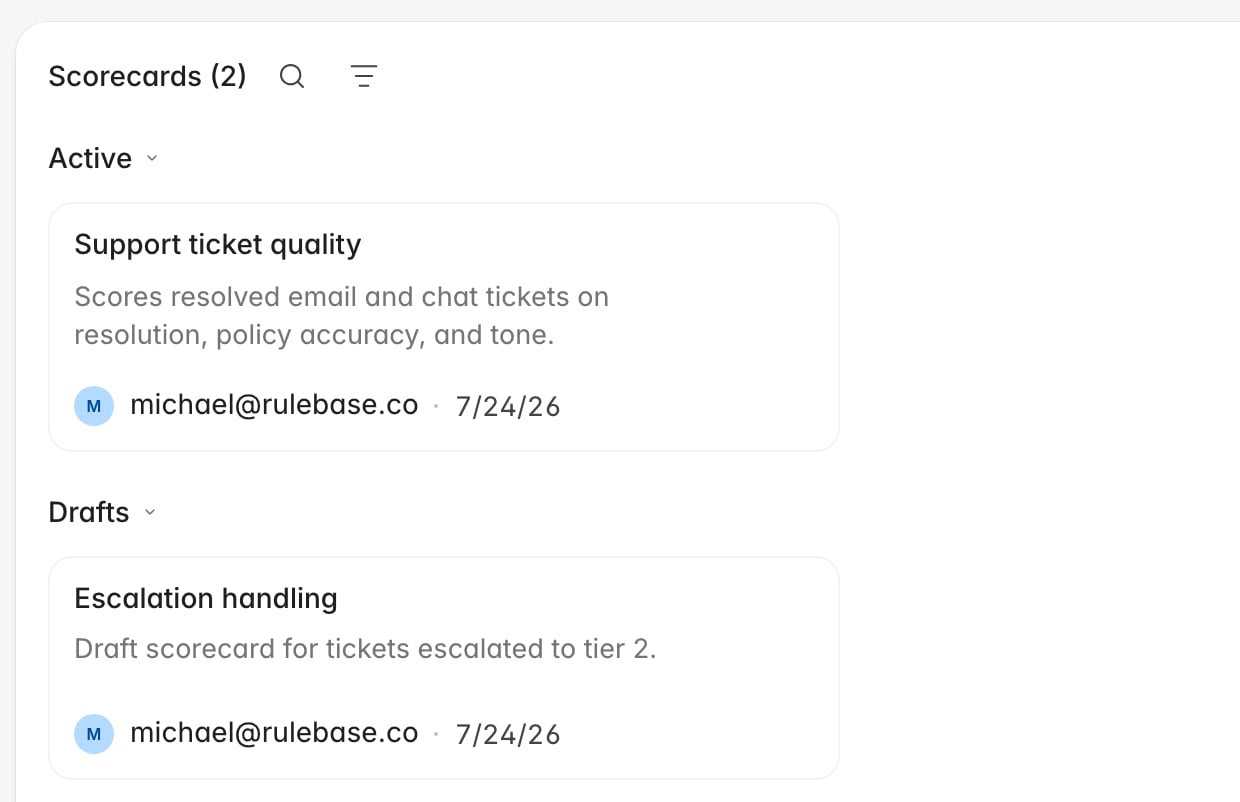
 On the scorecards list, **Active** and **Drafts** are separate groups, and each
card's overflow menu carries the state changes: **Publish** on a draft, **Move to
drafts** on a published one, plus **Duplicate** and **Archive**.
On the scorecards list, **Active** and **Drafts** are separate groups, and each
card's overflow menu carries the state changes: **Publish** on a draft, **Move to
drafts** on a published one, plus **Duplicate** and **Archive**.
 To change a live rubric, **Duplicate** it, edit the copy, then publish the copy
and move the original to drafts. Editing in place changes what evaluators see
mid-cycle and makes before-and-after scores hard to compare.
## Confirm it before the first evaluation
* **Score preview** reads exactly 100, and the section weights match what your
team agreed.
* Every check has at least one condition, and between them the conditions cover
each way the criterion can be marked down.
* The scoping pills describe the tickets you meant. An empty scoping row means
every ticket.
* The scorecard sits under **Active**. A draft sits under **Drafts** and never
scores.
Then prove it end to end. Open the eligibility tester in
[Settings > Evaluations](https://app.rulebase.co/settings/evaluations), test a
ticket this scorecard should cover, and confirm the result reports no scorecard
problem.
## Related
* [Configure evaluation eligibility](/guides/quality-assurance/configure-evaluation-eligibility)
* [Why wasn't my ticket evaluated?](/guides/troubleshooting/why-wasnt-my-ticket-evaluated)
* [Add scorecard additional instructions](/guides/quality-assurance/add-scorecard-additional-instructions)
* [Manage the QA agent roster](/guides/quality-assurance/manage-agent-roster)
* [How AI QA works](/guides/concepts/how-ai-qa-works)
To change a live rubric, **Duplicate** it, edit the copy, then publish the copy
and move the original to drafts. Editing in place changes what evaluators see
mid-cycle and makes before-and-after scores hard to compare.
## Confirm it before the first evaluation
* **Score preview** reads exactly 100, and the section weights match what your
team agreed.
* Every check has at least one condition, and between them the conditions cover
each way the criterion can be marked down.
* The scoping pills describe the tickets you meant. An empty scoping row means
every ticket.
* The scorecard sits under **Active**. A draft sits under **Drafts** and never
scores.
Then prove it end to end. Open the eligibility tester in
[Settings > Evaluations](https://app.rulebase.co/settings/evaluations), test a
ticket this scorecard should cover, and confirm the result reports no scorecard
problem.
## Related
* [Configure evaluation eligibility](/guides/quality-assurance/configure-evaluation-eligibility)
* [Why wasn't my ticket evaluated?](/guides/troubleshooting/why-wasnt-my-ticket-evaluated)
* [Add scorecard additional instructions](/guides/quality-assurance/add-scorecard-additional-instructions)
* [Manage the QA agent roster](/guides/quality-assurance/manage-agent-roster)
* [How AI QA works](/guides/concepts/how-ai-qa-works)