> ## Documentation Index
> Fetch the complete documentation index at: https://docs.rulebase.co/llms.txt
> Use this file to discover all available pages before exploring further.
# Create and manage queues
> Build a queue of reviewers, understand how Rulebase picks who gets each ticket, and keep membership current as people move around.
A queue is a named group of people that routing rules can hand work to. Instead
of a rule naming Sam and Alex, it names `QA review`, and the queue decides which
of its members gets the ticket. When Alex moves teams you edit one queue, not
every rule that mentioned them.
Queues are the destination most teams want for shared work: evaluations
waiting on a reviewer, contested evaluations waiting on a decision, complaints
that need a manager.
 ## Before you start
* You need access to manage organization settings.
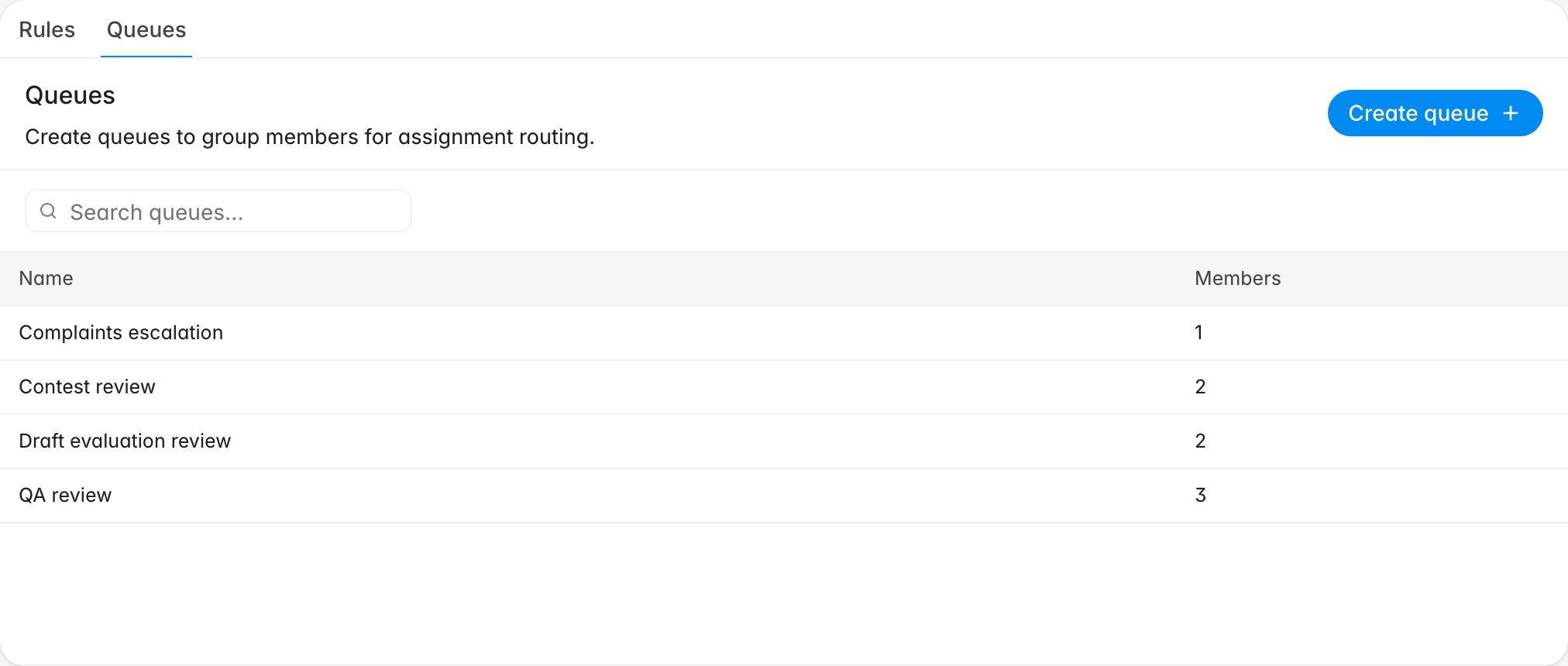
* Queues live at
[Settings > Routing > Queues](https://app.rulebase.co/settings/routing/queues),
on the tab beside **Rules**.
* The people you want in the queue need to be members of your organization
already. You add existing members to a queue; you cannot invite from here.
## Create a queue
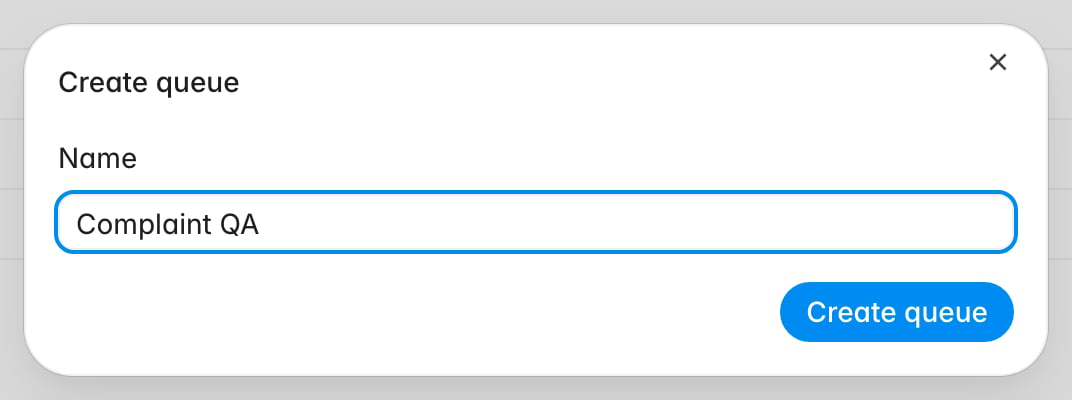
A queue is only a name at creation time. Members come next.
1. Open [Settings > Routing > Queues](https://app.rulebase.co/settings/routing/queues).
2. Click **Create queue**.
3. Name it after the work, not the people: `Evaluation validation` and
`Complaints escalation` stay accurate when the roster changes.
4. Click **Create queue**.
## Before you start
* You need access to manage organization settings.
* Queues live at
[Settings > Routing > Queues](https://app.rulebase.co/settings/routing/queues),
on the tab beside **Rules**.
* The people you want in the queue need to be members of your organization
already. You add existing members to a queue; you cannot invite from here.
## Create a queue
A queue is only a name at creation time. Members come next.
1. Open [Settings > Routing > Queues](https://app.rulebase.co/settings/routing/queues).
2. Click **Create queue**.
3. Name it after the work, not the people: `Evaluation validation` and
`Complaints escalation` stay accurate when the roster changes.
4. Click **Create queue**.
 ## Add and remove members
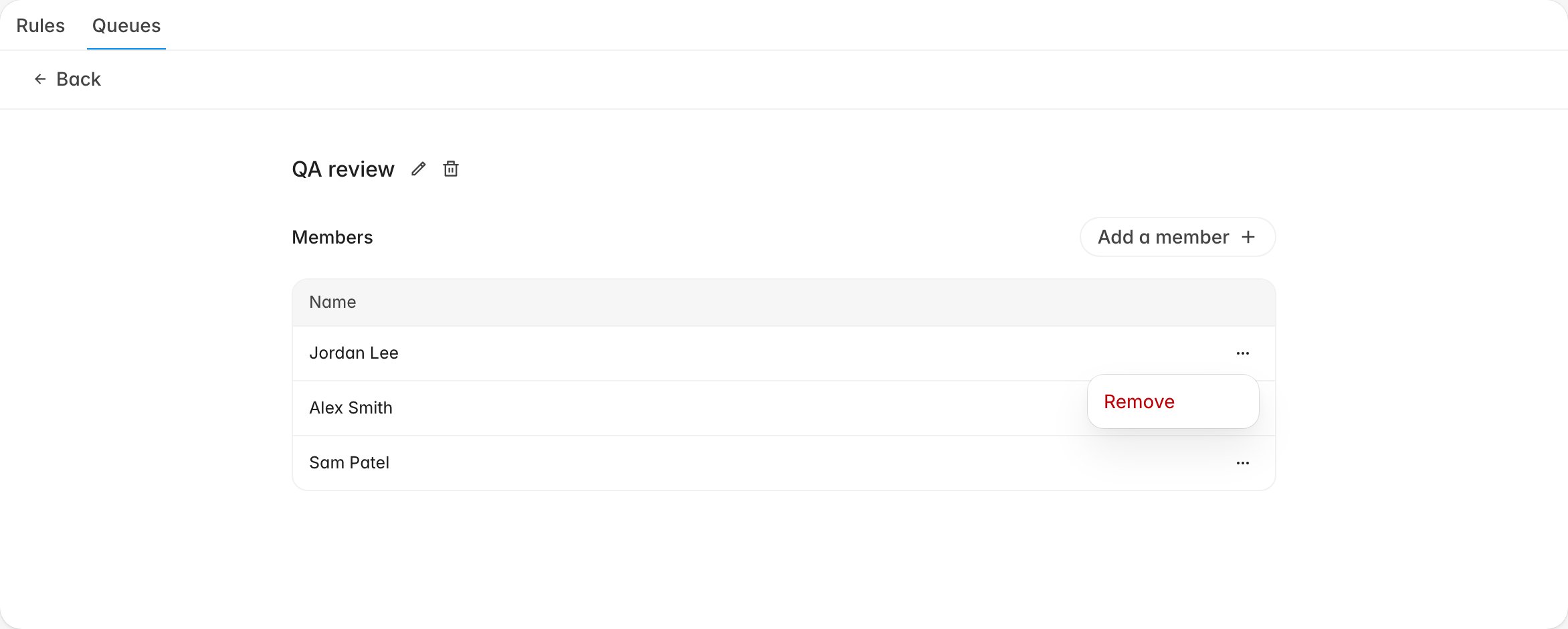
Open a queue from the list to manage who is in it. The **Members** table is the
queue: everyone listed is in the rotation, and nobody else is.
## Add and remove members
Open a queue from the list to manage who is in it. The **Members** table is the
queue: everyone listed is in the rotation, and nobody else is.
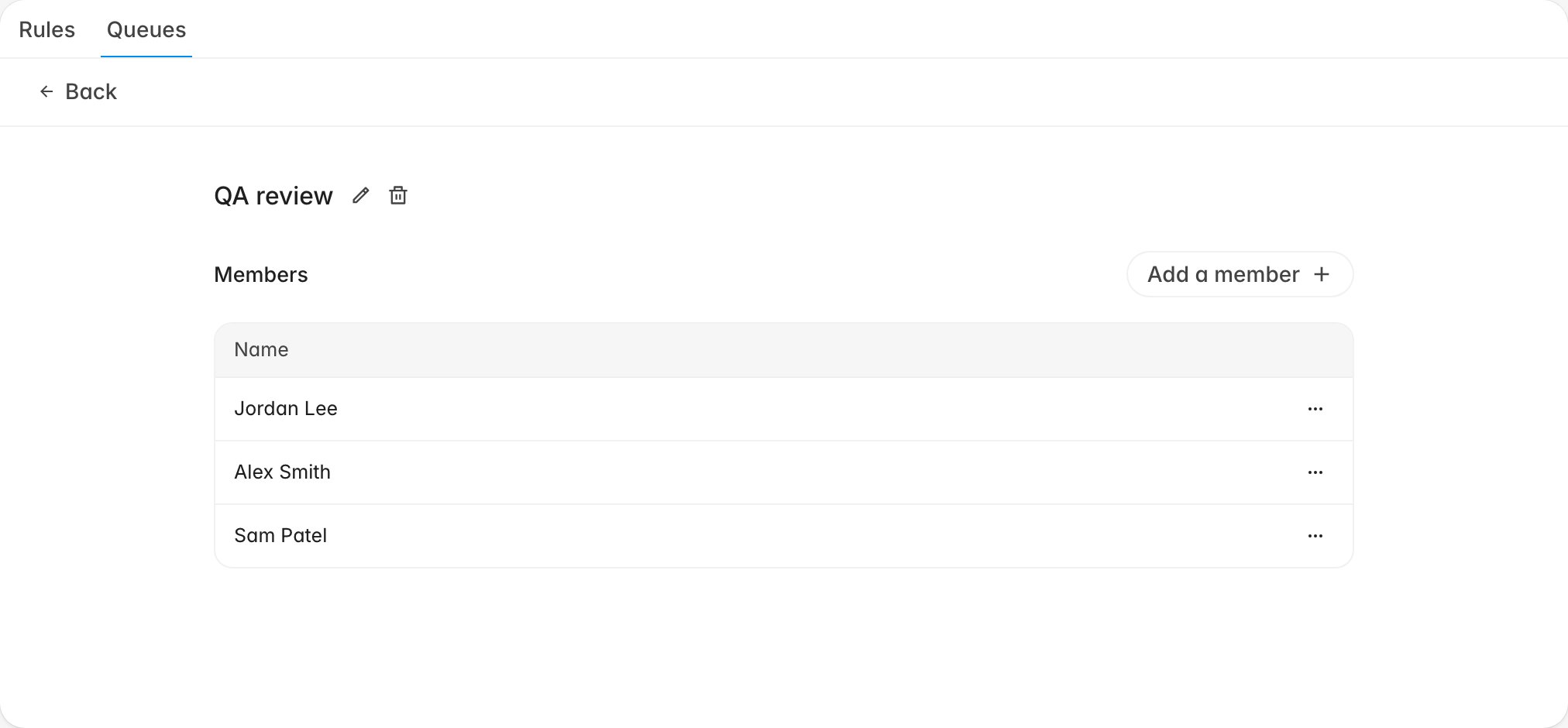 1. Click the queue name in the list.
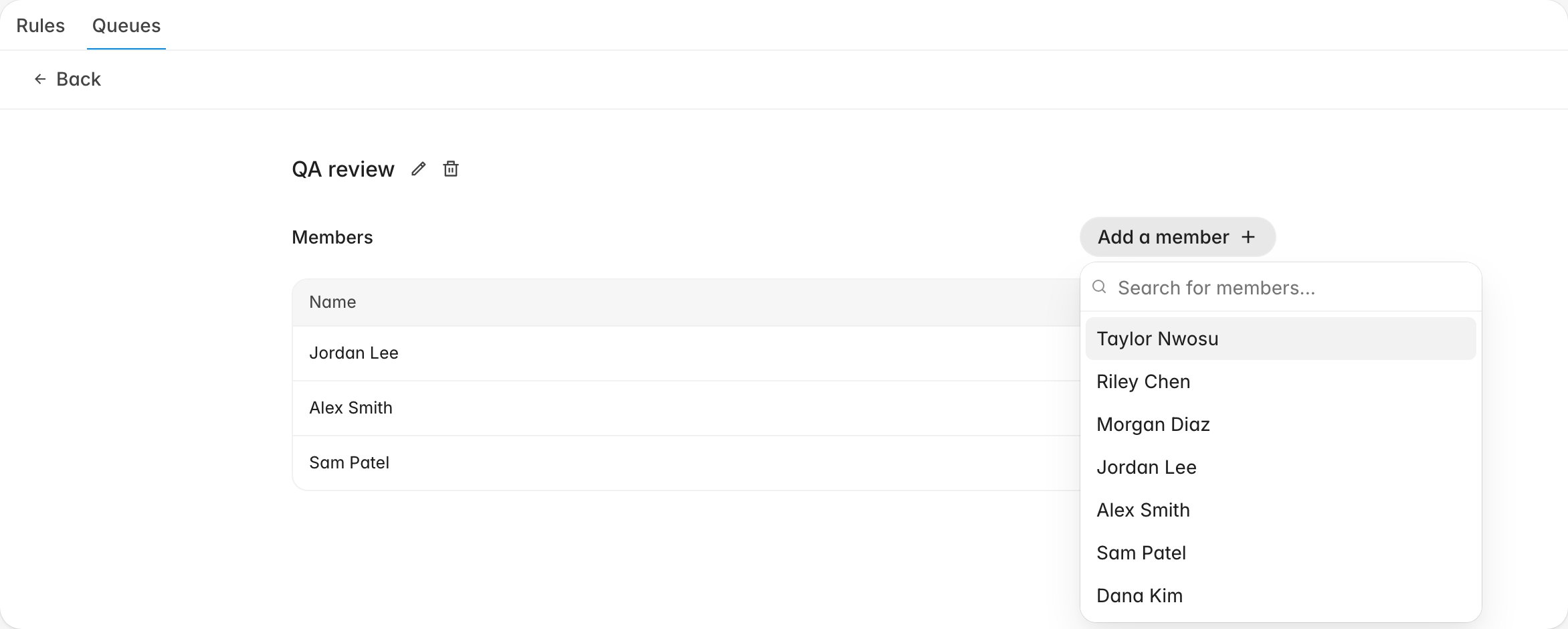
2. Click **Add a member** and pick someone from the search list.
3. Repeat for each person. They appear in the table straight away.
1. Click the queue name in the list.
2. Click **Add a member** and pick someone from the search list.
3. Repeat for each person. They appear in the table straight away.
 To take someone out, open the row menu at the right of their name and choose
**Remove**. It takes effect immediately and does not touch tickets already
assigned to them, so check their open work before you remove someone who is
leaving.
To take someone out, open the row menu at the right of their name and choose
**Remove**. It takes effect immediately and does not touch tickets already
assigned to them, so check their open work before you remove someone who is
leaving.
 The member picker lists everyone in your organization, including people already
in the queue. Adding a duplicate is harmless: Rulebase tells you the member is
already in the queue and nothing changes.
## How Rulebase picks who gets the ticket
When a rule runs **Assign to queue**, two things happen: the ticket is stamped
with the queue and marked unresolved, then the queue picks exactly one person and
assigns the ticket to them. Nobody else in the queue is notified.
Each queue has a **Distribution** setting:
* **Even** (default) — rotate among eligible members so work spreads evenly.
* **Custom** — set a percentage per member (must sum to 100). Rulebase still
prefers members currently in working hours, then applies those weights among
whoever is eligible.
The pick is a rotation. Before applying Even or Custom weights,
Rulebase narrows to members whose local time is inside working hours (8am to
5pm where they are) and only falls back to the rest of the queue when nobody is
currently in hours. A queue that spans time zones therefore hands overnight work
to whoever is awake.
Tickets and back-office work items that route to the same queue share one
rotation counter.
If the ticket already has an assignee and is still unresolved, the assignment is skipped and the ticket stays with the person who
has it. Rulebase does not take live work away from someone mid-review.
## Queue, role, or member
| Action | Who it can pick | How it picks | Best for |
| -------------------- | -------------------------------- | ---------------------------------------------------------------------------------------------------------- | ---------------------------------------------------- |
| **Assign to queue** | The queue's members | The queue's **Distribution** setting (even rotation or custom weights), preferring people in working hours | Shared review work with a stable rota |
| **Assign to role** | Everyone holding that role | One at random | Broad coverage where the exact person doesn't matter |
| **Assign to member** | The members you tick in the rule | One at random | A named pair or trio, defined per rule |
The queue is the only one of the three that spreads work deliberately, and the
only one you can change without editing a rule. Roles are the widest net: the
pool is everyone with that role today, not the people who had it when you
wrote the rule.
## Point a rule at the queue
A queue with no rule pointing at it never receives anything. Once the members are
in, create or edit a rule so its **Then** section reads **Assign to queue** and
names this queue. The full walkthrough is in
[Create a routing rule](/guides/quality-assurance/create-routing-rules).
## Rename or delete a queue
The queue name has a pencil and a bin beside it on the detail page. Renaming is
safe: rules point at the queue itself, so a rule reading **Assign to Contest
review** follows the new name without being touched.
Deleting is not reversible, and it leaves any rule that pointed at the queue with
nowhere to send work. Those rules keep matching events, and keep stopping the
rules below them, while assigning nobody. Before you delete a queue,
check [Settings > Routing > Rules](https://app.rulebase.co/settings/routing/rules)
for rows whose action names it, and repoint or remove them first.
## Related
* [Create a routing rule](/guides/quality-assurance/create-routing-rules)
* [Manage and reorder routing rules](/guides/quality-assurance/manage-routing-rules)
* [Perform a manual evaluation](/guides/quality-assurance/perform-a-manual-evaluation)
* [Invite members](/guides/access-management/invite-members)
The member picker lists everyone in your organization, including people already
in the queue. Adding a duplicate is harmless: Rulebase tells you the member is
already in the queue and nothing changes.
## How Rulebase picks who gets the ticket
When a rule runs **Assign to queue**, two things happen: the ticket is stamped
with the queue and marked unresolved, then the queue picks exactly one person and
assigns the ticket to them. Nobody else in the queue is notified.
Each queue has a **Distribution** setting:
* **Even** (default) — rotate among eligible members so work spreads evenly.
* **Custom** — set a percentage per member (must sum to 100). Rulebase still
prefers members currently in working hours, then applies those weights among
whoever is eligible.
The pick is a rotation. Before applying Even or Custom weights,
Rulebase narrows to members whose local time is inside working hours (8am to
5pm where they are) and only falls back to the rest of the queue when nobody is
currently in hours. A queue that spans time zones therefore hands overnight work
to whoever is awake.
Tickets and back-office work items that route to the same queue share one
rotation counter.
If the ticket already has an assignee and is still unresolved, the assignment is skipped and the ticket stays with the person who
has it. Rulebase does not take live work away from someone mid-review.
## Queue, role, or member
| Action | Who it can pick | How it picks | Best for |
| -------------------- | -------------------------------- | ---------------------------------------------------------------------------------------------------------- | ---------------------------------------------------- |
| **Assign to queue** | The queue's members | The queue's **Distribution** setting (even rotation or custom weights), preferring people in working hours | Shared review work with a stable rota |
| **Assign to role** | Everyone holding that role | One at random | Broad coverage where the exact person doesn't matter |
| **Assign to member** | The members you tick in the rule | One at random | A named pair or trio, defined per rule |
The queue is the only one of the three that spreads work deliberately, and the
only one you can change without editing a rule. Roles are the widest net: the
pool is everyone with that role today, not the people who had it when you
wrote the rule.
## Point a rule at the queue
A queue with no rule pointing at it never receives anything. Once the members are
in, create or edit a rule so its **Then** section reads **Assign to queue** and
names this queue. The full walkthrough is in
[Create a routing rule](/guides/quality-assurance/create-routing-rules).
## Rename or delete a queue
The queue name has a pencil and a bin beside it on the detail page. Renaming is
safe: rules point at the queue itself, so a rule reading **Assign to Contest
review** follows the new name without being touched.
Deleting is not reversible, and it leaves any rule that pointed at the queue with
nowhere to send work. Those rules keep matching events, and keep stopping the
rules below them, while assigning nobody. Before you delete a queue,
check [Settings > Routing > Rules](https://app.rulebase.co/settings/routing/rules)
for rows whose action names it, and repoint or remove them first.
## Related
* [Create a routing rule](/guides/quality-assurance/create-routing-rules)
* [Manage and reorder routing rules](/guides/quality-assurance/manage-routing-rules)
* [Perform a manual evaluation](/guides/quality-assurance/perform-a-manual-evaluation)
* [Invite members](/guides/access-management/invite-members)