> ## Documentation Index
> Fetch the complete documentation index at: https://docs.rulebase.co/llms.txt
> Use this file to discover all available pages before exploring further.
# Edit scorecard structure
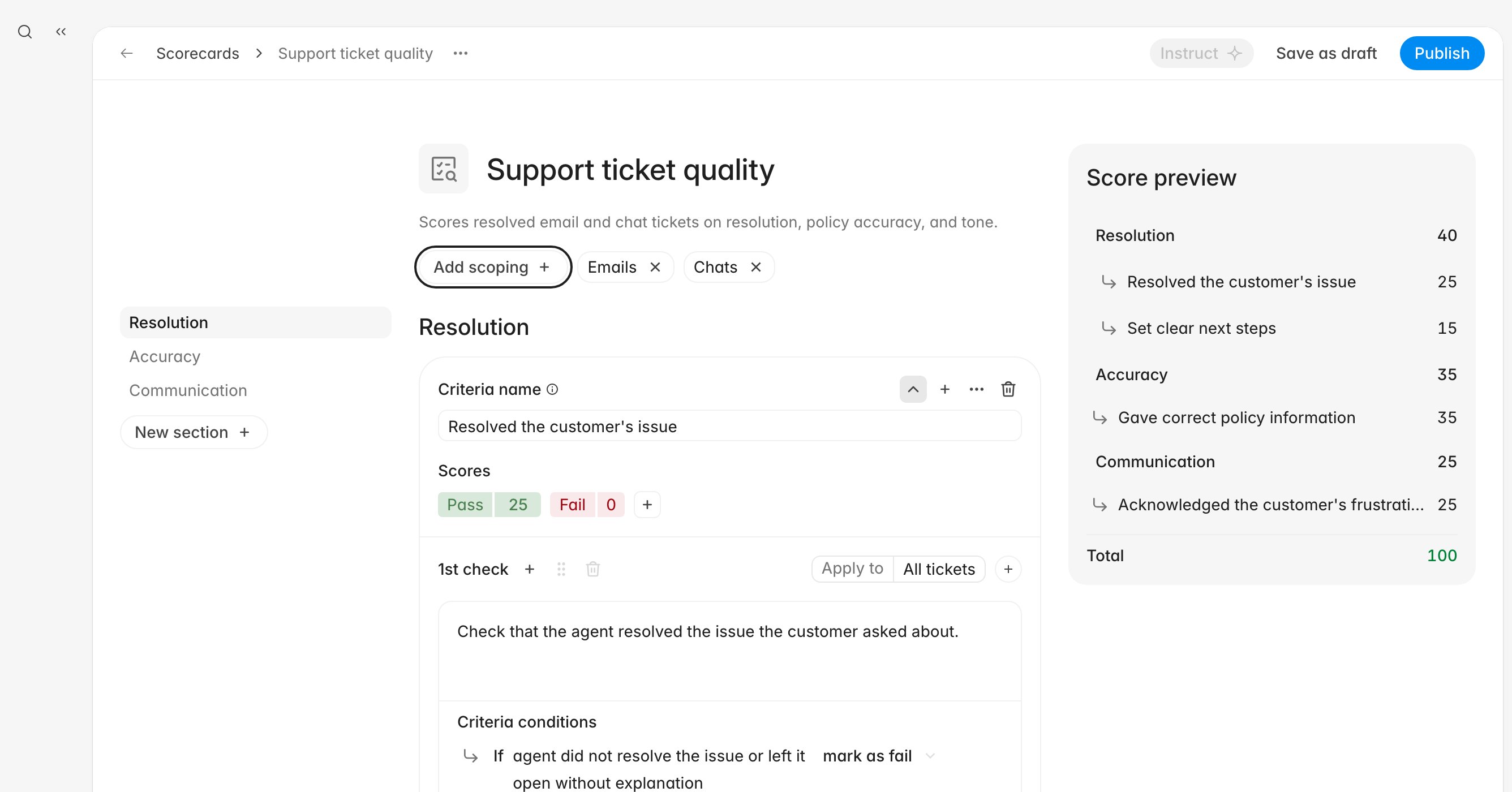
> Reorder sections and criteria, add or remove checks, retarget Apply to, and rebalance points on a scorecard that is already scoring tickets.
Scorecards change. A calibration reweights tone, a new policy needs its own
criterion, or a check written for email keeps firing on chats. The safest way to
change a live rubric is to edit a copy.
 ## Before you start
* Scorecards live under
[Knowledge > Scorecards](https://app.rulebase.co/knowledge/scorecards).
* You need a role that can manage scorecards, such as `Administrator` or
`Manager`.
* Know whether the scorecard is **Active** or a **Draft**. A draft is invisible
to AI QA and to reviewers, and safe to restructure freely. The next section is
about the active case.
* New to the four levels (scorecard, section, criteria, check)? The
[glossary](/guides/concepts/glossary#scorecards-sections-criteria-and-checks)
defines them, and [Create a
scorecard](/guides/quality-assurance/create-a-scorecard) builds one from
scratch.
## Work on a copy of a live scorecard
Evaluations store the score a criterion was given, but read its *wording* live.
Reword a check and the new sentence appears next to every past evaluation of that
criterion. The numbers do not move, but a reviewer revisiting a disputed score
sees text that was never applied to that ticket.
Duplicating avoids this: the original keeps scoring, past evaluations keep their
original wording, and you decide when the new version takes over.
1. Go to [Knowledge > Scorecards](https://app.rulebase.co/knowledge/scorecards).
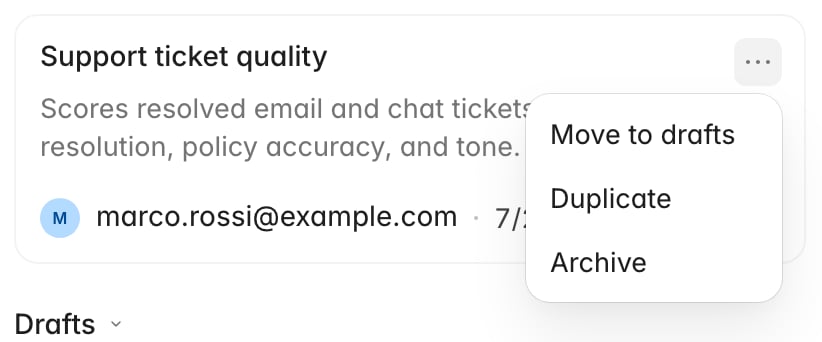
2. Open the scorecard's overflow menu and choose **Duplicate**.
3. Rulebase opens a **Duplicate scorecard** dialog pre-filled with
` (copy)` and the original description. Name it something a reviewer
can tell apart, such as `Support ticket quality - Q3`.
4. Click **Create**. The copy opens as a draft with every section, criterion,
check, condition, and scoping pill carried over. The copied structure is not
stored until you save it, so use **Save as draft** before closing the tab if
you are not finishing in one sitting.
5. Make your changes, then **Publish** the copy.
6. Back on the list, use **Move to drafts** on the original so only one version
is live.
## Before you start
* Scorecards live under
[Knowledge > Scorecards](https://app.rulebase.co/knowledge/scorecards).
* You need a role that can manage scorecards, such as `Administrator` or
`Manager`.
* Know whether the scorecard is **Active** or a **Draft**. A draft is invisible
to AI QA and to reviewers, and safe to restructure freely. The next section is
about the active case.
* New to the four levels (scorecard, section, criteria, check)? The
[glossary](/guides/concepts/glossary#scorecards-sections-criteria-and-checks)
defines them, and [Create a
scorecard](/guides/quality-assurance/create-a-scorecard) builds one from
scratch.
## Work on a copy of a live scorecard
Evaluations store the score a criterion was given, but read its *wording* live.
Reword a check and the new sentence appears next to every past evaluation of that
criterion. The numbers do not move, but a reviewer revisiting a disputed score
sees text that was never applied to that ticket.
Duplicating avoids this: the original keeps scoring, past evaluations keep their
original wording, and you decide when the new version takes over.
1. Go to [Knowledge > Scorecards](https://app.rulebase.co/knowledge/scorecards).
2. Open the scorecard's overflow menu and choose **Duplicate**.
3. Rulebase opens a **Duplicate scorecard** dialog pre-filled with
` (copy)` and the original description. Name it something a reviewer
can tell apart, such as `Support ticket quality - Q3`.
4. Click **Create**. The copy opens as a draft with every section, criterion,
check, condition, and scoping pill carried over. The copied structure is not
stored until you save it, so use **Save as draft** before closing the tab if
you are not finishing in one sitting.
5. Make your changes, then **Publish** the copy.
6. Back on the list, use **Move to drafts** on the original so only one version
is live.
 Small in-place edits are fine when nothing about the judgement changes: fixing a
typo, tightening a sentence that means the same thing, or adjusting a scorecard
nobody has been evaluated against yet. Anything that changes what a criterion is
asking for belongs on a copy.
## Reorder sections and criteria
Order affects presentation only, but it is the sequence reviewers read when they
score by hand.
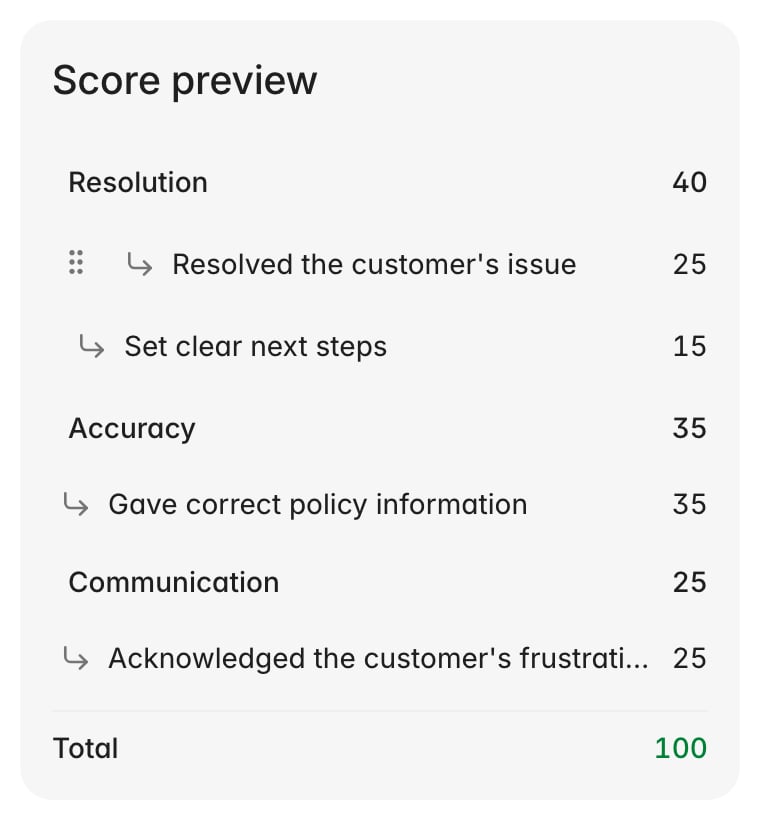
Reorder in **Score preview** on the right. Rows in the section list stay fixed.
Hover a row, and a drag handle appears on its left; drag it to its new position.
Dragging a section row moves the whole section with its criteria.
Small in-place edits are fine when nothing about the judgement changes: fixing a
typo, tightening a sentence that means the same thing, or adjusting a scorecard
nobody has been evaluated against yet. Anything that changes what a criterion is
asking for belongs on a copy.
## Reorder sections and criteria
Order affects presentation only, but it is the sequence reviewers read when they
score by hand.
Reorder in **Score preview** on the right. Rows in the section list stay fixed.
Hover a row, and a drag handle appears on its left; drag it to its new position.
Dragging a section row moves the whole section with its criteria.
 Dragging works within one level: you can reorder sections against each other and
criteria inside their own section, but not drag a criterion from `Resolution` into
`Accuracy`. To move one across, recreate it in the target section and delete the
original. Deleting also removes its history of wording.
Checks reorder the same way, using the **Drag to reorder** handle on the check
row, inactive when a criterion has only one check.
## Rename, edit, or remove a section
The section list on the left is where a section's own details live.
* **Rename it inline.** Double-click the section name, type, and press
`Enter`. `Escape` cancels.
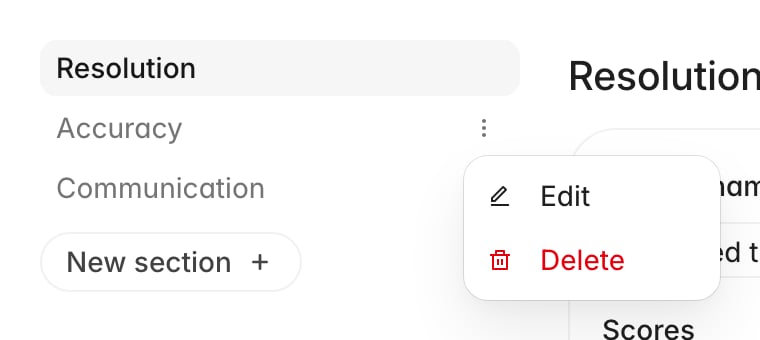
* **Edit the name and instructions together.** Hover the section, open its
overflow menu, and choose **Edit**. Section instructions apply to every
criterion underneath.
* **Delete it.** The same menu has **Delete**. It removes the section and every
criterion inside it after you confirm, and their points leave the total. The
option is hidden on the last remaining section.
Dragging works within one level: you can reorder sections against each other and
criteria inside their own section, but not drag a criterion from `Resolution` into
`Accuracy`. To move one across, recreate it in the target section and delete the
original. Deleting also removes its history of wording.
Checks reorder the same way, using the **Drag to reorder** handle on the check
row, inactive when a criterion has only one check.
## Rename, edit, or remove a section
The section list on the left is where a section's own details live.
* **Rename it inline.** Double-click the section name, type, and press
`Enter`. `Escape` cancels.
* **Edit the name and instructions together.** Hover the section, open its
overflow menu, and choose **Edit**. Section instructions apply to every
criterion underneath.
* **Delete it.** The same menu has **Delete**. It removes the section and every
criterion inside it after you confirm, and their points leave the total. The
option is hidden on the last remaining section.
 Deleting has no undo short of leaving the editor without saving. If a section
might come back, publish a copy without it instead.
## Add and remove checks
Checks are the level you will touch most, because most rubric drift is a check
that has stopped matching how your team judges tickets.
1. Open the section, then the criterion.
2. Click **Add new check** at the bottom of the criterion card. Rulebase numbers
checks in order (`1st check`, `2nd check`) and drops the cursor into the new
description.
3. Write what the evaluator has to look for, then give the check at least one
entry under **Criteria conditions**, using **Generate conditions** or **Add
condition manually**.
4. To remove a check, click the trash icon on its row.
**Add new check** is disabled while any check in the criterion is still empty,
and **Delete check** is disabled when the criterion is down to its last check.
Publishing checks one more thing: a check with no **Criteria conditions**
blocks it, naming the criterion and the check number.
## Retarget what a check applies to
The **Apply to** pill decides whether a check runs on a ticket at all. It reads
**All tickets** until you narrow it. Narrowing it is usually the fix when
reviewers complain a check keeps failing on tickets it was never written for.
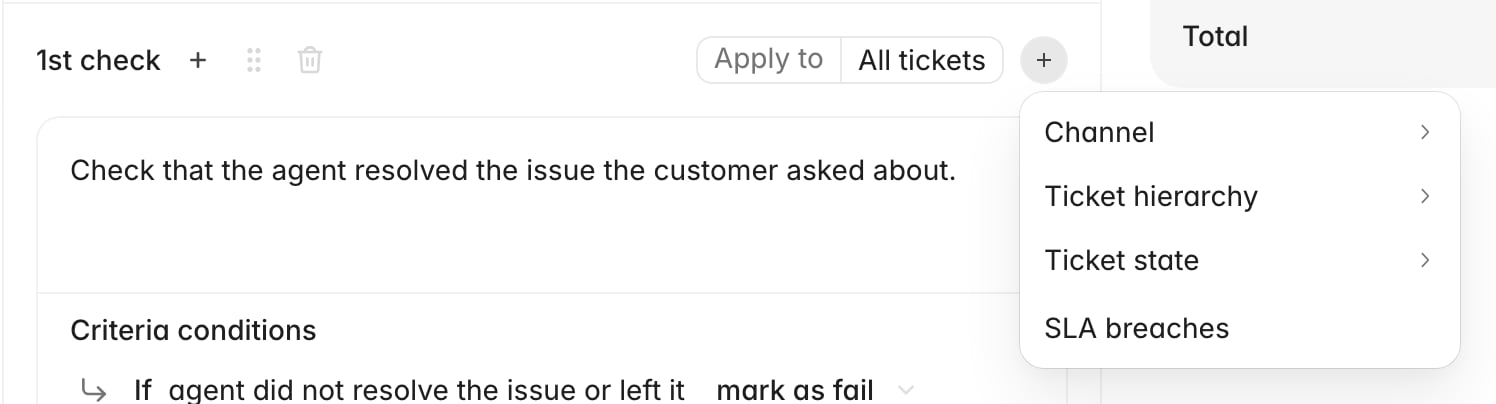
Click the **+** next to the pill and pick a group: **Channel**, **Ticket
hierarchy**, **Ticket state**, or **SLA breaches**. Each choice becomes its own
pill, and the **x** on a pill removes that condition.
Deleting has no undo short of leaving the editor without saving. If a section
might come back, publish a copy without it instead.
## Add and remove checks
Checks are the level you will touch most, because most rubric drift is a check
that has stopped matching how your team judges tickets.
1. Open the section, then the criterion.
2. Click **Add new check** at the bottom of the criterion card. Rulebase numbers
checks in order (`1st check`, `2nd check`) and drops the cursor into the new
description.
3. Write what the evaluator has to look for, then give the check at least one
entry under **Criteria conditions**, using **Generate conditions** or **Add
condition manually**.
4. To remove a check, click the trash icon on its row.
**Add new check** is disabled while any check in the criterion is still empty,
and **Delete check** is disabled when the criterion is down to its last check.
Publishing checks one more thing: a check with no **Criteria conditions**
blocks it, naming the criterion and the check number.
## Retarget what a check applies to
The **Apply to** pill decides whether a check runs on a ticket at all. It reads
**All tickets** until you narrow it. Narrowing it is usually the fix when
reviewers complain a check keeps failing on tickets it was never written for.
Click the **+** next to the pill and pick a group: **Channel**, **Ticket
hierarchy**, **Ticket state**, or **SLA breaches**. Each choice becomes its own
pill, and the **x** on a pill removes that condition.
 Conditions decide whether a check runs. If the check should still run but be
judged more leniently in some cases, use [additional
instructions](/guides/quality-assurance/add-scorecard-additional-instructions)
instead.
Scoping a whole criterion works differently: the **Criteria options** menu on the
criterion header has **Scope**, where clearing **AI evaluations** takes the
criterion out of AI scoring while leaving it in place for human reviewers.
**Manual review** cannot be turned off.
## Rebalance the points
Points live on criteria, and the top-level total must come back to exactly 100
before Rulebase will publish. **Score preview** keeps the running total and turns
red the moment you are off.
* **Change a criterion's value.** Click the number next to **Pass**, set it in
the **Edit score** popover, and press `Enter`. Section totals recalculate from
their criteria.
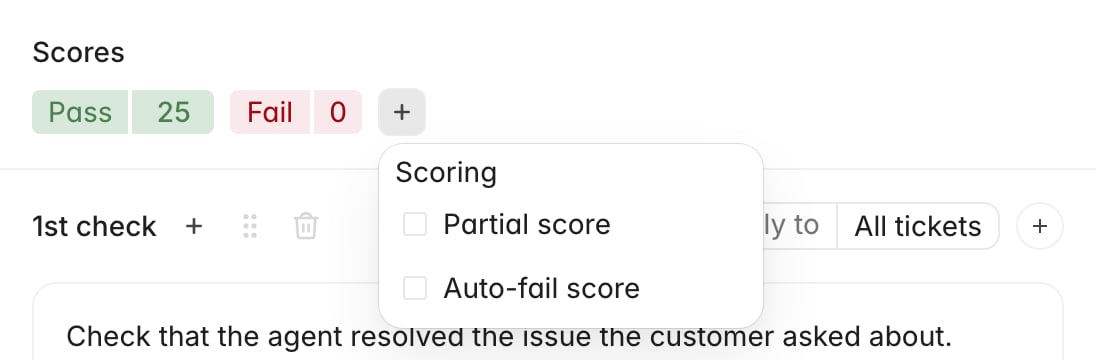
* **Add partial credit.** The **+** in the **Scores** row offers **Partial
score**, which starts at 5 and is editable like Pass, as long as it stays below
the criterion's Pass value. A criterion can carry more than one partial option.
* **Add an auto-fail.** The same menu offers **Auto-fail score**: selecting it on
one criterion zeroes the entire evaluation, taking down every other criterion's
points with it. One per criterion. Reserve it for a compliance breach that
should void a ticket.
* **Remove either of them.** Partial and auto-fail options carry an **x**.
**Pass** and **Fail** do not, and `Fail` stays at 0.
Conditions decide whether a check runs. If the check should still run but be
judged more leniently in some cases, use [additional
instructions](/guides/quality-assurance/add-scorecard-additional-instructions)
instead.
Scoping a whole criterion works differently: the **Criteria options** menu on the
criterion header has **Scope**, where clearing **AI evaluations** takes the
criterion out of AI scoring while leaving it in place for human reviewers.
**Manual review** cannot be turned off.
## Rebalance the points
Points live on criteria, and the top-level total must come back to exactly 100
before Rulebase will publish. **Score preview** keeps the running total and turns
red the moment you are off.
* **Change a criterion's value.** Click the number next to **Pass**, set it in
the **Edit score** popover, and press `Enter`. Section totals recalculate from
their criteria.
* **Add partial credit.** The **+** in the **Scores** row offers **Partial
score**, which starts at 5 and is editable like Pass, as long as it stays below
the criterion's Pass value. A criterion can carry more than one partial option.
* **Add an auto-fail.** The same menu offers **Auto-fail score**: selecting it on
one criterion zeroes the entire evaluation, taking down every other criterion's
points with it. One per criterion. Reserve it for a compliance breach that
should void a ticket.
* **Remove either of them.** Partial and auto-fail options carry an **x**.
**Pass** and **Fail** do not, and `Fail` stays at 0.
 Outside the points arithmetic, the **Add** button beside **Criteria name** offers
**Score cap**, a rule reading `If this criteria is not pass, cap overall score at
N`. It caps the whole scorecard's total and leaves the points on other criteria
alone. Use it for a failure that should hold a ticket's total down no matter how
well everything else went. One cap per criterion.
Rebalance in pairs. When you take 5 points off tone, put them somewhere in the
same edit, and the total never leaves 100 long enough to lose track.
## Publish, and what changes for whom
**Publish** validates first (the total, and a condition on every check), then
makes the version live. From that moment, tickets that match the scorecard's scope
are evaluated against the new structure.
Evaluations that already ran keep their scores; new evaluations use the new
structure. To judge older tickets by the new rubric, re-evaluate them, because
publishing does not reach backwards.
**Save as draft** on a published scorecard keeps everything you have written and
takes the scorecard out of evaluation. Use it when you started restructuring in
place and would rather finish somewhere safer.
## Check before you publish
* **Score preview** reads 100, and the section weights match what was agreed.
* Every check still has at least one entry under **Criteria conditions**,
including the ones you edited.
* The **Apply to** pills say what you meant. A check you narrowed to `Chats`
stops running on email entirely.
* If this is a duplicate, the original is under **Drafts** and only one version
is **Active**. Two live scorecards covering the same tickets both evaluate.
## Related
* [Create a scorecard](/guides/quality-assurance/create-a-scorecard)
* [Link knowledge to scorecard checks](/guides/quality-assurance/link-knowledge-to-checks)
* [Add scorecard additional instructions](/guides/quality-assurance/add-scorecard-additional-instructions)
* [Rulebase glossary](/guides/concepts/glossary)
* [Configure evaluation eligibility](/guides/quality-assurance/configure-evaluation-eligibility)
Outside the points arithmetic, the **Add** button beside **Criteria name** offers
**Score cap**, a rule reading `If this criteria is not pass, cap overall score at
N`. It caps the whole scorecard's total and leaves the points on other criteria
alone. Use it for a failure that should hold a ticket's total down no matter how
well everything else went. One cap per criterion.
Rebalance in pairs. When you take 5 points off tone, put them somewhere in the
same edit, and the total never leaves 100 long enough to lose track.
## Publish, and what changes for whom
**Publish** validates first (the total, and a condition on every check), then
makes the version live. From that moment, tickets that match the scorecard's scope
are evaluated against the new structure.
Evaluations that already ran keep their scores; new evaluations use the new
structure. To judge older tickets by the new rubric, re-evaluate them, because
publishing does not reach backwards.
**Save as draft** on a published scorecard keeps everything you have written and
takes the scorecard out of evaluation. Use it when you started restructuring in
place and would rather finish somewhere safer.
## Check before you publish
* **Score preview** reads 100, and the section weights match what was agreed.
* Every check still has at least one entry under **Criteria conditions**,
including the ones you edited.
* The **Apply to** pills say what you meant. A check you narrowed to `Chats`
stops running on email entirely.
* If this is a duplicate, the original is under **Drafts** and only one version
is **Active**. Two live scorecards covering the same tickets both evaluate.
## Related
* [Create a scorecard](/guides/quality-assurance/create-a-scorecard)
* [Link knowledge to scorecard checks](/guides/quality-assurance/link-knowledge-to-checks)
* [Add scorecard additional instructions](/guides/quality-assurance/add-scorecard-additional-instructions)
* [Rulebase glossary](/guides/concepts/glossary)
* [Configure evaluation eligibility](/guides/quality-assurance/configure-evaluation-eligibility)