> ## Documentation Index
> Fetch the complete documentation index at: https://docs.rulebase.co/llms.txt
> Use this file to discover all available pages before exploring further.
# Filter by team, partner, brand, and channel
> What each filter dimension selects, which ones come from your agent roster versus your help desk, and how to narrow a QA list without excluding tickets you meant to include.
Several filter dimensions look interchangeable and are not. Team and
Group both sound like "the agent's team". Source and Workspace both sound like "the
integration". Partner sits under a heading called Ticket while describing a
property of the agent.
This page defines what each one selects. [Find tickets and
evaluations](/guides/quality-assurance/find-tickets-and-evaluations) covers
applying and saving filters.
## Where the filters live
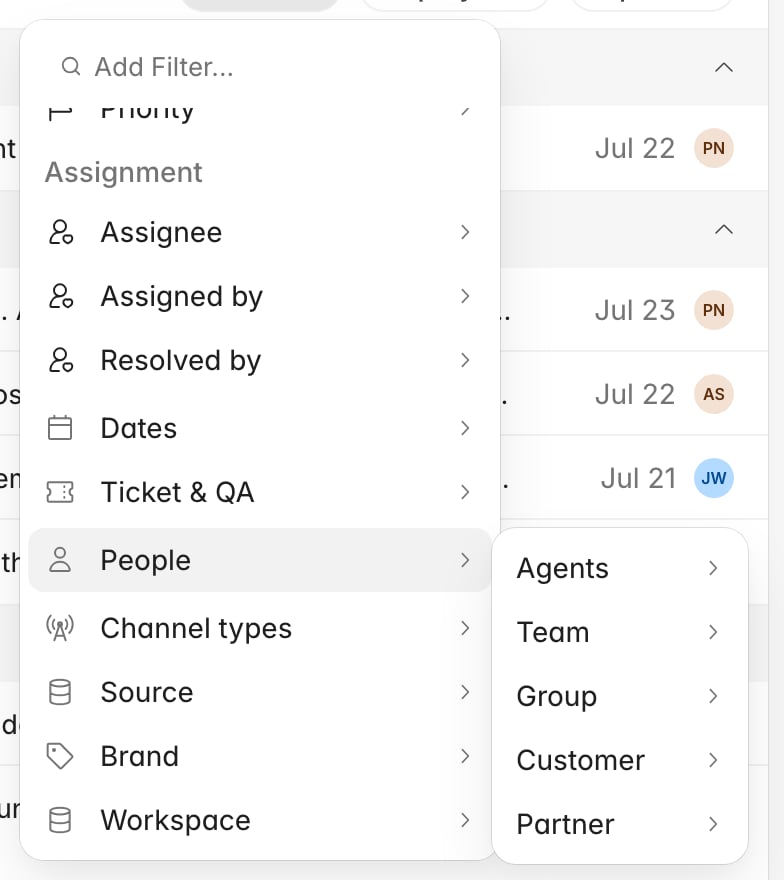
Both QA lists put filters in the same place: the pill row at the top of the list,
with a **+** at the end and a filter icon in the toolbar. The menu that opens has a
search box at the top, so typing `brand` is faster than hunting through submenus.
 Filters combine the way you would hope: two values inside one dimension are an
either/or, and two different dimensions both have to be true. Selecting the Billing
and Onboarding teams gives you both teams' tickets; adding the Chat channel narrows
that to chats handled by either team.
## Team, Partner, Brand, and Channel
### Team
A Rulebase concept. You build teams on the agent roster and assign agents to them,
so a ticket matches a team filter when **at least one agent who worked it belongs
to that team**. A ticket handled by two people from different teams therefore
matches both.
The catch is that the link between a ticket and a team is only recorded for agents
marked eligible for QA evaluation. If someone touched the ticket but is not on the
roster as evaluable, their team will not pull that ticket into a team filter.
### Partner
Also a Rulebase concept, and also carried by the agent rather than the ticket:
each agent belongs to at most one partner, and a ticket matches when one of its
agents does. This is the dimension for outsourced or BPO work, and the way to compare an
outsourcer against your in-house team: a partner is a property of who did the
work, not of where the ticket came from.
Unlike Team, the partner link is recorded for every agent on the ticket regardless
of QA eligibility.
### Brand
A property of the ticket, and specific to Zendesk. **Brand** only appears in the
filter menu when your organization has a Zendesk connection, and it selects the
Zendesk brand the ticket arrived under. Use it when one help desk serves several
customer-facing brands and the standards or scorecards differ between them.
### Channel
The medium the conversation happened on: **Call**, **Email**, or **Chat**. A
conversation can carry more than one (a chat that turned into a call has both),
and the filter matches on any of them. Selecting Call returns every conversation
that contained a call, not only the ones that were purely calls.
**Group** means different things on the two lists. On the Tickets list it means
the group the ticket sits in on your help desk, a Zendesk or Intercom group
synced across with the ticket. On the Evaluations list, the same label means the group of the
agent being scored. Both trace back to your help desk rather than to Rulebase, but
one is a property of the ticket and the other a property of the person, so the same
filter answers a different question on each list. Team, by contrast, is always a
Rulebase concept, and it lines up with Group only if you set it up to.
## Source and Workspace
**Source** is the integration type: Zendesk, Intercom, Freshdesk. Filter by Source
when you want everything from one product.
**Workspace** is a specific connection. It only appears when your organization has
more than one customer interaction integration connected, and it is what you need
when you have two Zendesk accounts and want one of them. It also offers **No
workspace**, for interactions that are not tied to a connection at all.
## Filtering the Evaluations list
The Evaluations list has its own filter menu, organized around the fact that a row
here is one agent's score rather than one ticket.
Filters combine the way you would hope: two values inside one dimension are an
either/or, and two different dimensions both have to be true. Selecting the Billing
and Onboarding teams gives you both teams' tickets; adding the Chat channel narrows
that to chats handled by either team.
## Team, Partner, Brand, and Channel
### Team
A Rulebase concept. You build teams on the agent roster and assign agents to them,
so a ticket matches a team filter when **at least one agent who worked it belongs
to that team**. A ticket handled by two people from different teams therefore
matches both.
The catch is that the link between a ticket and a team is only recorded for agents
marked eligible for QA evaluation. If someone touched the ticket but is not on the
roster as evaluable, their team will not pull that ticket into a team filter.
### Partner
Also a Rulebase concept, and also carried by the agent rather than the ticket:
each agent belongs to at most one partner, and a ticket matches when one of its
agents does. This is the dimension for outsourced or BPO work, and the way to compare an
outsourcer against your in-house team: a partner is a property of who did the
work, not of where the ticket came from.
Unlike Team, the partner link is recorded for every agent on the ticket regardless
of QA eligibility.
### Brand
A property of the ticket, and specific to Zendesk. **Brand** only appears in the
filter menu when your organization has a Zendesk connection, and it selects the
Zendesk brand the ticket arrived under. Use it when one help desk serves several
customer-facing brands and the standards or scorecards differ between them.
### Channel
The medium the conversation happened on: **Call**, **Email**, or **Chat**. A
conversation can carry more than one (a chat that turned into a call has both),
and the filter matches on any of them. Selecting Call returns every conversation
that contained a call, not only the ones that were purely calls.
**Group** means different things on the two lists. On the Tickets list it means
the group the ticket sits in on your help desk, a Zendesk or Intercom group
synced across with the ticket. On the Evaluations list, the same label means the group of the
agent being scored. Both trace back to your help desk rather than to Rulebase, but
one is a property of the ticket and the other a property of the person, so the same
filter answers a different question on each list. Team, by contrast, is always a
Rulebase concept, and it lines up with Group only if you set it up to.
## Source and Workspace
**Source** is the integration type: Zendesk, Intercom, Freshdesk. Filter by Source
when you want everything from one product.
**Workspace** is a specific connection. It only appears when your organization has
more than one customer interaction integration connected, and it is what you need
when you have two Zendesk accounts and want one of them. It also offers **No
workspace**, for interactions that are not tied to a connection at all.
## Filtering the Evaluations list
The Evaluations list has its own filter menu, organized around the fact that a row
here is one agent's score rather than one ticket.
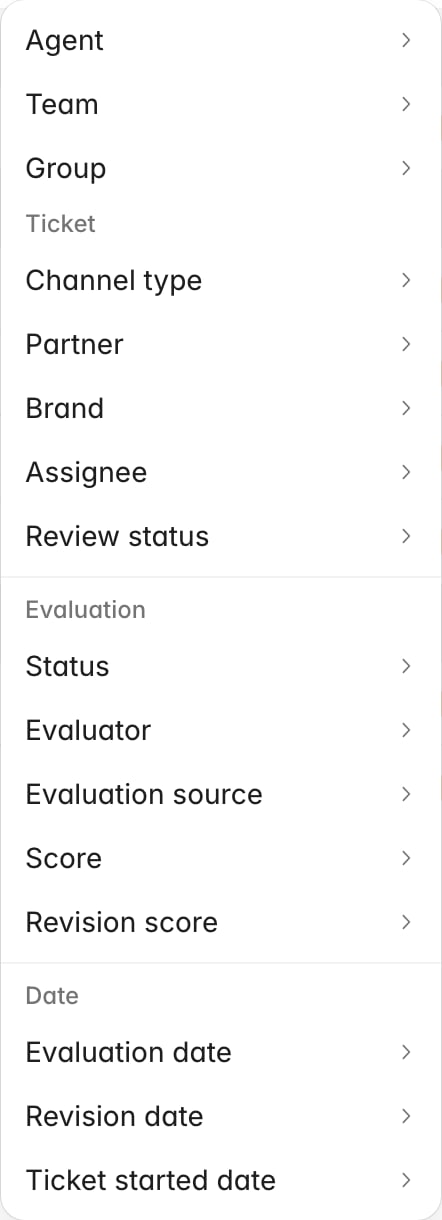 **Agent**, **Team**, and **Group** sit at the top because they describe the person
being scored. The **Ticket** group holds **Channel type**, **Partner**, **Brand**,
**Assignee**, and **Review status**. Partner is filed here despite being an agent
property.
The **Evaluation** group is the part with no equivalent on the Tickets list:
* **Evaluator** narrows to a named reviewer, or to AI. **Evaluation source** is the
blunter version of the same idea, **AI** or **Human**.
* **Score** and **Revision score** filter on the number, with the revision score
being the value after a contest changed it.
* **Status** is **Approved** or **Pending**, and it is about the approval state of
the evaluation rather than the review state of the ticket.
The three date filters differ: **Evaluation date** is when the score was produced, **Revision date** is
when it was last changed, and **Ticket started date** is when the customer first
made contact. Reporting on last month's QA usually means Evaluation date, not
Ticket started date.
Filter combinations you rebuild every week belong in a saved view. Set the filters
up once and click **Save**, and everyone in your organization is looking at the
same slice. Otherwise two people comparing numbers are usually comparing two
different date ranges.
## When a filter returns less than you expect
Common causes:
* **The date filter you did not set.** Both lists arrive with a date range already
applied, and on Tickets that range is on the *evaluated* date rather than when
the ticket came in. A ticket that arrived in the window but was scored outside it
will not be there.
* **A ticket that was never evaluated.** The built-in Tickets view only shows
tickets that have a QA evaluation, so an unevaluated one is invisible no matter
what else you select. [Why wasn't my ticket
evaluated?](/guides/troubleshooting/why-wasnt-my-ticket-evaluated) explains the
reasons.
* **Team where you meant Partner, or Group where you meant Team.** Re-read the
definitions above; a wrong-but-valid filter returns a plausible-looking list
rather than an error.
## Related
* [Find tickets and evaluations](/guides/quality-assurance/find-tickets-and-evaluations)
* [Create and manage teams](/guides/access-management/create-and-manage-teams), for
how the Team dimension gets populated
* [Manage the agent roster](/guides/quality-assurance/manage-agent-roster), for
agent eligibility and partner assignment
* [Export QA evaluation data](/guides/quality-assurance/export-qa-evaluations), for
taking a filtered list out of Rulebase
* [Rulebase glossary](/guides/concepts/glossary)
**Agent**, **Team**, and **Group** sit at the top because they describe the person
being scored. The **Ticket** group holds **Channel type**, **Partner**, **Brand**,
**Assignee**, and **Review status**. Partner is filed here despite being an agent
property.
The **Evaluation** group is the part with no equivalent on the Tickets list:
* **Evaluator** narrows to a named reviewer, or to AI. **Evaluation source** is the
blunter version of the same idea, **AI** or **Human**.
* **Score** and **Revision score** filter on the number, with the revision score
being the value after a contest changed it.
* **Status** is **Approved** or **Pending**, and it is about the approval state of
the evaluation rather than the review state of the ticket.
The three date filters differ: **Evaluation date** is when the score was produced, **Revision date** is
when it was last changed, and **Ticket started date** is when the customer first
made contact. Reporting on last month's QA usually means Evaluation date, not
Ticket started date.
Filter combinations you rebuild every week belong in a saved view. Set the filters
up once and click **Save**, and everyone in your organization is looking at the
same slice. Otherwise two people comparing numbers are usually comparing two
different date ranges.
## When a filter returns less than you expect
Common causes:
* **The date filter you did not set.** Both lists arrive with a date range already
applied, and on Tickets that range is on the *evaluated* date rather than when
the ticket came in. A ticket that arrived in the window but was scored outside it
will not be there.
* **A ticket that was never evaluated.** The built-in Tickets view only shows
tickets that have a QA evaluation, so an unevaluated one is invisible no matter
what else you select. [Why wasn't my ticket
evaluated?](/guides/troubleshooting/why-wasnt-my-ticket-evaluated) explains the
reasons.
* **Team where you meant Partner, or Group where you meant Team.** Re-read the
definitions above; a wrong-but-valid filter returns a plausible-looking list
rather than an error.
## Related
* [Find tickets and evaluations](/guides/quality-assurance/find-tickets-and-evaluations)
* [Create and manage teams](/guides/access-management/create-and-manage-teams), for
how the Team dimension gets populated
* [Manage the agent roster](/guides/quality-assurance/manage-agent-roster), for
agent eligibility and partner assignment
* [Export QA evaluation data](/guides/quality-assurance/export-qa-evaluations), for
taking a filtered list out of Rulebase
* [Rulebase glossary](/guides/concepts/glossary)