> ## Documentation Index
> Fetch the complete documentation index at: https://docs.rulebase.co/llms.txt
> Use this file to discover all available pages before exploring further.
# Give feedback on AI QA evaluations
> Thumbs up or thumbs down a single AI-scored criterion, explain what the AI got wrong, and have it re-score that criterion.
When an AI evaluation gets one criterion wrong, you usually don't want to redo
the whole scorecard. Criterion feedback is the small correction: mark a single
criterion right or wrong, say why in a sentence or two, and optionally have
Rulebase score that one criterion again with your note in hand. It's also how the
AI learns your team's standards, because a thumbs down becomes a written
correction that later evaluations of similar tickets can draw on.
 ## Before you start
* You need permission to give evaluation feedback and train the model. Without
it the thumbs icons don't appear at all.
* Open a ticket that already has a completed AI QA evaluation. Feedback attaches
to a criterion result, so there has to be a result to attach to.
* Know what specifically went wrong before you click. Thumbs down won't submit
without a note.
## Leave feedback on a criterion
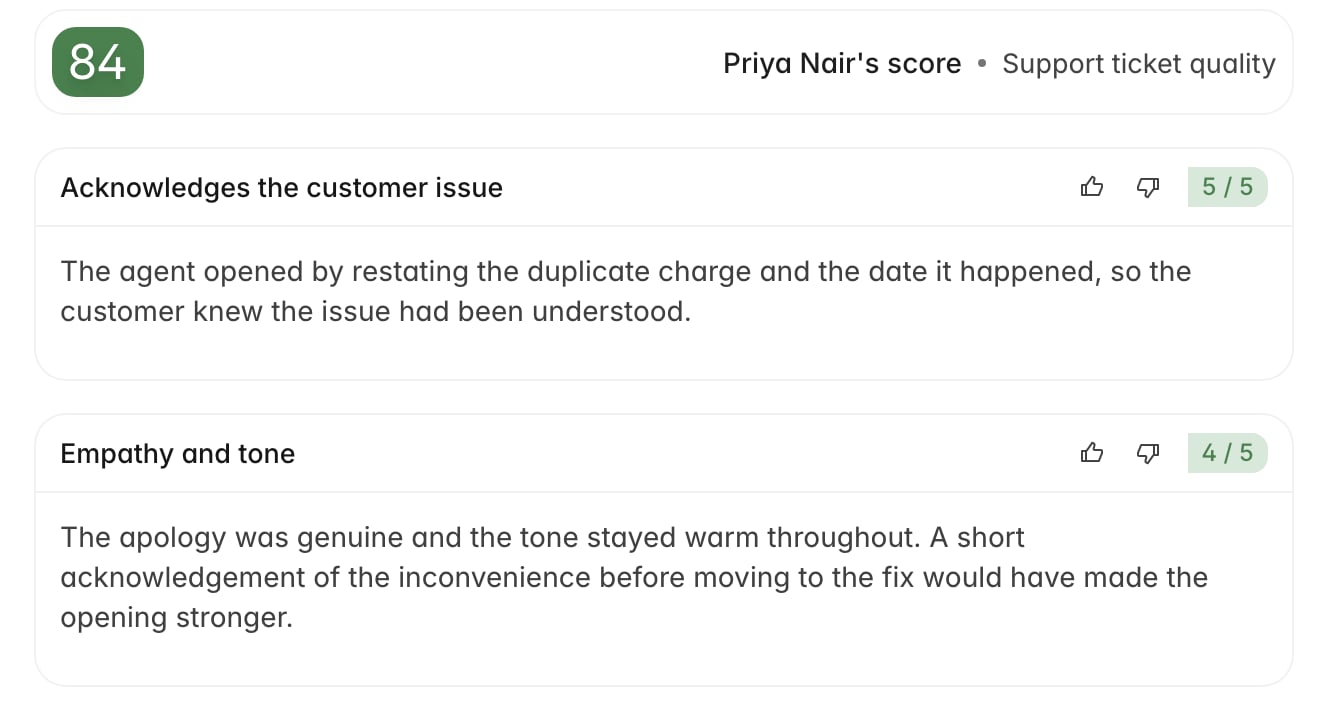
Feedback attaches to one criterion at a time. There's no control for rating a
whole scorecard at once, so pick out the criterion that was scored wrong.
1. Open a ticket with an AI QA evaluation and find the criterion in the review.
2. Click the thumbs up or thumbs down icon next to its score.
3. In the **Leave feedback** dialog, write your note.
4. On thumbs down, tick **Re-evaluate this criterion after submitting** if you
want Rulebase to score it again now.
5. Click **Submit**.
## Before you start
* You need permission to give evaluation feedback and train the model. Without
it the thumbs icons don't appear at all.
* Open a ticket that already has a completed AI QA evaluation. Feedback attaches
to a criterion result, so there has to be a result to attach to.
* Know what specifically went wrong before you click. Thumbs down won't submit
without a note.
## Leave feedback on a criterion
Feedback attaches to one criterion at a time. There's no control for rating a
whole scorecard at once, so pick out the criterion that was scored wrong.
1. Open a ticket with an AI QA evaluation and find the criterion in the review.
2. Click the thumbs up or thumbs down icon next to its score.
3. In the **Leave feedback** dialog, write your note.
4. On thumbs down, tick **Re-evaluate this criterion after submitting** if you
want Rulebase to score it again now.
5. Click **Submit**.
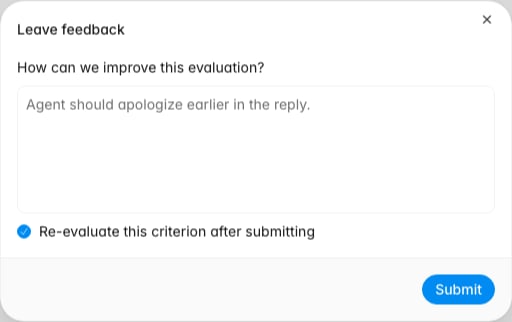 The dialog changes with the direction of your feedback. Thumbs down asks **How
can we improve this evaluation?** and blocks submission until you write
something. Thumbs up asks **Any additional comments? (optional)** and accepts an
empty box, so a bare thumbs up is a fine way to record that a result looks right.
## Thumbs up and thumbs down do different jobs
The two directions look symmetrical in the UI, but only one of them changes
anything:
| Behaviour | Thumbs up | Thumbs down |
| ----------------------- | ---------------------------------- | -------------------------------- |
| Note required | No | Yes |
| Can trigger a re-score | No | Yes, via the checkbox |
| Feeds later evaluations | No | Yes |
| Use it for | Confirming a result you agree with | Correcting a result that's wrong |
Thumbs up records that a human checked this criterion and agreed. It leaves the
score alone and has no effect on how future tickets are scored. Everything else on
this page describes thumbs down.
Write the note as guidance rather than a verdict. "Wrong" gives the AI nothing to
act on; "the customer asked twice about the refund window and the agent only
answered the second time, which should fail this criterion" gives it the
situation, the evidence, and the expected outcome. Name the policy or the specific thing the agent should have said; that is what
the note gets matched on later.
## Re-evaluate a criterion
Ticking **Re-evaluate this criterion after submitting** asks Rulebase to score
that one criterion again, this time with your note, the original reasoning, and
the previous score as context. No other criterion is re-scored, though the
evaluation's overall score updates to account for the new result.
Re-evaluation is a background job, so the result arrives a moment after you
submit rather than instantly. You'll see the criterion move through **Applying
feedback...** and then settle on **Feedback applied** once the new score is in.
Reach for it when the AI missed context you can point out in a sentence or two.
Skip it when the criterion is a judgement call you'd rather record than overturn:
the note is still saved and still informs later evaluations without changing this
ticket's score.
If a re-evaluation fails after Rulebase has exhausted its retries, your feedback
is removed along with it so you can submit again. If a note you left disappears,
that's why. Re-submitting it is the fix.
You don't have to decide at submission time. Feedback and re-evaluation are
separate steps, so you can leave the note now and trigger the re-score later from
the badge described below.
## What you see after submitting
Once feedback exists on a criterion, the thumbs icons are replaced by a badge
reading **Feedback submitted**, or **Feedback applied** if a re-evaluation
completed. That badge is the entry point for everything you might want to do
afterwards. Click it to open a popover showing the note, who wrote it, and when,
along with three actions:
* **Re-evaluate criterion** — run the re-score now, for feedback you submitted
without ticking the checkbox. Thumbs down only.
* **Edit feedback** — reopen the dialog and revise the note. Editing regenerates
the guidance Rulebase derived from it, so a correction here propagates.
* **Delete feedback** — remove the note entirely, including from the guidance
used by later evaluations. The criterion returns to plain thumbs icons.
Agents never see any of this. On their own view of an evaluation the feedback
controls and badges are hidden, so a note you leave is not a message to the
agent. If the agent needs to hear it, that belongs in a
[coaching session](/guides/coaching/run-a-session).
## How feedback shapes later evaluations
When you thumbs down an AI QA criterion, Rulebase expands your note into a
written correction that records the situation on the ticket, what the AI
originally concluded, your feedback in your own words, and concrete guidance for
scoring a similar case. That correction is stored in your organization's feedback
library, scoped to the scorecard and criterion it came from, and later evaluations
retrieve it when they hit a comparable situation. It's private to your
organization.
Specific notes are worth more than general ones: retrieval works by matching
situations, and a note with no situation in it has nothing to match on. Breadth
helps too: correcting the same criterion across different tickets covers more ground than repeating one correction on
near-duplicate tickets.
## Verify your feedback landed
Before moving on to the next ticket, confirm:
* The criterion shows a **Feedback submitted** or **Feedback applied** badge
rather than plain thumbs icons.
* If you asked for a re-evaluation, the criterion's score reflects the new result
and the badge reads **Feedback applied**. A badge still reading **Applying
feedback...** after a while means the job hasn't finished.
* Opening the badge shows your note as you wrote it, with your name against it.
* You left the feedback on the criterion you meant to. Feedback sits on one
criterion, and moving it means deleting and re-adding.
## Related
* [Perform a manual evaluation](/guides/quality-assurance/perform-a-manual-evaluation),
for a full manual override
* [Add scorecard additional instructions](/guides/quality-assurance/add-scorecard-additional-instructions),
for changing how a criterion is scored everywhere rather than on one ticket
* [Run a coaching session](/guides/coaching/run-a-session)
* [Roles and permissions](/guides/roles-and-permissions)
* [How AI QA works](/guides/concepts/how-ai-qa-works), for where criterion
feedback sits in the evaluation pipeline
The dialog changes with the direction of your feedback. Thumbs down asks **How
can we improve this evaluation?** and blocks submission until you write
something. Thumbs up asks **Any additional comments? (optional)** and accepts an
empty box, so a bare thumbs up is a fine way to record that a result looks right.
## Thumbs up and thumbs down do different jobs
The two directions look symmetrical in the UI, but only one of them changes
anything:
| Behaviour | Thumbs up | Thumbs down |
| ----------------------- | ---------------------------------- | -------------------------------- |
| Note required | No | Yes |
| Can trigger a re-score | No | Yes, via the checkbox |
| Feeds later evaluations | No | Yes |
| Use it for | Confirming a result you agree with | Correcting a result that's wrong |
Thumbs up records that a human checked this criterion and agreed. It leaves the
score alone and has no effect on how future tickets are scored. Everything else on
this page describes thumbs down.
Write the note as guidance rather than a verdict. "Wrong" gives the AI nothing to
act on; "the customer asked twice about the refund window and the agent only
answered the second time, which should fail this criterion" gives it the
situation, the evidence, and the expected outcome. Name the policy or the specific thing the agent should have said; that is what
the note gets matched on later.
## Re-evaluate a criterion
Ticking **Re-evaluate this criterion after submitting** asks Rulebase to score
that one criterion again, this time with your note, the original reasoning, and
the previous score as context. No other criterion is re-scored, though the
evaluation's overall score updates to account for the new result.
Re-evaluation is a background job, so the result arrives a moment after you
submit rather than instantly. You'll see the criterion move through **Applying
feedback...** and then settle on **Feedback applied** once the new score is in.
Reach for it when the AI missed context you can point out in a sentence or two.
Skip it when the criterion is a judgement call you'd rather record than overturn:
the note is still saved and still informs later evaluations without changing this
ticket's score.
If a re-evaluation fails after Rulebase has exhausted its retries, your feedback
is removed along with it so you can submit again. If a note you left disappears,
that's why. Re-submitting it is the fix.
You don't have to decide at submission time. Feedback and re-evaluation are
separate steps, so you can leave the note now and trigger the re-score later from
the badge described below.
## What you see after submitting
Once feedback exists on a criterion, the thumbs icons are replaced by a badge
reading **Feedback submitted**, or **Feedback applied** if a re-evaluation
completed. That badge is the entry point for everything you might want to do
afterwards. Click it to open a popover showing the note, who wrote it, and when,
along with three actions:
* **Re-evaluate criterion** — run the re-score now, for feedback you submitted
without ticking the checkbox. Thumbs down only.
* **Edit feedback** — reopen the dialog and revise the note. Editing regenerates
the guidance Rulebase derived from it, so a correction here propagates.
* **Delete feedback** — remove the note entirely, including from the guidance
used by later evaluations. The criterion returns to plain thumbs icons.
Agents never see any of this. On their own view of an evaluation the feedback
controls and badges are hidden, so a note you leave is not a message to the
agent. If the agent needs to hear it, that belongs in a
[coaching session](/guides/coaching/run-a-session).
## How feedback shapes later evaluations
When you thumbs down an AI QA criterion, Rulebase expands your note into a
written correction that records the situation on the ticket, what the AI
originally concluded, your feedback in your own words, and concrete guidance for
scoring a similar case. That correction is stored in your organization's feedback
library, scoped to the scorecard and criterion it came from, and later evaluations
retrieve it when they hit a comparable situation. It's private to your
organization.
Specific notes are worth more than general ones: retrieval works by matching
situations, and a note with no situation in it has nothing to match on. Breadth
helps too: correcting the same criterion across different tickets covers more ground than repeating one correction on
near-duplicate tickets.
## Verify your feedback landed
Before moving on to the next ticket, confirm:
* The criterion shows a **Feedback submitted** or **Feedback applied** badge
rather than plain thumbs icons.
* If you asked for a re-evaluation, the criterion's score reflects the new result
and the badge reads **Feedback applied**. A badge still reading **Applying
feedback...** after a while means the job hasn't finished.
* Opening the badge shows your note as you wrote it, with your name against it.
* You left the feedback on the criterion you meant to. Feedback sits on one
criterion, and moving it means deleting and re-adding.
## Related
* [Perform a manual evaluation](/guides/quality-assurance/perform-a-manual-evaluation),
for a full manual override
* [Add scorecard additional instructions](/guides/quality-assurance/add-scorecard-additional-instructions),
for changing how a criterion is scored everywhere rather than on one ticket
* [Run a coaching session](/guides/coaching/run-a-session)
* [Roles and permissions](/guides/roles-and-permissions)
* [How AI QA works](/guides/concepts/how-ai-qa-works), for where criterion
feedback sits in the evaluation pipeline