> ## Documentation Index
> Fetch the complete documentation index at: https://docs.rulebase.co/llms.txt
> Use this file to discover all available pages before exploring further.
# Manage the QA agent roster
> Keep the list of people Rulebase evaluates accurate by importing and exporting the roster, moving agents between teams, and removing people who have left.
The agent roster is the list of support reps Rulebase runs QA and performance
reports on. Anyone missing from it goes unevaluated; anyone left on it after they
leave keeps appearing in team performance views and exports. Teams usually edit it
after a hiring round, a reorg, or a QA report that returns an unfamiliar name.
 Rulebase uses "agent" for two things. This page is the **QA roster** at
[Settings > People > Agents](https://app.rulebase.co/settings/people/employees):
the human support reps you evaluate. The AI agents you build live under
[Home > Agents](https://app.rulebase.co/home/agents), and nothing here affects
them. The [glossary](/guides/concepts/glossary) defines both terms.
## Before you start
* Work from
[Settings > People > Agents](https://app.rulebase.co/settings/people/employees).
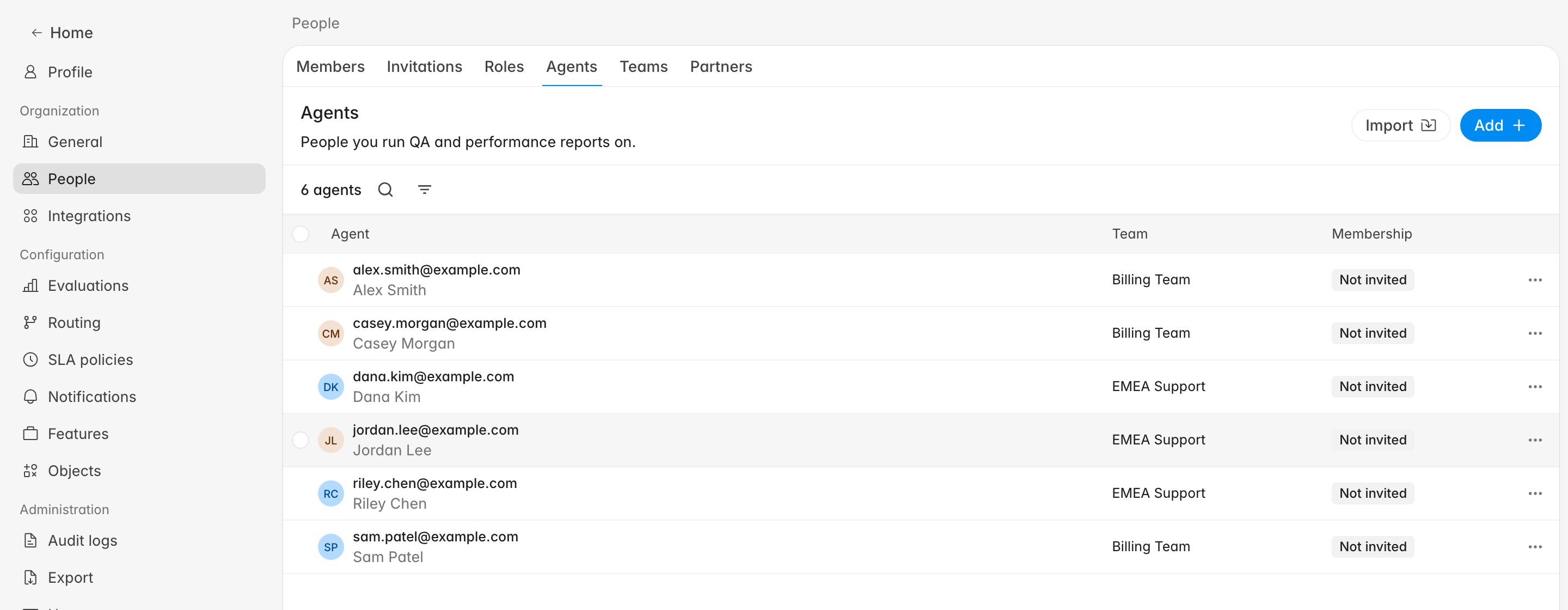
The header reads **Agents**, subtitle "People you run QA and performance
reports on."
* For any roster-wide change, download the existing roster first and edit that
file. It already has the right headers and the identifiers Rulebase matches on.
* Being on the roster is not the same as having a Rulebase login. The
**Membership** column tracks the login separately, and evaluation does not
depend on it.
## What the table tells you
* **Agent**: email (the primary identifier) with the name underneath.
* **Team**: their team, or `-` if none. Teams drive grouping in QA reports; an
agent with no team drops out of team-level views.
* **Membership**: whether they can log in. Values are **Not invited**, **Invite
pending**, or **Invited**. Invitations are optional; a **Not invited** agent is
still evaluated.
The agent count sits above the table. The filter icon next to it narrows by
**Team** or **Workspace** (where **Sales** and **Customer Service** agents are
separated).
## Export the current roster
The export lives inside the import dialog.
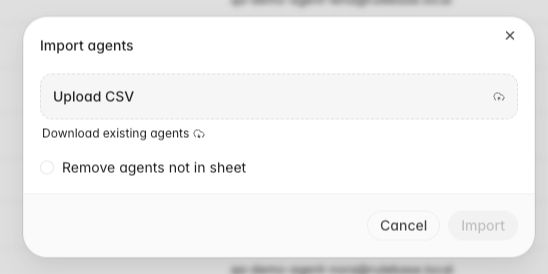
1. Click **Import**.
2. Click **Download existing agents**.
Rulebase uses "agent" for two things. This page is the **QA roster** at
[Settings > People > Agents](https://app.rulebase.co/settings/people/employees):
the human support reps you evaluate. The AI agents you build live under
[Home > Agents](https://app.rulebase.co/home/agents), and nothing here affects
them. The [glossary](/guides/concepts/glossary) defines both terms.
## Before you start
* Work from
[Settings > People > Agents](https://app.rulebase.co/settings/people/employees).
The header reads **Agents**, subtitle "People you run QA and performance
reports on."
* For any roster-wide change, download the existing roster first and edit that
file. It already has the right headers and the identifiers Rulebase matches on.
* Being on the roster is not the same as having a Rulebase login. The
**Membership** column tracks the login separately, and evaluation does not
depend on it.
## What the table tells you
* **Agent**: email (the primary identifier) with the name underneath.
* **Team**: their team, or `-` if none. Teams drive grouping in QA reports; an
agent with no team drops out of team-level views.
* **Membership**: whether they can log in. Values are **Not invited**, **Invite
pending**, or **Invited**. Invitations are optional; a **Not invited** agent is
still evaluated.
The agent count sits above the table. The filter icon next to it narrows by
**Team** or **Workspace** (where **Sales** and **Customer Service** agents are
separated).
## Export the current roster
The export lives inside the import dialog.
1. Click **Import**.
2. Click **Download existing agents**.
 You get a CSV named after your organization and download date, with every current
agent. Columns are **Name**, **Email**, **Employee ID**, and **Team**, plus one
per custom agent field your organization defines; organizations that evaluate
sales calls also get a **Role** column. Edit values, but leave headers alone.
Rulebase matches columns by header name, and a renamed header is treated as an
unrecognized custom field.
## Import roster changes
An import is an upsert: Rulebase matches by email first, then employee ID, updates
whoever it finds, and creates the rest. Anyone it touches lands on the active
roster, so an import also brings back someone you removed earlier.
1. Click **Import**.
2. Drop your file on **Upload CSV**, or click it and pick the file.
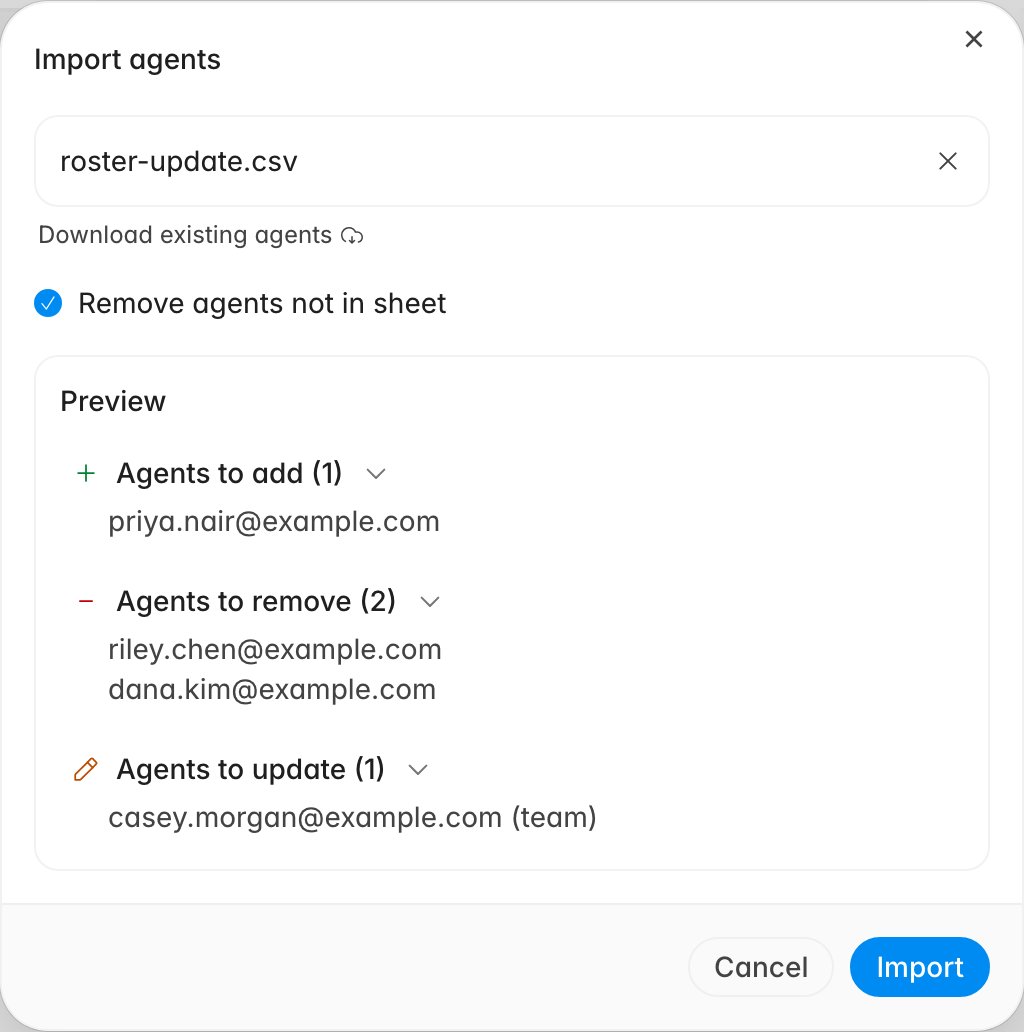
3. Select **Remove agents not in sheet** when this file is the complete roster.
Leave it off to only add and update the rows you supply.
4. If you selected it, read the **Preview** that appears. It groups pending
changes into **Agents to add**, **Agents to remove**, and **Agents to update**,
with the changed fields named next to each updated agent.
5. Click **Import**.
You get a CSV named after your organization and download date, with every current
agent. Columns are **Name**, **Email**, **Employee ID**, and **Team**, plus one
per custom agent field your organization defines; organizations that evaluate
sales calls also get a **Role** column. Edit values, but leave headers alone.
Rulebase matches columns by header name, and a renamed header is treated as an
unrecognized custom field.
## Import roster changes
An import is an upsert: Rulebase matches by email first, then employee ID, updates
whoever it finds, and creates the rest. Anyone it touches lands on the active
roster, so an import also brings back someone you removed earlier.
1. Click **Import**.
2. Drop your file on **Upload CSV**, or click it and pick the file.
3. Select **Remove agents not in sheet** when this file is the complete roster.
Leave it off to only add and update the rows you supply.
4. If you selected it, read the **Preview** that appears. It groups pending
changes into **Agents to add**, **Agents to remove**, and **Agents to update**,
with the changed fields named next to each updated agent.
5. Click **Import**.
 What each column does on the way in:
| Column | Effect |
| --------------- | -------------------------------------------------------------------------------------- |
| **Email** | The main match key. A row with an unfamiliar email creates a new agent |
| **Employee ID** | Fallback match key when the email has changed. Must be unique within your organization |
| **Name** | Updates the display name shown throughout QA and reports |
| **Team** | Assigns the agent to that team, creating the team if it does not exist yet |
| **Role** | Recognizes `Sales` and `Customer Service`. Other values are ignored |
The **Preview** only appears with **Remove agents not in sheet** selected. A plain
import shows no preview and adds or updates the supplied rows without removing
anyone.
Imports are all or nothing. If any row fails validation (a malformed email, or an
employee ID already used by someone else), Rulebase rolls the whole file back and
lists the failures as `Row 4: …` in the dialog. Fix those rows and upload again.
## Add one or two agents without a CSV
For a single new hire, **Add** beats editing a spreadsheet. The **Employees**
field searches people already in Rulebase who are not on the roster, including
anyone who arrived through a ticket integration but was never added for QA. If
nobody matches, type a full email address and the dropdown offers **Add** with
that address, creating the agent outright.
What each column does on the way in:
| Column | Effect |
| --------------- | -------------------------------------------------------------------------------------- |
| **Email** | The main match key. A row with an unfamiliar email creates a new agent |
| **Employee ID** | Fallback match key when the email has changed. Must be unique within your organization |
| **Name** | Updates the display name shown throughout QA and reports |
| **Team** | Assigns the agent to that team, creating the team if it does not exist yet |
| **Role** | Recognizes `Sales` and `Customer Service`. Other values are ignored |
The **Preview** only appears with **Remove agents not in sheet** selected. A plain
import shows no preview and adds or updates the supplied rows without removing
anyone.
Imports are all or nothing. If any row fails validation (a malformed email, or an
employee ID already used by someone else), Rulebase rolls the whole file back and
lists the failures as `Row 4: …` in the dialog. Fix those rows and upload again.
## Add one or two agents without a CSV
For a single new hire, **Add** beats editing a spreadsheet. The **Employees**
field searches people already in Rulebase who are not on the roster, including
anyone who arrived through a ticket integration but was never added for QA. If
nobody matches, type a full email address and the dropdown offers **Add** with
that address, creating the agent outright.
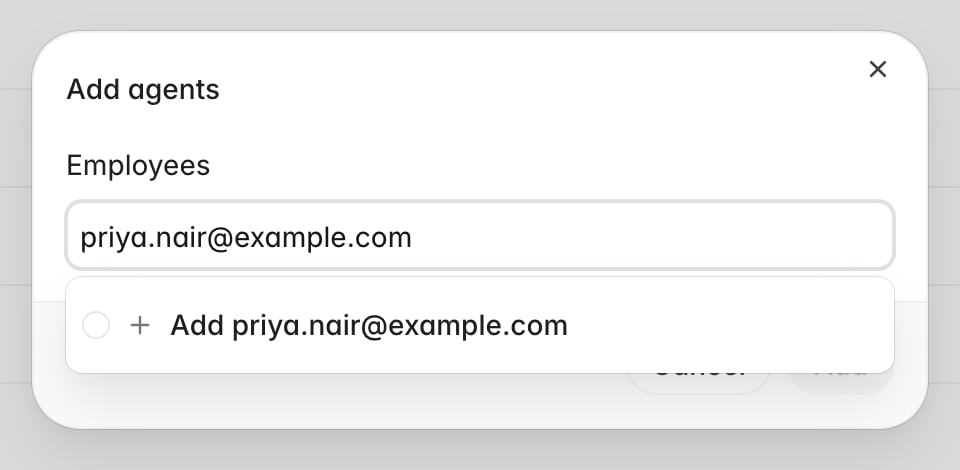 Select as many people as you need, then click **Add**. To fill in a name, team, or
custom field afterwards, click the agent's row to open **Edit agent**.
## Move agents between teams
1. Hover a row and click its checkbox, then select the rest. Hold **Shift** for a
range.
2. Click **Change team** in the floating action bar.
3. Search for the destination team and select it.
Select as many people as you need, then click **Add**. To fill in a name, team, or
custom field afterwards, click the agent's row to open **Edit agent**.
## Move agents between teams
1. Hover a row and click its checkbox, then select the rest. Hold **Shift** for a
range.
2. Click **Change team** in the floating action bar.
3. Search for the destination team and select it.
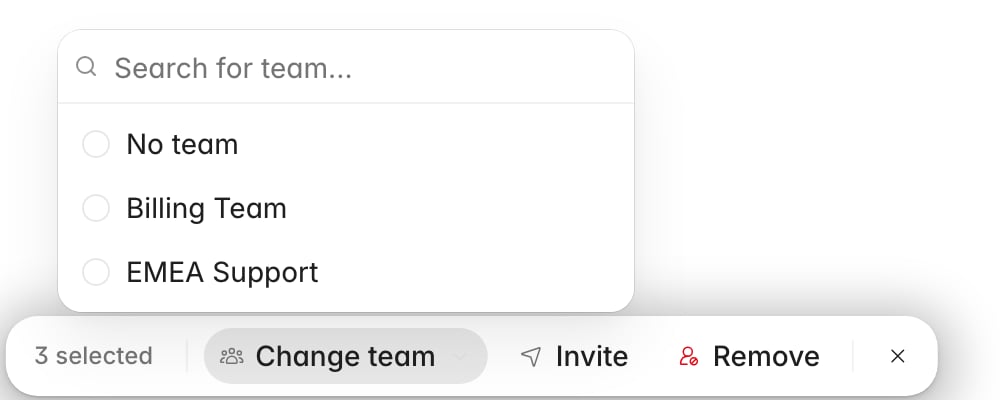 Every selected agent moves at once. An agent belongs to one team at a time, so
this replaces their current team; **No team** clears the assignment. The bar also
holds **Invite**, which sends a login invitation to selected agents still marked
**Not invited**.
## Remove agents from the roster
1. Select the agents to remove.
2. Click **Remove** in the floating action bar.
3. Read the confirmation, then click **Remove agents**.
Every selected agent moves at once. An agent belongs to one team at a time, so
this replaces their current team; **No team** clears the assignment. The bar also
holds **Invite**, which sends a login invitation to selected agents still marked
**Not invited**.
## Remove agents from the roster
1. Select the agents to remove.
2. Click **Remove** in the floating action bar.
3. Read the confirmation, then click **Remove agents**.
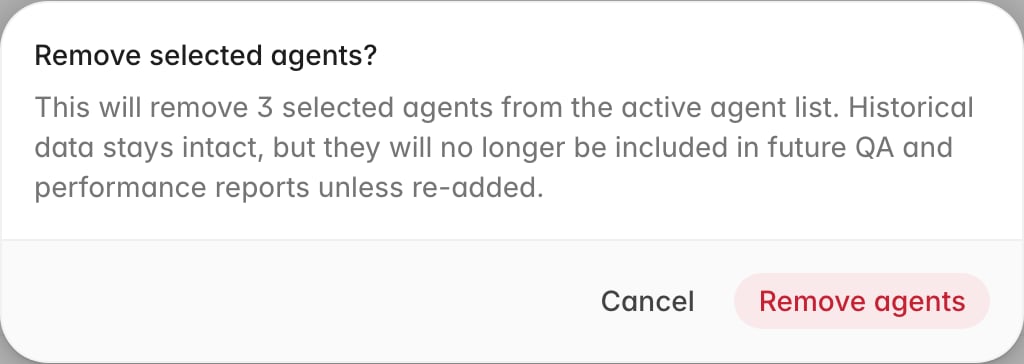 Removal takes people off the active roster; nothing is deleted. Past evaluations,
scores, and report history stay put. Going forward, they stop being picked up for
new QA evaluations and drop out of performance reports. For a single person, the
row's overflow menu has **Remove agent**.
If someone returns, add them back with **Add** or in your next import; they rejoin
with their old history intact.
## Confirm the roster is right
After a bulk change:
* The agent count matches the number of people you expect to be evaluated.
* Nobody sits on `-` in the **Team** column unless you meant them to.
* Filtering by each team returns the people their lead would expect.
Performance views read from this roster. A team page shows only
the agents the roster puts on that team. In [Use team and agent
performance](/guides/insights/team-and-agent-performance), a name missing there is
almost always a name missing here.
If a specific person's evaluations still look wrong, the cause is usually a second
record under a different email. Open the overflow menu on their row and use
**Merge** to combine the two.
## Related
* [Create and manage teams](/guides/access-management/create-and-manage-teams)
* [Use team and agent performance](/guides/insights/team-and-agent-performance)
* [Export QA evaluation data](/guides/quality-assurance/export-qa-evaluations)
* [Invite members](/guides/access-management/invite-members)
* [Create and manage roles](/guides/access-management/create-and-manage-roles)
Removal takes people off the active roster; nothing is deleted. Past evaluations,
scores, and report history stay put. Going forward, they stop being picked up for
new QA evaluations and drop out of performance reports. For a single person, the
row's overflow menu has **Remove agent**.
If someone returns, add them back with **Add** or in your next import; they rejoin
with their old history intact.
## Confirm the roster is right
After a bulk change:
* The agent count matches the number of people you expect to be evaluated.
* Nobody sits on `-` in the **Team** column unless you meant them to.
* Filtering by each team returns the people their lead would expect.
Performance views read from this roster. A team page shows only
the agents the roster puts on that team. In [Use team and agent
performance](/guides/insights/team-and-agent-performance), a name missing there is
almost always a name missing here.
If a specific person's evaluations still look wrong, the cause is usually a second
record under a different email. Open the overflow menu on their row and use
**Merge** to combine the two.
## Related
* [Create and manage teams](/guides/access-management/create-and-manage-teams)
* [Use team and agent performance](/guides/insights/team-and-agent-performance)
* [Export QA evaluation data](/guides/quality-assurance/export-qa-evaluations)
* [Invite members](/guides/access-management/invite-members)
* [Create and manage roles](/guides/access-management/create-and-manage-roles)