> ## Documentation Index
> Fetch the complete documentation index at: https://docs.rulebase.co/llms.txt
> Use this file to discover all available pages before exploring further.
# Manage and reorder routing rules
> Change the order routing rules run in, edit a rule that is routing to the wrong place, and delete one safely.
Rules accumulate. Someone sets up evaluation validation, someone else adds a
complaints escalation, and six months later nobody is sure which rule handles a
low-scoring ticket. The Rules page answers that, but only if you read it as what
it is: a priority list, top to bottom, where **only the first matching rule
runs**.
Ordering is the main thing you manage on this page.
 ## Before you start
* You need access to manage organization settings.
* Open [Settings > Routing > Rules](https://app.rulebase.co/settings/routing/rules).
Everything in this guide happens on that page.
* Reordering needs at least two rules. With one rule there is no drag handle.
## Read the list as a running order
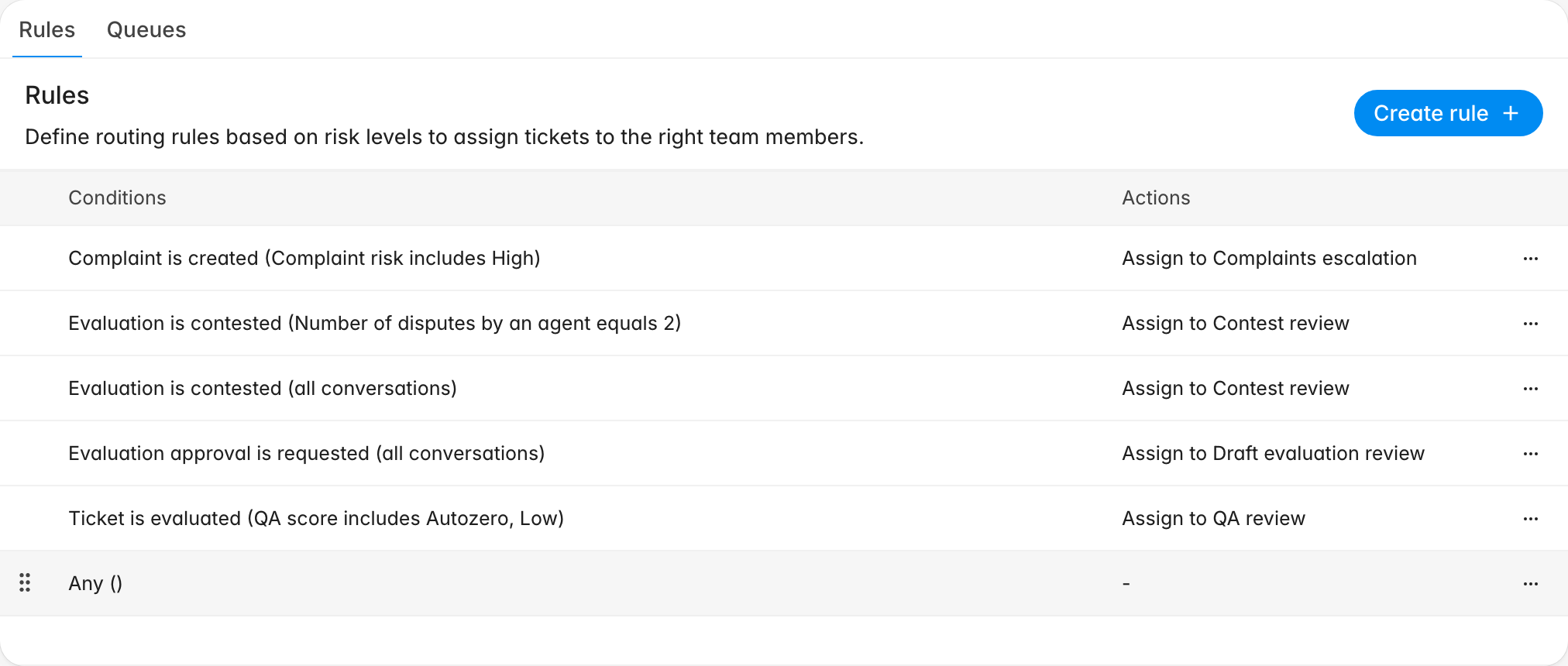
Each row prints the trigger event, then its conditions in brackets, then what
happens. `Ticket is evaluated (QA score includes Autozero, Low)` means the rule
wakes up when AI QA finishes scoring and only acts when the score landed in
those two bands. `(all conversations)` in the brackets means the rule has no
conditions and takes every occurrence of its trigger.
When an event fires, Rulebase starts at row one, ignores rules watching a
different event, and stops at the first rule whose conditions all hold. The
rules below it never see that ticket. Nothing in the interface records the
near-miss.
## Move a rule
1. Hover the row you want to move. A drag handle appears at the left edge.
2. Drag the row to its new position.
3. Let go. The new order saves immediately; there is no separate save step.
## Before you start
* You need access to manage organization settings.
* Open [Settings > Routing > Rules](https://app.rulebase.co/settings/routing/rules).
Everything in this guide happens on that page.
* Reordering needs at least two rules. With one rule there is no drag handle.
## Read the list as a running order
Each row prints the trigger event, then its conditions in brackets, then what
happens. `Ticket is evaluated (QA score includes Autozero, Low)` means the rule
wakes up when AI QA finishes scoring and only acts when the score landed in
those two bands. `(all conversations)` in the brackets means the rule has no
conditions and takes every occurrence of its trigger.
When an event fires, Rulebase starts at row one, ignores rules watching a
different event, and stops at the first rule whose conditions all hold. The
rules below it never see that ticket. Nothing in the interface records the
near-miss.
## Move a rule
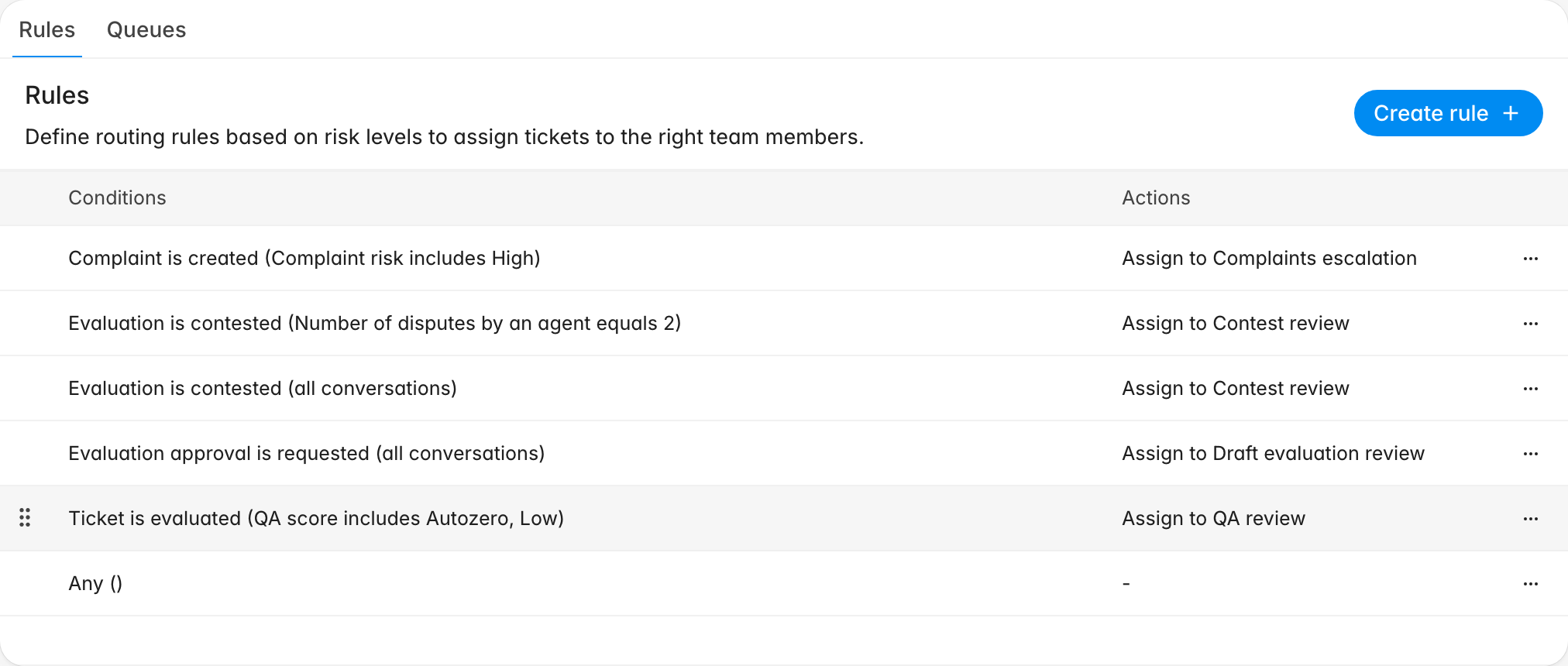
1. Hover the row you want to move. A drag handle appears at the left edge.
2. Drag the row to its new position.
3. Let go. The new order saves immediately; there is no separate save step.
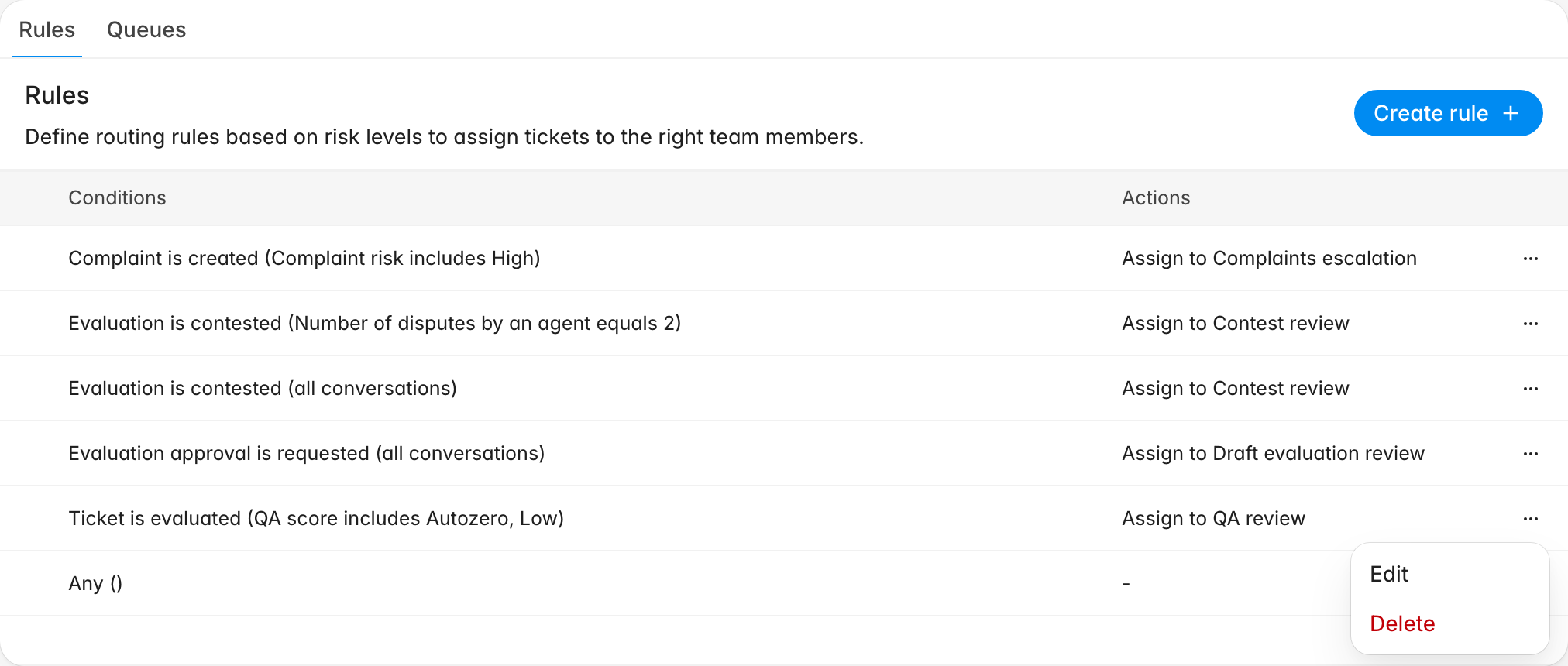
 Rules cannot be paused. The row menu offers **Edit** and **Delete**, and there is
no enabled column, so position is the only non-destructive control. Parking
a rule at the bottom of the list is the closest thing to switching it off while
keeping it.
## Decide where each rule belongs
Ordering is a judgement call, but a few patterns hold for almost every setup:
* **Narrowest conditions at the top.** A rule for `Complaint risk includes High`
should sit above one that takes every complaint, or the general rule absorbs
the urgent ones.
* **Escalations above their base case.** A repeat-dispute rule
(`Number of disputes by an agent equals 2`) has to outrank the first-contest
rule, otherwise every contest is treated as a first.
* **Catch-alls last.** Any rule showing `(all conversations)` is a fallback by
definition. It belongs at the end of its trigger's cluster, not the start.
* **The rule you didn't create belongs at the bottom.** Most organizations have a
rule reading **Any** under Conditions and `-` under Actions. It watches every
event, it matches low-scoring tickets, and it still stops the rules underneath
it even though it appears to do nothing. If your routing only fails on tickets
that scored badly, drag your rules above it and read
[Why didn't my routing rule fire?](/guides/troubleshooting/why-didnt-my-routing-rule-fire)
for the full diagnosis.
Rules for different triggers can sit in any order relative to each
other, since a rule only ever competes with rules that can see the same event.
Grouping them by trigger anyway makes the list much easier to reason about a
year later.
## Edit a rule
Click anywhere on a row to open it, or use the row menu and choose **Edit**. The
dialog is the one you used to create the rule: the trigger, the conditions, and
the actions are all editable.
Rules cannot be paused. The row menu offers **Edit** and **Delete**, and there is
no enabled column, so position is the only non-destructive control. Parking
a rule at the bottom of the list is the closest thing to switching it off while
keeping it.
## Decide where each rule belongs
Ordering is a judgement call, but a few patterns hold for almost every setup:
* **Narrowest conditions at the top.** A rule for `Complaint risk includes High`
should sit above one that takes every complaint, or the general rule absorbs
the urgent ones.
* **Escalations above their base case.** A repeat-dispute rule
(`Number of disputes by an agent equals 2`) has to outrank the first-contest
rule, otherwise every contest is treated as a first.
* **Catch-alls last.** Any rule showing `(all conversations)` is a fallback by
definition. It belongs at the end of its trigger's cluster, not the start.
* **The rule you didn't create belongs at the bottom.** Most organizations have a
rule reading **Any** under Conditions and `-` under Actions. It watches every
event, it matches low-scoring tickets, and it still stops the rules underneath
it even though it appears to do nothing. If your routing only fails on tickets
that scored badly, drag your rules above it and read
[Why didn't my routing rule fire?](/guides/troubleshooting/why-didnt-my-routing-rule-fire)
for the full diagnosis.
Rules for different triggers can sit in any order relative to each
other, since a rule only ever competes with rules that can see the same event.
Grouping them by trigger anyway makes the list much easier to reason about a
year later.
## Edit a rule
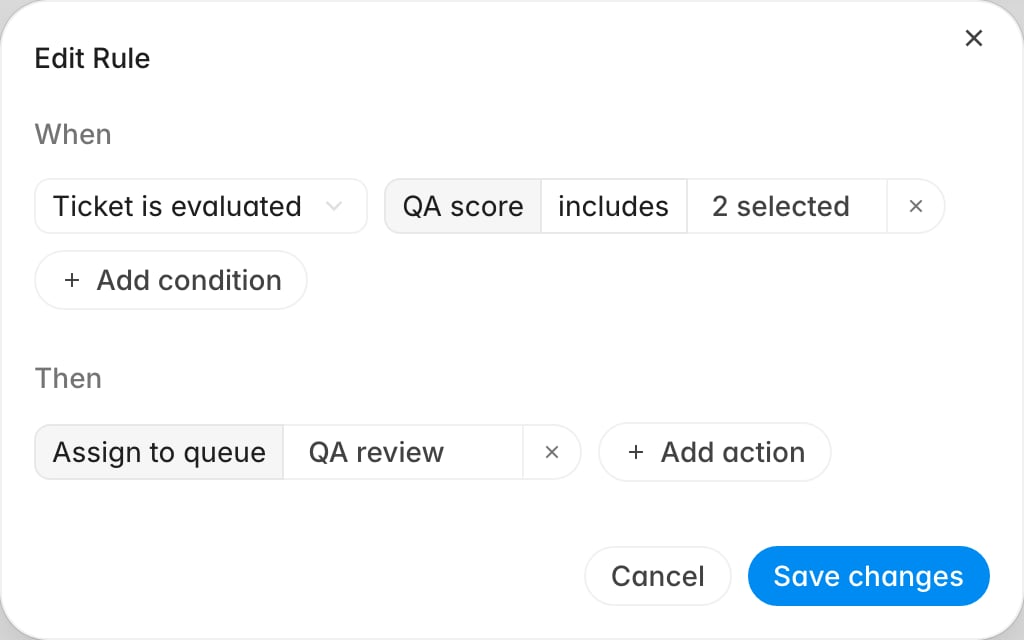
Click anywhere on a row to open it, or use the row menu and choose **Edit**. The
dialog is the one you used to create the rule: the trigger, the conditions, and
the actions are all editable.
 1. Open the rule and change what you need.
2. Remove a condition or action with the **×** beside it, or add one with **Add
condition** and **Add action**.
3. Click **Save changes**.
1. Open the rule and change what you need.
2. Remove a condition or action with the **×** beside it, or add one with **Add
condition** and **Add action**.
3. Click **Save changes**.
 Editing does not move the rule. A rule that now has broader conditions may need
to move down the list as well, and that is easy to forget in the moment. Changes
apply to the next matching event only; tickets that already went through the
trigger stay where they are.
## Delete a rule
Deleting is permanent and there is no undo, so it is worth a moment of thought
about the rules below the one you are removing. They have been sitting in its
shadow and will start receiving traffic the moment it goes.
1. Open the row menu and choose **Delete**.
2. Check the rule named in the confirmation against the row you meant to click.
3. Click **Delete**.
Editing does not move the rule. A rule that now has broader conditions may need
to move down the list as well, and that is easy to forget in the moment. Changes
apply to the next matching event only; tickets that already went through the
trigger stay where they are.
## Delete a rule
Deleting is permanent and there is no undo, so it is worth a moment of thought
about the rules below the one you are removing. They have been sitting in its
shadow and will start receiving traffic the moment it goes.
1. Open the row menu and choose **Delete**.
2. Check the rule named in the confirmation against the row you meant to click.
3. Click **Delete**.
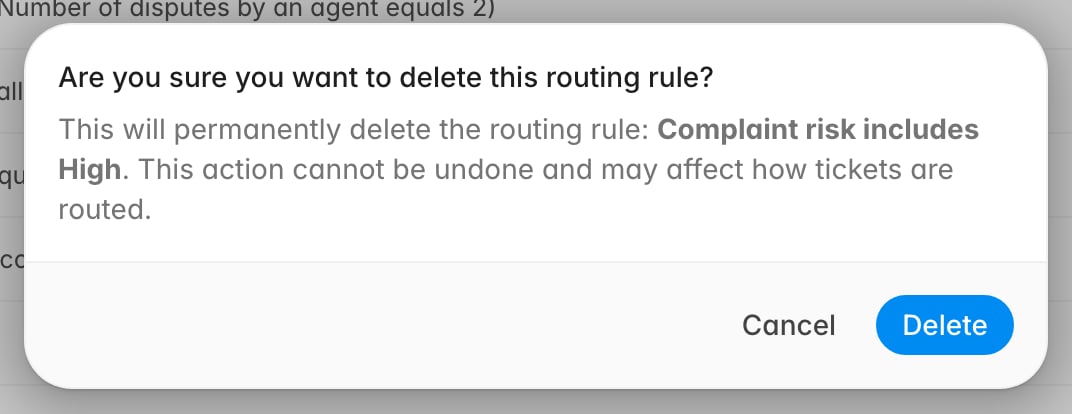 Treat that name as a hint rather than proof. The confirmation quotes the rule's
first condition, and it labels some condition types incorrectly: a QA score or
count condition can come out as the wrong band, or as `None`. A rule with no
conditions has nothing to quote at all and is called `Unknown rule`. Whenever the
name does not clearly match the row you meant, close the dialog and open the rule
to check.
If you are removing a rule because it fires too often rather than because it is
wrong, edit its conditions or move it down instead. A deleted rule cannot be recovered, and the next person will rebuild it from
scratch.
## Confirm the new order does what you meant
Order changes apply going forward, so the ticket that prompted the change still
needs handling by hand. Raise the trigger again on a real ticket and check three
things: the ticket lands with the queue or person you expected, a ticket you
meant to exclude was left alone, and nothing you moved down has gone quiet
entirely. If a rule stopped working after a reorder, the rule now above it is
almost always the reason.
## Related
* [Create a routing rule](/guides/quality-assurance/create-routing-rules)
* [Why didn't my routing rule fire?](/guides/troubleshooting/why-didnt-my-routing-rule-fire)
* [Create and manage queues](/guides/quality-assurance/create-and-manage-queues)
* [Perform a manual evaluation](/guides/quality-assurance/perform-a-manual-evaluation)
Treat that name as a hint rather than proof. The confirmation quotes the rule's
first condition, and it labels some condition types incorrectly: a QA score or
count condition can come out as the wrong band, or as `None`. A rule with no
conditions has nothing to quote at all and is called `Unknown rule`. Whenever the
name does not clearly match the row you meant, close the dialog and open the rule
to check.
If you are removing a rule because it fires too often rather than because it is
wrong, edit its conditions or move it down instead. A deleted rule cannot be recovered, and the next person will rebuild it from
scratch.
## Confirm the new order does what you meant
Order changes apply going forward, so the ticket that prompted the change still
needs handling by hand. Raise the trigger again on a real ticket and check three
things: the ticket lands with the queue or person you expected, a ticket you
meant to exclude was left alone, and nothing you moved down has gone quiet
entirely. If a rule stopped working after a reorder, the rule now above it is
almost always the reason.
## Related
* [Create a routing rule](/guides/quality-assurance/create-routing-rules)
* [Why didn't my routing rule fire?](/guides/troubleshooting/why-didnt-my-routing-rule-fire)
* [Create and manage queues](/guides/quality-assurance/create-and-manage-queues)
* [Perform a manual evaluation](/guides/quality-assurance/perform-a-manual-evaluation)