> ## Documentation Index
> Fetch the complete documentation index at: https://docs.rulebase.co/llms.txt
> Use this file to discover all available pages before exploring further.
# Perform a manual evaluation
> Score a ticket by hand against a scorecard: choose where to start from, mark each check, write feedback the agent can act on, and submit.
A manual evaluation is your score on a ticket, recorded against the same scorecard
the AI uses. Use it when the AI got something wrong, when the ticket was never evaluated, or
when the process calls for a human score on a sample regardless.
If your role cannot provide model-training
feedback, the button at the end says **Submit for review**. Your evaluation still
becomes the active manual result immediately, and Rulebase also sends it through
your organization's validation workflow.
## Open the editor
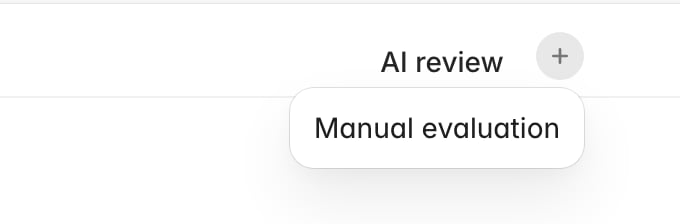
On the ticket's QA workspace, the review tabs sit at the top. If nobody has scored
the ticket by hand yet, there is no **Manual evaluation** tab. Click the **+**
beside the tabs and choose **Manual evaluation**, which both adds the tab and opens
the editor in one step.
 Where a manual evaluation already exists or is awaiting validation, **Manual
evaluation** is already a tab and you can go straight to it.
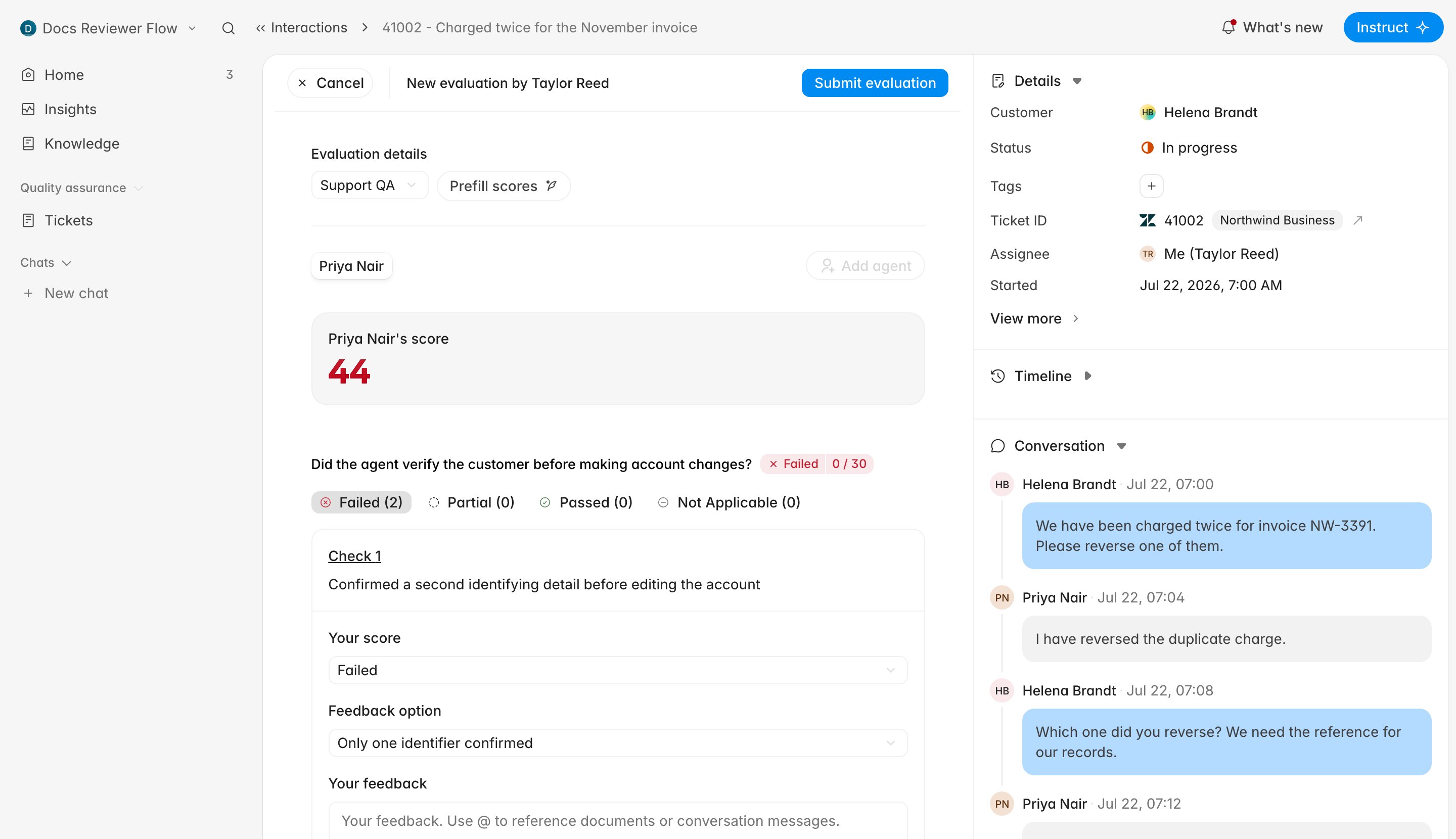
The editor replaces the review panel. The header reads **New evaluation by** your
name, with **Cancel** on the left and the submit button on the right. The ticket
panel stays where it was, so the transcript is still beside you while you score.
Where a manual evaluation already exists or is awaiting validation, **Manual
evaluation** is already a tab and you can go straight to it.
The editor replaces the review panel. The header reads **New evaluation by** your
name, with **Cancel** on the left and the submit button on the right. The ticket
panel stays where it was, so the transcript is still beside you while you score.
 ## Decide what you are starting from
Under **Evaluation details** you choose the scorecard, and next to it sits
**Prefill scores**, which sets the starting score for every check.
## Decide what you are starting from
Under **Evaluation details** you choose the scorecard, and next to it sits
**Prefill scores**, which sets the starting score for every check.
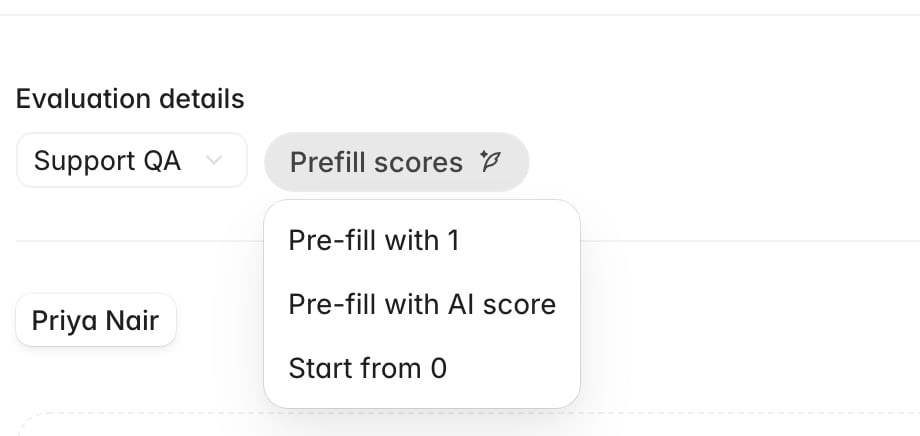 | Option | What it does | Use it when |
| -------------------------- | ------------------------------------------------------------------------------------------------------------------------ | ------------------------------------------------------------------------- |
| **Pre-fill with 1** | Sets every criterion to its highest score and marks every check passed | The ticket was handled well and you expect to mark down one or two things |
| **Pre-fill with AI score** | Copies the AI's result for this agent, score by score | You mostly agree with the AI and want to correct a specific criterion |
| **Start from 0** | Sets every criterion to its lowest score, and fails each check that has a reason available, with that reason preselected | The ticket went badly, or your process requires scoring up from nothing |
Rulebase also picks a starting point for you when the editor opens: your own
earlier score if you have one, otherwise the AI's, otherwise full marks.
**Pre-fill with 1** does not set anything to 1. It selects the highest score option
on every criterion and marks every check passed, whatever those options are worth
on your scorecard. Read it as "start from a pass".
## Score the criteria
Each criterion on the scorecard becomes a section, and how you score it depends on
how the scorecard was built. Criteria with checks are scored one check at a time;
criteria without checks are scored directly, and where the AI already scored that
criterion its result sits beside yours for comparison. [Create a
scorecard](/guides/quality-assurance/create-a-scorecard) explains the difference
from the author's side.
| Option | What it does | Use it when |
| -------------------------- | ------------------------------------------------------------------------------------------------------------------------ | ------------------------------------------------------------------------- |
| **Pre-fill with 1** | Sets every criterion to its highest score and marks every check passed | The ticket was handled well and you expect to mark down one or two things |
| **Pre-fill with AI score** | Copies the AI's result for this agent, score by score | You mostly agree with the AI and want to correct a specific criterion |
| **Start from 0** | Sets every criterion to its lowest score, and fails each check that has a reason available, with that reason preselected | The ticket went badly, or your process requires scoring up from nothing |
Rulebase also picks a starting point for you when the editor opens: your own
earlier score if you have one, otherwise the AI's, otherwise full marks.
**Pre-fill with 1** does not set anything to 1. It selects the highest score option
on every criterion and marks every check passed, whatever those options are worth
on your scorecard. Read it as "start from a pass".
## Score the criteria
Each criterion on the scorecard becomes a section, and how you score it depends on
how the scorecard was built. Criteria with checks are scored one check at a time;
criteria without checks are scored directly, and where the AI already scored that
criterion its result sits beside yours for comparison. [Create a
scorecard](/guides/quality-assurance/create-a-scorecard) explains the difference
from the author's side.
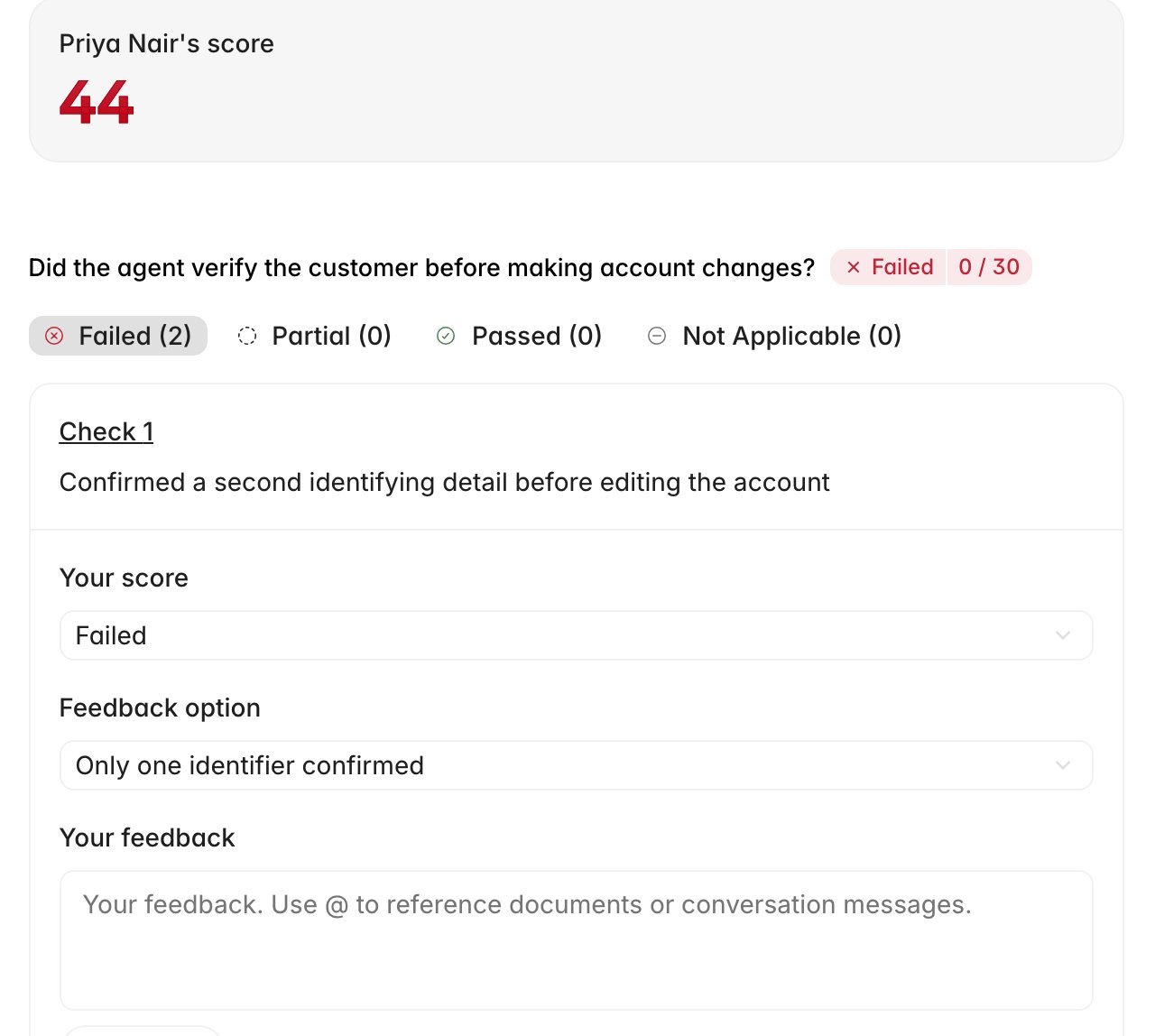 For a check-based criterion, the checks are grouped by outcome (**Failed**,
**Partial**, **Passed**, **Not Applicable**) with a count on each group so you can
see the shape of your evaluation without scrolling it. Open a check and you get
three fields:
* **Your score** — passed, failed, partial, or not applicable. Partial only appears
where the scorecard defines a partial option.
* **Feedback option** — appears once you mark a check failed or partial. These are
the reusable reasons the scorecard author wrote, and choosing one keeps your
reasons consistent with everyone else's and countable in reports.
* **Your feedback** — free text, and the part the agent reads. Type `@` to
reference a document or a specific message in the conversation, and use **Attach**
for a screenshot.
The score at the top recalculates as you go, so you can watch the criterion cost
land as you mark things down. A criterion
marked as an auto-fail drops the whole scorecard to zero the moment you select it,
and a score cap configured on the scorecard will hold the total below what your
individual marks add up to.
Write the feedback for the agent, not for the record. "Asked for the email but not
a second identifier before changing the address" tells them what to do next time.
"Verification failed" does not, and it is what the score already says.
## Multi-agent tickets
Where more than one agent handled the ticket, each gets their own tab and their own
score for their part of the ticket.
**Add agent** brings in someone who touched the conversation but was not scored
automatically, and the **×** on a tab drops an agent from this evaluation.
You do not have to score everyone. Rulebase only requires that at least one agent
has been evaluated before you can submit.
## Submit
**Submit evaluation** publishes the score. Rulebase saves your evaluation, closes
the editor, and the ticket's headline score updates to reflect the human result.
The **Manual evaluation** tab now sits permanently beside **AI review**, and
opening it shows your scores side by side with the AI's for the same scorecard.
If your role can only submit feedback for approval, the button reads **Submit for
review** instead and your work waits for a reviewer to publish it. The reviewer
cannot publish until every failed or partial check has a feedback option chosen, so
filling those in as you go saves a round trip.
**Cancel** discards the evaluation, and Rulebase asks first if you have unsaved
changes.
## Related
* [Open a ticket's QA workspace](/guides/quality-assurance/ticket-qa-workspace)
* [Create a scorecard](/guides/quality-assurance/create-a-scorecard), for how the
criteria, checks, and feedback options you are choosing between were defined
* [Give feedback on AI QA](/guides/quality-assurance/give-feedback-on-ai-qa), when
one criterion is wrong and a full manual evaluation is more than you need
* [Why is my score different?](/guides/troubleshooting/why-is-my-score-different)
For a check-based criterion, the checks are grouped by outcome (**Failed**,
**Partial**, **Passed**, **Not Applicable**) with a count on each group so you can
see the shape of your evaluation without scrolling it. Open a check and you get
three fields:
* **Your score** — passed, failed, partial, or not applicable. Partial only appears
where the scorecard defines a partial option.
* **Feedback option** — appears once you mark a check failed or partial. These are
the reusable reasons the scorecard author wrote, and choosing one keeps your
reasons consistent with everyone else's and countable in reports.
* **Your feedback** — free text, and the part the agent reads. Type `@` to
reference a document or a specific message in the conversation, and use **Attach**
for a screenshot.
The score at the top recalculates as you go, so you can watch the criterion cost
land as you mark things down. A criterion
marked as an auto-fail drops the whole scorecard to zero the moment you select it,
and a score cap configured on the scorecard will hold the total below what your
individual marks add up to.
Write the feedback for the agent, not for the record. "Asked for the email but not
a second identifier before changing the address" tells them what to do next time.
"Verification failed" does not, and it is what the score already says.
## Multi-agent tickets
Where more than one agent handled the ticket, each gets their own tab and their own
score for their part of the ticket.
**Add agent** brings in someone who touched the conversation but was not scored
automatically, and the **×** on a tab drops an agent from this evaluation.
You do not have to score everyone. Rulebase only requires that at least one agent
has been evaluated before you can submit.
## Submit
**Submit evaluation** publishes the score. Rulebase saves your evaluation, closes
the editor, and the ticket's headline score updates to reflect the human result.
The **Manual evaluation** tab now sits permanently beside **AI review**, and
opening it shows your scores side by side with the AI's for the same scorecard.
If your role can only submit feedback for approval, the button reads **Submit for
review** instead and your work waits for a reviewer to publish it. The reviewer
cannot publish until every failed or partial check has a feedback option chosen, so
filling those in as you go saves a round trip.
**Cancel** discards the evaluation, and Rulebase asks first if you have unsaved
changes.
## Related
* [Open a ticket's QA workspace](/guides/quality-assurance/ticket-qa-workspace)
* [Create a scorecard](/guides/quality-assurance/create-a-scorecard), for how the
criteria, checks, and feedback options you are choosing between were defined
* [Give feedback on AI QA](/guides/quality-assurance/give-feedback-on-ai-qa), when
one criterion is wrong and a full manual evaluation is more than you need
* [Why is my score different?](/guides/troubleshooting/why-is-my-score-different)