> ## Documentation Index
> Fetch the complete documentation index at: https://docs.rulebase.co/llms.txt
> Use this file to discover all available pages before exploring further.
# Run a calibration
> Sample a set of tickets, put several reviewers on each one, and read the agreement numbers that come back.
Two reviewers can apply the same scorecard to the same ticket and land eight
points apart. The gap is a disagreement about what the rubric means, and it
stays invisible until two people score the same conversation. A calibration
assigns reviewers the same tickets and reports the spread.
The output is a set of deltas: how far each reviewer sat from the AI, and how
far they sat from each other. Those deltas are the session agenda.
Calibrations are switched on under
[Settings > Features](https://app.rulebase.co/settings/features), in the
**Quality assurance** group. If you cannot find them, that toggle is off, or
quality assurance itself is. They also have no sidebar item: you reach them from
**Home > Tasks** and from direct links.
## Before you start
* Have a published scorecard, and tickets already evaluated in the period you
want to sample. Sampling draws on tickets **evaluated** inside the span you
choose, not tickets merely created in it. A quiet fortnight of QA yields a
thin sample.
* Line up at least two reviewers who are members of the organization. One
reviewer is legitimate for spot-checking your AI, but reviewer-to-reviewer
agreement needs two.
* Decide the question first. "Are we consistent on refunds?" leads to a very
different sample from "is our scoring too harsh at the bottom of the range?"
## Build the sample
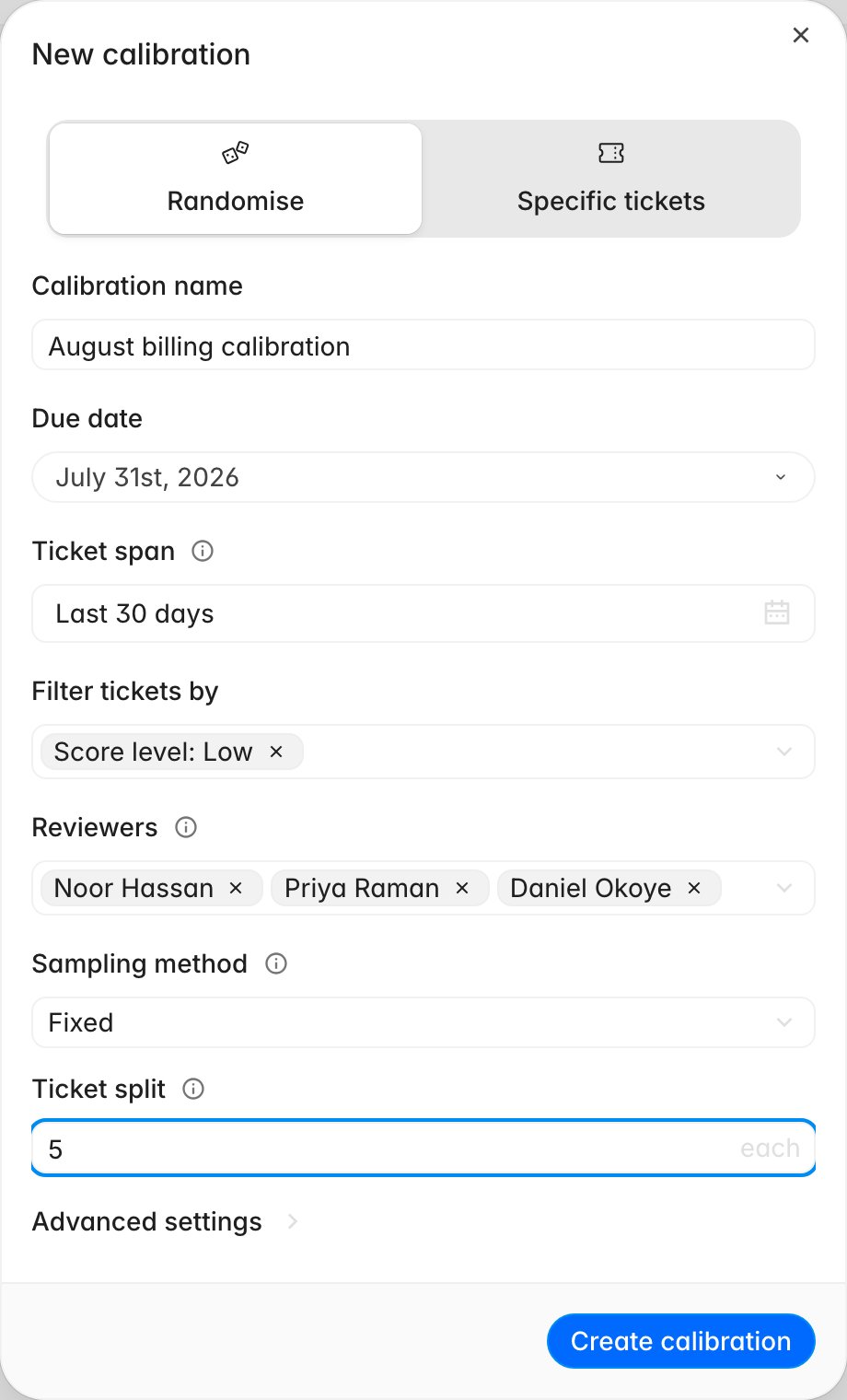
1. Go to **Home > Tasks** and find the **Calibrations** card. Click the **+**
button in its header, or use **New > Calibration** in the tasks list.
2. If your organization evaluates back-office work, you are asked what to
calibrate first: **Tickets** or **Work items**. Pick one and continue. When
work item QA is off, the question is skipped.
3. Choose how the tickets are chosen. **Randomise** samples from a filtered pool;
**Specific tickets** lets you name ticket IDs yourself, which is the right
choice when you want everyone arguing about the same known-hard cases.
4. Name it. Leave it blank and you get today's date plus "Calibration", which is
fine for a recurring session and useless in a list of twenty.
5. Set the **Due date**. It defaults to a week out and it is what reviewers are
chased against.
6. Set the **Ticket span**, the date range the sample is drawn from.
7. Under **Filter tickets by**, narrow the pool by team, channel, or
**Agent QA score level**, and by brand if your help desk has brands.
Sampling only Low-band tickets asks whether
your reviewers agree about failure, which is where rubrics usually diverge.
8. Add your **Reviewers**. Everyone you add gets their own assignments.
9. Choose the sampling method. **Fixed** takes a **Ticket split**, the number of
tickets given to each reviewer. **Percentage** takes a share of the eligible
pool instead.
10. Click **Create calibration**.
 For the deltas to mean anything, reviewers have to score the same tickets. Open
**Advanced settings** and switch on **Require multiple evaluations per ticket**,
then set **Evaluations per ticket** to how many reviewers should independently
score each one. It cannot exceed the number of reviewers you added. **Rotate
evaluator pairs** varies who overlaps with whom across the sample, so you do not
learn only about one pair.
## What reviewers do
Reviewers reach their work from **Home > Tasks**, or from **Start review** on the
calibration itself. Each ticket opens the normal evaluation workspace with a
counter ("3 of 8 tickets") and their own completion percentage in the header.
They score the scorecard as usual, click **Submit evaluation**, and move to the
next one with the navigation arrows.
Nothing about the calibration changes how an evaluation is produced. Each
reviewer's submission is a real manual evaluation on that ticket:
[Perform a manual evaluation](/guides/quality-assurance/perform-a-manual-evaluation)
covers the scoring itself, and calibration scores show up in reporting like any
other manual score.
## Read the results
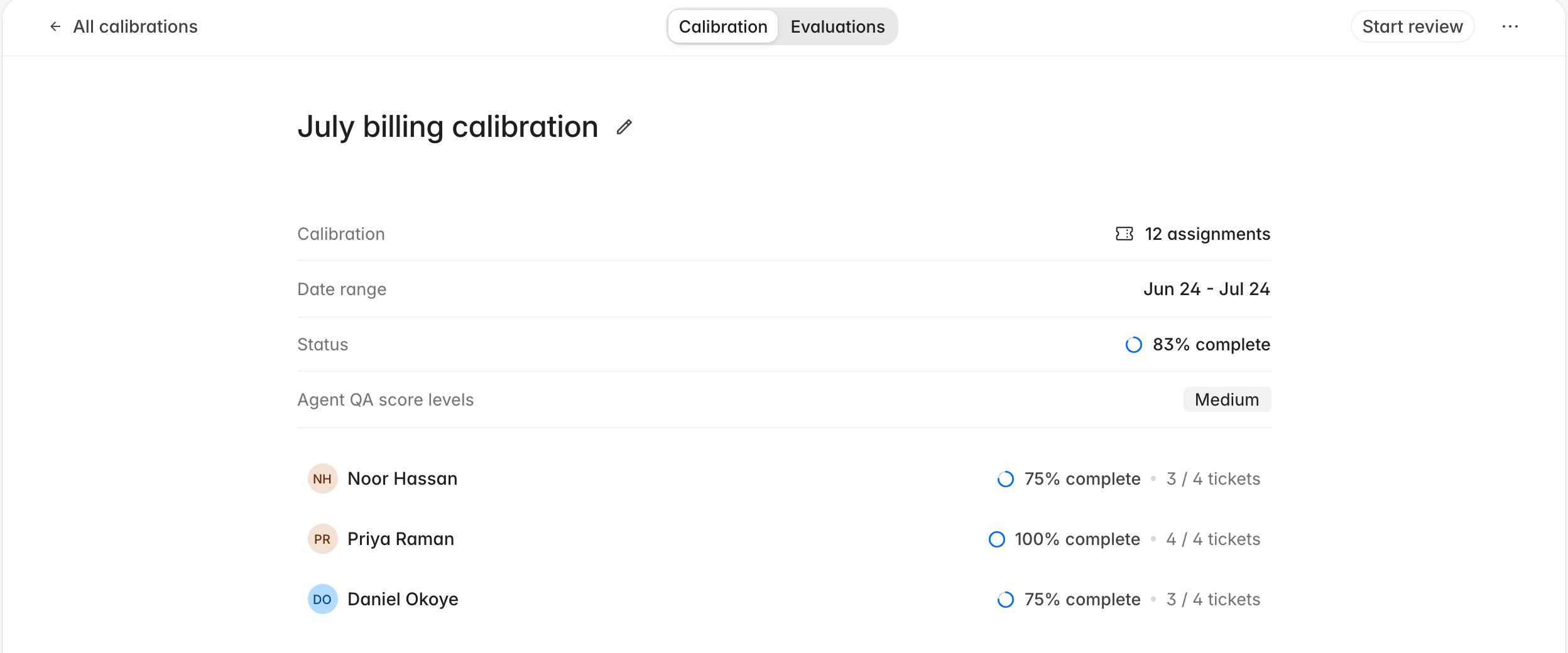
Open the calibration and you land on the **Calibration** tab: the assignment
count, the span, an overall percentage complete, the filters you chose echoed
back, and a card per reviewer with their own progress. Chase from here: a
calibration where one reviewer has done nothing produces no
reviewer-to-reviewer numbers at all.
For the deltas to mean anything, reviewers have to score the same tickets. Open
**Advanced settings** and switch on **Require multiple evaluations per ticket**,
then set **Evaluations per ticket** to how many reviewers should independently
score each one. It cannot exceed the number of reviewers you added. **Rotate
evaluator pairs** varies who overlaps with whom across the sample, so you do not
learn only about one pair.
## What reviewers do
Reviewers reach their work from **Home > Tasks**, or from **Start review** on the
calibration itself. Each ticket opens the normal evaluation workspace with a
counter ("3 of 8 tickets") and their own completion percentage in the header.
They score the scorecard as usual, click **Submit evaluation**, and move to the
next one with the navigation arrows.
Nothing about the calibration changes how an evaluation is produced. Each
reviewer's submission is a real manual evaluation on that ticket:
[Perform a manual evaluation](/guides/quality-assurance/perform-a-manual-evaluation)
covers the scoring itself, and calibration scores show up in reporting like any
other manual score.
## Read the results
Open the calibration and you land on the **Calibration** tab: the assignment
count, the span, an overall percentage complete, the filters you chose echoed
back, and a card per reviewer with their own progress. Chase from here: a
calibration where one reviewer has done nothing produces no
reviewer-to-reviewer numbers at all.
 The **Evaluations** tab has one row per ticket, with:
* **AI QA score** — what automatic QA said.
* **A column per reviewer**, holding that person's score for the ticket.
* **AI-to-evaluators delta** — the average absolute gap between the AI score and
each human score. Lower is closer agreement.
* **Evaluator-to-evaluator delta** — the average absolute gap between every pair
of human scores. This column only appears once two or more reviewers have work
in the calibration.
* **Status** — whether that ticket's reviews are done.
The **Evaluations** tab has one row per ticket, with:
* **AI QA score** — what automatic QA said.
* **A column per reviewer**, holding that person's score for the ticket.
* **AI-to-evaluators delta** — the average absolute gap between the AI score and
each human score. Lower is closer agreement.
* **Evaluator-to-evaluator delta** — the average absolute gap between every pair
of human scores. This column only appears once two or more reviewers have work
in the calibration.
* **Status** — whether that ticket's reviews are done.
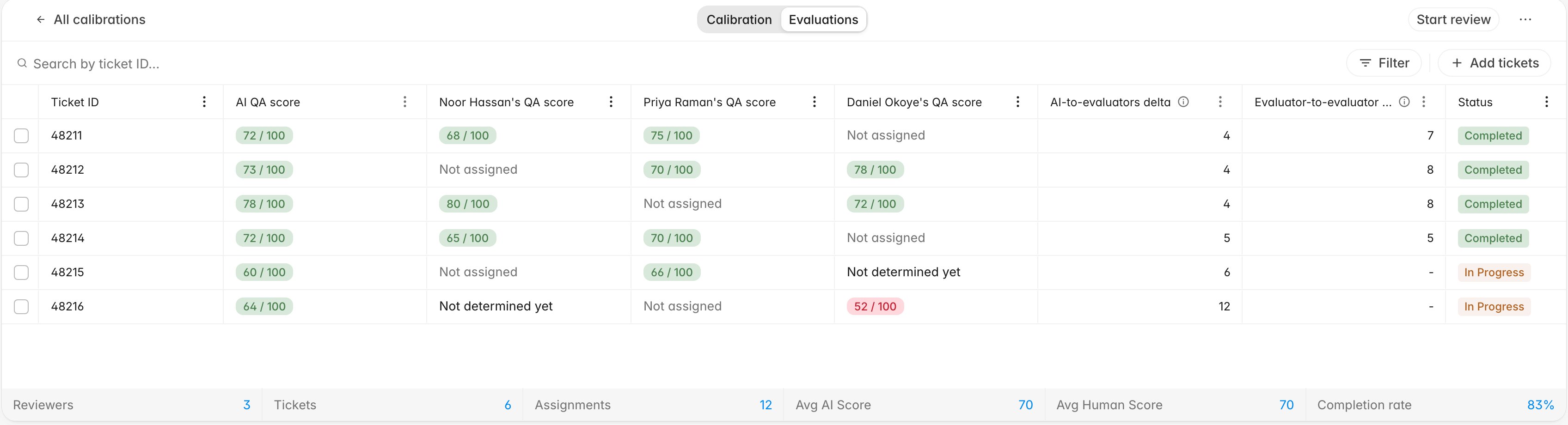 Both delta columns sort. Sorting descending on evaluator-to-evaluator delta
puts the tickets your team scored most differently at the top.
Along the bottom, a summary strip counts reviewers, tickets, and assignments, and
shows **Avg AI Score**, **Avg Human Score**, and completion rate. A persistent gap
between those two averages means your AI is calibrated differently from your
people overall; a large per-ticket delta means your people disagree case by
case.
## Take one ticket apart
Click a row and you get the ticket beside a comparison panel: **Alignment**,
**Deltas** as a count of misaligned checks out of the total, the **Evaluators**
involved, and the **Agents** on the ticket. Work check by check to turn "we were twelve points apart" into "we disagree
about whether verifying the account counts when the customer volunteered it".
Mark individual checks as correct or incorrect as you go.
Run the meeting from this view, and record whatever you settle somewhere
durable: usually a sharpened criterion description in the scorecard, or an
organization-wide rule in
[Set score bands and the contest window](/guides/settings/set-score-bands-and-contest-window).
## Adjust a calibration in flight
The Evaluations tab has a search box and a **Filter** by review status for
finding your way around a large sample. You can add more tickets to a running
calibration, and select rows to export them or remove them. Removal only applies
to tickets nobody has scored yet, which keeps completed evaluations from
disappearing out of your numbers.
## Related
* [Perform a manual evaluation](/guides/quality-assurance/perform-a-manual-evaluation)
* [Set score bands and the contest window](/guides/settings/set-score-bands-and-contest-window)
* [Create a scorecard](/guides/quality-assurance/create-a-scorecard)
* [Glossary](/guides/concepts/glossary)
Both delta columns sort. Sorting descending on evaluator-to-evaluator delta
puts the tickets your team scored most differently at the top.
Along the bottom, a summary strip counts reviewers, tickets, and assignments, and
shows **Avg AI Score**, **Avg Human Score**, and completion rate. A persistent gap
between those two averages means your AI is calibrated differently from your
people overall; a large per-ticket delta means your people disagree case by
case.
## Take one ticket apart
Click a row and you get the ticket beside a comparison panel: **Alignment**,
**Deltas** as a count of misaligned checks out of the total, the **Evaluators**
involved, and the **Agents** on the ticket. Work check by check to turn "we were twelve points apart" into "we disagree
about whether verifying the account counts when the customer volunteered it".
Mark individual checks as correct or incorrect as you go.
Run the meeting from this view, and record whatever you settle somewhere
durable: usually a sharpened criterion description in the scorecard, or an
organization-wide rule in
[Set score bands and the contest window](/guides/settings/set-score-bands-and-contest-window).
## Adjust a calibration in flight
The Evaluations tab has a search box and a **Filter** by review status for
finding your way around a large sample. You can add more tickets to a running
calibration, and select rows to export them or remove them. Removal only applies
to tickets nobody has scored yet, which keeps completed evaluations from
disappearing out of your numbers.
## Related
* [Perform a manual evaluation](/guides/quality-assurance/perform-a-manual-evaluation)
* [Set score bands and the contest window](/guides/settings/set-score-bands-and-contest-window)
* [Create a scorecard](/guides/quality-assurance/create-a-scorecard)
* [Glossary](/guides/concepts/glossary)