> ## Documentation Index
> Fetch the complete documentation index at: https://docs.rulebase.co/llms.txt
> Use this file to discover all available pages before exploring further.
# Work contested tickets
> Find evaluations an agent has disputed, read their objection against the original score, and accept or reject each contested criterion.
When an agent disagrees with a score, they contest it from their own view of the
evaluation, naming the criterion and saying why. That creates a contested
evaluation: a small, self-contained review job with the original result on one
side and the agent's argument on the other. Your job is to decide, criterion by
criterion, who is right.
Contests have their own view in the Inbox rather than a section of their own, and
if you have a routing rule for **Evaluation is contested** they arrive already
assigned to a queue or a person.
 ## Before you start
* Open [Inbox > Contested tickets](https://app.rulebase.co/inbox/contested-tickets).
* Agents raise contests themselves, and only on an evaluation with at least one
failed criterion. If your organization sets a dispute window under
[Settings > Evaluations](https://app.rulebase.co/settings/evaluations), contests
raised after that many days are refused.
* An agent can have only one open contest per ticket at a time, so you will not
find two competing objections on the same evaluation.
## Find the contest you should be working
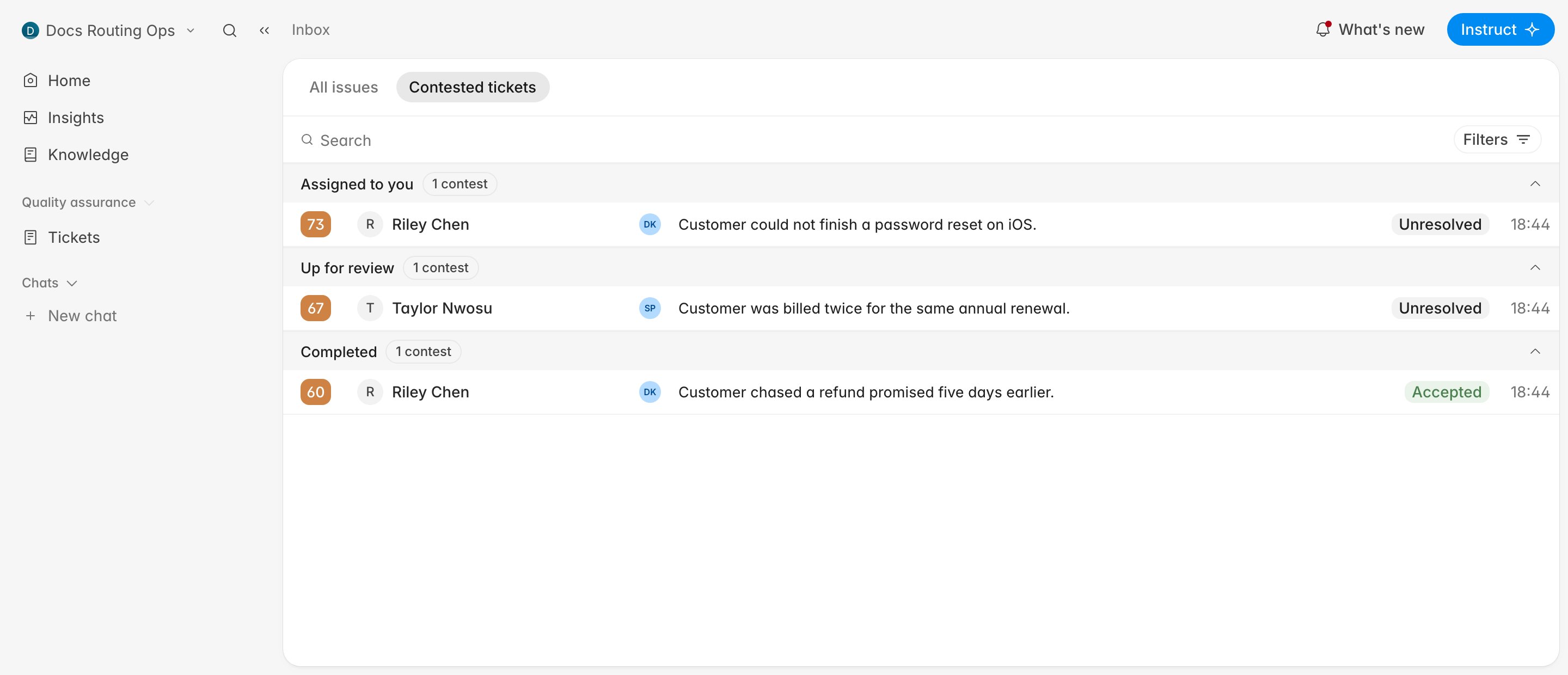
The page groups contests by who is holding them:
* **Assigned to you** — unresolved contests on tickets you are the assignee of.
Start here.
* **Up for review** — unresolved contests assigned to someone else, or to nobody.
Scan this when you are covering for a colleague or clearing a backlog.
* **Completed** — contests that have had a decision. The badge on the right reads
**Accepted** or **Rejected**.
Each row shows the QA score that was contested, the agent who raised it, a
summary of the ticket, and an assignee avatar you can click to hand the contest
to someone else without opening it.
When the list is long, **Filters** narrows it by **Assignee**, **Agent**,
**Contest level**, **Outcome**, **Contested evaluation** (whether the disputed
score came from AI or a person), and **Contest date**. Contest level counts how many times that agent has contested that ticket, so
filtering to `2nd level` surfaces the disputes that have already been through one
decision.
## Open the objection
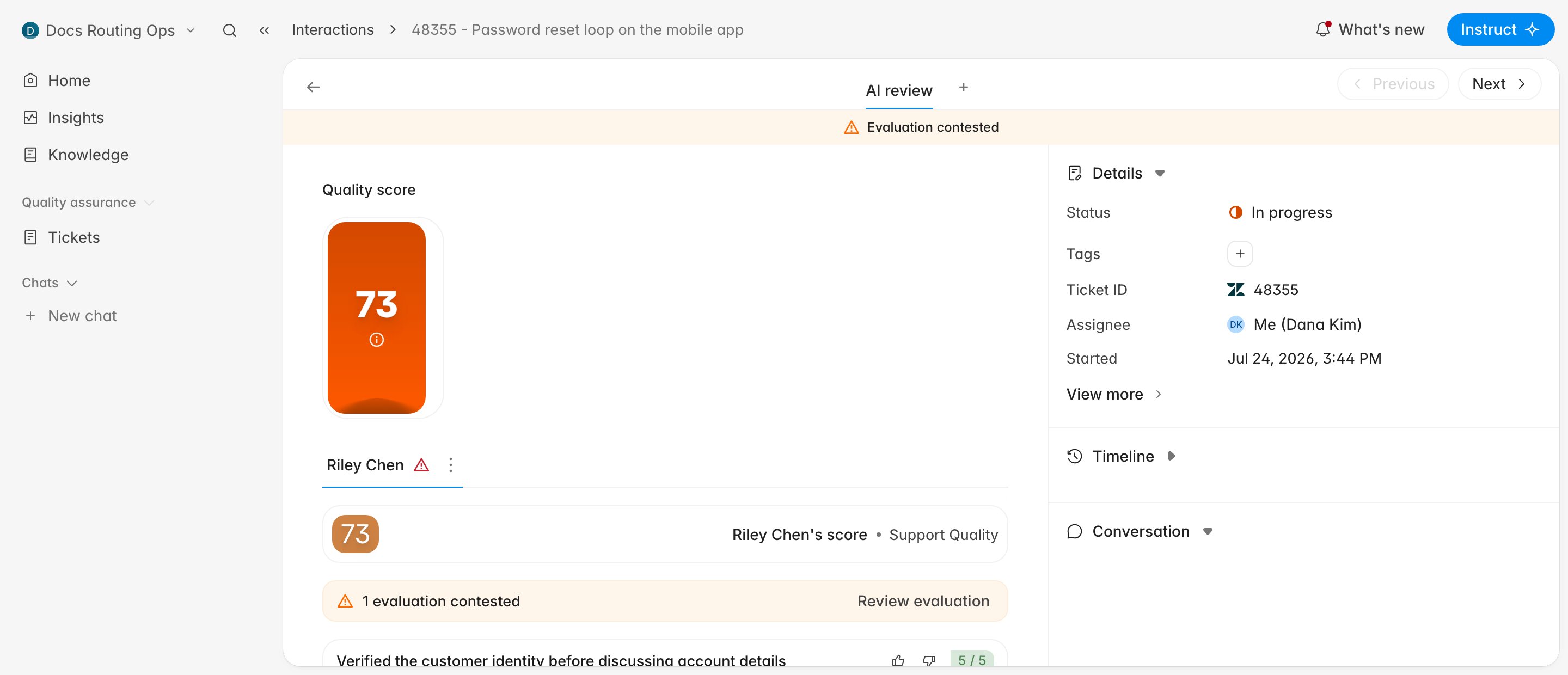
A contested ticket carries an **Evaluation contested** banner across the top, and
the evaluation itself shows how many criteria are in dispute.
1. Click the contest in the inbox to open the ticket.
2. Under the agent's score, find the line counting the contested evaluations, such as
**1 evaluation contested** when a single criterion is in dispute.
3. Click **Review evaluation**.
## Before you start
* Open [Inbox > Contested tickets](https://app.rulebase.co/inbox/contested-tickets).
* Agents raise contests themselves, and only on an evaluation with at least one
failed criterion. If your organization sets a dispute window under
[Settings > Evaluations](https://app.rulebase.co/settings/evaluations), contests
raised after that many days are refused.
* An agent can have only one open contest per ticket at a time, so you will not
find two competing objections on the same evaluation.
## Find the contest you should be working
The page groups contests by who is holding them:
* **Assigned to you** — unresolved contests on tickets you are the assignee of.
Start here.
* **Up for review** — unresolved contests assigned to someone else, or to nobody.
Scan this when you are covering for a colleague or clearing a backlog.
* **Completed** — contests that have had a decision. The badge on the right reads
**Accepted** or **Rejected**.
Each row shows the QA score that was contested, the agent who raised it, a
summary of the ticket, and an assignee avatar you can click to hand the contest
to someone else without opening it.
When the list is long, **Filters** narrows it by **Assignee**, **Agent**,
**Contest level**, **Outcome**, **Contested evaluation** (whether the disputed
score came from AI or a person), and **Contest date**. Contest level counts how many times that agent has contested that ticket, so
filtering to `2nd level` surfaces the disputes that have already been through one
decision.
## Open the objection
A contested ticket carries an **Evaluation contested** banner across the top, and
the evaluation itself shows how many criteria are in dispute.
1. Click the contest in the inbox to open the ticket.
2. Under the agent's score, find the line counting the contested evaluations, such as
**1 evaluation contested** when a single criterion is in dispute.
3. Click **Review evaluation**.
 ## Read both sides before deciding
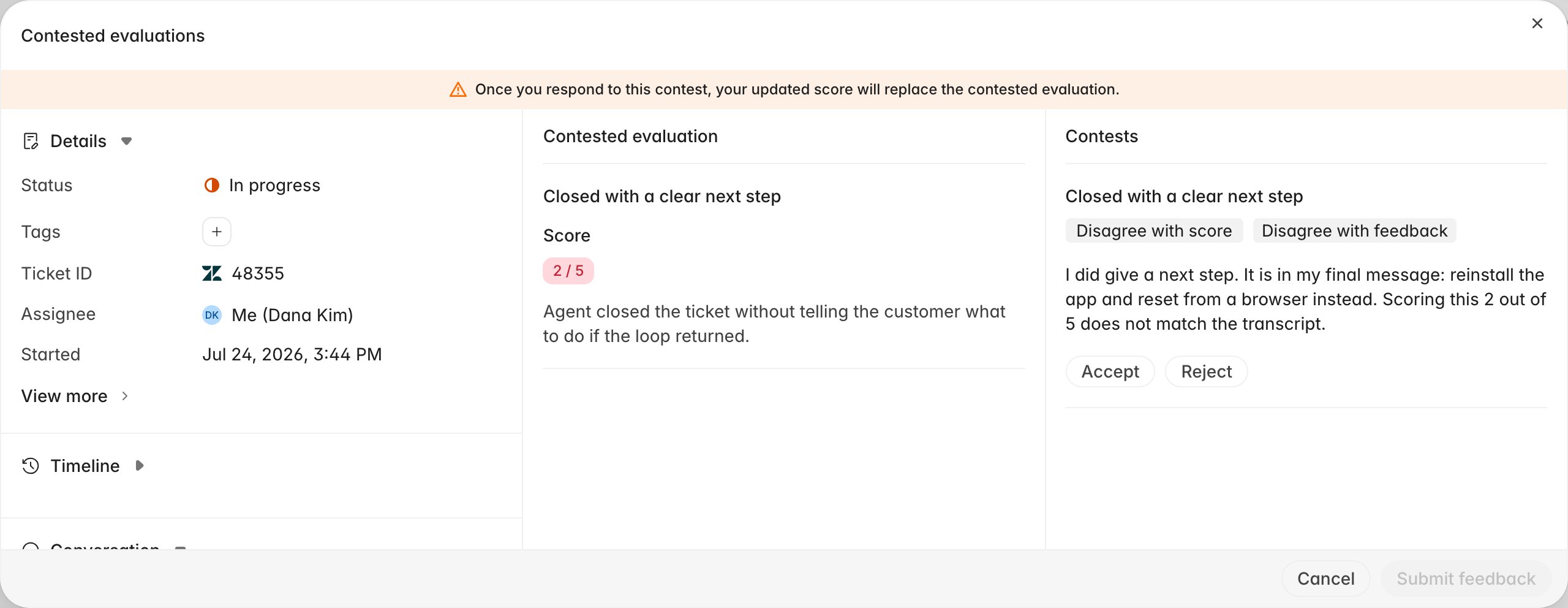
The **Contested evaluations** dialog puts the conversation, the original result,
and the agent's argument side by side, so the transcript is one pane away while
you weigh the claim.
* **Left** — ticket details and the conversation itself. This is where you verify
the claim rather than take it at face value.
* **Middle, Contested evaluation** — the criterion as it was scored, its score out
of the maximum, and the reason recorded at the time. Where the evaluation used
checks, **Check results** expands to show each one.
* **Right, Contests** — what the agent is disputing. **Disagree with score** and
**Disagree with feedback** are separate claims and a contest can carry both,
followed by their comment and any files they attached.
## Read both sides before deciding
The **Contested evaluations** dialog puts the conversation, the original result,
and the agent's argument side by side, so the transcript is one pane away while
you weigh the claim.
* **Left** — ticket details and the conversation itself. This is where you verify
the claim rather than take it at face value.
* **Middle, Contested evaluation** — the criterion as it was scored, its score out
of the maximum, and the reason recorded at the time. Where the evaluation used
checks, **Check results** expands to show each one.
* **Right, Contests** — what the agent is disputing. **Disagree with score** and
**Disagree with feedback** are separate claims and a contest can carry both,
followed by their comment and any files they attached.
 ## Decide each criterion
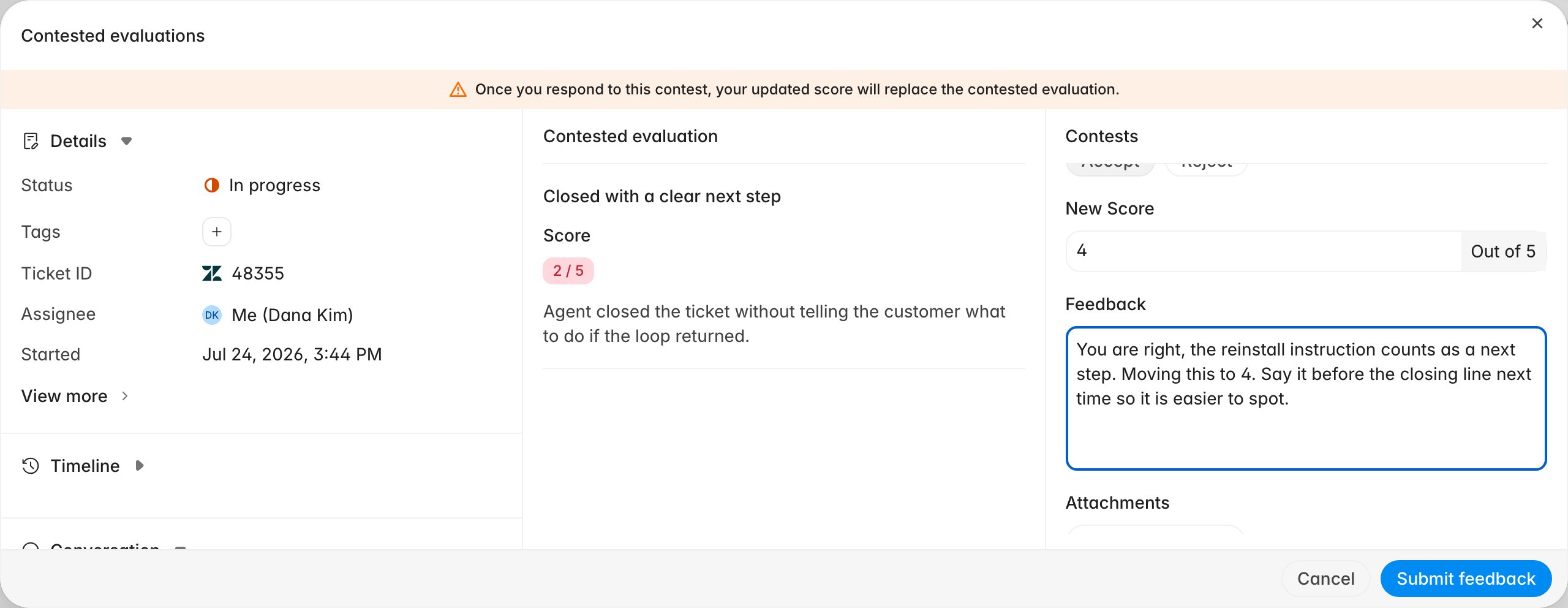
Every disputed criterion needs its own decision, and **Submit feedback** stays
disabled until they all have one.
1. Click **Accept** or **Reject** on the criterion.
2. If you accepted, set the **New Score**. A criterion built on score options
gives you a dropdown, sometimes with a feedback option to pick alongside it. A
criterion scored out of a maximum gives you a number field.
3. Write the **Feedback**. It is required either way, and the agent reads it, so
say what you looked at rather than just restating the outcome.
4. Attach a file if the evidence is easier to show than describe.
5. Click **Submit feedback**.
## Decide each criterion
Every disputed criterion needs its own decision, and **Submit feedback** stays
disabled until they all have one.
1. Click **Accept** or **Reject** on the criterion.
2. If you accepted, set the **New Score**. A criterion built on score options
gives you a dropdown, sometimes with a feedback option to pick alongside it. A
criterion scored out of a maximum gives you a number field.
3. Write the **Feedback**. It is required either way, and the agent reads it, so
say what you looked at rather than just restating the outcome.
4. Attach a file if the evidence is easier to show than describe.
5. Click **Submit feedback**.
 Rejecting takes only feedback: there is no score to set, because the original
stands.
Answer the specific claim. If the agent says the information came from a billing
email rather than from them, the useful reply says whether you found that email,
not that the score was correct. A contest is usually the only written exchange an
agent gets about a score they think is wrong.
## What submitting does
Rulebase writes a new manual evaluation in your name, copied from the contested
one, with your decision recorded against each criterion you ruled on. That
evaluation becomes the ticket's current result, replacing the contested one, as
the warning at the top of the dialog says.
The contest itself moves to **Completed**. Its badge reads **Accepted** only when
you accepted every disputed criterion; reject any one of them and the whole
contest is recorded as **Rejected**. On the ticket, the review prompt is replaced
by an **Evaluation contested** line with a **View results** button, so the agent
and anyone reviewing later can read your decision and feedback against each
criterion.
Resolving a contest does not resolve the ticket. If the ticket was assigned to
you for review, it stays assigned and unresolved until you close it out the usual
way.
## Related
* [Give feedback on AI QA evaluations](/guides/quality-assurance/give-feedback-on-ai-qa)
* [Create a routing rule](/guides/quality-assurance/create-routing-rules)
* [Create and manage queues](/guides/quality-assurance/create-and-manage-queues)
* [Manage and reorder routing rules](/guides/quality-assurance/manage-routing-rules)
Rejecting takes only feedback: there is no score to set, because the original
stands.
Answer the specific claim. If the agent says the information came from a billing
email rather than from them, the useful reply says whether you found that email,
not that the score was correct. A contest is usually the only written exchange an
agent gets about a score they think is wrong.
## What submitting does
Rulebase writes a new manual evaluation in your name, copied from the contested
one, with your decision recorded against each criterion you ruled on. That
evaluation becomes the ticket's current result, replacing the contested one, as
the warning at the top of the dialog says.
The contest itself moves to **Completed**. Its badge reads **Accepted** only when
you accepted every disputed criterion; reject any one of them and the whole
contest is recorded as **Rejected**. On the ticket, the review prompt is replaced
by an **Evaluation contested** line with a **View results** button, so the agent
and anyone reviewing later can read your decision and feedback against each
criterion.
Resolving a contest does not resolve the ticket. If the ticket was assigned to
you for review, it stays assigned and unresolved until you close it out the usual
way.
## Related
* [Give feedback on AI QA evaluations](/guides/quality-assurance/give-feedback-on-ai-qa)
* [Create a routing rule](/guides/quality-assurance/create-routing-rules)
* [Create and manage queues](/guides/quality-assurance/create-and-manage-queues)
* [Manage and reorder routing rules](/guides/quality-assurance/manage-routing-rules)