> ## Documentation Index
> Fetch the complete documentation index at: https://docs.rulebase.co/llms.txt
> Use this file to discover all available pages before exploring further.
# Configure notifications
> Set who receives the weekly customer issues digest by email and which Slack channel gets complaint alerts, and know what to check when a message never arrives.
[Settings > Notifications](https://app.rulebase.co/settings/notifications)
holds your organization's default recipients and channels: a weekly email digest
of customer issues, and instant Slack alerts when a complaint is detected.
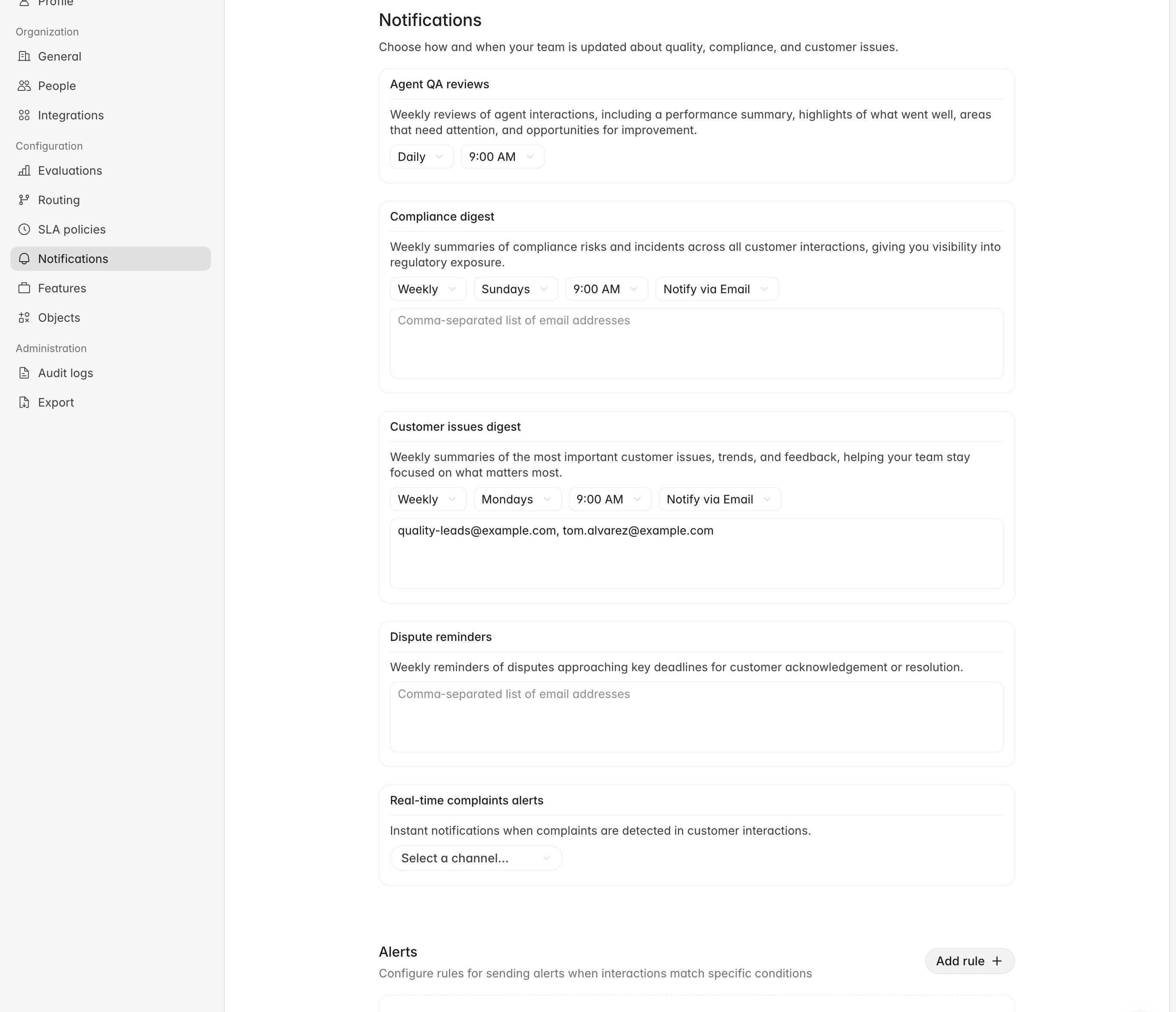 Every section on the page saves as you edit it. There is no **Save** button and
no confirmation: clear a recipient list and you have turned that notification
off for everyone.
This page is not restricted to admins today. Anyone who can open Settings can
change the recipients and the alert channel, so treat it as shared configuration
and check it after onboarding a new team.
## The weekly customer issues digest
The digest is a written summary of the week's customer issues (complaints,
service and product issues, and how your scorecards moved) assembled by Rulebase
after the week closes and emailed to the people you list.
The recipient list is the control. Add addresses under **Customer issues
digest** and the digest goes to those people; leave the list empty and it goes to
nobody. Type or paste addresses separated by commas, then click outside the box
to save.
Every section on the page saves as you edit it. There is no **Save** button and
no confirmation: clear a recipient list and you have turned that notification
off for everyone.
This page is not restricted to admins today. Anyone who can open Settings can
change the recipients and the alert channel, so treat it as shared configuration
and check it after onboarding a new team.
## The weekly customer issues digest
The digest is a written summary of the week's customer issues (complaints,
service and product issues, and how your scorecards moved) assembled by Rulebase
after the week closes and emailed to the people you list.
The recipient list is the control. Add addresses under **Customer issues
digest** and the digest goes to those people; leave the list empty and it goes to
nobody. Type or paste addresses separated by commas, then click outside the box
to save.
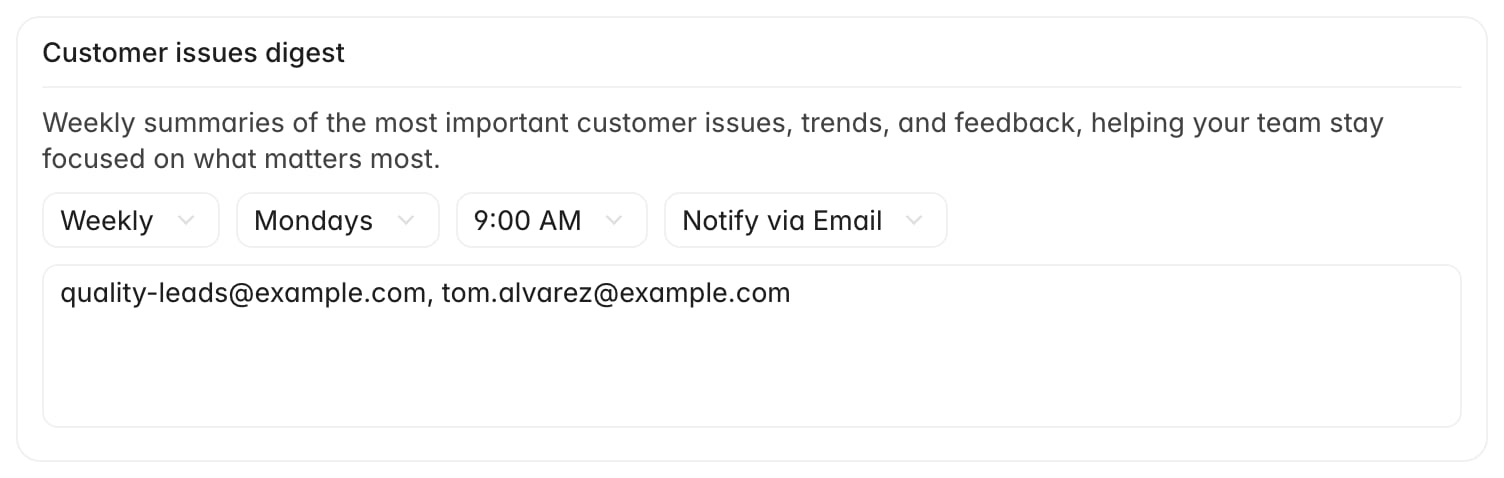 The pickers alongside it offer **Weekly** and **Notify via Email** and nothing
else, so the only real choice is who receives it. The day and time you pick are
recorded as your preference, but each digest is reviewed before it goes out, so
treat it as "shortly after the week ends" rather than a scheduled send. Windows
are worked out in your organization's timezone, and each digest covers the
previous complete week.
Two or three people is the right size for this list; it is a management
summary. If individual agents need their own numbers, use performance
reporting.
## Complaint alerts in Slack
Under **Real-time complaints alerts**, pick the channel that should receive a
message when Rulebase detects a complaint.
The pickers alongside it offer **Weekly** and **Notify via Email** and nothing
else, so the only real choice is who receives it. The day and time you pick are
recorded as your preference, but each digest is reviewed before it goes out, so
treat it as "shortly after the week ends" rather than a scheduled send. Windows
are worked out in your organization's timezone, and each digest covers the
previous complete week.
Two or three people is the right size for this list; it is a management
summary. If individual agents need their own numbers, use performance
reporting.
## Complaint alerts in Slack
Under **Real-time complaints alerts**, pick the channel that should receive a
message when Rulebase detects a complaint.
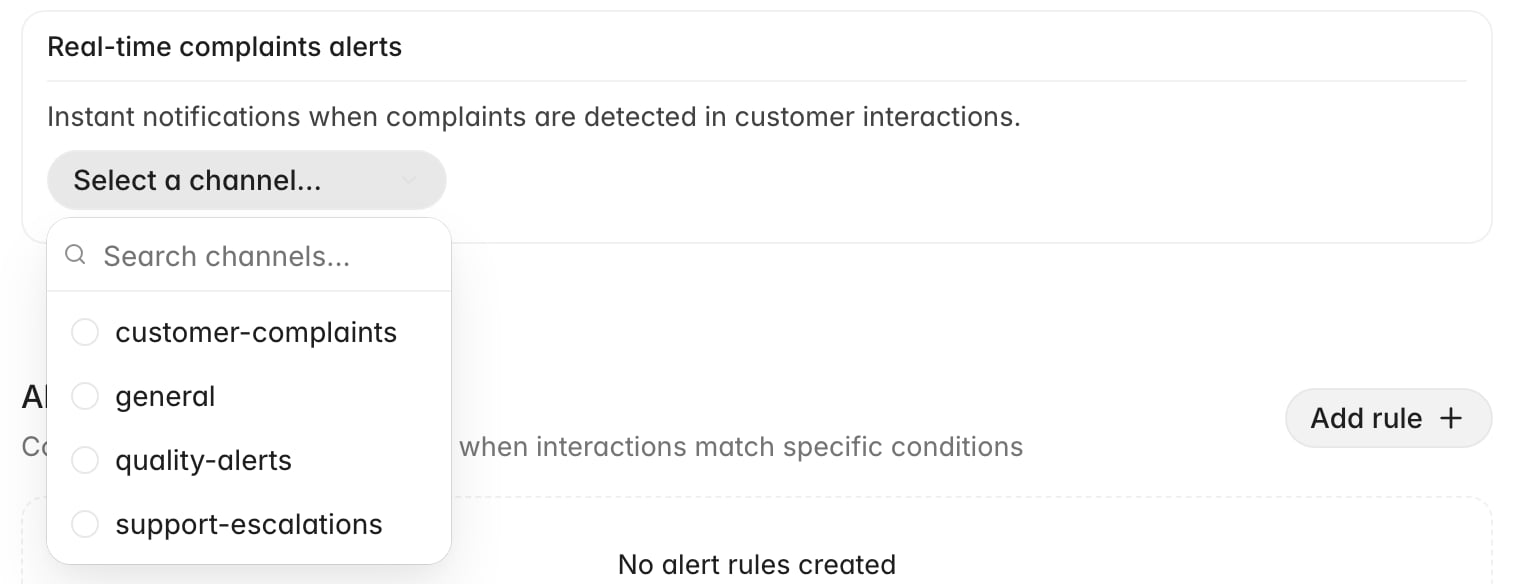 The picker lists the public channels Rulebase can see in your workspace,
refreshed daily. Pick one and it saves immediately.
The picker lists the public channels Rulebase can see in your workspace,
refreshed daily. Pick one and it saves immediately.
 Not every complaint produces a message. Rulebase posts when the complaint is **high or
urgent priority** and the ticket is **still open**, and it posts once per
complaint, not once per update. A complaint found on a ticket your team already
resolved does not raise an alarm about work that is finished.
Reading the tickets detection
attached, logging your investigation on the timeline, and closing the case are
covered in [Work a complaint case](/guides/compliance/work-a-complaint-case).
### When the alert does not arrive
Work through these in order, because the first one is the cause most of the time:
1. **Invite Rulebase to the channel.** Rulebase can only post where the app is a
member. In Slack, open the channel and run `/invite @Rulebase`. A configured
channel that has never received a message is almost always this.
2. **Check the channel is in the picker.** The list is built from public channels
and refreshed daily, so a channel created an hour ago, or a private one, may
not be there yet.
3. **If the picker is completely empty**, the channel list has never synced for
your workspace. Reinstall Slack from
[Settings > Connections](https://app.rulebase.co/settings/connections), and
if it is still empty, contact Rulebase support; this is a known issue we are
tracking.
4. **Confirm a complaint was detected.** Open the complaints list for
the period and check the priority. A week of medium-priority complaints
produces no alerts, correctly.
5. **Check whether a routing rule has taken over.** If anyone has built a routing
rule that notifies on complaint creation, the channel above stops being used;
see the warning below. Check this before you start reinstalling anything.
See [Slack](/guides/integrations/slack) for the install itself.
## When a rule needs to do more than the defaults
The two settings above are organization-wide: one digest list, one complaint
channel. When you need something conditional (this queue's escalations to that
channel, complaints above a threshold to a specific group), build it as a
routing rule instead, under
[Settings > Routing](https://app.rulebase.co/settings/routing). Routing rules
have a **Notify** action with Slack and email targets, and they run against the
conditions you set on the rule.
If you have any routing rule that notifies on complaint
creation, that rule takes over and the **Real-time complaints alerts** channel
above is skipped, so you get one message rather than two.
[Create routing rules](/guides/quality-assurance/create-routing-rules) covers the
setup.
The takeover is all or nothing. One complaint rule switches the channel above off
for **every** complaint, whether or not the rule's conditions match, and the
channel keeps showing as configured here either way. A rule scoped to one team
therefore leaves every complaint outside that team with no alert from either
place.
If you want a rule for a subset, pair it with a second rule that has no
conditions and points at the channel above, so the rest are still covered.
The **Alerts** section at the bottom of the page, with its **Add rule** button,
holds condition-based rules of its own: a Slack channel or a list of email
addresses, plus conditions on risk levels, customer sentiment, or a specific
scorecard criterion. If you have a rule here that has never produced a message
and the Slack checks above come back clean, raise it with support rather than
rebuilding it, and build the alert you need as a routing rule in the meantime.
## What not to rely on yet
Two groups on this page store what you type without producing an email today:
**Agent QA reviews** and **Compliance digest**. Adding recipients to them does no
harm, and it also will not get anyone a message, so if you need compliance
reporting in an inbox, ask your Rulebase contact where that stands rather than
filling in the list and waiting on it.
## Related
* [Slack](/guides/integrations/slack)
* [Create routing rules](/guides/quality-assurance/create-routing-rules)
* [Work a complaint case](/guides/compliance/work-a-complaint-case)
* [Manage integrations](/guides/integrations/manage-integrations)
Not every complaint produces a message. Rulebase posts when the complaint is **high or
urgent priority** and the ticket is **still open**, and it posts once per
complaint, not once per update. A complaint found on a ticket your team already
resolved does not raise an alarm about work that is finished.
Reading the tickets detection
attached, logging your investigation on the timeline, and closing the case are
covered in [Work a complaint case](/guides/compliance/work-a-complaint-case).
### When the alert does not arrive
Work through these in order, because the first one is the cause most of the time:
1. **Invite Rulebase to the channel.** Rulebase can only post where the app is a
member. In Slack, open the channel and run `/invite @Rulebase`. A configured
channel that has never received a message is almost always this.
2. **Check the channel is in the picker.** The list is built from public channels
and refreshed daily, so a channel created an hour ago, or a private one, may
not be there yet.
3. **If the picker is completely empty**, the channel list has never synced for
your workspace. Reinstall Slack from
[Settings > Connections](https://app.rulebase.co/settings/connections), and
if it is still empty, contact Rulebase support; this is a known issue we are
tracking.
4. **Confirm a complaint was detected.** Open the complaints list for
the period and check the priority. A week of medium-priority complaints
produces no alerts, correctly.
5. **Check whether a routing rule has taken over.** If anyone has built a routing
rule that notifies on complaint creation, the channel above stops being used;
see the warning below. Check this before you start reinstalling anything.
See [Slack](/guides/integrations/slack) for the install itself.
## When a rule needs to do more than the defaults
The two settings above are organization-wide: one digest list, one complaint
channel. When you need something conditional (this queue's escalations to that
channel, complaints above a threshold to a specific group), build it as a
routing rule instead, under
[Settings > Routing](https://app.rulebase.co/settings/routing). Routing rules
have a **Notify** action with Slack and email targets, and they run against the
conditions you set on the rule.
If you have any routing rule that notifies on complaint
creation, that rule takes over and the **Real-time complaints alerts** channel
above is skipped, so you get one message rather than two.
[Create routing rules](/guides/quality-assurance/create-routing-rules) covers the
setup.
The takeover is all or nothing. One complaint rule switches the channel above off
for **every** complaint, whether or not the rule's conditions match, and the
channel keeps showing as configured here either way. A rule scoped to one team
therefore leaves every complaint outside that team with no alert from either
place.
If you want a rule for a subset, pair it with a second rule that has no
conditions and points at the channel above, so the rest are still covered.
The **Alerts** section at the bottom of the page, with its **Add rule** button,
holds condition-based rules of its own: a Slack channel or a list of email
addresses, plus conditions on risk levels, customer sentiment, or a specific
scorecard criterion. If you have a rule here that has never produced a message
and the Slack checks above come back clean, raise it with support rather than
rebuilding it, and build the alert you need as a routing rule in the meantime.
## What not to rely on yet
Two groups on this page store what you type without producing an email today:
**Agent QA reviews** and **Compliance digest**. Adding recipients to them does no
harm, and it also will not get anyone a message, so if you need compliance
reporting in an inbox, ask your Rulebase contact where that stands rather than
filling in the list and waiting on it.
## Related
* [Slack](/guides/integrations/slack)
* [Create routing rules](/guides/quality-assurance/create-routing-rules)
* [Work a complaint case](/guides/compliance/work-a-complaint-case)
* [Manage integrations](/guides/integrations/manage-integrations)