> ## Documentation Index
> Fetch the complete documentation index at: https://docs.rulebase.co/llms.txt
> Use this file to discover all available pages before exploring further.
# Set score bands and the contest window
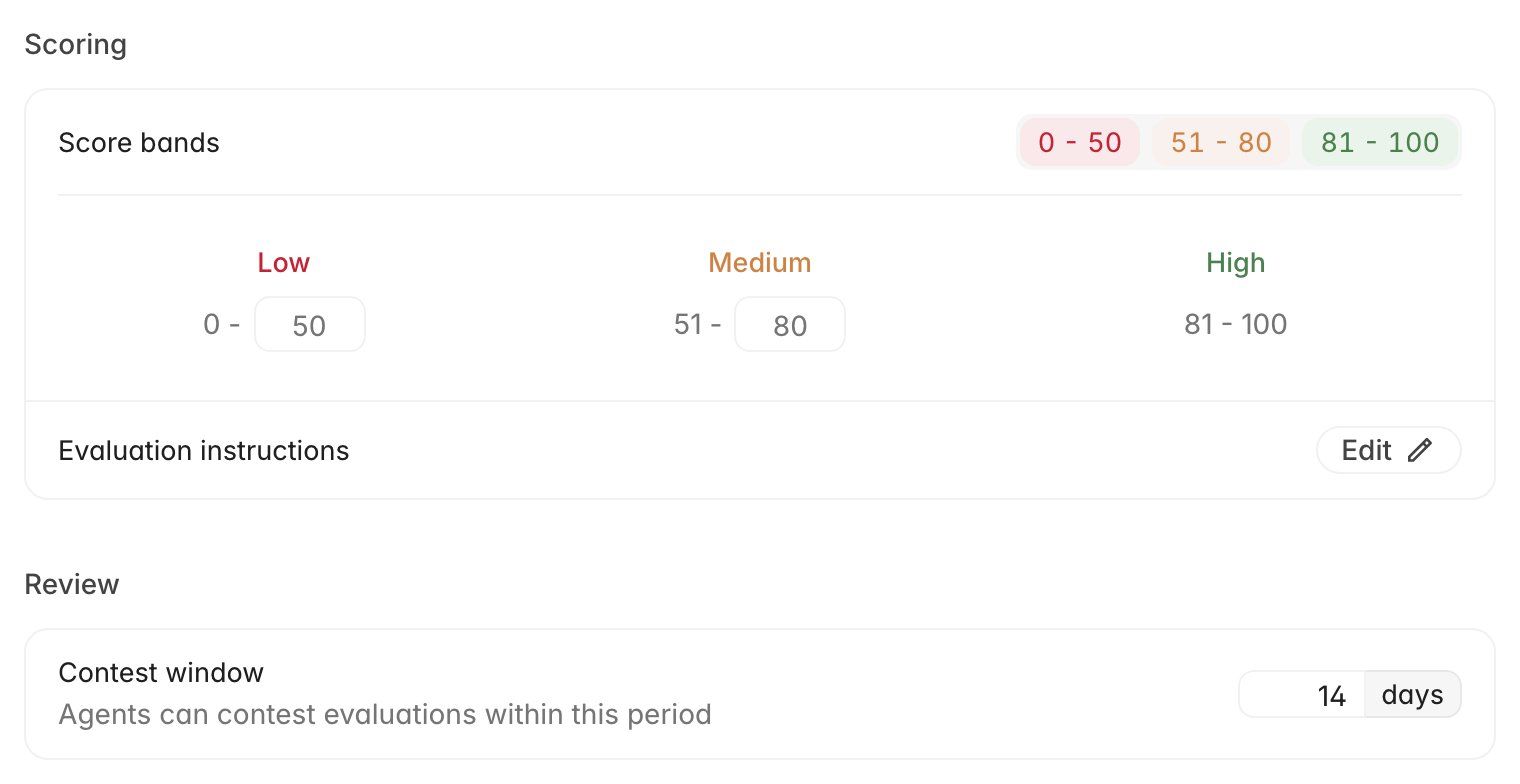
> Define the Low, Medium, and High score ranges the rest of Rulebase reads from, add organization-wide evaluation instructions, and decide how long agents have to dispute a score.
An evaluation produces a number, but almost nothing in Rulebase acts on the
number directly. Routing rules match on **Low**, **Medium**, or **High**;
calibration sampling can ask for one band and ignore the rest; charts group
results into the same three buckets. Score bands are where you decide what those
words mean. The **Review** card underneath sets how long an agent has to dispute a score
before the option disappears.
 ## Before you start
* Both cards live under [Settings > Evaluations](https://app.rulebase.co/settings/evaluations),
below **Eligibility** and **Timing** in the **Configuration** part of the
settings sidebar.
* You need an admin role. Without it the fields render but stay disabled.
* Look at where your scores currently sit before you move a threshold; team and
agent scores live under [Insights](https://app.rulebase.co/insights/teams).
Otherwise a whole team can end up in one colour.
## Decide where the bands sit
Rulebase ships with 0-50 Low, 51-80 Medium, 81-100 High. Those defaults treat a
score in the fifties as a real problem, which suits teams whose scorecards fail
tickets readily. If most of your criteria are pass/fail and a single miss costs
25 points, the same thresholds will file competent work as Medium and your
routing will send far more tickets for review than you intended.
You set two numbers and Rulebase derives the third.
1. Under **Scoring**, click the three coloured badges next to **Score bands**.
The editor expands underneath.
2. Set the **Low** maximum. Every score from 0 up to and including this number
is Low.
3. Set the **Medium** maximum. Medium starts one point above the Low ceiling.
4. Click outside the field. There is no save button; the change is stored when
the field loses focus, and **High** redraws as everything above your Medium
ceiling.
The editor keeps the bands from crossing: the Low ceiling can never reach the
Medium ceiling, and the Medium ceiling stops at 99, so a perfect score is always
High.
Each evaluation records its band at the moment it is scored. Filters and
calibration sampling read that recorded band, so moving a threshold changes
which band new evaluations land in without re-filing the ones you already have.
Set the bands before you turn on automatic QA, and treat later changes as a
before-and-after in your reporting rather than a retroactive correction.
## Where the bands are used
**Routing rules.** The **QA score** and **Agent QA score** conditions offer
exactly Low, Medium, High, and Autozero. A rule that sends low-scoring tickets to
a reviewer is really a rule about your Low ceiling, so raising that ceiling
quietly widens the rule's reach. See
[Create routing rules](/guides/quality-assurance/create-routing-rules).
**Calibration sampling.** When you build a calibration you can filter the pool by
**Agent QA score level**, which is how you run a session on the tickets your
scorecard was harshest about. [Run a calibration](/guides/quality-assurance/run-a-calibration)
covers the rest of that flow.
**How scores are presented.** A ticket's QA workspace colours its score by band,
and dashboard charts that break QA results down into High, Medium, and Low draw
their groupings from the same two numbers. A generous Low ceiling makes a lot of
competent work look like a problem in every chart you show the team.
The colour on a ticket is worked out from your current thresholds, while
filters and calibration sampling use the band recorded when the evaluation was
scored. Right after you move a threshold, a ticket can look Medium on screen and
still answer to a Low filter.
## Write instructions that apply to every evaluation
The **Evaluation instructions** row sits under the same **Scoring** card. It is
broader than the per-check instructions on a scorecard: whatever you write here is handed to the AI evaluator on every evaluation it
runs, whatever scorecard applies, including the re-scores triggered by criterion
feedback. It does not change the scorecard's structure or points; it changes how
the criteria are interpreted.
1. Next to **Evaluation instructions**, click **Edit**.
2. Write your rules in the editor. Markdown works, and one rule per paragraph is
easier to revise later than a single dense block.
3. Click **Save changes**.
## Before you start
* Both cards live under [Settings > Evaluations](https://app.rulebase.co/settings/evaluations),
below **Eligibility** and **Timing** in the **Configuration** part of the
settings sidebar.
* You need an admin role. Without it the fields render but stay disabled.
* Look at where your scores currently sit before you move a threshold; team and
agent scores live under [Insights](https://app.rulebase.co/insights/teams).
Otherwise a whole team can end up in one colour.
## Decide where the bands sit
Rulebase ships with 0-50 Low, 51-80 Medium, 81-100 High. Those defaults treat a
score in the fifties as a real problem, which suits teams whose scorecards fail
tickets readily. If most of your criteria are pass/fail and a single miss costs
25 points, the same thresholds will file competent work as Medium and your
routing will send far more tickets for review than you intended.
You set two numbers and Rulebase derives the third.
1. Under **Scoring**, click the three coloured badges next to **Score bands**.
The editor expands underneath.
2. Set the **Low** maximum. Every score from 0 up to and including this number
is Low.
3. Set the **Medium** maximum. Medium starts one point above the Low ceiling.
4. Click outside the field. There is no save button; the change is stored when
the field loses focus, and **High** redraws as everything above your Medium
ceiling.
The editor keeps the bands from crossing: the Low ceiling can never reach the
Medium ceiling, and the Medium ceiling stops at 99, so a perfect score is always
High.
Each evaluation records its band at the moment it is scored. Filters and
calibration sampling read that recorded band, so moving a threshold changes
which band new evaluations land in without re-filing the ones you already have.
Set the bands before you turn on automatic QA, and treat later changes as a
before-and-after in your reporting rather than a retroactive correction.
## Where the bands are used
**Routing rules.** The **QA score** and **Agent QA score** conditions offer
exactly Low, Medium, High, and Autozero. A rule that sends low-scoring tickets to
a reviewer is really a rule about your Low ceiling, so raising that ceiling
quietly widens the rule's reach. See
[Create routing rules](/guides/quality-assurance/create-routing-rules).
**Calibration sampling.** When you build a calibration you can filter the pool by
**Agent QA score level**, which is how you run a session on the tickets your
scorecard was harshest about. [Run a calibration](/guides/quality-assurance/run-a-calibration)
covers the rest of that flow.
**How scores are presented.** A ticket's QA workspace colours its score by band,
and dashboard charts that break QA results down into High, Medium, and Low draw
their groupings from the same two numbers. A generous Low ceiling makes a lot of
competent work look like a problem in every chart you show the team.
The colour on a ticket is worked out from your current thresholds, while
filters and calibration sampling use the band recorded when the evaluation was
scored. Right after you move a threshold, a ticket can look Medium on screen and
still answer to a Low filter.
## Write instructions that apply to every evaluation
The **Evaluation instructions** row sits under the same **Scoring** card. It is
broader than the per-check instructions on a scorecard: whatever you write here is handed to the AI evaluator on every evaluation it
runs, whatever scorecard applies, including the re-scores triggered by criterion
feedback. It does not change the scorecard's structure or points; it changes how
the criteria are interpreted.
1. Next to **Evaluation instructions**, click **Edit**.
2. Write your rules in the editor. Markdown works, and one rule per paragraph is
easier to revise later than a single dense block.
3. Click **Save changes**.
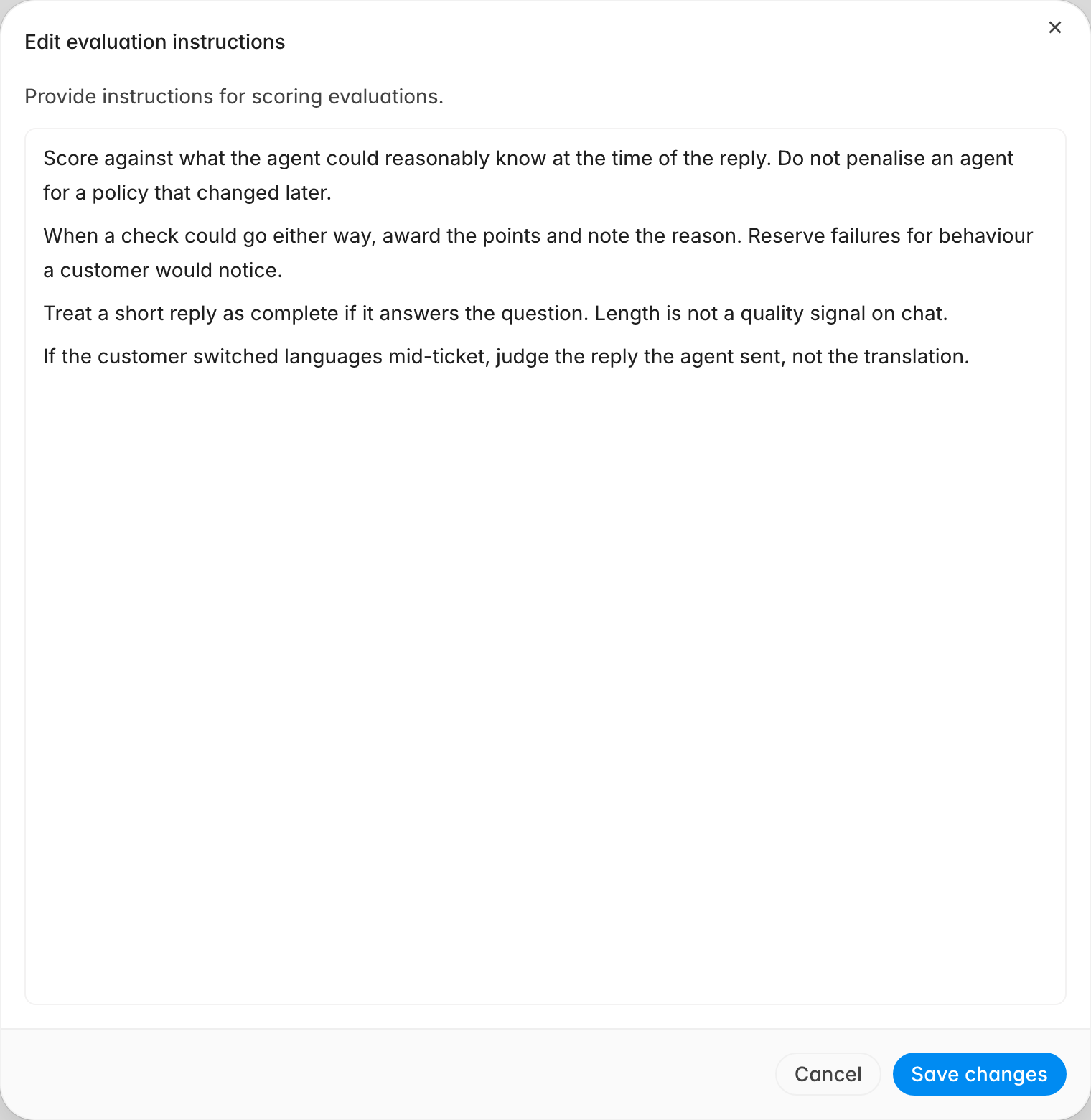 The instructions worth putting here are the judgement calls you would otherwise
repeat in every scorecard: how to treat a policy that changed after the ticket
closed, whether a short reply can still be complete, what to do when a check
could reasonably go either way. Leave anything that belongs to one rubric on that
rubric, with
[Add scorecard additional instructions](/guides/quality-assurance/add-scorecard-additional-instructions).
Write these as decisions rather than aspirations. "Award the points and note the
reason when a check could go either way" changes scores. "Be fair" does not.
## Open the contest window
An agent who disagrees with a score can dispute it, and the **Contest window**
decides for how long. The clock starts at the evaluation date, not the ticket's
close date, which matters when your evaluation delay is long or a backlog was
scored weeks after the fact.
1. Under **Review**, click **Add window**.
2. Set the number of **days**. Anything from 1 to 365 is accepted, and 30 is the
starting value.
3. Click outside the field to save.
To remove the deadline entirely, click the **×** to the left of the field. That
does not block disputes; it means a dispute is accepted no matter how old the
evaluation is.
Most teams land somewhere between 7 and 30 days. Short windows keep disputes
close to the conversation, while a window shorter than your review cadence means
agents lose the right to dispute before anyone has discussed their scores with
them.
## What an agent can and cannot contest
The window is one of four gates:
* An agent can only contest **their own** evaluation, and only the one currently
in effect for that ticket. A superseded evaluation is read-only.
* The evaluation must have at least one failed check.
* One open dispute per agent per ticket. The next one waits until the first is
resolved.
* The evaluation must be inside the contest window. Past the deadline, the button
stays visible but disabled, and the tooltip names the window length so the
agent can see what they missed.
Disputes that land arrive as work for your QA team rather than as a status change
on the ticket, and
[Work contested tickets](/guides/quality-assurance/work-contested-tickets) picks
the story up from there.
## Related
* [Configure evaluation eligibility](/guides/quality-assurance/configure-evaluation-eligibility)
* [Work contested tickets](/guides/quality-assurance/work-contested-tickets)
* [Create routing rules](/guides/quality-assurance/create-routing-rules)
* [Run a calibration](/guides/quality-assurance/run-a-calibration)
* [Glossary](/guides/concepts/glossary)
The instructions worth putting here are the judgement calls you would otherwise
repeat in every scorecard: how to treat a policy that changed after the ticket
closed, whether a short reply can still be complete, what to do when a check
could reasonably go either way. Leave anything that belongs to one rubric on that
rubric, with
[Add scorecard additional instructions](/guides/quality-assurance/add-scorecard-additional-instructions).
Write these as decisions rather than aspirations. "Award the points and note the
reason when a check could go either way" changes scores. "Be fair" does not.
## Open the contest window
An agent who disagrees with a score can dispute it, and the **Contest window**
decides for how long. The clock starts at the evaluation date, not the ticket's
close date, which matters when your evaluation delay is long or a backlog was
scored weeks after the fact.
1. Under **Review**, click **Add window**.
2. Set the number of **days**. Anything from 1 to 365 is accepted, and 30 is the
starting value.
3. Click outside the field to save.
To remove the deadline entirely, click the **×** to the left of the field. That
does not block disputes; it means a dispute is accepted no matter how old the
evaluation is.
Most teams land somewhere between 7 and 30 days. Short windows keep disputes
close to the conversation, while a window shorter than your review cadence means
agents lose the right to dispute before anyone has discussed their scores with
them.
## What an agent can and cannot contest
The window is one of four gates:
* An agent can only contest **their own** evaluation, and only the one currently
in effect for that ticket. A superseded evaluation is read-only.
* The evaluation must have at least one failed check.
* One open dispute per agent per ticket. The next one waits until the first is
resolved.
* The evaluation must be inside the contest window. Past the deadline, the button
stays visible but disabled, and the tooltip names the window length so the
agent can see what they missed.
Disputes that land arrive as work for your QA team rather than as a status change
on the ticket, and
[Work contested tickets](/guides/quality-assurance/work-contested-tickets) picks
the story up from there.
## Related
* [Configure evaluation eligibility](/guides/quality-assurance/configure-evaluation-eligibility)
* [Work contested tickets](/guides/quality-assurance/work-contested-tickets)
* [Create routing rules](/guides/quality-assurance/create-routing-rules)
* [Run a calibration](/guides/quality-assurance/run-a-calibration)
* [Glossary](/guides/concepts/glossary)