Settings > Connections lists
every connector Rulebase supports and every connection you have made. Use it to
check that a source is connected and still pulling data, to add another
account, and to disconnect one without losing the history it already synced.
This guide covers the page itself. For the specifics of setting up a particular tool,
each connector has its own guide:
- Help desks and ticketing — Zendesk,
Freshdesk,
Intercom, Jira
- Calls — Aircall,
XCALLY,
Ringover
- Knowledge sources — Notion,
Google Drive,
Scribe
- Sales and CRM — Salesforce,
Outreach
- Risk and compliance — Unit21,
Alloy
- Messaging and reporting — Slack,
Looker Studio
Before you start
- You need an admin role, or a role with permission to manage integrations.
Without it the Add buttons are visible but disabled.
- Connecting a source usually means signing in to that tool, so have an account
there with permission to authorize apps.
Read the page
The page lists every connector alphabetically with an Add button on the
right. A connector you have connected gets a row underneath it, one row per
account, showing which account it is and when Rulebase last heard from it.

In each row:
- The identifier tells you which account this is. A Zendesk subdomain, a
Slack workspace, a Jira site. You can connect two accounts of the same tool:
a second Zendesk subdomain gets its own row under Zendesk, and each syncs
independently.
- Last synced on is your health check. It moves whenever Rulebase records
activity for that connection, so on a busy queue you want to see a timestamp
from minutes ago, not last Tuesday.
The Connections page does not show connection errors. A connection whose
credentials were revoked, whose token expired, or whose webhook was deleted looks
exactly like a healthy one; the only sign is that Last synced on stops
moving. If a source has gone quiet, check that timestamp before assuming Rulebase
lost the data. Integration stopped syncing
walks through the rest.
Slack and Front go through a newer
sign-in flow, so their rows show Connected on with the date you authorized
them rather than a sync timestamp, and they have no actions menu at all.
XCALLY has no Add button, because Rulebase sets that one up for you; ask
support if you need it changed or removed.
Look at what a source has been doing
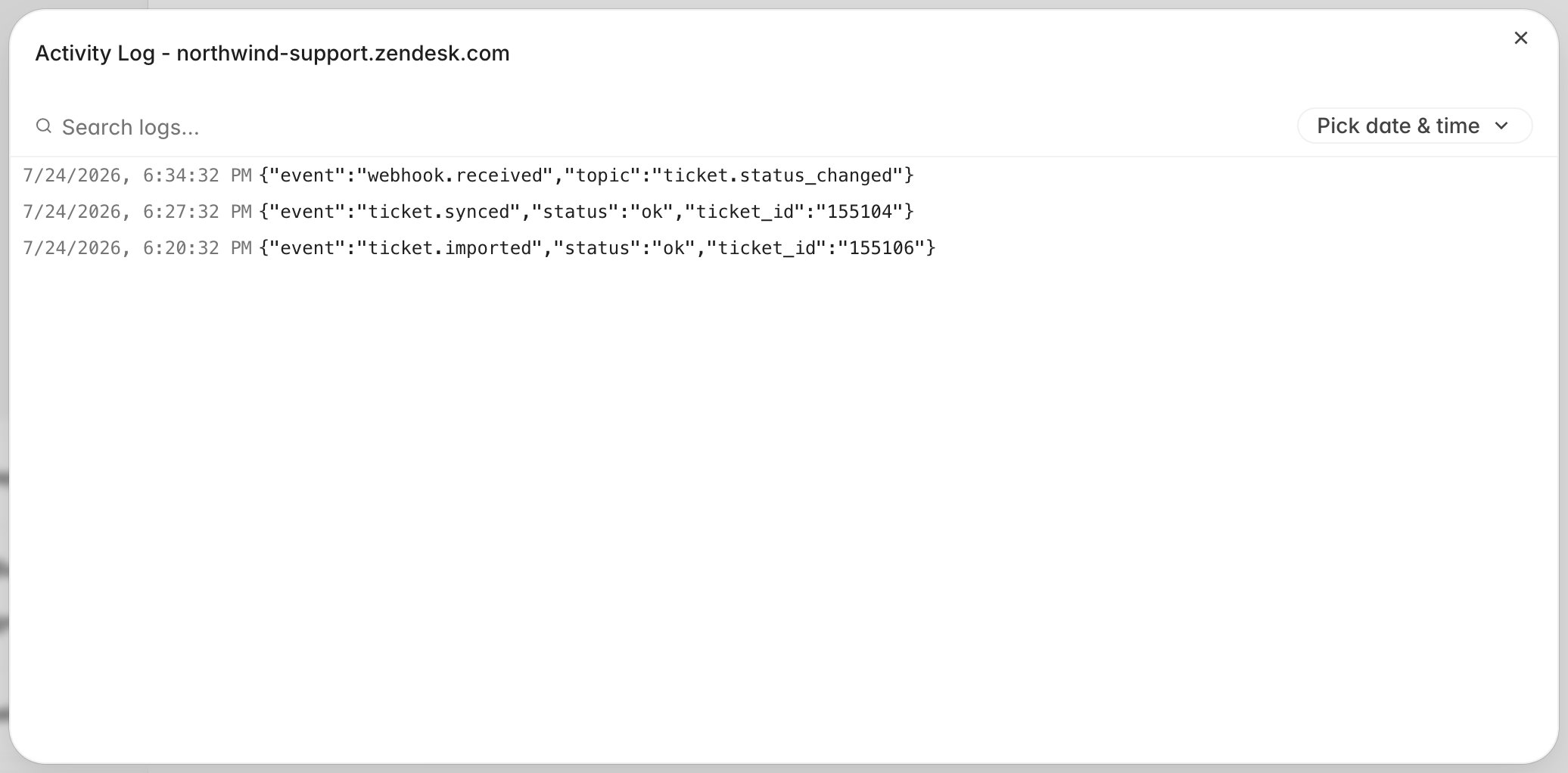
When you want more than a timestamp, open the ... menu on the connection and
choose View activity.

The activity log is one timestamped line per event, in the shape Rulebase
received it: tickets imported, tickets re-synced, webhooks that arrived. Use
Search logs… to find a specific ticket ID, or Pick date & time to
narrow to the window you care about.
You do not need to read the JSON. An empty log, or a log whose last line is
from three days ago, tells you the connection is not delivering, even when the
ticket list looks the same either way. If you open a support ticket, include
the timestamp of the last line.
Jira adds Configure to this menu, which holds a single switch, Import
service requests as interactions. Turn it on to bring Jira service requests
into Rulebase as interactions that can be
evaluated. Unit21 adds Edit, for the credentials, and Copy webhook
URL, which is the URL you paste into Unit21 so it can push alerts to Rulebase.
Reconnect a source
To reconnect, click the same Add button you used the first time. There is
no separate reconnect button and no need to disconnect first: a stalled
connection is almost always expired or revoked credentials, and signing in
again refreshes them.
Authorize the same account the connection already uses. For Zendesk, Slack,
Jira, Salesforce, and Intercom, Rulebase recognizes the account you come back
with (the subdomain, workspace, site, org, or app) and refreshes the
credentials on the connection it already has. Nothing is duplicated and the
connection keeps its place in the sync.
Everywhere else, and any time you authorize a different account, you get a
second connection alongside the first. If you meant to repair the original
rather than add a second workspace, wait for the new connection to start
syncing, then disconnect the stale one so nobody has to guess which row is
live.
Disconnect a source
- Open the
... menu on the connection and choose Disconnect.
- Confirm in the dialog.
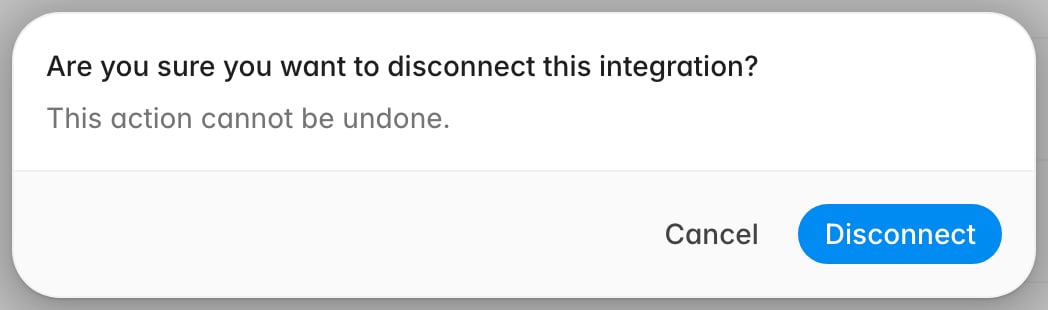
The dialog says the action cannot be undone, and for the connection itself that
is true: the credentials are gone and the row disappears from the page. Your
data stays.
What stops: new tickets and conversations from that source, and any updates
to the ones you already have.
What stays: every ticket, transcript, evaluation, and QA score that already
synced. They remain in Rulebase, still searchable, still counted in your reports
and in each agent’s performance history. Disconnecting Zendesk does not empty
your ticket list or reset last quarter’s scores.
Disconnecting is the right move when you are migrating help desks or you
connected the wrong account. Leave a connection you are merely not using in
place: it costs nothing, and reconnecting later starts a new connection rather
than resuming the old one.
Sources that connect but do not import yet
Ringover, Looker Studio, and Alloy connect successfully but do not
import data yet. The row appears and the credentials are stored, but no data
flows. Nothing is wrong with your setup, and reconnecting will not change it;
if you need one of these, ask Rulebase support where it stands. Persona is
further back still: the row and its Add dialog are on the page, but nothing
is saved when you submit it.
The API keys below
The same page ends with an API keys section, which is a different job: keys
are for pushing data into Rulebase from a tool we have no connector for, rather
than for Rulebase pulling from a tool you use.
Set up API access covers those.