

Gave correct policy information is only as good as the policy the
evaluator has in front of it. Left on its own, AI QA judges correctness from the
conversation and its own general knowledge, which is fine for tone and hopeless
for your refund window. Mentioning a knowledge base document inside the check
tells the evaluator where the answer is written down, and the evaluation comes
back citing the passage it used.
Before you start
- You need a role that can manage scorecards, such as
AdministratororManager. - The policy has to be in the knowledge library already. If it is not, manage the knowledge library covers writing it in Rulebase or importing it from Notion, Zendesk, Scribe, Confluence, or Intercom.
- Mentions live in check descriptions, so the criterion needs at least one check. Criteria names are plain text and cannot hold a mention.
- Change a live scorecard on a copy; see Edit scorecard structure.
Mention a document in a check
- Open the scorecard from Knowledge > Scorecards and navigate to the section and criterion.
- Click into the check description and type
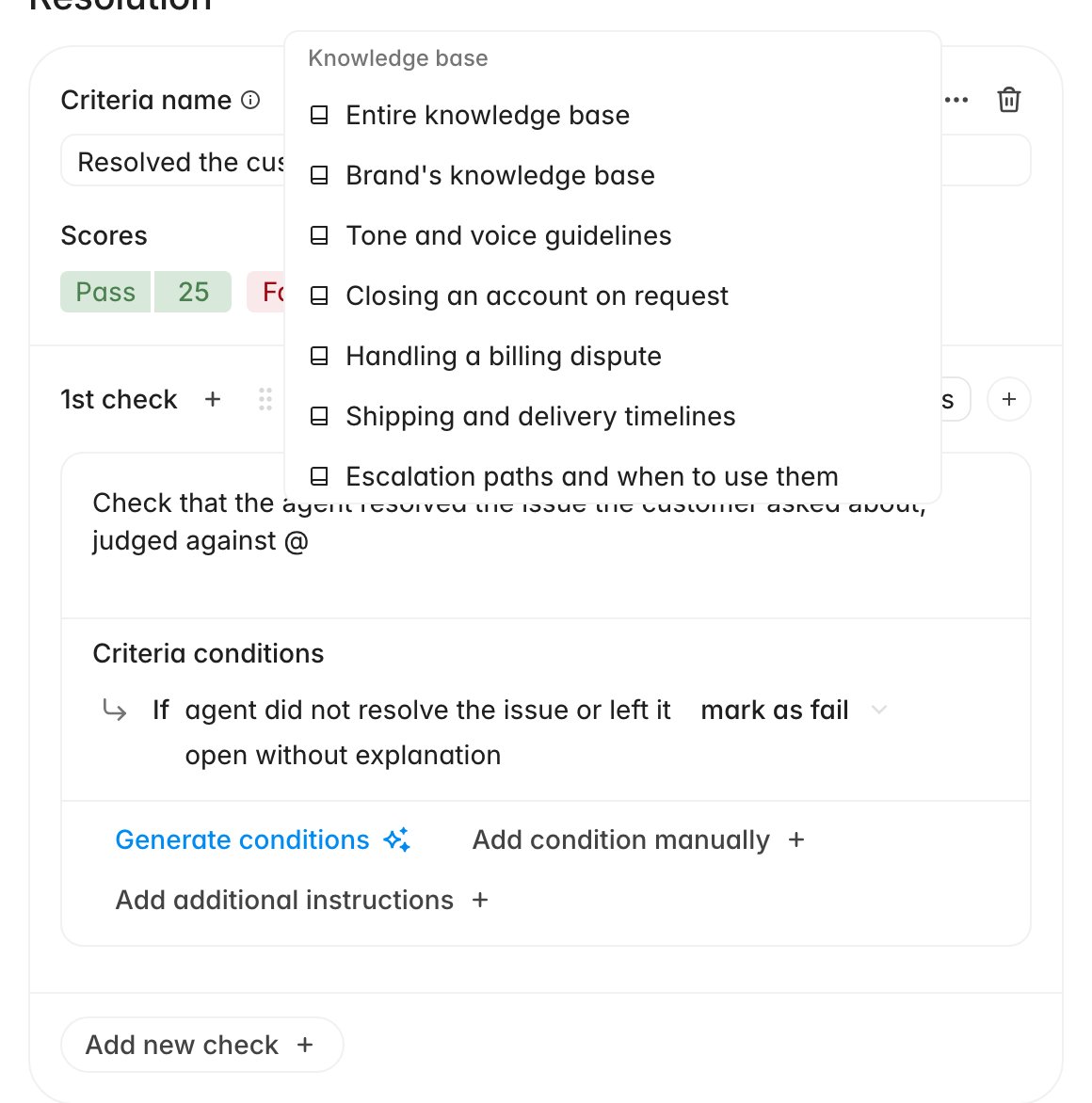
@where the reference belongs. - A menu opens, grouped by type. Scroll to Knowledge base, or keep typing to search by title.
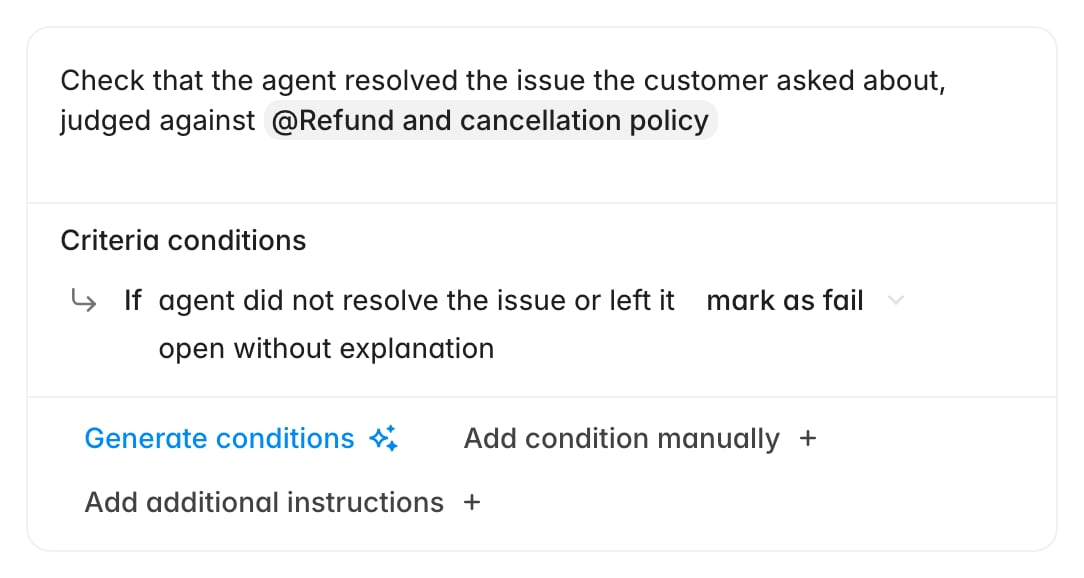
- Pick the document. It drops in as a pill carrying the document’s title.
- Finish the sentence around it, then Publish, or Save as draft if the scorecard is not ready to go live.
The three kinds of knowledge reference
The Knowledge base group offers two catch-all entries above your documents, and they behave differently from naming a document outright:- Entire knowledge base — search everything. Right when the check covers a broad standard (“communication guidelines”, “escalation playbooks”) that is spread across several documents.
- Brand’s knowledge base — narrow to the help centre content belonging to the ticket’s brand, for organizations running more than one brand out of one Zendesk.
- A specific document or section — search only that document, or that Zendesk help centre section. This is the sharpest option and the one to reach for when a check maps onto a single policy page.
@ searches documents and sections by title, so on a large
library that is faster than scrolling the menu.
Write the check so the mention has a job
A pill dropped into a sentence with no instruction around it tells the evaluator very little. Give the reference a purpose:- Say what to look up, not just where.
Check that the agent applied the correct verification level per @User verification policybeats@User verification policy. - Name one source per judgement. Three documents in one check invites the evaluator to average them. If the check really spans three policies, it is probably two checks.
- Keep the check’s own conditions doing their job. The mention supplies the facts. The conditions still decide what a failure looks like, and additional instructions still carry the exceptions.
What happens during evaluation
When AI QA reaches a criterion whose checks reference knowledge, it searches that knowledge before it scores, using a question built from the customer’s actual situation rather than the check’s wording. Naming a document confines the search to it; Entire knowledge base and Brand’s knowledge base leave the search wide and let the brand and language of the ticket steer it. The passages that came back are attached to the result. Open the evaluation and the criterion carries a Knowledge base row of document pills: the documents the score was reasoned from.A referenced document only helps if it has content. A stub with a title and an
empty body is not searchable, and neither is a document whose import failed.
Open it in the library and read it before you point a check at it.
Confirm it is working
Publish, wait for the next batch of matching tickets to be evaluated, then open one and look at the criterion you changed:- The criterion shows a Knowledge base row with at least one document pill.
- The pill is the document you named, not something else the search preferred.
- The written summary reasons from the policy rather than restating the check.