When you can contest
- The evaluation has to have at least one failed criterion. There is nothing to dispute on a clean result.
- It must be your current evaluation for that ticket. If a reviewer has already replaced it, the newer one is the one that counts.
- You have to be inside your organization’s dispute window, counted in days from the date of the evaluation. The length is a setting, and some organizations turn it off so there is no deadline at all.
- You can have one open dispute per ticket at a time. Once the reviewer finishes, you can raise another on the same ticket if the new result is still wrong.
Start the dispute
- Open the ticket from your Evaluations list and read the criterion you disagree with, along with its reasoning.
- Click Contest score above the breakdown.
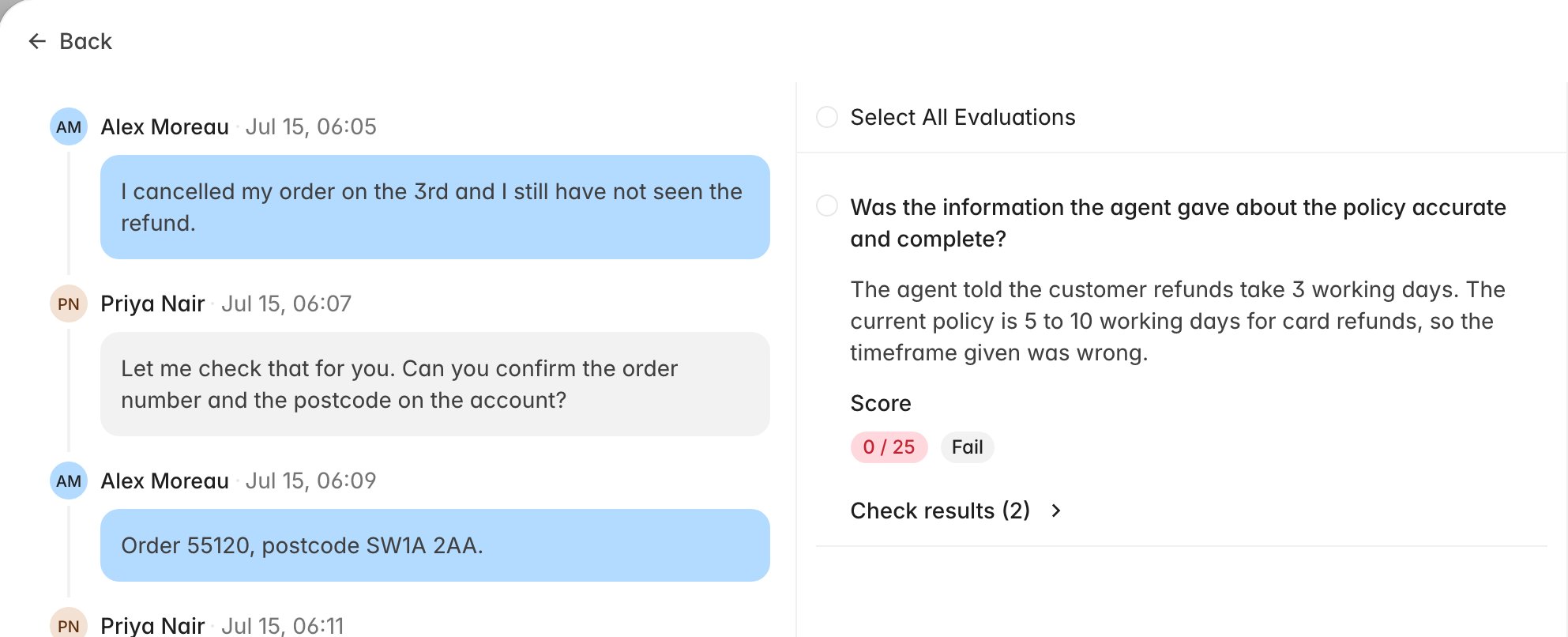
- Rulebase opens the contest form. The transcript sits on the left, and the failed criteria are listed in the middle with a checkbox each.
- Tick the criteria you want reviewed. Select All Evaluations takes every failed criterion on that scorecard, and Check results expands the individual checks behind a criterion, which is where the specific judgement usually sits.
Make your case
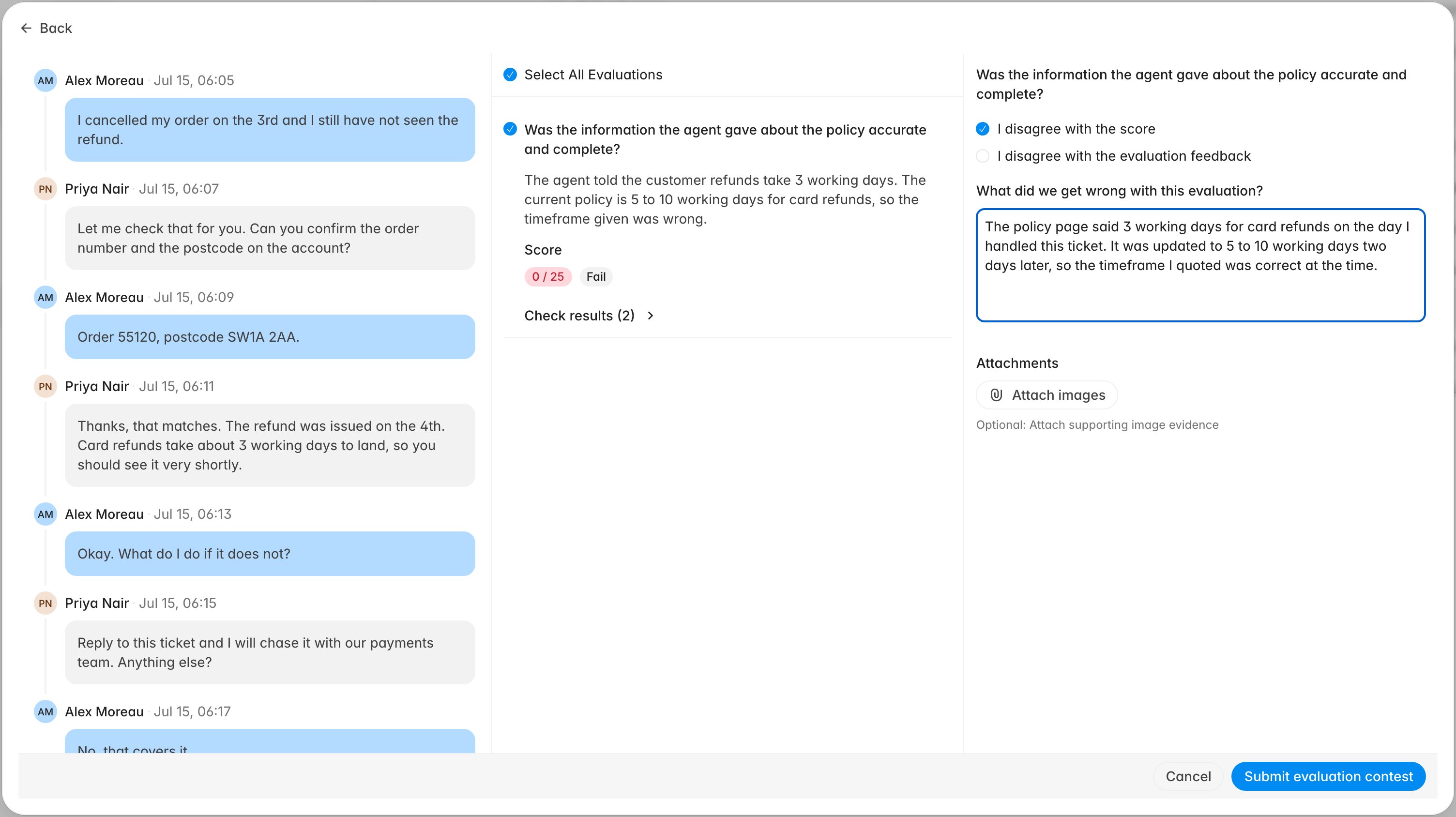
Each criterion you tick opens its own block on the right, with two optional checkboxes and one thing you have to write:- I disagree with the score: tick this when the pass or fail is wrong.
- I disagree with the evaluation feedback: tick this when the result may be fair but the reasoning misrepresents what happened.
- What did we get wrong with this evaluation?: your explanation, and the only required field. Submit evaluation contest stays disabled until every criterion you selected has one, so a dispute cannot go out with a blank criterion attached to it.
What happens next
Submitting marks the ticket as under review and puts it in front of a reviewer. On the ticket you will see an orange banner reading This evaluation is currently being reviewed. The score stays as-is while the dispute is open, and there is no way to edit or withdraw it once submitted, so reread your explanation before you send it. The reviewer works through your dispute criterion by criterion. They can accept your point and re-score that criterion, or keep the original result and explain their reasoning. Where they change the score, Rulebase produces an updated evaluation, and that one becomes the score that counts for you. The original stays readable as the history of the ticket. When the review is finished, the ticket shows a green Your dispute has been reviewed banner with a link to the updated evaluation.Follow it in Contested Evaluations
Once you have raised your first dispute, a Contested Evaluations tab appears in your portal navigation. It lists your disputes in two groups.
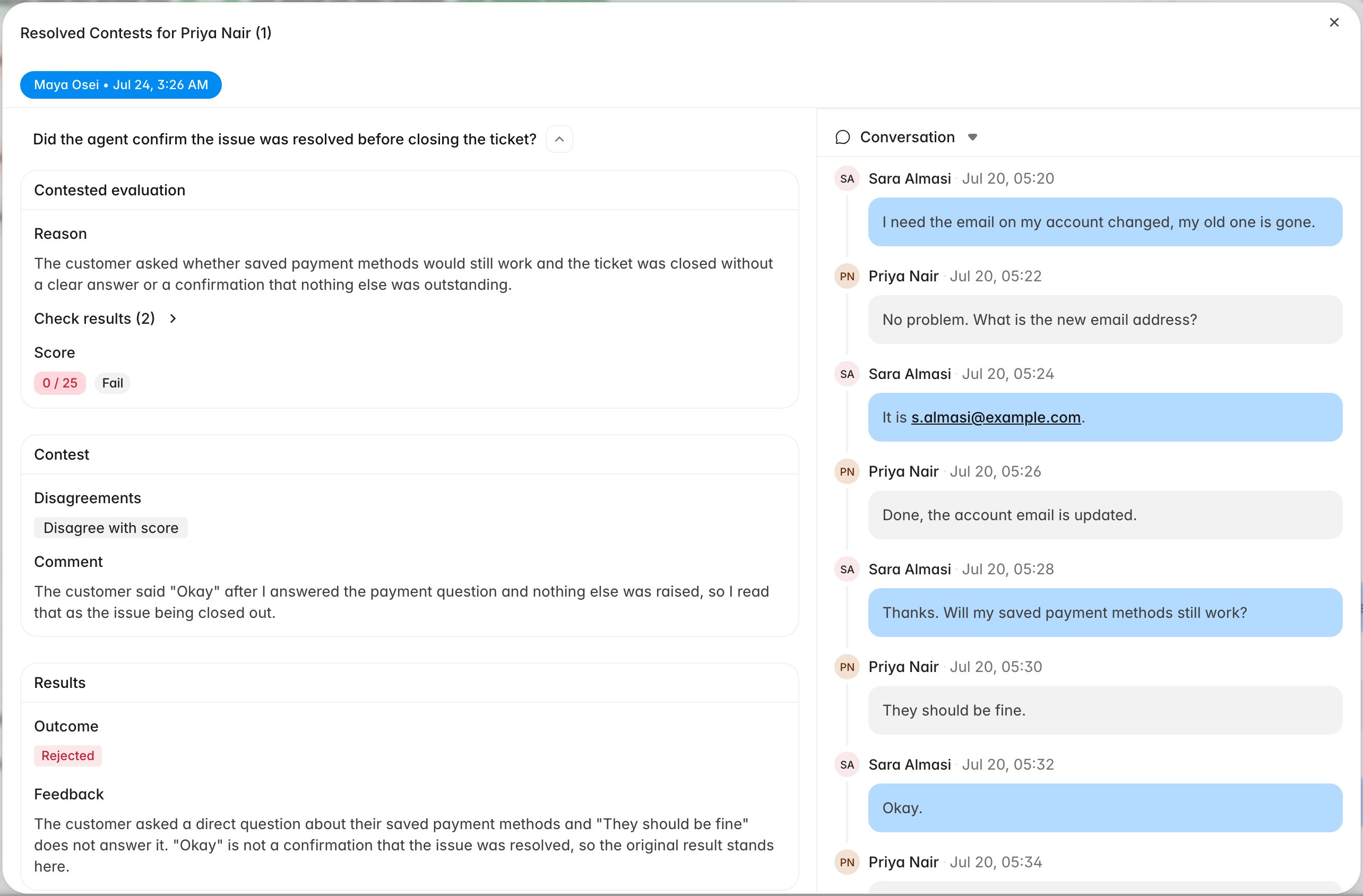
- Unresolved: still with a reviewer. The status column reads Unresolved and there is nothing for you to do.
- Resolved: decided. The status column shows Accepted when every point you raised was accepted, or Rejected when at least one was kept.