

Before you start
- Everything here lives under Settings > Evaluations, in the Configuration part of the settings sidebar.
- You need an admin role. Without it the controls render but stay disabled.
- Publish at least one scorecard first. Eligibility decides which tickets are considered; a scorecard decides whether any rubric applies. See Create a scorecard.
What each setting does
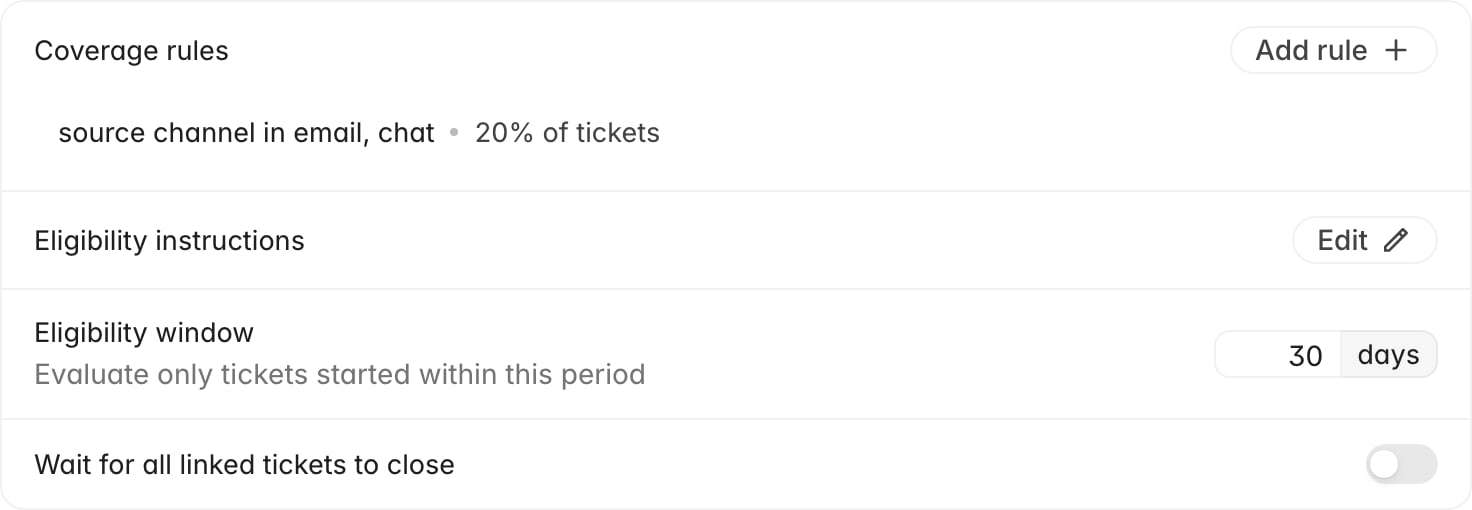
The Eligibility card holds:- Coverage rules: how much of your ticket volume to sample, optionally narrowed to a channel, brand, team, or group. With no rules, every eligible ticket is evaluated.
- Eligibility instructions: plain-language rules Rulebase applies to the conversation itself, to filter out tickets with nothing worth scoring.
- Eligibility window: an age limit. Tickets that started before the window are left alone, which stops a backlog import from flooding QA.
- Wait for all linked tickets to close: holds evaluation until every linked ticket in the thread is resolved, for teams that split one issue across several tickets.
Set your coverage rules
Covering 100% from day one produces more evaluations than most teams can review. Start low, check volume after a week, and raise it.- Next to Coverage rules, click Add rule.
- Under Applies to, pick what the rule keys on: Source channel, Brand, Team, or Group, then choose the values.
- Add a second condition with Add condition if the rule should require both.
- Under Target, choose how much to cover.
- Click Create rule.
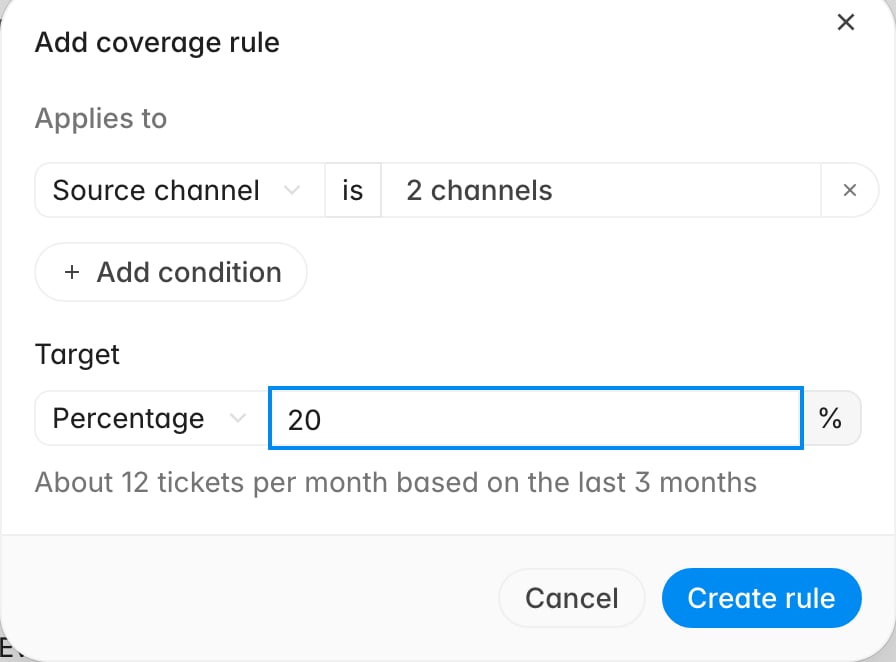
Rules stack: a ticket is sampled if any rule selects it. Click an existing rule to
reopen it as Edit sampling rule, where you can change the target or delete the
rule.
With no coverage rules, every ticket that passes the other gates is evaluated, and
there is no sampling limit. That is a reasonable start for a low-volume team and
expensive for everybody else.
Write your eligibility instructions
Coverage rules work on ticket metadata; eligibility instructions work on the conversation, keeping AI QA off tickets where nobody would score anything: a customer who typed “hello?” and vanished, spam, a bot handoff with no human reply. Every organization starts with a default set, so this is usually an edit. Click Edit next to Eligibility instructions to see them.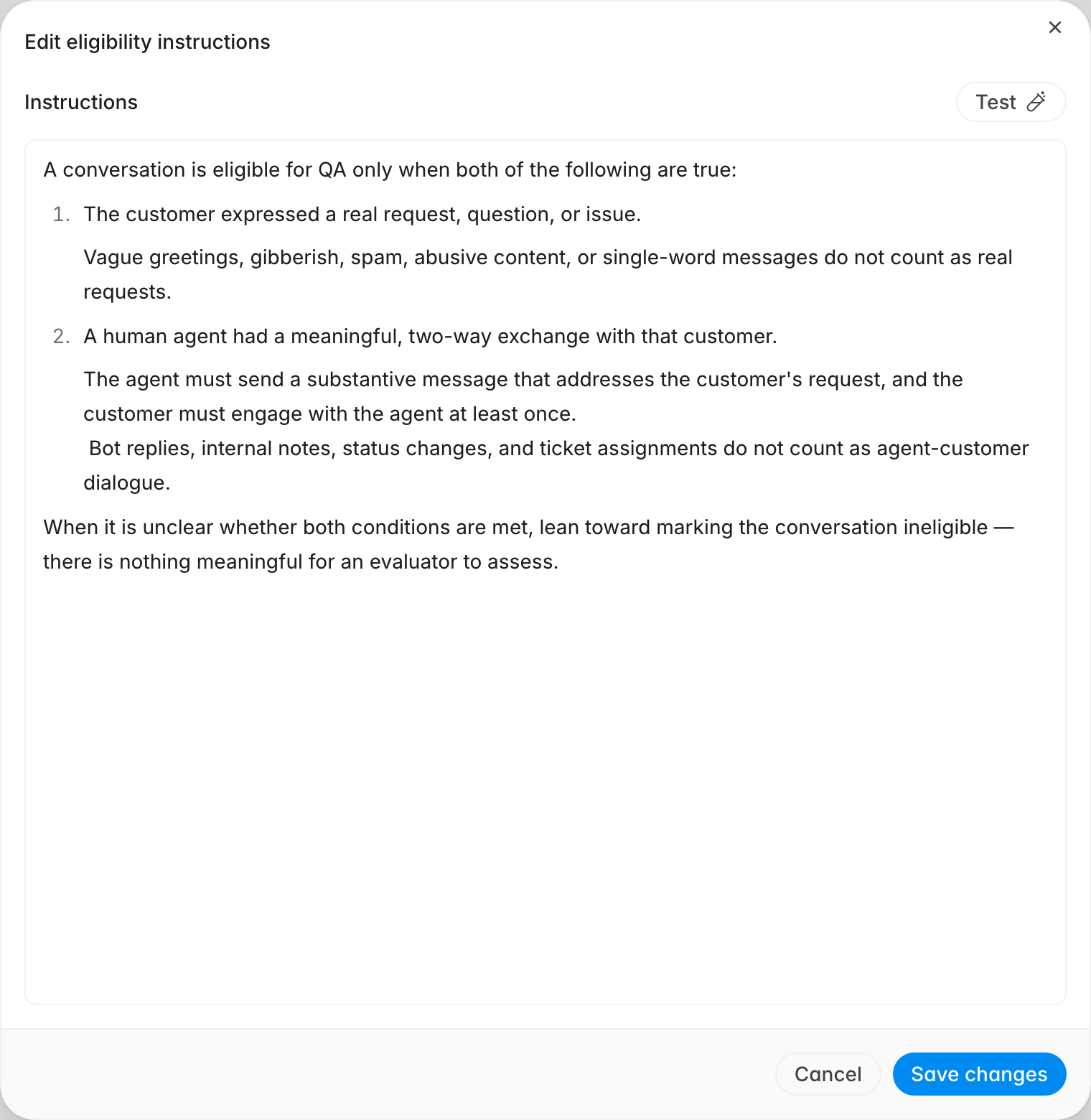
Eligibility instructions only gate automatic QA. Someone can still request an
evaluation by hand on a ticket the instructions filtered out, and that request
also bypasses your coverage rules.
Test a ticket before you save
The eligibility tester runs the same gates Rulebase applies when a ticket closes, against a real ticket. It uses whatever instructions are currently in the editor, including unsaved edits. Test a wording change here before committing it.- In the Edit eligibility instructions dialog, click Test.
- Search by ticket ID or subject, then pick a ticket.
- Read the result above the editor.


Delay the start, or limit how far back you go
The Evaluation delay under Timing waits a set period after a ticket closes before evaluating. It exists because tickets reopen: an evaluation that ran at close would score an unfinished conversation. Click Add delay, then set the value and choose minutes or hours.
Confirm your setup before go-live
Check these in order:- A coverage rule exists and its estimate matches your review capacity.
- The eligibility tester returns Eligible for QA for a ticket you would expect QA on, with the agents you expect listed as badges.
- The same tester returns Not eligible for QA for a throwaway ticket.
- The Evaluation delay is long enough that reopened tickets settle first, and short enough that reviewers are not waiting a day for scores.