

Before you start
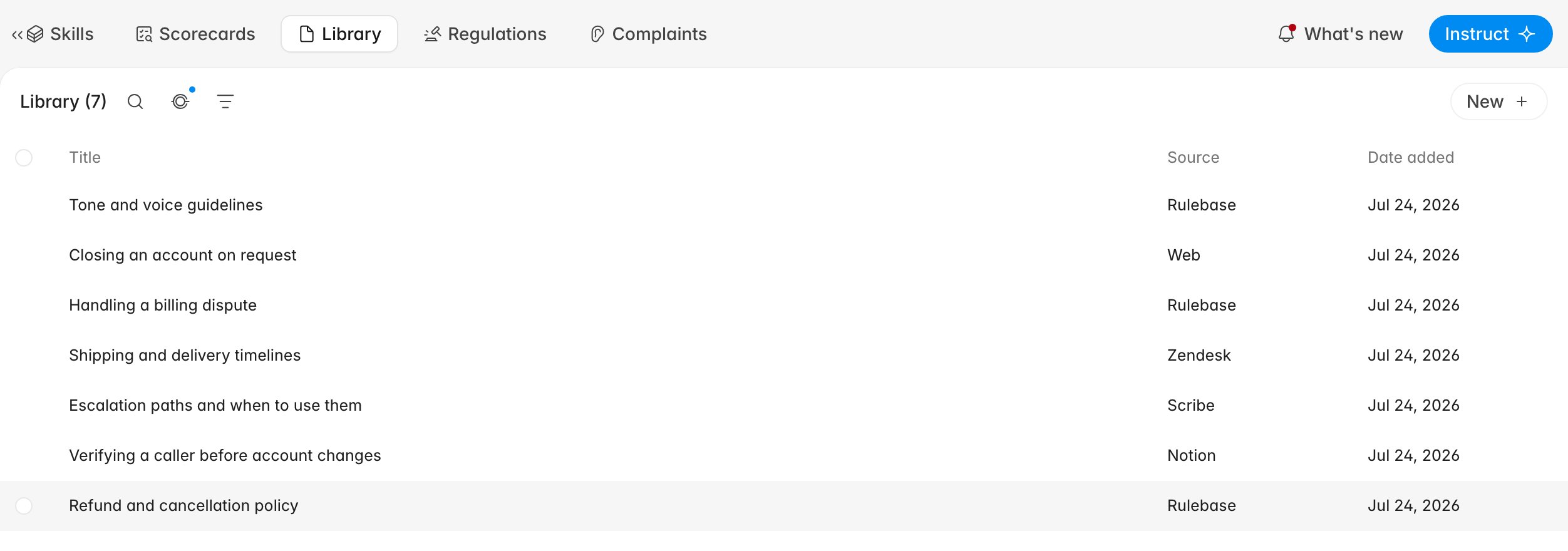
- The library lives at Knowledge > Library.
- You need a role that can manage the knowledge base:
Administrator,Manager, orTeam Leaderall include it. - Importing from Notion, Zendesk, Scribe, Confluence, or Intercom needs that tool connected first under Settings > Connections. Connecting alone does not move any content. Google Drive is different: share a folder or file with the Rulebase service account, then import the URL from Knowledge — there is no Connect step.
Where documents come from
Every row carries a Source, and it tells you who owns the content and whether Rulebase will overwrite it later:- Rulebase — written here, by you. Nothing else touches it.
- Web — scraped from a link you supplied, such as a public help centre.
- Zendesk — help centre articles, carrying their section, brand, and locale.
- Notion — one document per shared page. See Notion.
- Scribe — guides and knowledge pages, including step screenshots. See Scribe.
- Confluence and Intercom — pages and help centre articles from those tools. Confluence rides on the Jira connection rather than having one of its own, so if the Confluence option is missing it is Jira you need to connect.
- Google Drive — Docs, Sheets, PDFs, and other files under a shared folder or file URL. See Google Drive. Workflows can also read Drive at run time without importing into the library.
Write a document in Rulebase
- Click New and choose Start from scratch. Rulebase creates the document and opens the editor.
- Give it a title that matches how someone would search for it:
Refund and cancellation policy, notPolicy v3 final. - Write the body. Headings matter more than they look: the evaluator retrieves
passages, not whole files, so a document broken into
Refund windows,Cancellations, andWhat to tell the customerreturns better answers than one long block. - Click Save.
Edit or replace what a document says
Open a document from the list, click Edit, change the title or the body, and Save. Cancel discards.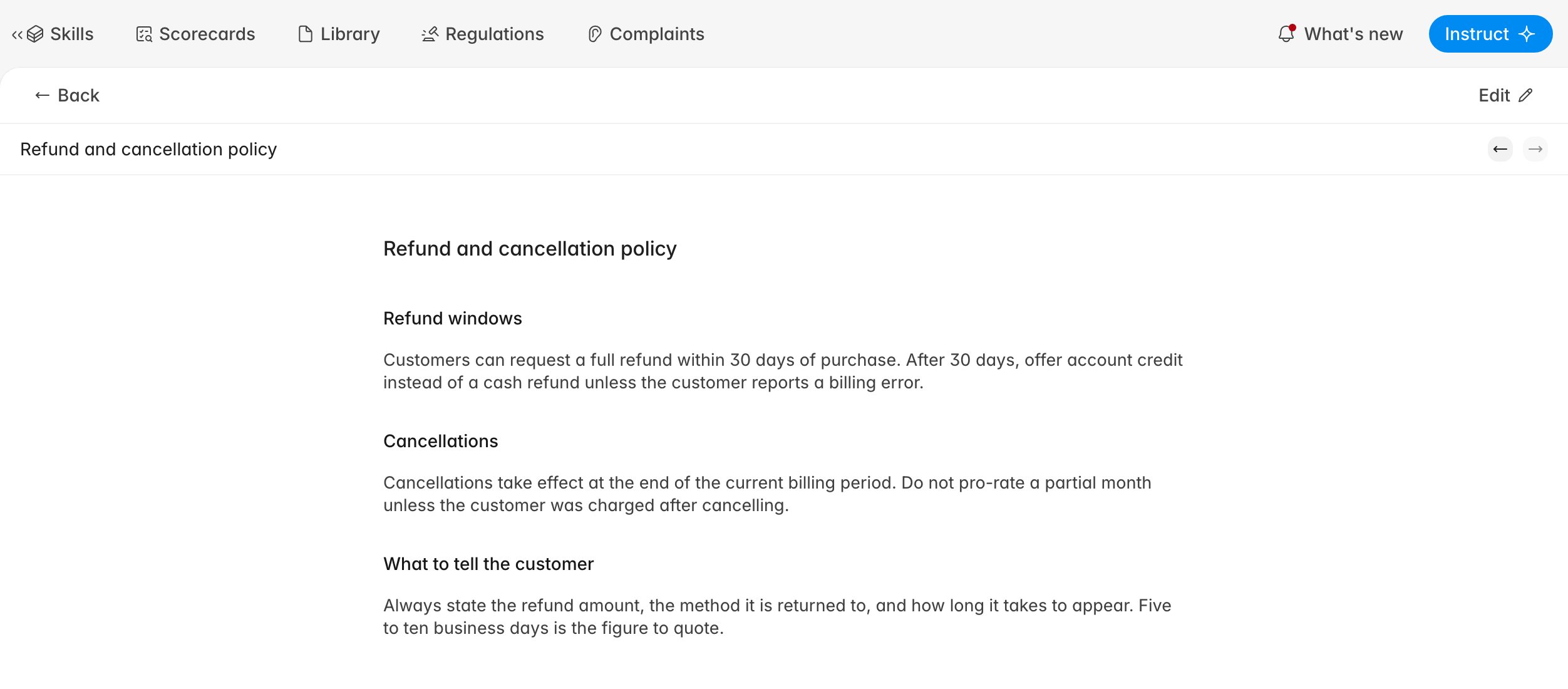
Editing an imported document is temporary. The next sync from Notion, Zendesk,
Scribe, Confluence, Intercom, or Google Drive overwrites the title and body with
whatever the source tool says. Fix imported content in the tool it came from;
use Rulebase documents for policy Rulebase owns.
Import from a connected tool
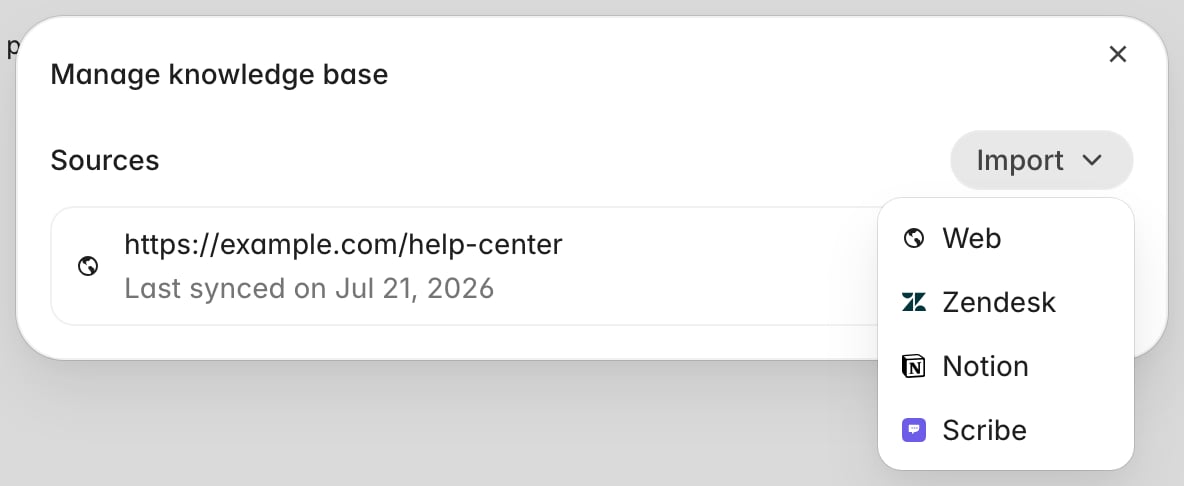
Imports run from the Manage knowledge base dialog, which is also where you see everything currently feeding the library.- Click New > Connect to a source, or the connections icon next to the library search.
- Open Import and choose the tool. For Notion, Zendesk, Scribe, Confluence, and Intercom, only tools you have connected appear — a missing option means the integration, not the import. Google Drive is always available: share the folder or file with the Rulebase service account, then paste its URL.
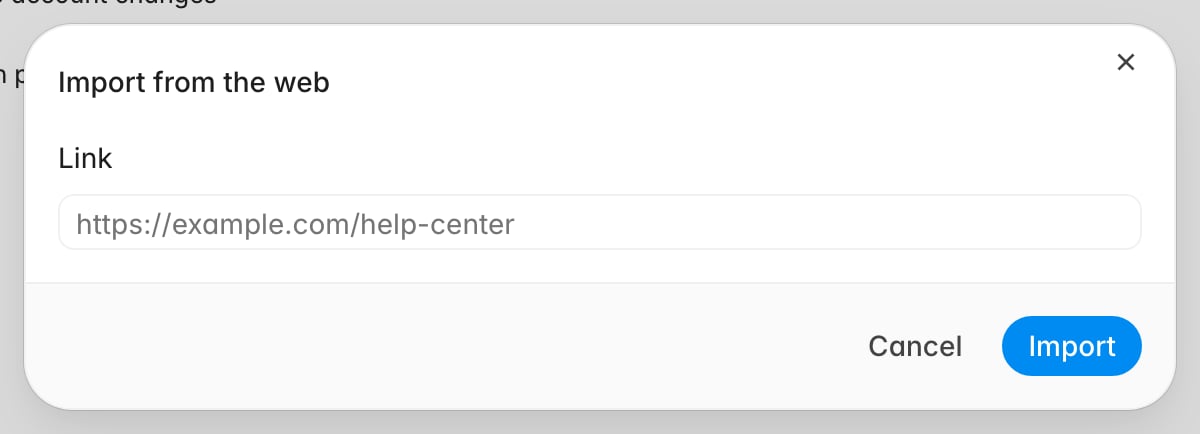
- Follow the tool’s dialog: usually selecting the connected account and clicking Import. For Google Drive, paste the shared folder or file URL and click Import.
Find things in a large library
Search sits behind the magnifying glass next to the document count and matches on title. The filter icon beside it narrows the list four ways: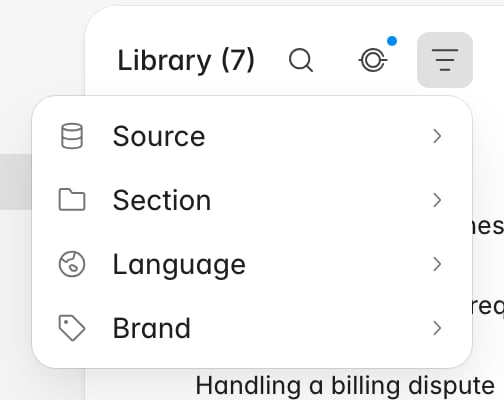
Tidy up in bulk
Select documents with the checkbox on the left of each row and a small action bar appears at the bottom of the list:- Add tag applies one tag to everything selected. Tags become part of the text Rulebase searches, so a tag like
refundson three scattered documents makes all three easier for the evaluator to find. They are not a column or a filter. - Duplicate copies a document, for when a new policy starts life as a variant of an old one. It is only available with a single document selected.
- Delete file asks for confirmation, then permanently removes what you have selected and clears those document references from scorecard checks.
Keep imported content fresh
Sources refresh on their own once a day. Open Manage knowledge base to see the state of each one: the row showsLast synced on with a date, or
Syncing documents... while a sync is running.
The overflow menu on a source row gives you the two manual controls. Sync
runs a refresh immediately, which is what you want after a batch of edits in
Notion that should not wait for tomorrow. Delete source stops the refreshes;
the documents it already brought in stay in the library, frozen at their last
synced version.
Refreshes update documents in place rather than duplicating them, skip anything
the source tool says has not changed, and remove content that has disappeared
from the source (an unshared Notion page, an archived Zendesk article) from
the library.