

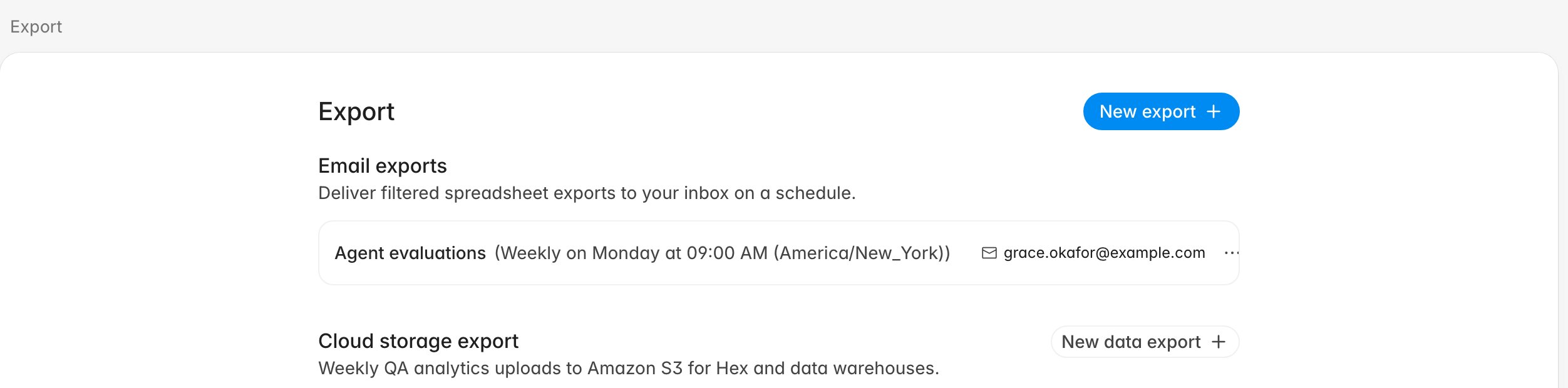
Which one you want
Before you start
- Email exports are available to everyone except agents. Cloud storage exports require the Manage organization settings permission.
- Decide the filters before you create a schedule. A recurring export repeats the filters it was created with, so “resolved tickets, last week, one team” is a choice you make once.
- For the S3 route, have a bucket and a dedicated IAM user’s keys ready. Rulebase validates them before saving.
Create a recurring email export
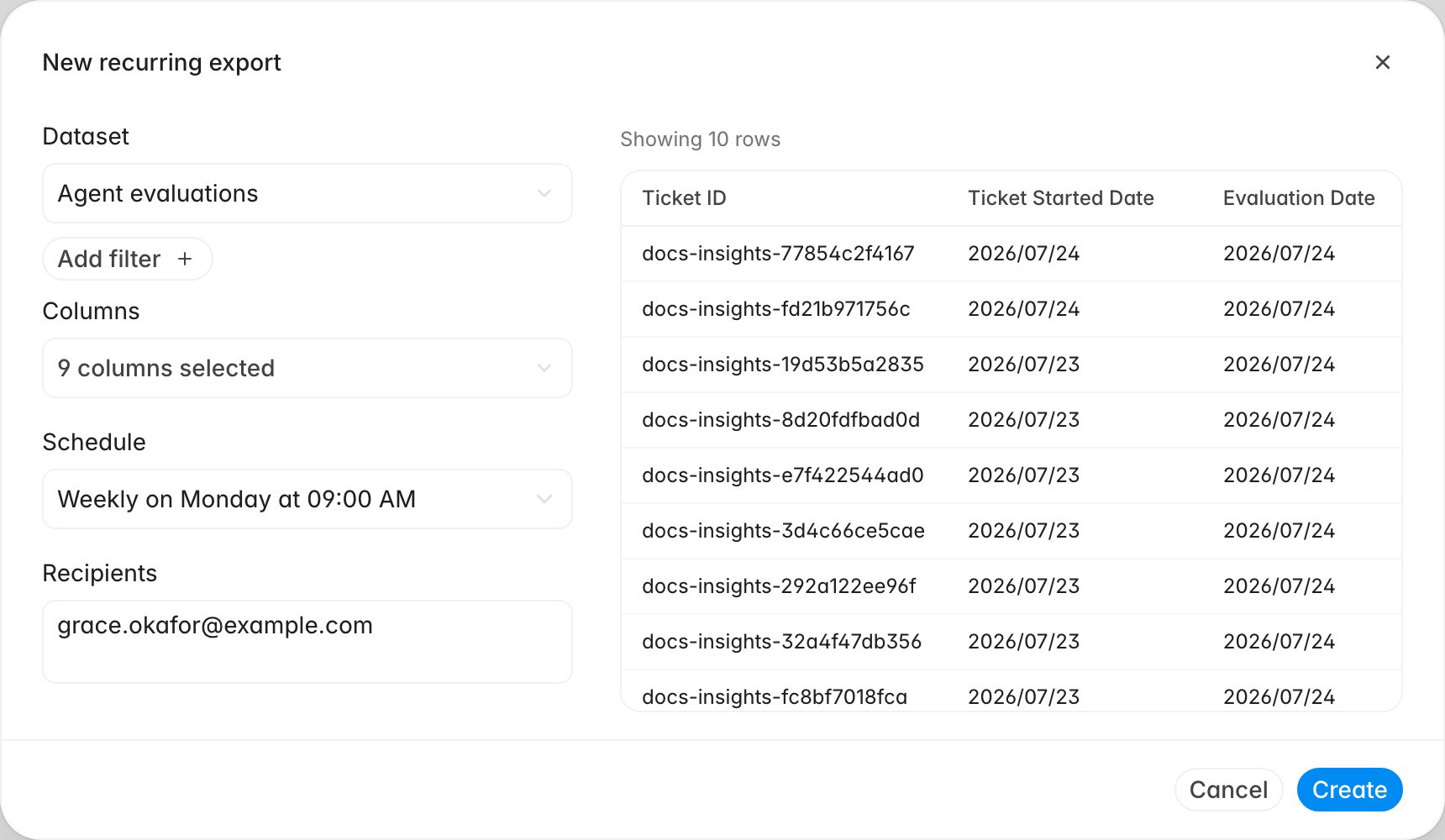
The dialog builds the export and previews it at the same time. The rows you are about to schedule appear beside the fields as you change them.- Click New export.
- Pick the Dataset.
- Add filters with Add filter until the preview on the right shows the rows you want.
- Open Columns and choose the fields to include. Skip this step if you picked Quality assurance, which exports a fixed set of columns.
- Set the Schedule: daily, or weekly on a chosen day, at a time in your workspace timezone.
- Enter one or more Recipients.
- Click Create.
- Quality assurance — one row per ticket, with its AI and human evaluation results. This is the only dataset without a Columns control; it ships a fixed set of ticket-level fields.
- Evaluations — one row per agent per evaluation, with scorecard scores and review details. Pick this when you are analysing people rather than tickets.
- Interactions — every customer interaction across channels, including the ones QA never scored.
- Complaints — one row per complaint, with its status, priority, categories, and related customer context.
- Coaching sessions — one row per coaching session, with the agent, coach, status, topics, and evidence ticket IDs. Notes are optional and off by default.
What recipients receive
Each run generates a fresh workbook and attaches it to an email titled[RULEBASE] <dataset> export for <your organization>. Nobody has to sign in to
open it, and recipients do not need to be Rulebase members; any valid address
works. Rulebase membership and data scopes do not restrict who can read a
delivered workbook, so verify every recipient before saving the schedule.
Rulebase builds the file using the permissions and data scope of whoever created
the schedule. A schedule created by someone scoped to one team keeps producing a
one-team file even after it is handed over, so recreate it under the right
account rather than editing the recipients when scope is the problem.
Manage or stop a schedule
Everyone in the workspace sees the schedules that exist, but the row menu only opens for the person who created a schedule and for admins:- Send now — runs it immediately, without touching the schedule. Useful for confirming the filters produce what you expected.
- Edit — reopens the dialog, preview included.
- Delete — removes the schedule. Files already delivered stay in people’s inboxes.
Send QA analytics to your own S3 bucket
The cloud storage export writes machine-readable QA evaluation data into a bucket you control, every week. Rulebase only ever writes, so the IAM user you create needs a single permission:- Under Cloud storage export, click New data export.
- Select Amazon S3 as the provider.
- Enter the Bucket name and choose its Region.
- Optionally set a Folder prefix, such as
rulebase/qa-analytics. - Enter the Access key ID and Secret access key.
- Click Test. Rulebase writes a test object and reports the key it wrote.
- Click Start data export.
What lands in the bucket
Each run writes three objects under your prefix, partitioned by date:evaluation_id, conversation_id,
ticket_id, evaluated_at, source (whether AI or a person produced it),
agent_employee_id, agent_name, agent_email, team_lead_name,
evaluator_email, conversation_started_at, and
conversation_external_created_at. A team can have several leads, so
team_lead_name holds every lead of the agent’s team, comma-separated. The
manifest repeats the column list with a
row count and the exported window, so a downstream job can check completeness
without parsing the CSV, and _SUCCESS marks the partition as finished, the
convention most warehouse loaders look for.
Run keys include the run id, so a re-run never overwrites a good upload. That
also means deleting the export in Rulebase leaves everything already written in
place; clean the bucket yourself if you need the data gone.