

Before you start
Instruct is granted per role, and it is not on for everyone by default: administrators have it, and every other role needs it added. If your sidebar has no Chats section and no Instruct button sits in the page header, that is what you are missing: an admin can grant the Instruct permissions to your role under Settings > People > Roles. Instruct reads what has already synced into Rulebase, so a workspace in its first week will tell you it could not find something rather than inventing a number.Start a chat, from anywhere
There are two ways in. A full chat page, from New chat at the bottom of the Chats section in the sidebar. Use it for analysis you expect to come back to, or want to send to someone. An overlay, from the Instruct button in the page header or Cmd+J (Ctrl+J on Windows) anywhere in the app. Esc tucks it away. The overlay opens on top of the screen you were reading and takes that screen with it, so on a ticket, a dashboard, or a scorecard you can ask “what went wrong on this one?” without naming it. Either way, type the question the way you would ask a colleague. Working out which tickets, evaluations, or records to read is Instruct’s job, not yours.Point it at something specific
Type@ in the composer to search your workspace and drop a real record into
the message. Tickets, teammates, agents on your roster, customers, companies,
onboarding cases, and knowledge base documents all resolve this way, and a
mentioned record means Instruct reads the ticket you meant instead of searching
for one that matches your description.
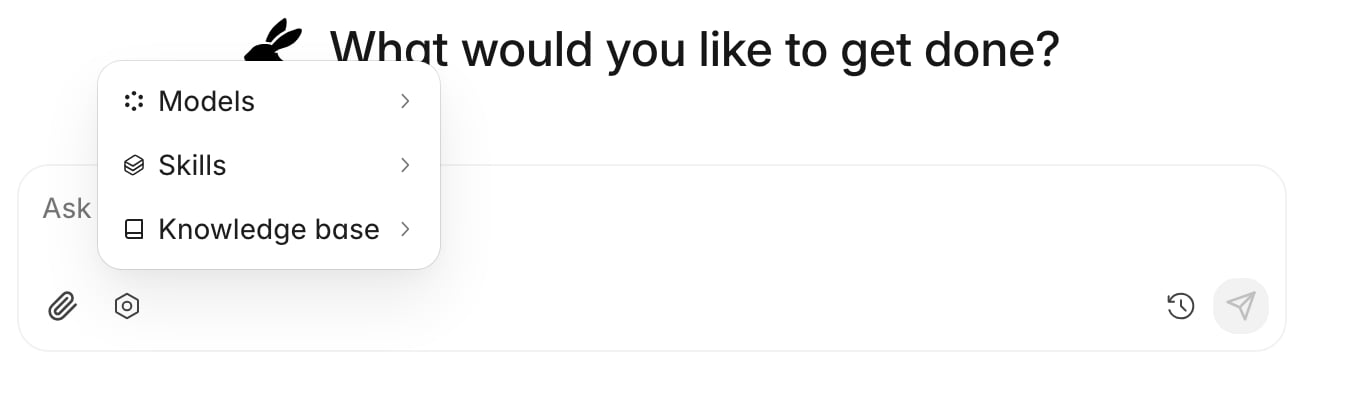
The settings icon beside the paperclip opens three more choices:
- Models — which model answers. Leave it on the default unless you have a reason to change it.
- Skills — a saved set of instructions for a recurring job. Attaching one tells Instruct how your team wants that job done.
- Knowledge base — a specific document to read, for when the answer should come from your own policy rather than from ticket data.
Work with what it builds
Above each answer sits a line like Ran 4 commands, retrieved 2 schemas, ran 7 queries. Expand it when a number looks wrong and you get the actual queries. When the answer deserves a layout rather than a paragraph, Instruct builds a canvas: a small interactive view rendered from your data, with headline figures, tables, and rows you can click into for the tickets behind them.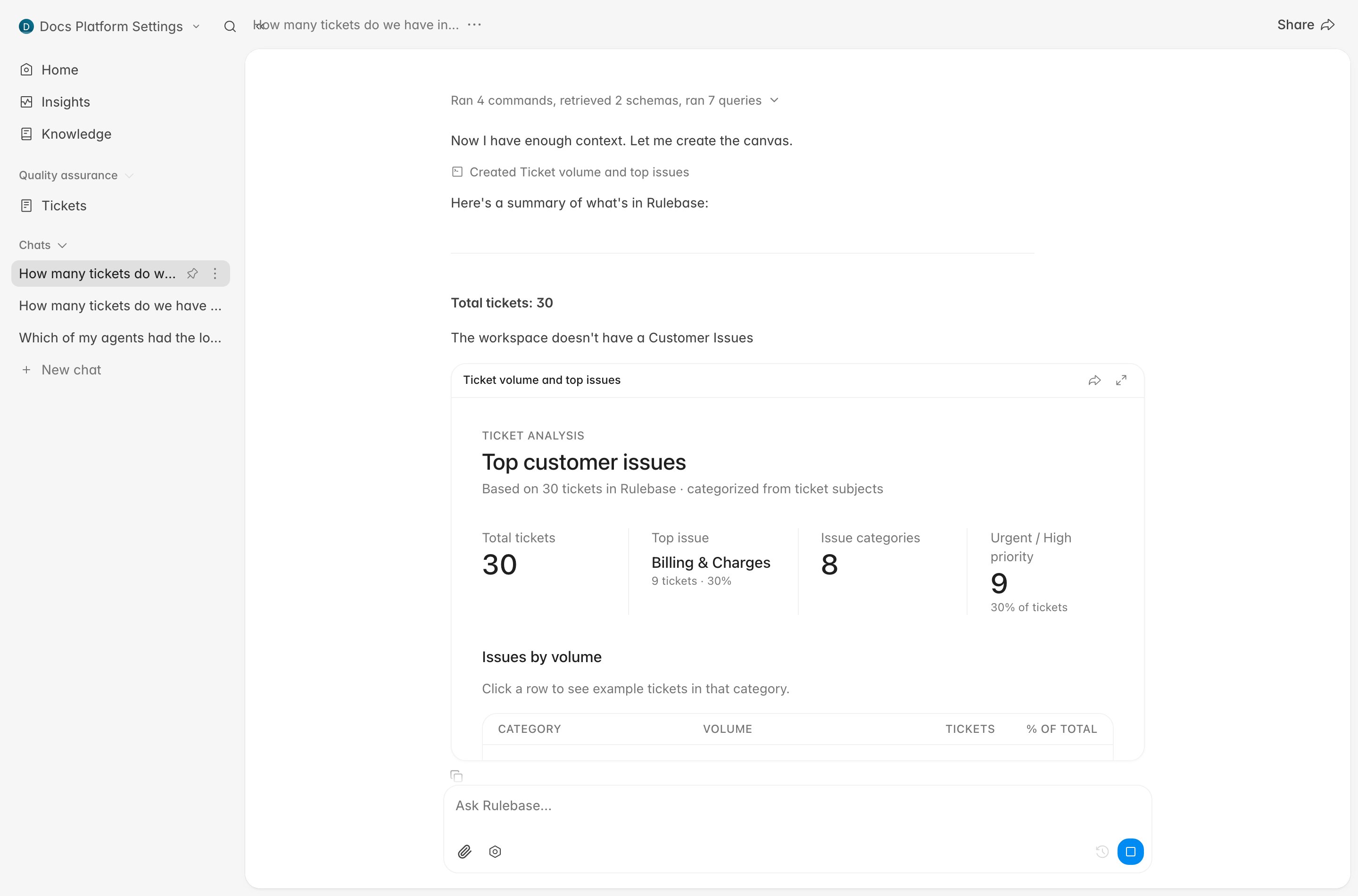
Share the result
Share in the chat header copies a link to the whole conversation, canvases included. The share icon on a canvas copies a link to just that canvas, on its own page. Which one you want depends on whether the reasoning matters or only the result does. Both links need the recipient signed in to your Rulebase organization; neither is a public URL. They do not need Instruct access of their own to read what you send, so a link is a reasonable way to get an answer in front of someone whose role does not include Instruct.Keep your chat list usable
Chats live under Chats in the sidebar: anything you have pinned, then your five most recent. A chat is named after your opening message, which stops being useful somewhere around the tenth one, so from the... menu on a chat you can
Rename it to something you will recognise next week or Archive it to take
it out of your history. The pin icon that appears on hover keeps the ones you
return to at the top.