Before you start
- At least one complaint category must exist. Detection matches tickets against your categories, so an empty taxonomy detects nothing; see Configure complaint taxonomy.
- Anyone who can open Quality assurance can change a complaint’s status and add updates. There is no separate complaints permission.
Open the complaints list from Quality assurance → Complaints, or at
app.rulebase.co/complaints.
Settings > Reviews holds the complaint types used for detection, while the Complaints
view in the ticket lists shows tickets rather than cases.
Where a case comes from
The complaint check runs on tickets (not on sales calls) as part of the evaluation Rulebase performs when a ticket is assessed. It compares the conversation against the complaint categories that apply to that ticket’s workspace, using each category’s name, description, and keywords. If nothing matches, no case is created, however unhappy the customer sounded. When something does match, Rulebase writes the case’s title and summary from the conversation, tags it with every category that matched, and sets the priority from the highest risk level among those categories. A case tagged bothFees and charges at high risk and Service delays at medium risk is
a high-priority case.
Repeat contact is handled for you. When a customer writes again, Rulebase checks that customer’s
unresolved cases first, and if the new ticket is about the same issue it attaches it to the existing
case rather than opening a second one.
Once a case is resolved it is closed for good: a later contact opens a fresh case instead of
reopening it.
Linking is automatic and there is no control for attaching or detaching a ticket by hand. A case’s
tickets are exactly the ones detection associated with it.
Find the case
The list opens on the last 7 days, grouped by priority, with a count beside each group.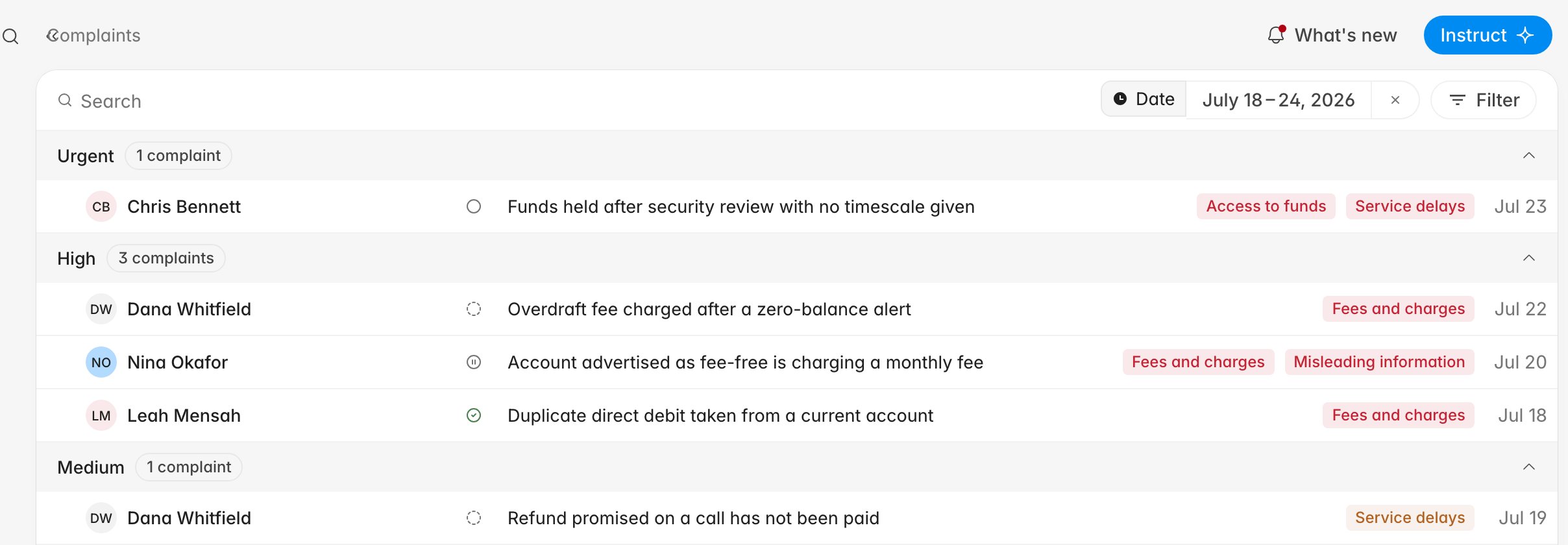
For a regulated complaints register, filter by a date range plus a status other
than Resolved to get your open population for the period.
Read the case
Opening a case shows the summary and the timeline on the left, and the case’s properties and tickets on the right.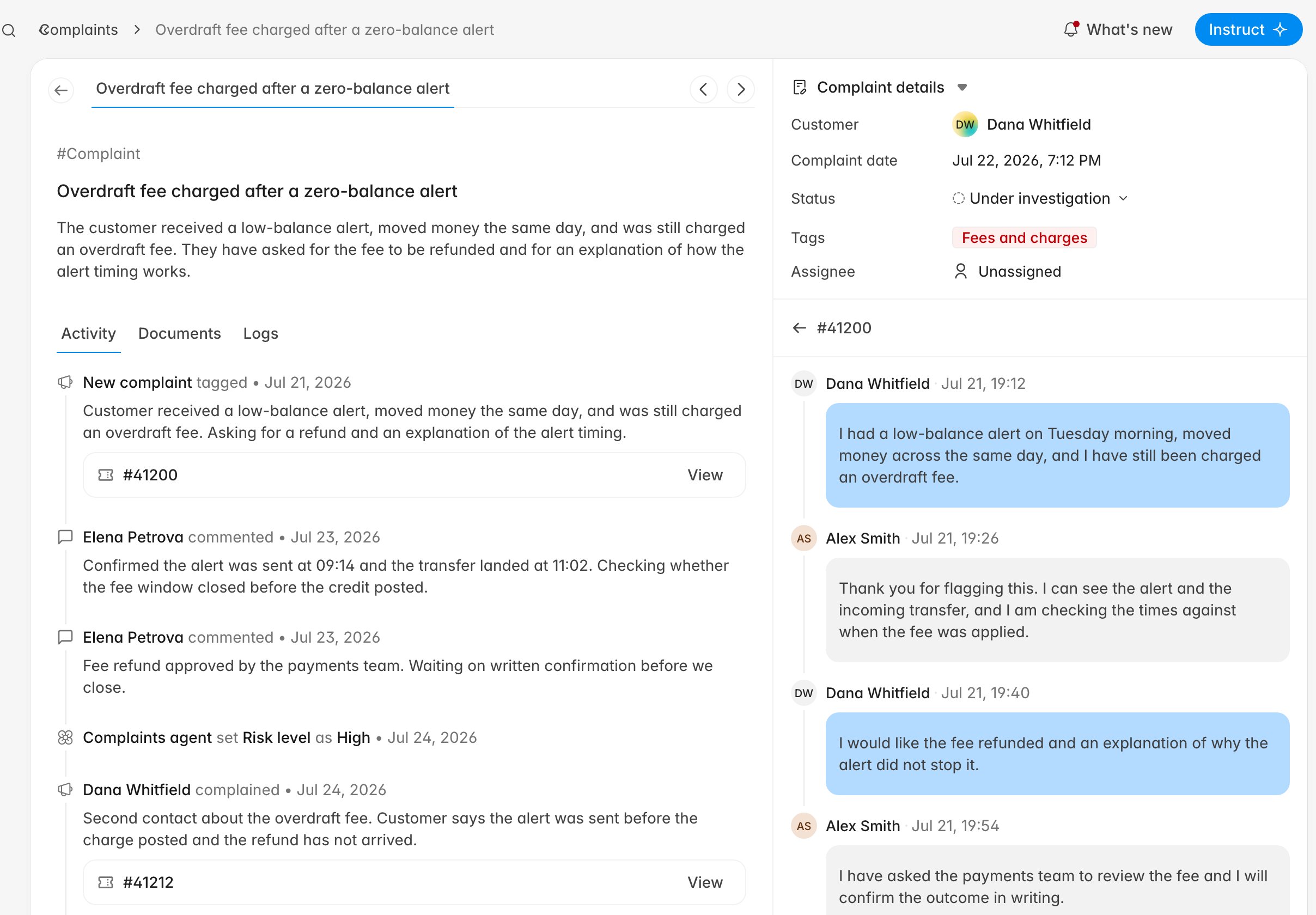
- New complaint tagged — detection created the case, with the originating ticket beneath it.
- Rulebase set Risk level as … — the priority detection assigned to the case.
- <Customer> complained — a later contact from the same customer that attached to this case.
- Comments — updates you and your colleagues added.
#Complaint. Identify a case by its customer and title, or by its URL.
The Documents tab holds files you attach.
Record your investigation
Everything you do outside Rulebase (the call to the payments team, the approval, the letter) belongs on the case; the timeline is what a reviewer reads months later.- In Activity, type into Add update and click Add. It is recorded as a comment against your name with today’s date.
- To attach evidence, open Documents and click Upload file. PDFs, images, text, CSV, Word, and Excel files are accepted, up to 25 MB each. Delete removes one.
- Move the status as the work progresses, from the Status row on the right.
- Open — detected and not yet picked up.
- Under investigation — someone is working it.
- On hold — waiting on the customer or another team.
- Provisional credit issued — money has been returned pending the outcome.
- Resolved — the case is closed.
Check the tickets behind it
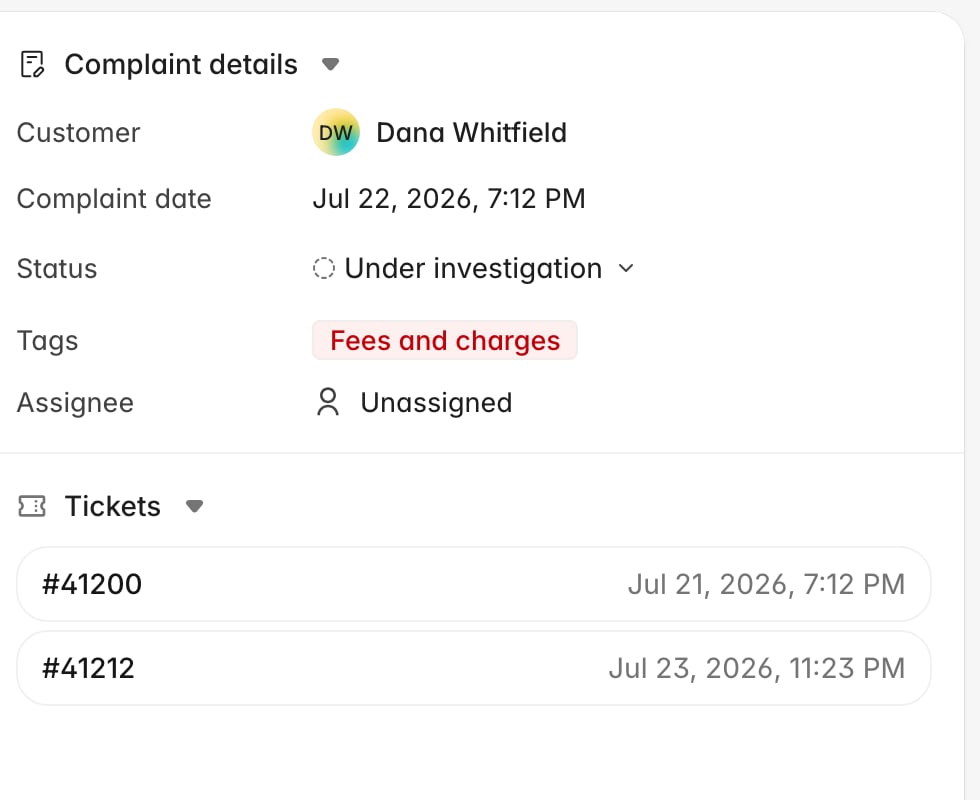
Complaint details shows the customer, the complaint date, the status, the category tags, and the assignee. Tickets lists every conversation linked to the case; click one to read its thread inline, and use the back arrow to return to the list.