

The layout
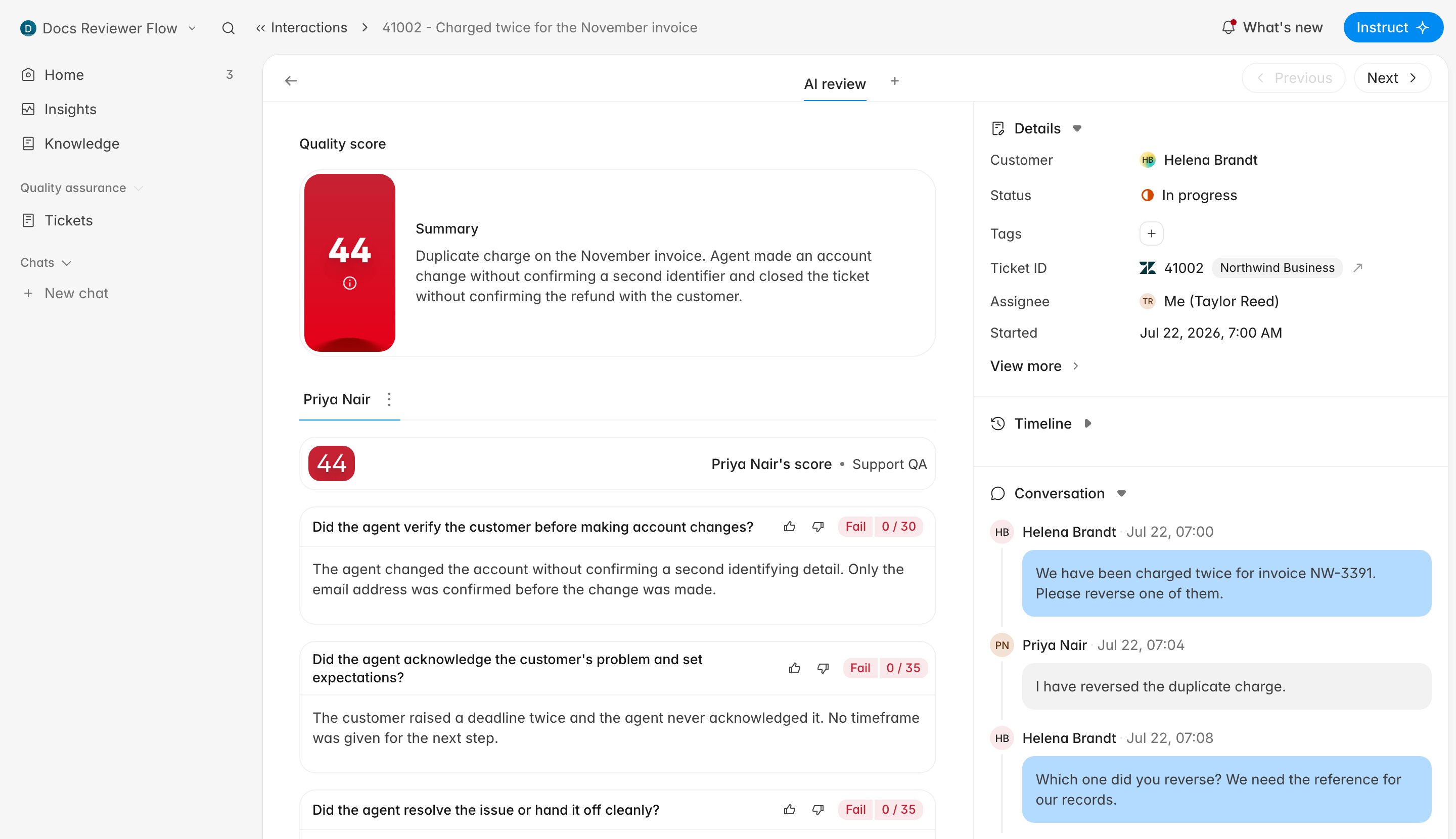
The top bar holds the back arrow, the review tabs, and Previous / Next. Those two buttons walk the list you arrived from, in the order it was in, so a filtered list works as a queue: filter down to what you want to review, open the first one, and work forwards. The left panel is the evaluation: a headline score, then one tab per agent on the ticket, then a card for each criterion on the scorecard. The right panel is the ticket: Details, Timeline, and Conversation, each of which collapses. On a narrow window it hides entirely rather than shrinking, and a Conversation details button appears in the top bar to bring it back.Reading the score
Under the heading Quality score, a coloured tile carries the number and a Summary beside it gives Rulebase’s account of what happened on the ticket in a few sentences. Red, amber, and green come from your organization’s risk thresholds rather than a fixed cutoff, so 44 can be red in one organization and amber in another. Click the small information icon on the tile to break the number down. The tooltip lists every evaluator and scorecard that contributed, which is the fastest way to tell whether the headline is one AI score, an average across two agents, or a manual score sitting on top of an AI one.A ticket handled by more than one agent gets one tab per agent under the score
tile, and each agent is scored separately. The tab you are looking at is one
agent’s evaluation, not the ticket’s. Hover a tab to reveal a ⋮ menu with
Add to coaching, which sends this ticket into that agent’s coaching queue.
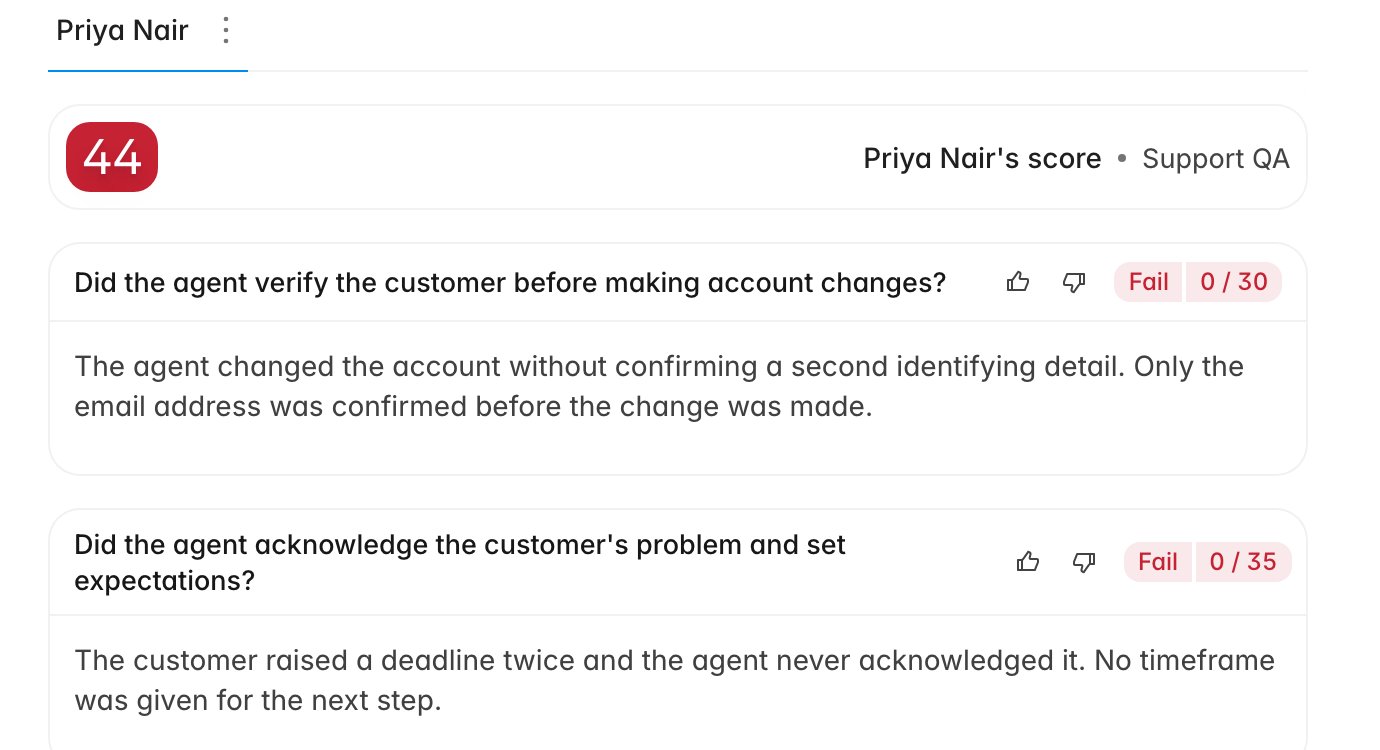
Priya Nair's score • Support QA and repeats the score
for that specific agent and scorecard. If the same agent was scored against more
than one scorecard, the scorecard name becomes a dropdown.
- Auto-Zero — a criterion marked as an auto-fail was failed, so the whole scorecard result is zero regardless of what else went well.
- A score badge with a tooltip — a score cap was applied, and the tooltip says why.
Reading the reasoning
Each criterion is a card: the question from the scorecard, the outcome as a pair of badges (Fail and 0 / 30), and beneath it the AI’s explanation of how it reached
that outcome against this specific conversation.
The ticket panel
Details carries the facts you need to judge context or to go and look at the original: the customer, ticket status, the assignee, when it started, and the ticket ID as a link out to the source help desk. View more expands the rest: when the ticket was evaluated, when Rulebase imported it, and any custom fields that came across from your help desk.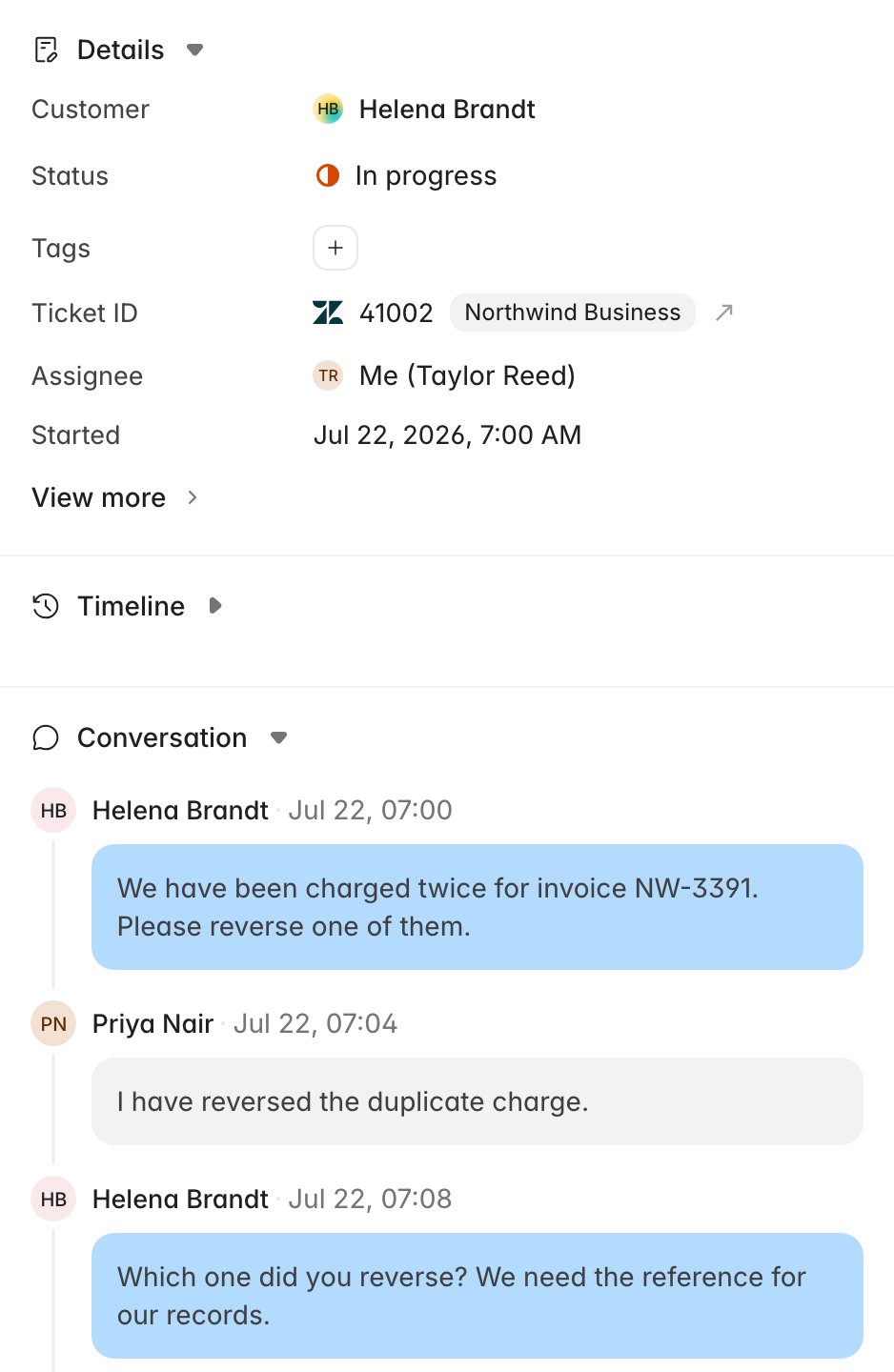
When there is no AI score
Not every ticket has one, and the workspace tells you which case you are in rather than showing a blank panel. Evaluation skipped comes with the specific reason, often that the ticket is not closed yet, or that a linked ticket in the thread is still open. Evaluation failed means it ran and errored. Evaluation scheduled means it is queued. No QA evaluations means nothing was ever attempted. Each of those states offers a button to move it along: Try again after a failure or a skip, Run now on a scheduled evaluation, and Request evaluation where nothing has run. Why wasn’t my ticket evaluated? covers the reasons in depth. None of it stops you scoring the ticket yourself. The + beside the review tabs adds a Manual evaluation tab and starts one, whether or not the AI got there first. See Perform a manual evaluation.Related
- Find tickets and evaluations
- Perform a manual evaluation
- Give feedback on AI QA
- How AI QA works, for what produced the score before you opened it
- Why is my score different?, when the number here disagrees with a report