An evaluation is one score, on one of your tickets, against one scorecard.
Everything that produced the number is on the page, criterion by criterion, with
the reasoning written out and the transcript sitting beside it.
Find the ticket
- Open the Evaluations tab in the agent portal.
- The list opens on the last 30 days. Adjust the date range in the top right if
the ticket you want is older.
- Scan the groups, or search by ticket subject using the magnifying glass.
- Click a row to open it.
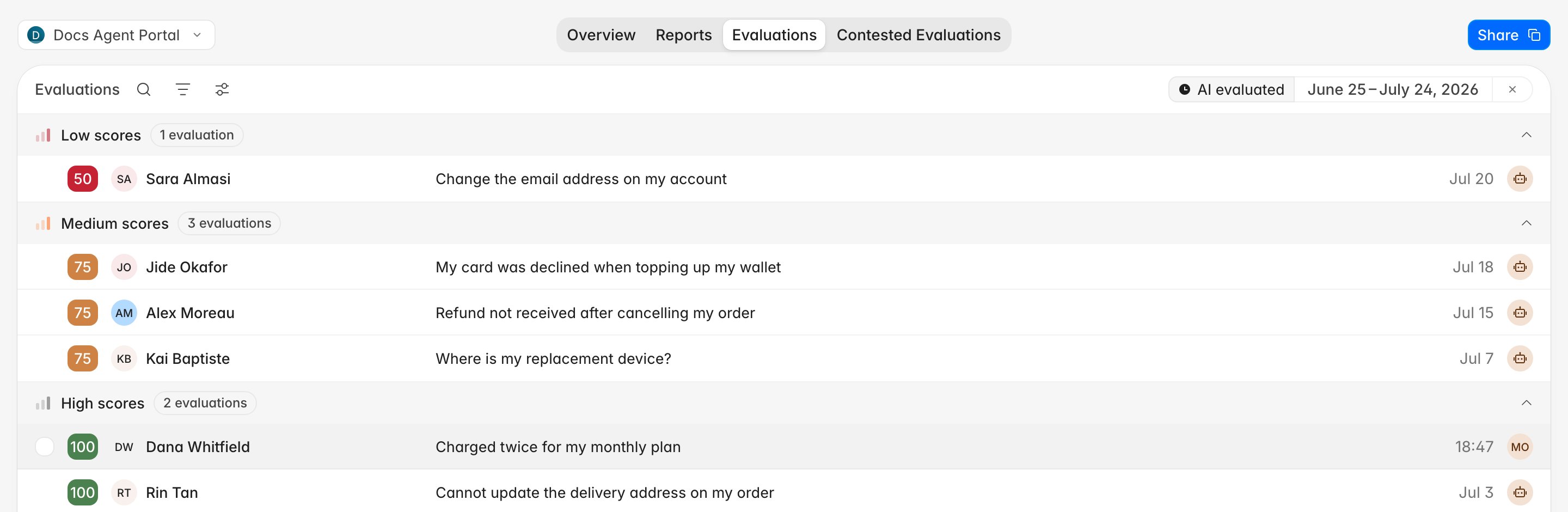
Each row carries the score, the customer, the ticket subject, and a small avatar
for who evaluated it. Hover the avatar and you see Evaluated by AI, or the
reviewer’s name when a person scored it by hand. The Low scores, Medium
scores, and High scores groups use thresholds your organization chooses, so
the cut-offs may differ from another company’s.
Use the sliders icon to change grouping. Type groups by AI versus manual,
and No grouping gives you a flat list, newest first.
What the evaluation view shows
Opening a row shows the score on the left, the ticket
details and full transcript on the right, and the criterion breakdown down the
middle.
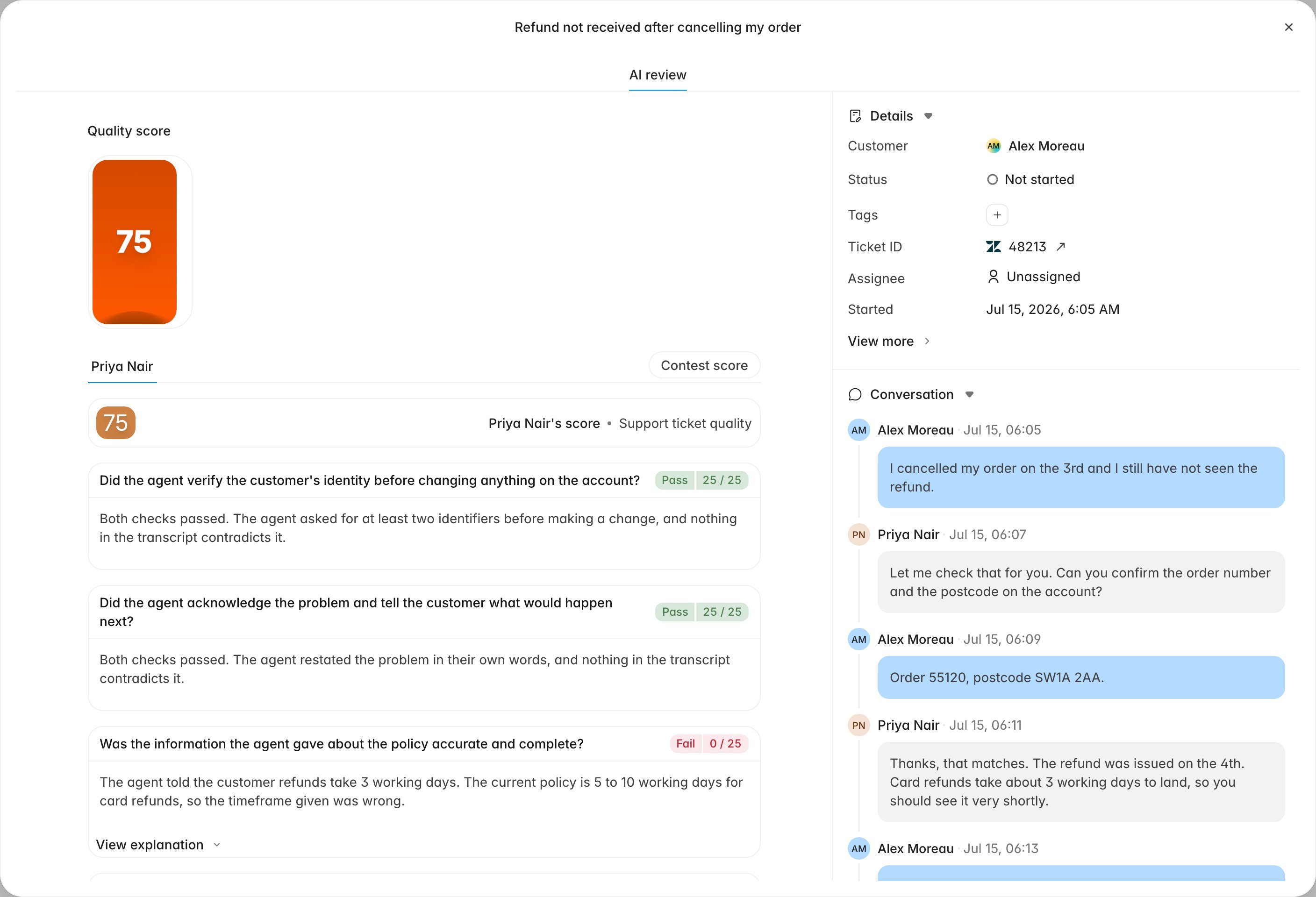
The tab under the score has your name on it. When a reviewer also scored the same
ticket by hand, a Manual evaluation tab appears next to AI review and you
can compare the two. A ticket handled by more than one person carries a separate
evaluation for each of you, so the score at the top can differ from
what a colleague sees on the same ticket.
Read one criterion
Each criterion in the breakdown is a question about the interaction, with a result
and a short explanation:
- The question: the criterion as it is written on your team’s scorecard.
- The result badge: usually Pass, Partial, or Fail, in whatever
wording your scorecard uses, followed by the points as
25 / 25 or 0 / 25.
- The reasoning: a plain-language explanation of why that result was chosen,
usually quoting or paraphrasing what happened in the ticket.
- View checks or Reason for rating: expands the individual checks behind
the criterion, where your scorecard uses them.
- View explanation: expands the fuller justification, and the help-centre
answer with links when the criterion was judged against your knowledge base.
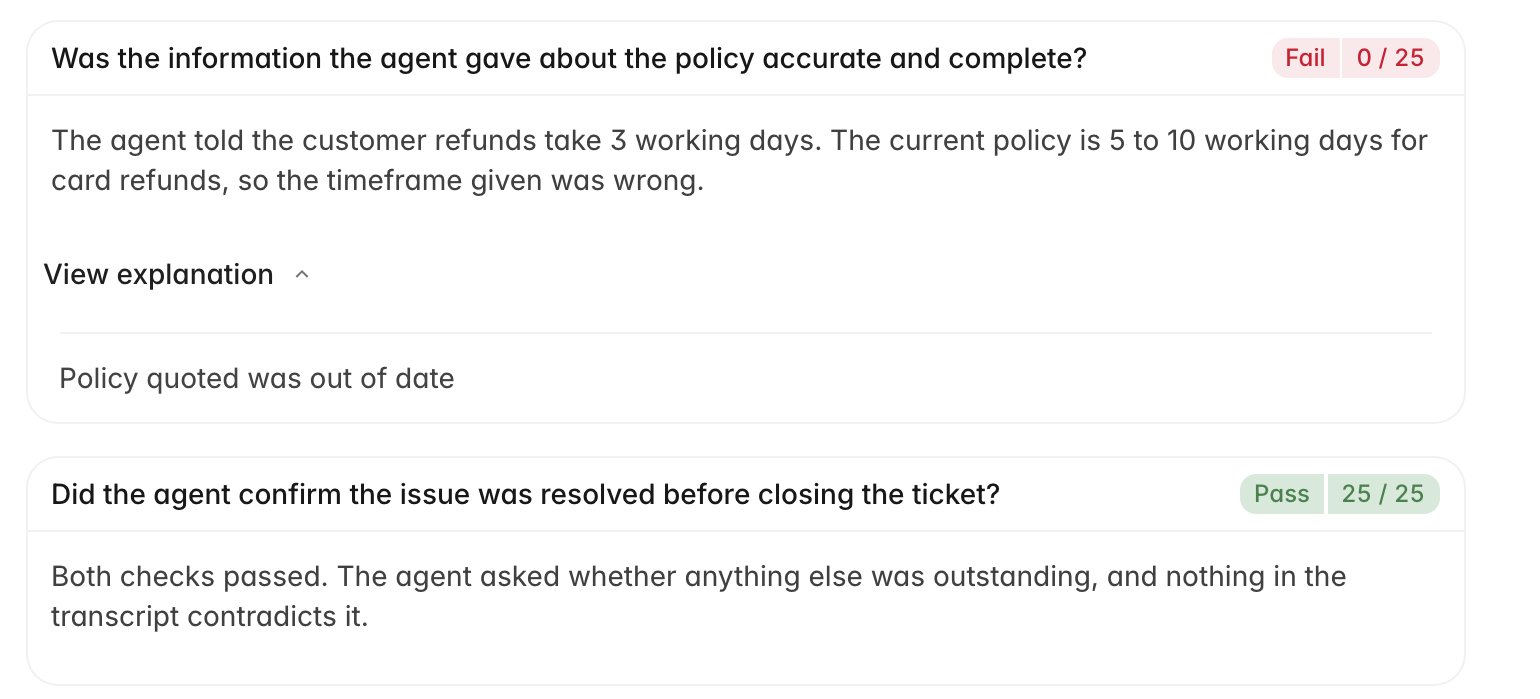
The reasoning
is specific, so it usually points at one line in the transcript, and you can
scroll the conversation on the right to that exact moment. If the reasoning quotes
something you did not say, or applies a policy that has since changed, that is
worth contesting.
How the score is put together
The score at the top comes from the points each criterion earned against the
points it had available. Criteria are not always worth the same, so one fail on a
heavily weighted question moves the number more than two fails on light ones, and
adding up the badges in your head can leave you short of an explanation.
Three scoring rules affect the total:
- Auto-Zero. Some scorecards mark a criterion as critical. Failing it zeroes
the whole scorecard, and the score shows an Auto-Zero label. The rest of the
breakdown still shows what you passed.
- A capped score. Your scorecard can cap the total when a particular criterion
fails. When that happened, hovering the score shows the reason for the cap.
- Dependency rules. One check can hang on another criterion’s result. Where it
does, the explanation opens with Dependency rule and spells out the
connection.
Read Adherence by criteria on your Overview alongside individual evaluations.
One fail is a single ticket; the same criterion failing across several weeks is
a pattern a coach will raise.
AI scores and manual evaluations
Most tickets are scored by AI. When a reviewer scores the same ticket by hand
and publishes that manual evaluation, the manual result replaces the AI score.
Your averages, reports, and performance trends use the manual evaluation from
that point on. The AI score stays visible under the AI review tab on the
ticket so you can still see what the model thought.
When a trainer submits a manual evaluation for validation, that evaluation
changes your score immediately. If the validator corrects and publishes it, the
validator’s evaluation becomes the result that counts.
When a score changes
Scores are not always final. If you dispute a result and a reviewer agrees, the
reviewer’s corrected evaluation becomes the one that counts, and your Evaluations
list shows that one. On the ticket you will see a green banner reading Your
dispute has been reviewed with a link to the updated evaluation.
While a dispute is still open, the ticket shows an orange This evaluation is
currently being reviewed banner. The score stays as-is until the reviewer
finishes. Contest an evaluation
covers the whole path.